


Copy and paste just died on your Windows 11 PC at the worst possible moment — sound familiar?
You don’t need to wait for a long scan or dig into advanced settings.
This post gives quick fixes you can try in under two minutes.
We’ll show simple, reversible steps that usually restore Ctrl+C/Ctrl+V fast: restart Explorer, clear the clipboard, check shortcuts, and fix Remote Desktop or keyboard hiccups.
Follow these steps now and you’ll be back to copying and pasting before you know it.
Immediate Fixes to Restore Copy and Paste in Windows 11

These are your fastest options when copy and paste suddenly stops working. You don’t need to dig into settings or wait for scans to finish.
Each step takes under two minutes. They target the most common triggers. If Windows Explorer or the clipboard cache is stuck, these actions usually reset it.
You’ll handle root causes later. Right now, just get copy and paste working again so you can continue what you were doing.
-
Test in another app. Open Notepad or a browser search bar and try copying and pasting a few words. If it works there but not in your original app, the problem is app specific, not system wide.
-
Try the alternate method. If Ctrl+C and Ctrl+V fail, right click and choose Copy, then right click and choose Paste. If the right click menu doesn’t appear or doesn’t work, use the keyboard shortcuts. This tells you whether it’s a shortcut issue or a clipboard issue.
-
Restart Windows Explorer. Press Ctrl+Shift+Esc to open Task Manager. Scroll down to Windows Explorer, right click it, and select Restart. Your taskbar and desktop will flicker for a second. Test copy and paste again.
-
Clear clipboard history. Press Win+V to open the Clipboard panel. Click Clear all at the top. If that button is grayed out, your history is already empty. Skip this step.
-
Use the command line clear. Press Win+S, type cmd, right click Command Prompt, and choose Run as administrator. Type
cmd /c "echo off | clip"and press Enter. Close the window and try copying again. -
Check your keyboard shortcuts. Press the Windows key and type a few letters in the search box. If typing works, press Ctrl+A to select all the text. If Ctrl+A selects the text, your Ctrl key is fine. If nothing happens, your keyboard or a key mapping app might be blocking Ctrl shortcuts.
Diagnosing Windows 11 Clipboard Issues and Common Root Causes

Copy and paste can fail because of software hangs, broken system files, or configuration conflicts. Windows Explorer manages the desktop shell and also handles global clipboard operations, so when Explorer freezes or restarts unexpectedly, clipboard shortcuts stop responding.
System corruption, especially after a Windows Update or incomplete install, can damage the files that support copy and paste. Third party apps that hook into the clipboard (like clipboard managers, remote access tools, or some antivirus programs) can block or intercept data.
System wide failure means copy and paste don’t work anywhere, including Notepad, browser address bars, and File Explorer. App specific failure means it works in some programs but not others. Usually because that app uses a custom clipboard implementation or has crashed silently in the background.
Common triggers:
- Windows Update regressions that overwrite clipboard drivers or settings.
- Corrupted system files in shell components (Explorer, clipboard service).
- rdpclip.exe hung or missing during a Remote Desktop session (clipboard redirection stops).
- Conflicting clipboard manager apps that duplicate or override the built in clipboard.
- Group Policy or registry keys disabling clipboard history or redirection.
- User profile corruption that breaks per user settings for the clipboard cache.
- Key remapping utilities that accidentally block Ctrl+C and Ctrl+V.
Restarting Windows Services to Fix Windows 11 Copy Paste Problems

Windows Explorer is the shell process that draws your taskbar, desktop icons, and File Explorer windows. It also coordinates clipboard operations for many apps. When Explorer hangs, global shortcuts like Ctrl+C and Ctrl+V stop working even though individual apps might still allow right click copy and paste.
Restarting Explorer clears that hang without rebooting. The clipboard service itself (part of the ClipSVC background task) rarely needs a manual restart, but if you’ve tried everything else and suspect a deeper service issue, you can restart ClipSVC using an elevated PowerShell command. That’s advanced and not usually necessary.
Restart Windows Explorer
Press Ctrl+Shift+Esc to open Task Manager. If Task Manager opens in compact mode (just a list of apps), click More details at the bottom. Scroll down the Processes tab until you see Windows Explorer. Right click Windows Explorer and select Restart.
Your screen will go black for a second, then your taskbar and desktop icons will reappear. Close Task Manager and test copy and paste.
Clearing Clipboard History and Cache in Windows 11

Windows 11 stores a rolling history of copied items so you can paste older clips using Win+V. If that history fills with corrupt data or gets too large, the clipboard can freeze or refuse new entries.
Clearing the history deletes all stored clips but usually restores normal copy and paste. Windows rebuilds the cache as soon as you copy something new.
Methods to clear clipboard data:
Win+V panel: Press Win+V, then click Clear all at the top. This removes all stored clips instantly.
Settings app: Open Settings, System, Clipboard. Under Clear clipboard data, click Clear. This does the same thing as Win+V, Clear all.
Command Prompt: Open an elevated Command Prompt and run cmd /c "echo off | clip". This command sends an empty string to the clipboard, effectively clearing it.
Reboot behavior: By default, clipboard history persists across reboots. If you disable Clipboard history in Settings, System, Clipboard, Windows will clear the cache on every restart. This can prevent corrupt history issues but loses the multi clip feature.
Fixing Remote Desktop and Virtual Machine Copy Paste Issues on Windows 11

When you connect to a Windows 11 machine via Remote Desktop (RDP), clipboard redirection lets you copy on your local PC and paste on the remote desktop, or vice versa. This feature depends on rdpclip.exe, a small process that runs in the remote session. If rdpclip.exe crashes or doesn’t start, copy and paste between local and remote stop working even though copy and paste within the remote session still function.
Virtual machines (VMware, Hyper-V, VirtualBox) use similar integration tools. Guest additions or integration services, to share clipboard data between the host and guest. If those tools aren’t installed, outdated, or disabled, clipboard sharing fails.
Steps to restore RDP clipboard:
-
Check if rdpclip.exe is running. On the remote desktop, press Ctrl+Shift+Esc to open Task Manager. Click More details if needed, then go to the Details tab. Look for rdpclip.exe in the list. If it’s there, right click it and select End task, then continue to step 2. If it’s missing, skip to step 2.
-
Restart rdpclip.exe. Press Win+R, type
rdpclip.exe, and press Enter. A new rdpclip process starts in the background (you won’t see a window). Close the Run dialog. -
Alternative command method. Press Win+S, type cmd, right click Command Prompt, choose Run as administrator, then type
taskkill /IM rdpclip.exe /Fand press Enter. Next, typestart rdpclip.exeand press Enter. Close the Command Prompt. -
Verify clipboard redirection is enabled. On your local PC, open Remote Desktop Connection (mstsc.exe), click Show Options, go to the Local Resources tab, and ensure Clipboard is checked under Local devices and resources. Reconnect to the remote session.
-
VM guest tools. If you’re using a virtual machine, install or update VMware Tools, Hyper-V Integration Services, or VirtualBox Guest Additions, then reboot the guest. Enable clipboard sharing in the VM settings (usually under Devices or Options).
Checking and Fixing Keyboard Shortcut Issues Affecting Copy Paste in Windows 11

Sometimes Ctrl+C and Ctrl+V fail even though the clipboard itself works fine. You can still copy and paste using right click menus or the Edit menu in apps. This points to a keyboard or shortcut problem, not a clipboard problem.
Sticky Keys, key remapping software, or a failing Ctrl key can block shortcuts. A quick way to tell: if other Ctrl shortcuts (Ctrl+A, Ctrl+Z, Ctrl+F) also fail, your Ctrl key or a remapping tool is the issue. If only Ctrl+C and Ctrl+V are broken, something is specifically interfering with those two combinations.
Diagnostic actions:
Test your keys online. Search for “keyboard tester” in your browser and press each key to confirm it registers. Press Ctrl, C, and V individually. All three should light up. If any key doesn’t respond, your keyboard might be damaged or a key mapping app is blocking it.
Disable Sticky Keys. Press the Shift key five times rapidly. If a Sticky Keys prompt appears, click No or press Esc. Sticky Keys can interfere with modifier combinations. To turn it off permanently, go to Settings, Accessibility, Keyboard and toggle off Sticky keys.
Check for remapping utilities. Apps like AutoHotkey, SharpKeys, or gaming macro software can remap Ctrl+C and Ctrl+V to other functions. Open or exit those apps and test copy and paste again.
Reinstall your keyboard driver. Press Win+X and select Device Manager. Expand Keyboards, right click your keyboard, and choose Uninstall device. Restart your PC. Windows will reinstall the driver automatically.
Try a different keyboard. Plug in a spare USB keyboard or use the on screen keyboard (Win+Ctrl+O) to test Ctrl+C and Ctrl+V. If copy and paste work with a different keyboard, your original keyboard is faulty.
System File Repairs to Fix Windows 11 Copy Paste Malfunctions
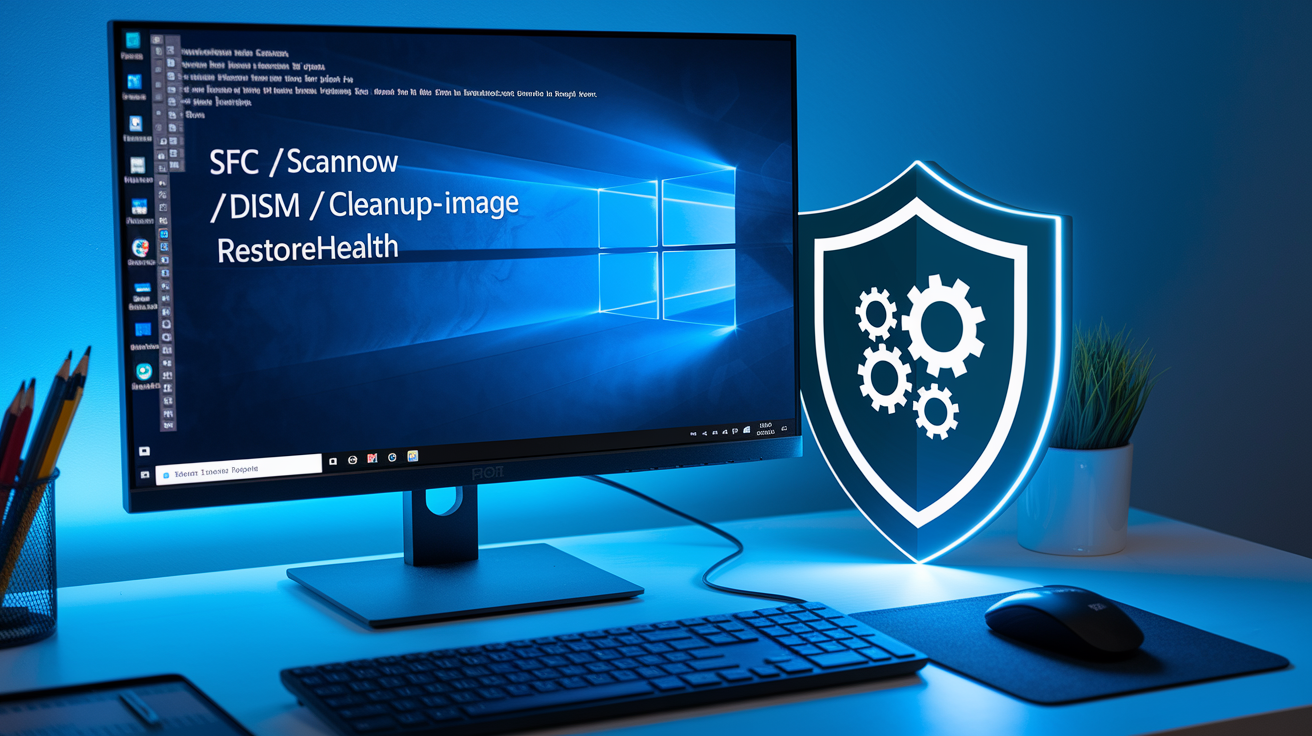
Corrupted system files can break clipboard support, especially files that manage shell integration (Explorer) or clipboard APIs. The System File Checker (SFC) scans all protected Windows files and replaces damaged ones from a cached copy. DISM (Deployment Image Servicing and Management) repairs the Windows image itself, which SFC uses as a reference.
Run SFC first because it’s faster. If SFC finds corruption it can’t fix, run DISM to repair the image, then run SFC again. Both commands require an elevated Command Prompt and can take 10 to 40 minutes depending on your drive speed.
Press Win+S, type cmd, right click Command Prompt, and choose Run as administrator. In the black window, type sfc /scannow and press Enter. You’ll see a progress percentage. When it finishes, it will report whether it found and fixed any issues. Restart your PC and test copy and paste.
If SFC says it found corrupt files but couldn’t repair them, type DISM /Online /Cleanup-Image /RestoreHealth and press Enter. This command downloads fresh files from Windows Update to rebuild the image. After DISM completes, run sfc /scannow again, then restart.
User profile corruption can also disable clipboard features if your profile’s registry hive is damaged. Symptoms include missing clipboard history, settings that don’t save, or copy and paste working fine in a new user account. To test, create a new local account (Settings, Accounts, Family & other users, Add account), log in to that account, and try copy and paste. If it works there, your original profile has corruption. Migrate your files and use the new account, or attempt profile repair (advanced).
When to Use System Restore
System Restore rolls Windows back to an earlier snapshot, including system files, drivers, and registry settings. Use it when you know copy and paste worked recently and you have a restore point from that time. You’ll lose app installs and updates made after the restore point, but personal files stay intact.
To restore, press Win+S, type create a restore point, and select the result. In the System Properties window, click System Restore, choose a restore point from before the problem started, and follow the prompts. Your PC will restart and apply the restore, which takes 30 to 60 minutes. After the restart, test copy and paste.
Managing Third Party Apps and Group Policies That Block Copy Paste in Windows 11

Clipboard manager apps, security software, and remote support tools can intercept clipboard operations. Some antivirus programs scan copied data for malicious links, and if the scanner crashes or hangs, copy and paste stop working. Clipboard managers (apps that store a long history of clips) can conflict with Windows 11’s built in clipboard history (Win+V).
On managed PCs (work or school), Group Policy settings can disable clipboard features. The registry keys that enforce these policies can also get corrupted or misconfigured, even on home PCs. Before editing the registry, always export a backup: open regedit, right click the key you’re about to change, and choose Export. Save the .reg file so you can double click it to restore the original setting if something breaks.
Steps to identify conflicts:
Exit clipboard managers and remote tools. Close apps like Ditto, ClipClip, CopyQ, TeamViewer, AnyDesk, or similar. Restart your PC and test copy and paste. If it works, one of those apps was blocking the clipboard. Re-enable them one by one to find the culprit.
Perform a Clean Boot. Press Win+R, type msconfig, and press Enter. In the System Configuration window, go to the Services tab, check Hide all Microsoft services, then click Disable all. Go to the Startup tab and click Open Task Manager. In Task Manager’s Startup tab, disable all items. Close Task Manager, click OK in System Configuration, and restart. If copy and paste works now, a third party service or startup app was interfering. Re-enable services one by one and restart after each until you find the problem.
Check Group Policy for clipboard restrictions. Press Win+R, type gpedit.msc, and press Enter (this won’t work on Windows 11 Home, skip to the registry method). Navigate to Computer Configuration, Administrative Templates, System, Device Installation. Look for policies mentioning clipboard or removable storage. If any are set to Enabled and restrict clipboard, set them to Not Configured.
Inspect registry policy keys. Press Win+R, type regedit, and press Enter. Navigate to HKEY_LOCAL_MACHINE\SOFTWARE\Policies\Microsoft\Windows\System. Look for a DWORD named AllowClipboardHistory. If it’s set to 0, right click it, choose Modify, change the value to 1, and click OK. Also check HKEY_CURRENT_USER\Software\Microsoft\Clipboard for any suspicious or unfamiliar values. Export a backup before making changes, then restart your PC.
Final Words
Start by trying the immediate triage steps: test copy/paste in another app, try alternate methods, restart Windows Explorer, and clear the clipboard. These often fix it in seconds.
If that doesn’t help, run the diagnosing steps, restart clipboard services and rdpclip, and check keyboard shortcuts or remapping tools.
For stubborn cases, run SFC/DISM, try System Restore, and hunt for conflicting apps or Group Policy rules.
Work through these steps and you’ll get past windows 11 copy paste not working and back to work quickly.
FAQ
Q: Why is copy and paste not working in Windows 11?
A: Copy and paste in Windows 11 stops working when Explorer or clipboard services hang, clipboard managers or remote desktop tools interfere, system files get corrupted, or keyboard and shortcut settings block the action.
Q: Why is Ctrl+C and Ctrl+V not working?
A: Ctrl+C and Ctrl+V not working usually means the keys are blocked, remapped, or affected by Sticky Keys or a bad keyboard driver; test keys with an online tester, disable Sticky Keys, or reinstall the driver.
Q: How to fix clipboard Windows 11?
A: To fix the clipboard in Windows 11, test copy/paste in another app, use alternate methods (right‑click or menu), restart Windows Explorer via Task Manager (10–30s), clear with Win+V→Clear All or run cmd /c “echo off | clip”, then check shortcuts.