


Think deleting emails one by one is the only way to clean your Gmail?
It’s not.
Gmail search operators are simple text commands you type into the search bar to find exactly what to delete: big attachments, old unread mail, newsletters, or everything from a sender, so cleanup takes minutes, not hours.
Read on and you’ll get the core operators, exact queries to copy, and quick safety checks so you can find and delete unwanted mail fast without losing what matters.
Core Gmail Operators That Instantly Clean Up Your Inbox

Search operators let you target exactly which emails to keep and which to delete instead of scrolling through thousands of messages one at a time. Your inbox is probably full of messages you’ll never need again. Operators turn cleanup from a weekend project into a five-minute task by filtering on sender, size, date, attachment type, or folder in a single query.
Gmail uses specific formatting rules for dates and sizes. Dates follow the yyyy-mm-dd format, so January 1, 2020 is written as 2020-01-01. Sizes can be written in bytes or with suffixes: 15M equals 15,000,000 bytes (about 15 megabytes). The olderthan: and newerthan: operators accept d for days (30d), m for months (6m), or y for years (1y). These formats let you run searches like “show me everything older than two years” or “find files bigger than 10 megabytes” without clicking through menus.
You type operators directly into Gmail’s search bar at the top of your inbox and press Enter. Combine multiple operators by putting a space between them, and Gmail treats the space as “AND.” The more operators you stack, the narrower your results and the faster your cleanup.
Ready to copy operators for common cleanup tasks:
- has:attachment finds all emails with any type of attachment
- larger:10M finds messages larger than 10 megabytes
- older_than:1y finds emails older than one year
- category:promotions finds promotional and marketing emails
- filename:pdf finds emails with PDF attachments
- is:unread finds all unread messages
- in:anywhere searches everywhere, including Spam and Trash
- before:2020-01-01 finds emails sent before January 1, 2020
- from:newsletter@example.com finds all emails from a specific sender
- -(subject:newsletter) excludes emails with “newsletter” in the subject line
Gmail Search Syntax Rules for Cleanup Precision

Gmail search syntax follows strict rules. Small mistakes can return the wrong results. Never put a space after the colon in an operator. Write from:alice@example.com, not from: alice@example.com. Gmail treats multiple operators separated by spaces as AND conditions automatically, so from:alice subject:invoice means “from Alice AND subject contains invoice.” To search for an exact phrase, wrap it in quotes. “project update” returns only emails containing that exact two-word phrase, while project update (no quotes) returns emails containing both words anywhere in the message, even separated.
Use OR in all capitals to combine conditions where either option works, and use parentheses to group OR statements when mixing them with other operators. For example, (from:alice@example.com OR from:bob@example.com) subject:report finds reports from either Alice or Bob. Use the minus sign to exclude terms or operators. The query meeting -agenda finds emails containing “meeting” but not “agenda.” You can exclude operators too: subject:invoice -from:billing@company.com finds invoices not sent by the billing department.
Core syntax rules that affect cleanup accuracy:
- No spaces after the colon in any operator
- Use quotes for exact phrase matches
- OR must be capitalized or Gmail reads it as the word “or”
- Use minus (-) before any term or operator you want to exclude
- Parentheses group OR conditions when combined with AND logic
Gmail Operators for Large Email and Attachment Cleanup
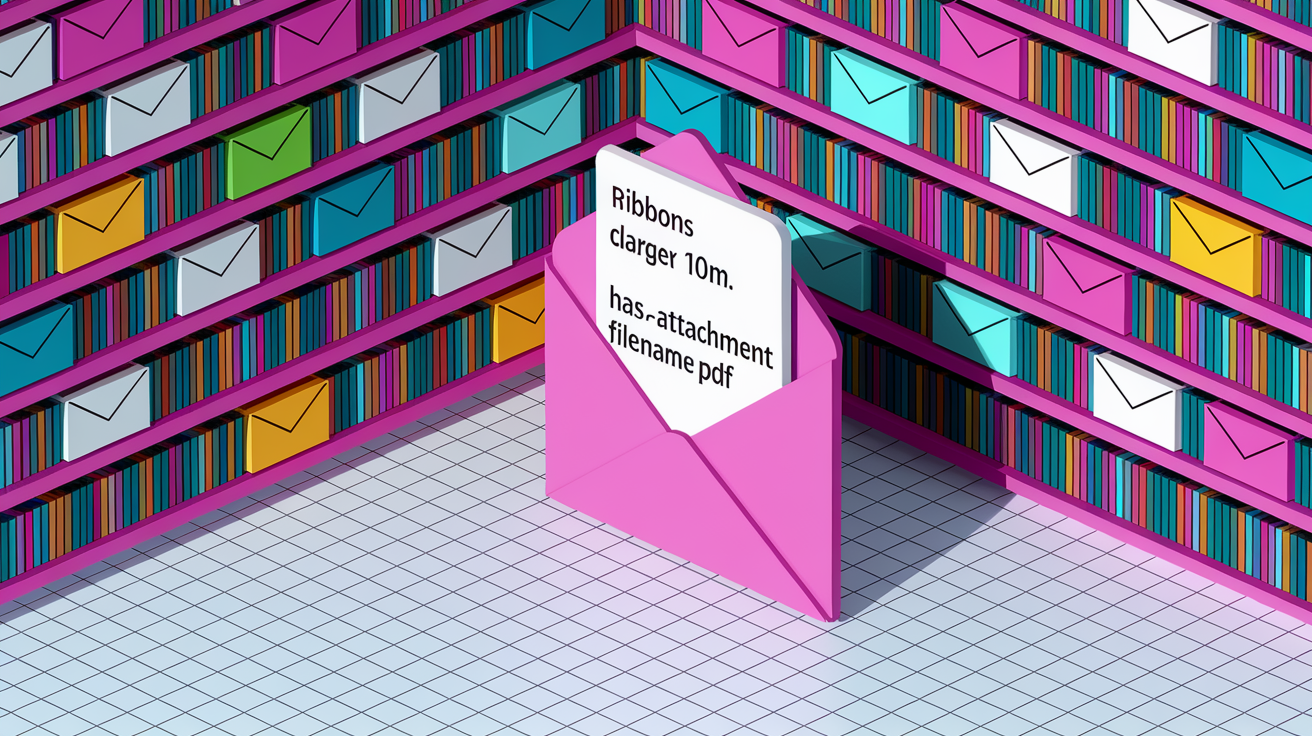
Gmail measures email size in bytes, but you can use shorthand: K for kilobytes, M for megabytes. Writing larger:15M is faster than size:15000000, and both return the same results. The larger: operator finds messages above a threshold, while smaller: finds messages below it. Use has:attachment to find any message with a file attached, then stack it with larger: to zero in on storage hogs. For example, larger:25M has:attachment finds extremely large messages with attachments, the kind that eat into your 15 GB free storage limit.
Combine attachment size with file type using filename: to target specific formats. The query filename:pdf larger:5M finds PDFs over 5 megabytes. You can search by extension (filename:zip) or by exact filename (filename:invoice.pdf). Stacking these operators lets you delete large files you’ve already downloaded, like old meeting recordings or archived project files, without touching smaller everyday emails.
| Query | Purpose |
|---|---|
| larger:10M | Find emails larger than 10 megabytes to free storage |
| has:attachment larger:5M | Find attachments over 5 MB |
| filename:pdf larger:2M | Find large PDF files you may have already saved locally |
| filename:zip OR filename:rar | Find archive files that may be safe to delete |
Gmail Operators for Finding Old, Unread, and Time‑Based Emails

Use before: and after: with the yyyy-mm-dd date format to set absolute cutoff dates. The query before:2020-01-01 returns everything sent before January 1, 2020. Combine before: and after: to create a date range: after:2019-06-01 before:2020-01-01 finds emails from the second half of 2019.
Relative date operators let you skip calendar math. Type olderthan:1y to find emails older than one year, olderthan:6m for six months, or olderthan:30d for 30 days. Use newerthan: the same way to find recent mail. These operators move with the calendar, so the same query returns different results each day as your inbox ages.
Stack is:unread or is:read with date filters to surface messages you never opened or to clean up old read mail. The query is:unread older_than:6m finds unread emails sitting untouched for over six months, a sign you’ll probably never need them.
Six ready to copy date and unread cleanup commands:
- older_than:1y everything older than one year
- before:2020-01-01 everything before January 1, 2020
- is:unread older_than:6m unread mail older than six months
- after:2023-01-01 is:read read emails from 2023 onward
- newer_than:30d emails from the last 30 days
- older_than:2y from:notifications@service.com old notifications from a specific sender
Gmail Search Operators for Promotions, Newsletters, and Mailing Lists

Gmail automatically sorts promotional emails, receipts, and updates into categories. Use category:promotions to find marketing emails, category:updates for order confirmations and bills, or category:social for social network notifications. To delete old promotions, combine the category with a date filter: category:promotions older_than:1y finds every promotional email older than one year in a single search.
Mailing lists often include a List-ID header Gmail can detect. Use list:newsletter@example.com to find all messages from that list, even if the sender address changes. If a newsletter doesn’t use List-ID, search by common phrases instead: subject:”unsubscribe” OR subject:”newsletter” catches most subscription mail. Use the minus operator to exclude newsletters you want to keep while cleaning others: category:promotions -from:favoritestore@example.com.
Five queries for newsletter and promo cleanup:
- category:promotions older_than:6m old promotional emails
- category:updates older_than:1y old receipts and confirmations
- list:updates@newsletter.com all emails from a specific mailing list
- subject:”unsubscribe” emails containing unsubscribe links (likely newsletters)
- category:promotions -from:store@brand.com promotions except from your favorite brand
Sender, Subject, and File‑Type Operators for Targeted Cleanup

Use from: to filter by sender email address or domain. Type from:alice@example.com to find everything Alice sent you, or from:@company.com to find all emails from anyone at that company. Flip it with to: to find emails you sent to a specific person. Stack subject: with quotes for exact topic matches: subject:”weekly report” finds emails with that exact phrase in the subject line, skipping anything that says “monthly report” or “report weekly.”
File type operators let you hunt down specific formats. Use filename:pdf to find PDFs, filename:zip for archives, filename:jpg OR filename:png for images. If you’re searching for a specific file, include the full name: filename:budget.xlsx. Combine file type with sender to narrow further: from:finance@company.com filename:pdf finds all PDFs sent by your finance team.
Five examples of targeted sender and file type cleanup:
- from:receipts@store.com older_than:1y old receipts from a retailer
- subject:”invoice” filename:pdf PDF invoices in your inbox
- from:@bankname.com before:2018-01-01 old bank emails
- filename:zip larger:10M large archive files
- to:me from:noreply@ automated no reply emails sent to you
Combining Gmail Search Operators for Precision Cleanup

Gmail treats a space between operators as AND, so every operator you add narrows the search. The query from:alice@example.com has:attachment subject:invoice finds emails from Alice that have an attachment and contain “invoice” in the subject. All three conditions must match for a message to appear in results.
Use OR (capitalized) when you want results matching any one of several conditions. For example, from:alice@example.com OR from:bob@example.com returns emails from either Alice or Bob. If you mix OR with other operators, wrap the OR statement in parentheses so Gmail groups it correctly: (from:alice@example.com OR from:bob@example.com) subject:report finds reports from Alice or Bob, not reports from Alice plus anything from Bob.
Exclude terms, senders, or labels by putting a minus sign directly in front of the operator or word. The query has:attachment -from:team@company.com larger:5M finds large attachments from anyone except your team. Use parentheses and exclusions together for complex cleanup: (category:promotions OR category:updates) -from:important@service.com older_than:1y removes old promotions and updates but keeps anything from that one important service.
| Combined Query | Cleanup Use Case |
|---|---|
| category:promotions older_than:1y -from:store@brand.com | Delete old promotions except from your favorite store |
| (from:billing@service.com OR subject:invoice) has:attachment older_than:1y | Find old invoices and billing emails with attachments |
| has:attachment larger:10M -filename:zip | Find large attachments that are not archive files |
| is:unread (category:promotions OR category:social) older_than:6m | Unread promo or social emails older than six months |
| from:@oldcompany.com before:2020-01-01 | Clean up emails from a former employer before 2020 |
Bulk Deletion and Storage Cleanup Workflow Using Search Operators

Run your cleanup search query in Gmail’s search bar and press Enter to see the results. Look over the first page to confirm you’re targeting the right emails. If everything looks correct, click the small checkbox at the top left of the message list to select all visible messages on that page.
If your search returned more results than fit on one page, Gmail shows a link above the message list that says “Select all conversations that match this search.” Click that link to select every matching email across all pages, not just the ones you can see. This step matters when cleaning thousands of messages at once.
Once all matching conversations are selected, click the trash icon (it looks like a small garbage can) in the toolbar to move them to Trash. Gmail holds deleted messages in Trash for 30 days before permanently removing them. To free storage immediately, open the Trash folder from the left sidebar, then click “Empty Trash now” at the top. Emptying Trash is permanent and can’t be undone.
Five step bulk deletion process:
- Type your cleanup query into the Gmail search bar and press Enter
- Click the checkbox at the top left to select the visible page of results
- Click “Select all conversations that match this search” if the link appears
- Click the trash icon to move all selected emails to Trash
- Open Trash and click “Empty Trash now” to permanently delete and free storage
Safety Tips Before Running Bulk Cleanup in Gmail

Always preview your search results before selecting and deleting. Scroll through the first page or two to make sure the query returned what you expected and didn’t catch important emails by mistake. If you see anything you want to keep, refine the query by adding exclusions or narrowing the date range.
Use Archive instead of Delete if you’re not completely sure. Archived emails leave your inbox but stay searchable and don’t count toward storage if you delete the original copy later. You can also apply a temporary label to matching emails first, review them over a few days, then delete the label’s contents once you’re certain. IMAP configured accounts accessed through third party mail clients may return incomplete or less accurate search results, so run cleanup queries in a browser at gmail.com for the most reliable matches.
Four safety tips you can use right now:
- Run a narrow test query first, like adding a short date range, to verify your syntax before widening the search
- Archive emails instead of deleting them if you might need them later
- Combine searches with a specific label to preview and verify before bulk deleting the entire label
- Always use Gmail in a web browser for cleanup to avoid incomplete IMAP search results
Gmail Cleanup Cheat‑Sheet: 20 Essential Operators

This list covers the 20 most useful Gmail search operators for inbox cleanup. Copy any operator into Gmail’s search bar, adjust the values to match your needs, and press Enter. Bookmark this section or print it for quick reference while cleaning your inbox.
20 essential Gmail cleanup operators:
- from: filter by sender email address
- to: filter by recipient email address
- cc: find emails where someone was copied
- bcc: find emails where someone was blind copied
- subject: search words in the subject line
- has:attachment find emails with any attachment
- has:drive find emails with Google Drive links
- has:document find emails with Google Docs links
- has:spreadsheet find emails with Google Sheets links
- has:presentation find emails with Google Slides links
- has:youtube find emails with YouTube links
- filename: search by attachment name or type
- in: specify folder (inbox, sent, trash, spam)
- in:anywhere search all folders including Trash and Spam
- label: filter by Gmail label
- category: filter by category (promotions, updates, social)
- is: filter by status (unread, read, starred, important)
- before: find emails before a date (yyyy-mm-dd)
- after: find emails after a date (yyyy-mm-dd)
- older_than: find emails older than X days/months/years (30d, 6m, 1y)
- newer_than: find emails newer than X days/months/years
- size: find emails of exact size in bytes
- larger: find emails larger than size (use K or M suffix)
- smaller: find emails smaller than size (use K or M suffix)
- list: find mailing list emails by list address
- – exclude a term or operator (put minus directly before it)
- OR match any of multiple conditions (must be capitalized)
Final Words
Run a few copy‑paste searches now—like larger:10M, older_than:1y, or category:promotions—to find the emails you can remove.
You learned the core operators, the syntax rules that make them work, how to combine queries, and the safe 5-step delete workflow. Keep the cheat-sheet handy for quick lookups.
With these gmail search operators for cleanup you can free space fast without guessing. Try one small query today—you’ll see results and feel more in control. You’ll notice a lighter inbox in minutes.
FAQ
Q: How do I clean up thousands of emails in Gmail? Is there a clean up tool in Gmail? What’s the best way to clean up Gmail storage?
A: Cleaning thousands of emails in Gmail uses targeted search queries, filters, and bulk actions. Gmail has no single cleanup button; run a search, click the checkbox, select all matching conversations, then archive or delete and empty Trash.
Q: How to use operators in Gmail search?
A: Using operators in Gmail search means typing queries like older_than:1y, larger:10M, category:promotions, has:attachment, filename:pdf. Don’t put spaces after colons; use OR uppercase, quotes for exact phrases, minus to exclude.