

Think a Windows 11 activation error means a long, confusing tech call? Not so.
Most cases clear fast with a few checks and tools you can run in minutes.
This post shows quick fixes: check activation status, link your Microsoft account, run the Troubleshooter, and enter or repair a product key.
You’ll also get simple steps for hardware-change and code-specific problems.
Read on to fix activation fast and know exactly what to do if a deeper step is needed.
Immediate Fixes for Windows 11 Activation Problems
Check your activation status at Settings > System > Activation. When Windows isn’t activated, you’ll see an error message or code instead of “Windows is activated with a digital license.” Look for red text or a watermark in the bottom-right corner that says “Activate Windows.” Press Windows + R, type winver, and hit Enter to confirm you’re running Windows 11 and see which edition you have. Home, Pro, whatever. These quick checks tell you whether this’ll be simple or if you need to dig deeper.
If you have a digital license tied to a Microsoft account, link it now. Go to Settings > Accounts > Your Info and sign in with the Microsoft account you used when you first activated Windows. For work or school devices, use Settings > Accounts > Access work or school > Connect instead. This step often recovers a digital license automatically, especially after a fresh install or hardware swap. If the account matches, Windows will activate within seconds.
Most activation problems clear up after running the built-in Troubleshooter or entering the correct product key. The Troubleshooter appears at Settings > System > Activation > Troubleshoot. You’ll only see this button if Windows isn’t activated. It handles digital license conflicts, hardware changes, and account mismatches in one automated flow. If Troubleshooter doesn’t appear or doesn’t help, use Settings > System > Activation > Change product key to enter your 25-character key manually. After either step, Windows will attempt to activate immediately. You’ll see a success message or a new error code if something else is blocking it.
- Check activation: Settings > System > Activation. Look for error codes or “not activated” status, verify edition with winver.
- Link Microsoft account: Settings > Accounts > Your Info. Sign in with the account holding your digital license, fixes most digital license errors.
- Run Troubleshooter: Settings > System > Activation > Troubleshoot. Resolves hardware changes, account conflicts, edition mismatches.
- Enter product key: Settings > System > Activation > Change product key. Input your 25-character retail or OEM key, then click Activate.
- Confirm network connection: Ensure stable Internet, disable VPN or proxy temporarily. Activation requires a connection to Microsoft servers.
Common Windows 11 Activation Error Codes Explained

Activation errors fall into three main groups. Wrong product key or license type. Hardware changes that break the digital license link. Corrupted licensing files or service issues. Key mismatch errors happen when you try to activate Windows 11 Home with a Pro key, or when you use a volume (KMS) key on a retail device. Hardware-change errors trigger when you replace the motherboard, CPU, or storage drive. Windows sees a “new” PC and can’t match the old digital license. Licensing corruption shows up as strange numeric codes that don’t make immediate sense, but they all point to broken activation files inside Windows.
Error categories overlap, so one problem can throw multiple codes. If you’ve swapped hardware and also entered the wrong key, you might see both a hardware-change code and an edition-mismatch code. Start by checking the most recent change you made. New key, new motherboard, fresh install. Then match that to the error list below. Most codes have a one-step or two-step fix once you know the cause.
- 0xC004F074 KMS server can’t be reached. Your device expects a KMS host on the network but can’t find it. Fix: connect to your organization’s network, check DNS settings, or switch to a retail key if you own the device personally.
- 0x803FA067 Product key doesn’t match the installed edition. You entered a Pro key but Windows 11 Home is installed, for example. Fix: reinstall the correct edition or enter a key that matches your current edition.
- 0xC004C003 Product key is blocked. The key you entered has been flagged as invalid or reused too many times. Fix: replace it with an authentic retail key or contact Microsoft with proof of purchase.
- 0x8007007B The key format expects a KMS activation server, but your device isn’t on a domain. Fix: use a retail or OEM key instead, or join your organization’s network if you’re supposed to use KMS.
- 0xC004F211 Hardware change detected. Windows can’t match the current hardware to the original digital license. Fix: use the Activation Troubleshooter and select “I changed hardware on this device recently,” or enter a new retail key.
- 0xC004E028 Activation limit reached. The key has been used on too many devices. Fix: if you own a retail key, contact Microsoft Support to reset the usage count. If it’s OEM, you’ll need a new key for the new hardware.
- 0xC004F212 / 0xC004E016 Edition or license mismatch. The digital license or key doesn’t match the Windows edition installed. Fix: verify your edition at Settings > System > About, then enter the correct key or reinstall the matching edition.
- 0xD0000272 / 0xC004C012 group Corrupted licensing files. Activation tokens or registry entries are damaged. Fix: run sfc /scannow and DISM repair commands in an elevated Command Prompt, then retry activation.
How to Troubleshoot Windows 11 Activation with Built‑In Tools
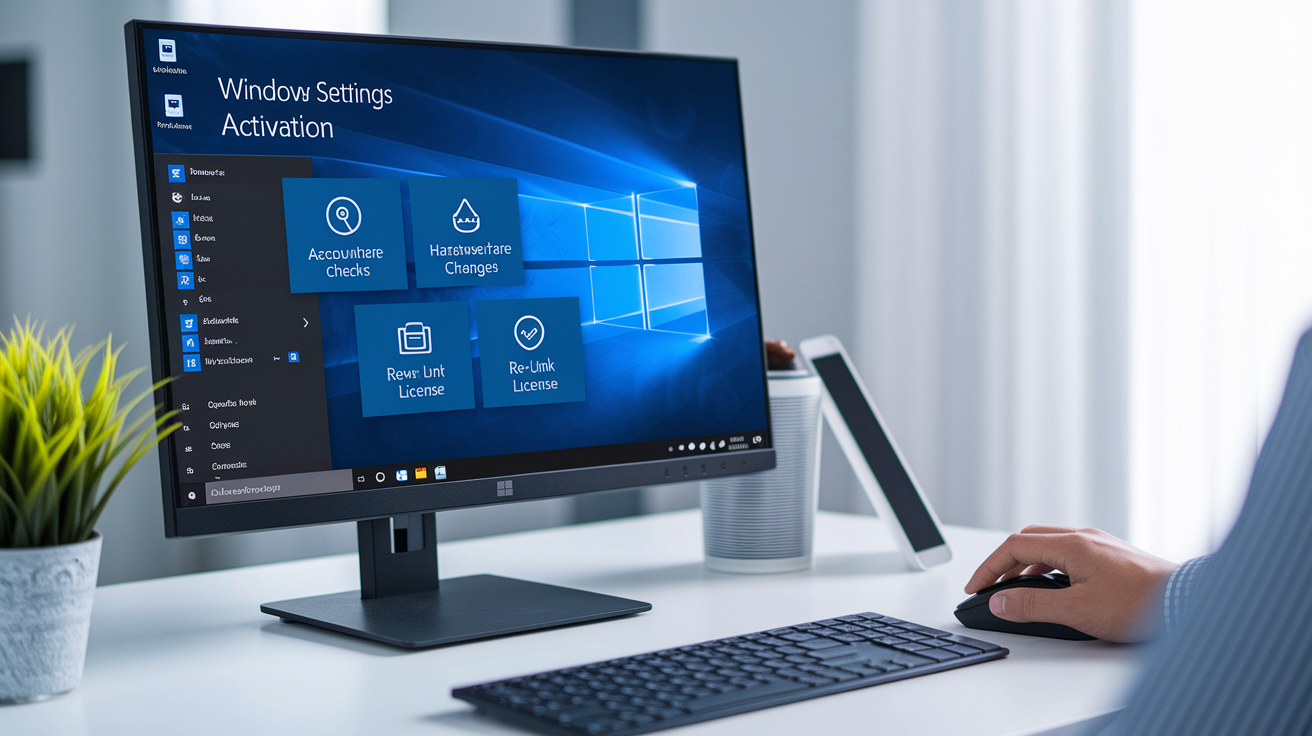
The Activation Troubleshooter lives at Settings > System > Activation > Troubleshoot. It only appears when Windows isn’t activated, and you need to be signed in as an administrator to run it. The Troubleshooter walks you through account checks, hardware-change recovery, and digital license re-linking in a guided flow. Most fixes take under five minutes. If the problem is a mismatched Microsoft account or a recent motherboard swap, the Troubleshooter will detect it and offer a one-click fix. Follow the prompts, sign in if asked, and let it finish. If it succeeds, you’ll see “Windows is activated” immediately.
When the Troubleshooter doesn’t resolve the issue or doesn’t appear at all, use command-line tools for deeper diagnostics. These tools give you exact license details, force activation attempts, and reset licensing states. All faster than navigating menus. Command-line fixes work even when the Settings UI is unresponsive or when you need to confirm the exact activation method Windows is trying to use.
Using Command-Line Activation Tools
Open Command Prompt as administrator. Right-click Start > Terminal (Admin) or search “cmd,” right-click, Run as administrator. Run slmgr /dlv to see detailed license information. License type, partial product key, activation status, and whether it’s using KMS or a digital license. Use slmgr /ipk YOUR-PRODUCT-KEY to install a new 25-character product key, then run slmgr /ato to force Windows to contact the activation server immediately. If you prefer a graphical key-entry window, type slui 3 and press Enter. You’ll get a simple dialog box to paste your key. For phone activation, rare but useful when servers are unreachable, run slui 4 to start the telephone activation wizard. If activation fails repeatedly and you’ve confirmed the key is valid, try slmgr /rearm to reset the licensing grace period, then reboot and run slmgr /ato again. But use /rearm sparingly, since Windows limits how many times you can reset it.
Fixing Windows 11 Activation After Hardware Changes

Windows ties your digital license to a hardware ID. A fingerprint made from your motherboard, processor, and storage controller. When you replace the motherboard or upgrade to a new SSD and CPU at the same time, Windows sees a completely different machine and can’t match the old license. That’s why you’ll get error 0xC004F211 or see “Windows isn’t activated” right after the hardware swap. The digital license is still valid, but it’s linked to hardware that no longer exists.
To recover activation, use the hardware-change path in the Troubleshooter. Go to Settings > System > Activation > Troubleshoot, then select “I changed hardware on this device recently.” Sign in with the Microsoft account that holds the digital license. This must be the same account you used before the hardware change. Windows will check your account at account.microsoft.com/devices, find the old activation record, and transfer it to the new hardware ID. If you see a list of devices, pick the one you’re using now and click Activate. This works for retail licenses and most digital licenses purchased directly from Microsoft. The whole process takes about two minutes if your account and license match.
OEM licenses don’t transfer after a motherboard replacement. If Windows came preinstalled on your original PC (Dell, HP, Lenovo, etc.), the license is locked to that specific motherboard. When you swap the board, the OEM license stays with the old hardware and can’t be moved. You’ll need to buy a new retail license or a new OEM license for the replacement motherboard. Retail licenses, on the other hand, can move between devices as long as you only activate one PC at a time. So if you bought a standalone Windows 11 key or upgraded from a retail Windows 10 license, the hardware-change Troubleshooter will work. If you’re unsure which type you have, check your original purchase email or the sticker on your old PC case.
Fixing Windows 11 Product Key and License Type Issues
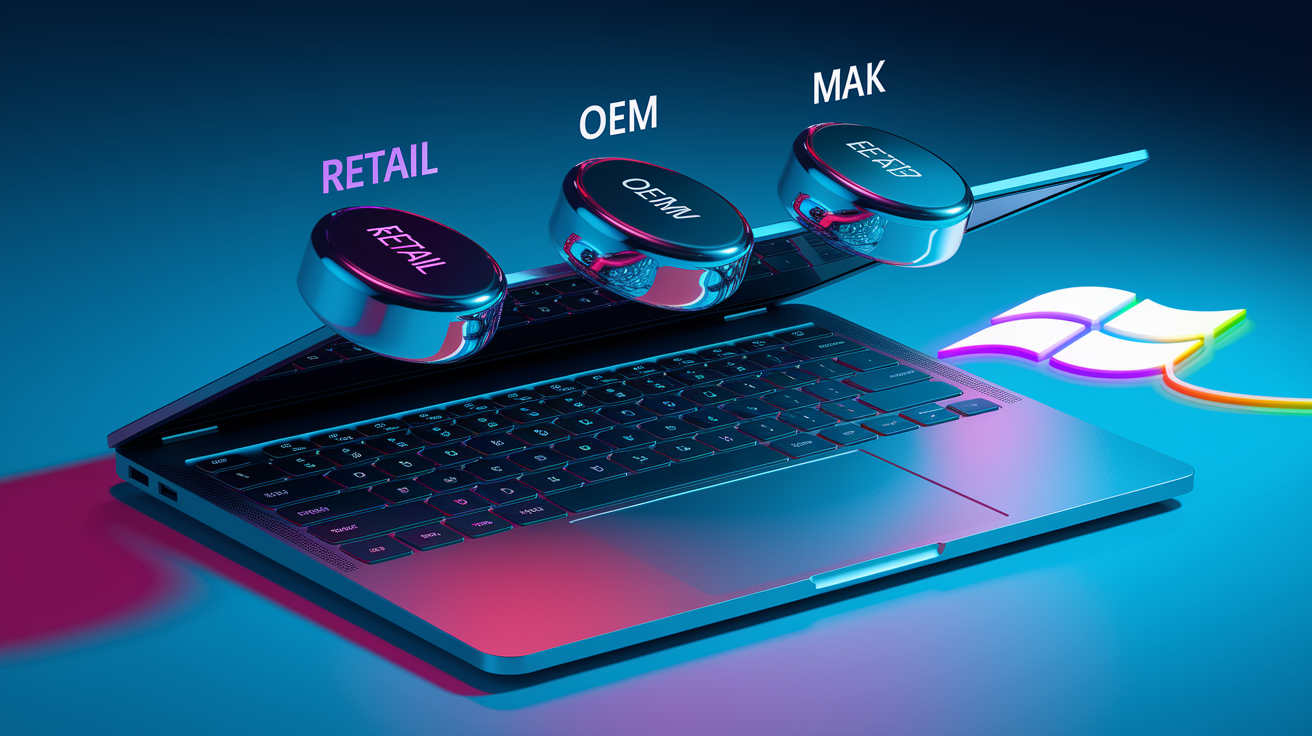
Product key problems happen when the key type doesn’t match the way Windows is installed, or when the key has been used too many times. Retail keys can move between PCs and activate through Microsoft’s online servers. OEM keys are tied to the original motherboard and won’t activate after a hardware change. Volume licenses (KMS and MAK) are designed for organizations. They expect a KMS server on the local network or a central activation count tracked by Microsoft. If you try to use a KMS key on a home PC, you’ll get errors like 0xC004F074 or 0x8007232B because Windows can’t find the activation server it’s looking for.
Edition mismatches throw errors like 0xC004F212 or 0xC004E016. This means you entered a Windows 11 Pro key but installed Windows 11 Home, or vice versa. Windows won’t activate across editions. The key and the installed OS must match exactly. Check your edition at Settings > System > About, under “Windows specifications.” If it says Home and your key is for Pro, you’ll need to reinstall Windows 11 Pro or get a Home key. Overused keys trigger codes like 0xC004C008, 0xC004C770, or 0x803FA071. The key has hit its activation limit, usually because it was shared, resold, or used on more devices than the license allows. Blocked or fake keys show up as 0xC004C003 or a long list of related codes (0xC004C4A2, 0xC004F004, and others). These keys have been flagged by Microsoft as unauthorized or fraudulent.
- Key mismatch signs: Error codes 0xC004F212, 0x803FA067, or messages saying “product key doesn’t match.” Verify your installed edition and compare it to the key’s label (Home, Pro, etc.).
- Check key source: Retail keys come in official Microsoft packaging or email receipts. OEM keys are on a sticker attached to the PC or motherboard. Volume keys are issued by your IT department or volume licensing portal.
- OEM restrictions: OEM licenses can’t be transferred to new hardware after a motherboard replacement. If your motherboard dies, the OEM key dies with it. You’ll need a new license for the replacement board.
- KMS connectivity requirements: KMS keys activate only when the device can reach the organization’s KMS host over the network. Check that DNS is resolving the KMS server address (run nslookup vlmcs.tcp in Command Prompt) and that you’re on the correct internal network or VPN.
- MAK limitations: MAK keys have a fixed number of activations. Each install counts against the total. If you’ve hit the limit, contact your volume licensing admin to request additional activations or a key reset.
- Unauthorized third-party key warning: Ultra-cheap keys from auction sites or key resellers are often reused, region-locked, or volume keys sold illegally. They may activate temporarily then fail with 0xC004C003 or similar. Stick to Microsoft, authorized retailers, or your device manufacturer for legitimate keys.
Network, DNS, and Connectivity Problems Affecting Windows 11 Activation
Windows 11 activation requires a working Internet connection to reach Microsoft’s activation servers, or, for volume licenses, to reach your organization’s KMS host. When network problems block that connection, you’ll see errors like 0xC004FC03 (network or account connectivity failure), 0x800704CF (can’t connect to the activation service), or 0x8007267C (KMS activation server unavailable due to DNS or network issues). These codes all mean the same thing. Windows is trying to activate, but it can’t complete the handshake with the server.
VPNs, proxies, and overly strict firewalls are common culprits. If you’re on a VPN, disconnect it temporarily and retry activation. Some VPNs route traffic through servers that Microsoft flags or that don’t allow licensing requests. Proxies can interfere the same way. Disable any manual proxy settings at Settings > Network & internet > Proxy, set everything to off, then try again. Firewalls on home routers or security software sometimes block outbound traffic on the ports Windows uses for activation (TCP port 443 and others). If you manage the firewall, allow traffic to *.microsoft.com and *.windows.com, or turn off the firewall briefly to test. For KMS environments, error 0xC004F074 or 0x8007007B means the device can’t find the KMS server. Check that you’re on the organization’s network, confirm DNS is working (run ipconfig /flushdns, then ping your KMS host if you know its address), and verify SRV records are published in DNS for vlmcs.tcp.
- Disable VPN and proxy: Temporarily turn off any VPN connection and set proxy to “off” at Settings > Network & internet > Proxy, then retry activation.
- Check firewall rules: Allow outbound HTTPS (port 443) to *.microsoft.com and *.windows.com. Test by disabling the firewall briefly to see if activation succeeds.
- Confirm Internet stability: Run a speed test or open a browser to verify your connection is active. If using Wi-Fi, try switching to Ethernet or moving closer to the router.
- Flush DNS (for KMS): Open Command Prompt and run ipconfig /flushdns, then ipconfig /registerdns to refresh DNS records. This helps KMS clients find the activation server on domain networks.
Repairing Corrupted Windows 11 Licensing Files
Licensing files live in the Windows registry and system folders. When they get corrupted, you’ll see error codes like 0xD0000272, 0xC0000272, 0xC004C012, 0xC004C013, or 0xC004C014. These codes mean Windows can’t read or verify the activation tokens it needs, even if your product key is valid. Corruption happens after failed updates, disk errors, or sudden power loss during activation. The fix is to repair the underlying system files, then let Windows rebuild the licensing data.
Run sfc /scannow in an elevated Command Prompt first. This scans and repairs corrupted Windows system files, including activation components. Takes 10 to 20 minutes. If sfc finds and fixes errors, reboot and try activating again at Settings > System > Activation. If errors persist or sfc reports it couldn’t fix everything, follow up with DISM /Online /Cleanup-Image /RestoreHealth to repair the Windows image itself. This can take 20 to 40 minutes and requires Internet. After DISM completes, run sfc /scannow one more time, reboot, then use slmgr /ato in Command Prompt to force a fresh activation attempt. In stubborn cases, restart the Software Protection service. Open Services (search “services.msc”), find “Software Protection,” right-click, Restart. Wait 30 seconds, then run slmgr /ato again. If licensing files are severely damaged and none of these steps work, you may need to use slmgr /rearm to reset the activation grace period. This gives Windows a clean state to attempt activation again, but you can only use /rearm a limited number of times (usually three), so save it as a last step before reinstalling.
How to Verify Genuine Windows 11 and Check Activation Status
Open Settings > System > Activation to see your activation state in plain language. If it says “Windows is activated with a digital license” or “Windows is activated with a digital license linked to your Microsoft account,” you’re good. Any other message, like “Windows isn’t activated,” “Activation failed,” or a specific error code, means there’s a problem. Look for a watermark in the bottom-right corner of your desktop. If you see “Activate Windows,” the OS isn’t activated. You’ll also lose access to personalization settings (background, colors, lock screen) until you activate.
For detailed technical verification, open Command Prompt as administrator and run slmgr /dlv. You’ll get a pop-up with license details: name, description, partial product key, and license status. Look for “License Status: Licensed” to confirm activation. Run slmgr /xpr for a quick one-line message, either “Windows is permanently activated” or a grace-period countdown. Use winver (Windows + R > winver) to confirm your edition and build number. Make sure it matches the product key or license you think you have. If you bought Windows from a third-party reseller and any of these checks show inconsistencies (wrong edition, missing license data, or “notification” status instead of “licensed”), the key may be unauthorized or region-locked.
- UI check: Settings > System > Activation shows activation status, error codes, and whether a digital license or product key is in use.
- Command verification: Run slmgr /dlv for full license details and slmgr /xpr for a simple activated/not-activated message.
- Legitimacy warning: If you bought a cheap key online and activation works briefly then fails, or if Windows shows “notification” status in slmgr /dlv, the key is likely gray-market or reused. Purchase a legitimate retail or OEM license to avoid future blocks.
When to Contact Microsoft Support for Windows 11 Activation Help
Contact Microsoft Support when self-service fixes don’t resolve the error, when your product key is blocked (0xC004C003), or when you’ve hit an activation limit (0xC004E028, 0xC004C008 group) and you own a legitimate retail license. Support can reset activation counts, verify your purchase, reissue a replacement key, or unlock a blocked key if you provide proof of purchase. You’ll also need support if the digital license won’t transfer after a hardware change and the Troubleshooter fails, especially if you’re certain the license is retail and should transfer.
Before you contact them, expect to share detailed information. Microsoft will ask for your exact error code, the Windows 11 edition and build number (get this from winver), your 25-character product key (if you have one), the email address of the Microsoft account linked to the license, proof of purchase (receipt, order confirmation, or original product packaging), and the make/model of your device. If you replaced hardware, note the date and what you changed (motherboard, CPU, SSD). Take screenshots of the Activation page (Settings > System > Activation) and the output of slmgr /dlv in Command Prompt. Gather all of this before starting a support chat or call. It speeds up the process and increases the chance of a same-session resolution. Support may reset your key remotely, issue a new one, or confirm that your license type doesn’t allow the transfer or reactivation you’re requesting.
Information to Gather Before Contacting Support
Collect the following before reaching out: the full error code (including the 0x prefix), your Windows 11 edition (Home, Pro, Enterprise, Education) and build number from winver, your 25-character product key or digital entitlement confirmation email, the Microsoft account email you used to activate Windows, a copy of your purchase receipt or order number, the device manufacturer and model (especially for OEM licenses), the date and details of any recent hardware changes (motherboard, processor, storage), and clear screenshots of Settings > System > Activation and the slmgr /dlv output window. If you’ve already tried the Troubleshooter, note what it said or did. Having all this ready means support can verify your license, check activation history, and issue a fix or replacement key in one session instead of multiple back-and-forth emails.
Final Words
When you’re dealing with a windows 11 activation error, start with the quick fixes: open Settings > System > Activation, run the Activation Troubleshooter, and check your product key.
Next, try the built-in tools (slmgr/slui), check network and edition mismatches, or repair licensing files with SFC/DISM. If you changed hardware, use the “I changed hardware on this device recently” path and sign in with your Microsoft account.
Follow these steps and you’ll solve most issues—or be ready for Microsoft support. You’ll be back up and running soon.
FAQ
Q: How to fix Windows 10 activation error code 0xc004f213?
A: To fix Windows 10 activation error code 0xc004f213, sign into the Microsoft account tied to your digital license, run the Activation Troubleshooter (Settings > Update & Security > Activation), or enter the correct edition key.
Q: What is 0x80072ee2 Windows 11 activation?
A: The 0x80072ee2 Windows 11 activation is a timeout connecting to Microsoft activation servers; check your internet, disable VPN/proxy or firewall temporarily, then retry activation or try again later when servers respond.
Q: How to fix error code 0x8007232B?
A: To fix error code 0x8007232B, switch from a KMS/DNS activation to a retail key (Settings > System > Activation > Change product key), join the corporate KMS network, or use slmgr commands to point to the correct KMS host.
Q: What is error 0xC004C060 Windows 11 activation?
A: The error 0xC004C060 Windows 11 activation is a blocked or invalid product key; verify where you got the key, enter a valid retail/OEM key, or contact Microsoft with proof of purchase for assistance.