

Ever try to access your home security camera from work, only to realize your home’s internet address changed overnight and now nothing connects?
Most internet providers assign you a constantly changing IP address, turning remote access into a guessing game where yesterday’s connection details stop working without warning.
DDNS (Dynamic DNS) is a router feature that automatically tracks your changing IP and links it to one memorable address you can use anywhere, anytime, so you can check cameras, access files, or connect to home devices without the frustration of chasing down new numbers every few days.
Understanding DDNS Router Functionality
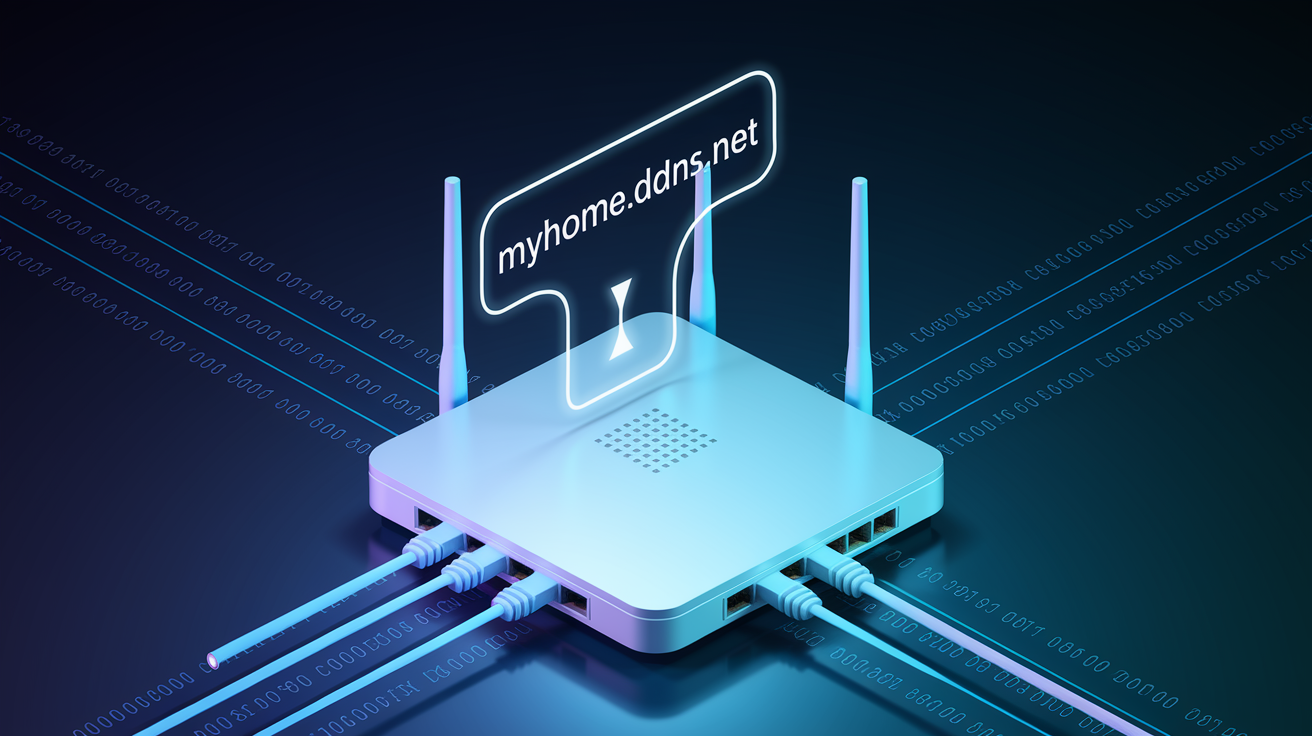
DDNS is a router feature that automatically tracks your changing public IP address and links it to a memorable domain name like myhome.ddns.net. This way, you can consistently access your home network remotely without memorizing numbers.
The primary use case addresses a common frustration: accessing home security cameras, personal servers, or network devices from anywhere using a constant hostname instead of trying to remember and update changing IP numbers. When you’re traveling for work and need to check your home security camera, DDNS lets you type securehome.ddns.net into any browser rather than tracking down your current IP address, which might be 203.45.167.89 today but 198.72.143.201 next week.
This matters because internet service providers assign dynamic IP addresses to residential customers that change periodically without notice. Your home’s public IP might refresh daily, weekly, or monthly depending on your ISP’s policies and network conditions. Without some form of address tracking system, direct remote access becomes unreliable or impossible.
DDNS functions through an automated four step process happening entirely in the background. Your router detects its current public IP address, automatically sends update notifications to your chosen DDNS provider whenever changes occur, the provider updates its DNS records to reflect your new IP, and these changes propagate across the internet within minutes. You never manually update anything. The router handles this monitoring and reporting cycle continuously.
The alternative approach requires purchasing a static IP address from your ISP, typically costing $5 to $15 monthly through business tier internet plans that also require upgrading from residential service packages. DDNS offers free or low cost solutions (free plans with basic features or $2 to $5 monthly for premium options like custom domains and faster updates) that work perfectly with standard home internet connections without service upgrades.
DDNS eliminates the changing IP problem while avoiding static IP expenses, making remote network access practical and affordable for home users who just need reliable connections to their devices.
Common Use Cases for DDNS Router Configuration

DDNS proves valuable when you need consistent remote access to devices and services running on your home network, regardless of when your ISP decides to reassign your public IP address.
The most common scenarios involve accessing resources you’ve set up at home while you’re away at work, traveling, or managing properties from different locations.
Typical DDNS applications include security camera systems where you can view live feeds and recorded footage from home surveillance cameras using a consistent address rather than reconfiguring camera apps after each IP change. Network attached storage devices let you access personal files, documents, and media stored on home NAS systems from any location. Home web servers allow you to host personal websites, blogs, or development servers on home hardware without enterprise hosting costs.
VPN gateway connections establish secure VPN tunnels back to your home network for protected internet browsing on public Wi‑Fi. Plex media servers stream personal movie and music libraries to devices anywhere without relying on Plex’s relay servers. Game servers host multiplayer sessions for friends using a memorable address instead of constantly sharing new IP numbers. Remote desktop access connects to home computers for file access or computing tasks using Windows Remote Desktop or similar tools. Smart home device control lets you access home automation systems, smart thermostats, and IoT devices when away from home.
Small businesses and professionals use DDNS for practical applications including shared file server access for remote employees, client demonstration systems accessible via consistent URLs, and monitoring industrial IoT equipment deployed at job sites or facilities. A small accounting firm might use DDNS to let staff access the office file server securely from home. A vending machine operator could remotely monitor machine status and inventory levels across multiple locations.
DDNS Service Providers and Router Compatibility
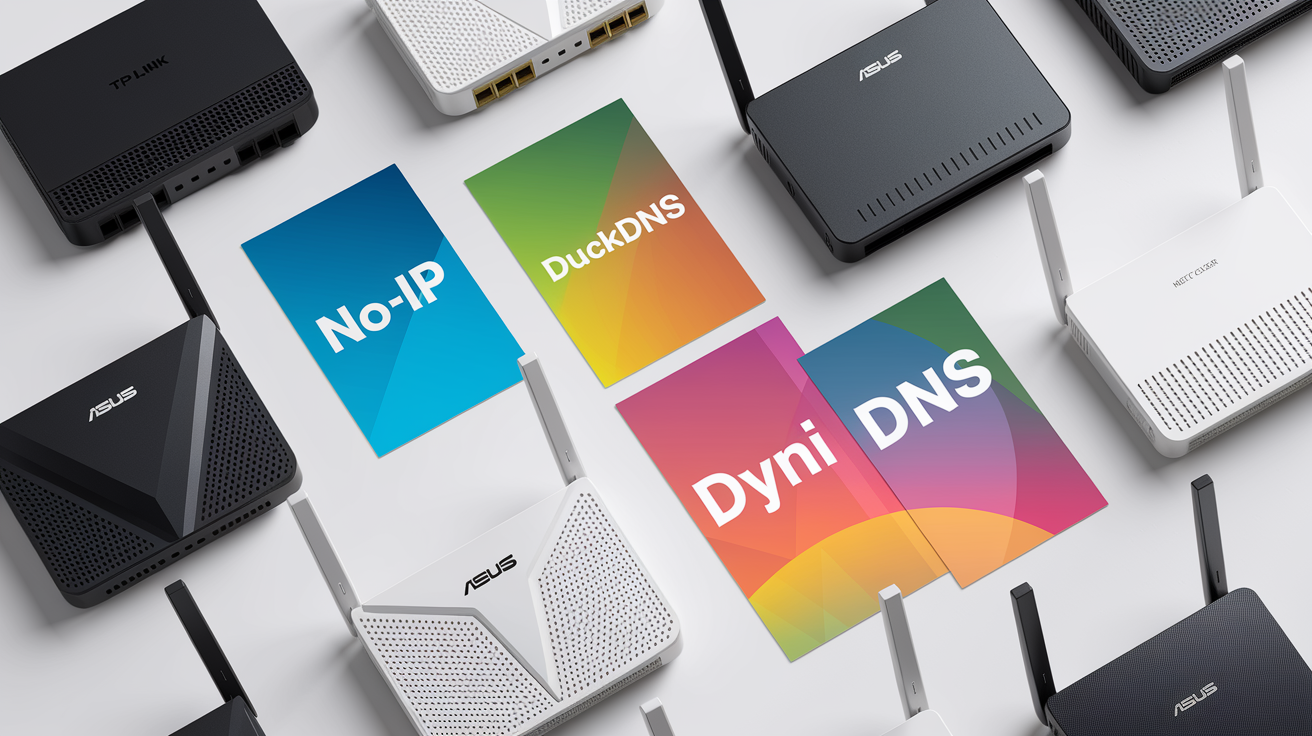
Routers typically support multiple DDNS providers through built in configuration menus, giving you flexibility to choose services based on features, reliability, and cost considerations.
| Provider | Free Plan Available | Common Router Support |
|---|---|---|
| No-IP | Yes (3 hostnames, 30-day renewal required) | TP-Link, ASUS, Netgear, Linksys, D-Link |
| DuckDNS | Yes (unlimited hostnames) | ASUS, some TP-Link models, manual setup on others |
| DynDNS | No (paid only, starting $5/month) | Nearly universal support across all major brands |
| Oray (PeanutHull) | Yes (1 free domain) | Common in Asian-market routers, some Western brands |
| ChangeIP | Yes (1 hostname) | TP-Link, ASUS, Netgear, Linksys |
| CloudDNS | Limited (3 zones in free tier) | Manual configuration required on most routers |
Most modern routers from TP-Link, ASUS, Netgear, and Linksys include native DDNS support with provider lists built directly into their web interfaces. When you access your router’s DDNS settings, you’ll typically see a dropdown menu listing 5 to 10 supported providers. You simply select one, enter your account details, and the router handles everything else. Some providers like DuckDNS or CloudDNS might not appear in older router models, requiring you to use DDNS client software on a computer instead of router based updates.
Free plans work perfectly for testing DDNS functionality and basic home use, though they often include limitations like requiring monthly confirmation clicks (No-IP), displaying fewer hostnames, or offering only generic domain options. Paid plans ($2 to $8 monthly) remove these restrictions while adding features like custom domains (yourname.com instead of yourname.ddns.net), faster update intervals, email notifications when your IP changes, and customer support access for troubleshooting.
Step-by-Step Router DDNS Setup Process

Setting up DDNS on your router takes approximately 10 to 15 minutes and requires your router’s admin username and password along with a DDNS provider account.
Specific menu locations vary by router brand. ASUS routers place DDNS under “WAN” settings, TP-Link uses “Dynamic DNS” under “Advanced,” Netgear includes it under “Advanced > Dynamic DNS.” But the general configuration process remains consistent across manufacturers.
Complete DDNS configuration steps:
Create a DDNS provider account by visiting your chosen provider’s website (like No-IP.com or DuckDNS.org), register for a free account, and create a hostname like myhome.ddns.net. Note your username and password for the next steps.
Access your router’s web interface by opening a browser and typing your router’s IP address (typically 192.168.1.1, 192.168.0.1, or 192.168.1.254), then log in using your router’s admin credentials. If you haven’t changed them, check the sticker on the router’s bottom for defaults.
Locate the DDNS settings menu by navigating through your router’s menu structure to find DDNS configuration, usually under sections labeled “Advanced Settings,” “WAN,” “Internet,” or “Dynamic DNS.”
Select your DDNS provider by clicking the dropdown menu showing available DDNS providers and choose the service where you created your account. If your provider doesn’t appear in the list, you’ll need to use client software instead.
Enter your DDNS credentials by typing your hostname (like myhome.ddns.net), your provider account username, and password into the corresponding fields, exactly as they appear on your provider account.
Save and apply settings by clicking “Save,” “Apply,” or “Enable” (depending on your router), wait 30 to 60 seconds for the router to restart its DDNS service, and look for a status message indicating successful registration.
After saving, check the DDNS status indicator in your router interface. Most routers display “Connected,” “Registration successful,” or show your current public IP address when working correctly. Test your configuration by opening a new browser tab, typing your DDNS hostname, and adding any necessary port numbers (like myhome.ddns.net:8080). If you can’t connect externally, verify your hostname spelling and check that port forwarding rules are configured for the devices you’re trying to reach.
Port Forwarding and DDNS Router Integration

Port forwarding works as the companion configuration to DDNS, directing incoming internet traffic to specific devices and services on your internal network.
DDNS provides the consistent address people or applications use to find your network (like giving someone your street address), while port forwarding creates pathways through your router’s firewall to internal devices (like specifying which apartment in your building). Without proper port forwarding, external connection attempts reach your router but get blocked because the router doesn’t know which internal device should receive the traffic. You might successfully reach myhome.ddns.net, but the connection hangs because no forwarding rule directs port 3389 traffic to your desktop computer.
Common port assignments for typical home applications include port 80 for web servers (though many ISPs block this, requiring port 8080 instead), port 3389 for Windows Remote Desktop access, port 22 for SSH connections to Linux systems, ports 5000 to 5001 for Synology NAS access, port 32400 for Plex media servers, and camera specific ports ranging from 554 (RTSP protocol) to 8000 through 9000 (manufacturer web interfaces). To configure forwarding, access your router’s port forwarding section (usually under “Advanced > NAT Forwarding” or “Security > Port Forwarding”), create a new rule specifying the external port, internal IP address of your target device (like 192.168.1.50), internal port (often matching the external port), and protocol (TCP, UDP, or both).
Some ISPs block common ports as security measures or to prevent residential customers from running servers. If connections fail despite correct DDNS and forwarding configuration, try alternative ports. Use port 8080 instead of 80 for web access, or port 13389 instead of 3389 for remote desktop. You can also contact your ISP’s technical support to request port unblocking, though business tier service typically faces fewer restrictions.
Security Considerations for DDNS-Enabled Routers
DDNS itself is an access enabler rather than a security feature. It makes your network reachable from the internet, which requires implementing proper protective measures to prevent unauthorized access.
Essential security practices for DDNS enabled routers:
Use strong, unique passwords. Change default router admin credentials to complex passwords (16 or more characters, mixing letters, numbers, symbols), and use different strong passwords for each device and service you’re exposing.
Enable HTTPS and encryption protocols. Configure web services to use SSL/TLS encryption, access security cameras through HTTPS rather than HTTP, and use encrypted remote desktop protocols.
Implement two factor authentication. Enable 2FA on your DDNS provider account and any services supporting it (like Synology NAS or VPN servers) to prevent password only compromises.
Restrict access by IP whitelist. Configure services to accept connections only from specific IP addresses or ranges when possible, limiting access to your work location or other trusted networks.
Keep firmware updated. Install router firmware updates within days of release to patch security vulnerabilities that attackers actively exploit.
Disable unused remote management. Turn off router features like remote admin access, UPnP, and WPS unless you specifically need them for your setup.
Monitor access logs regularly. Check your router’s system logs weekly for unusual connection attempts, unfamiliar IP addresses, or repeated failed login attempts indicating attack activity.
For enhanced security beyond basic DDNS access, consider using VPN connections as your primary remote access method. Set up an OpenVPN or WireGuard server on your router or NAS, use DDNS only to reach the VPN endpoint, then access all internal resources through the encrypted VPN tunnel. This approach exposes only one heavily secured service (the VPN) rather than multiple individual devices and ports. Additionally, limit the number of forwarded ports to only what you actively use. If you forward 15 different ports “just in case,” you’re creating 15 potential entry points rather than the 2 or 3 you actually need.
Plan regular security reviews every few months where you document which ports you’ve forwarded, verify they’re still necessary, disable any unused rules, check that all forwarded devices have current software versions, and rotate passwords on critical services.
Troubleshooting Common DDNS Router Issues

Most DDNS problems fall into a few predictable categories with straightforward diagnostic steps and solutions.
Cannot Access Devices Remotely
Start by verifying your DDNS configuration shows “Connected” or “Successful” status in your router’s DDNS settings page. Confirm the hostname resolves to your current public IP by visiting a site like whatismyip.com, noting your IP address, then using an online DNS lookup tool to check whether your DDNS hostname returns the same IP. If the IP matches but you still can’t connect, the issue typically involves port forwarding rules. Verify you’ve created forwarding rules for the specific ports your service uses, double check the internal IP address matches your device’s current IP (devices sometimes get different IPs if using DHCP rather than static assignments), and confirm your device’s firewall allows incoming connections on those ports. Reboot both your router and the target device to clear any stuck network states.
DDNS Shows Wrong IP Address
Check your router’s DDNS status page to see when it last successfully updated. If the timestamp is several hours old but your IP changed recently, the router may not have detected the change yet. Most routers let you manually trigger an update by clicking “Update” or “Refresh” next to the DDNS status. If updates consistently fail or show old information, verify your DDNS account credentials are entered correctly in the router (a typo in your password will prevent updates), check that your DDNS provider account is active (some free services require monthly confirmation clicks), and confirm your router’s firmware is current since outdated firmware sometimes includes broken DDNS clients.
Connection Timeouts and Failures
Confirm your internet connection is working properly by accessing several different websites. If your connection is unstable, DDNS updates may not reach the provider. Test whether you can access your services from inside your home network using your local IP address (like 192.168.1.50:8080). If local access works but external access fails, the problem involves your port configuration or ISP restrictions rather than the service itself. Many ISPs block commonly targeted ports like 80, 443, 25, 3389, and 22 by default for residential customers. Try reconfiguring your service to use alternative ports (like 8080 instead of 80, or 13389 instead of 3389), update your port forwarding rules to match, and test again. If alternative ports don’t resolve the issue, contact your ISP to ask whether they block inbound connections on specific ports and whether they can whitelist your account.
Authentication Errors
When your router displays “Authentication failed,” “Login error,” or similar messages in the DDNS status, the credentials you entered don’t match your provider account. Log into your DDNS provider’s website directly to verify your account is active and your username and password are correct. If you’ve forgotten your password, use the provider’s password reset function to create a new one, then update the credentials in your router’s DDNS settings. Some providers use email addresses as usernames while others use separate username fields. Ensure you’re entering the correct identifier type. After updating credentials, save the settings and wait 2 to 3 minutes for the router to attempt a new registration before checking the status again.
Intermittent Access Problems
If your DDNS works sometimes but fails unpredictably, first check your provider’s status page or social media for service outages. Free DDNS providers occasionally experience downtime that disrupts updates. Review your router’s system logs for patterns like “DDNS update failed” messages that might indicate when problems occur. If failures happen around the same time daily, your router’s update interval might conflict with network maintenance windows. Try changing the update frequency in your router’s DDNS advanced settings. When a DDNS provider consistently proves unreliable (frequent outages, slow propagation times, or lost updates), switch to an alternative provider. Your router’s DDNS dropdown likely lists several options, and most providers let you create accounts and test service within minutes.
Paid DDNS plans typically include email or chat support access for complex issues beyond these basic troubleshooting steps, like coordination with router manufacturers for compatibility problems or assistance with unusual network configurations involving multiple NAT layers or carrier grade NAT situations.
Advanced DDNS Router Settings and Options

Beyond basic enable and forget configuration, most router DDNS interfaces include advanced options for users wanting to optimize update behavior and monitoring.
Update interval settings control how frequently your router checks for IP address changes and reports them to your DDNS provider. Default intervals typically run every 60 minutes, but you can often adjust this from 10 minutes (for faster updates when your IP changes) to 24 hours (reducing update traffic when your IP rarely changes). Some routers offer “smart” update triggers that send immediate updates when detecting an IP change rather than waiting for the next scheduled check, ensuring your DDNS hostname points to the correct address within seconds of changes instead of potentially waiting an hour. Most routers maintain DDNS update logs showing timestamps of successful updates, failed attempts, and current registration status. Reviewing these logs helps identify patterns like frequent IP changes indicating ISP network issues, or repeated authentication failures suggesting credential problems.
As internet service providers gradually transition to IPv6 addressing alongside traditional IPv4, DDNS compatibility becomes more complex. Some DDNS providers and router implementations support dual stack configurations that maintain both IPv4 and IPv6 address mappings for the same hostname, while others handle only one protocol version. If you’re receiving IPv6 addresses from your ISP (identifiable by longer addresses like 2001:0db8:85a3:0000:0000:8a2e:0370:7334), verify your DDNS provider supports IPv6 updates and enable IPv6 DDNS tracking in your router’s advanced settings if available.
Custom domain options let advanced users point their own purchased domain names (like yourname.com) to DDNS services instead of using provider subdomains (like yourname.ddns.net). This requires creating CNAME records in your domain’s DNS settings pointing to your DDNS hostname, giving you professional looking addresses while maintaining dynamic IP tracking. Some routers support multiple simultaneous DDNS hostnames, useful for separating different services. You might configure home.ddns.net pointing to residential services while office.ddns.net tracks a small business location.
Email notification settings, when available, send alerts whenever your public IP address changes or DDNS updates fail. This is helpful for monitoring network stability and catching configuration problems quickly. Regular router firmware updates prove critical for DDNS stability since manufacturers occasionally fix bugs affecting DDNS client reliability, add support for new providers, or patch security vulnerabilities in the update mechanism itself.
Final Words
DDNS router functionality solves the changing IP problem by automatically mapping your dynamic IP address to a memorable domain name, making remote access to home networks simple and affordable.
Whether you’re checking security cameras from work, accessing your home server while traveling, or running a small business network, DDNS eliminates the need for expensive static IP addresses.
Set it up once, configure your port forwarding, follow basic security practices, and you’ll have reliable remote access that just works.
The what is ddns router feature comes down to this: constant connectivity without constant costs or complicated workarounds.
FAQ
Should I enable dynamic DNS on my router?
You should enable DDNS on your router if you need to access home network devices like security cameras, servers, or NAS systems remotely using a consistent address instead of tracking your changing IP.
Is it good to enable DDNS?
Enabling DDNS is beneficial for home users who need remote access without paying for static IP addresses, offering a cost-effective solution that automatically updates your hostname when your ISP changes your IP.
Does Eero support DDNS?
Eero routers do not currently support built-in DDNS configuration through their interface, requiring third-party client software on a connected device or consideration of alternative router options for native DDNS functionality.
What is DDNS on my router?
DDNS on your router is a feature that automatically tracks your changing public IP address and updates it with a DDNS provider, mapping it to a fixed hostname for consistent remote network access.
What is the difference between DDNS and static IP?
DDNS provides a consistent hostname that tracks your changing IP address automatically, while static IP gives you a permanent unchanging IP address that typically costs $5-15 monthly through ISP business plans.
How often does DDNS update my IP address?
DDNS typically updates your IP address every few hours or immediately when your router detects a change, ensuring your hostname always points to your current public IP without manual intervention.
Do I need port forwarding with DDNS?
You need port forwarding with DDNS to direct incoming traffic to specific devices on your network, as DDNS provides the address while port forwarding creates the actual pathway to your internal devices.
Are free DDNS services reliable?
Free DDNS services work reliably for basic home use and testing purposes, though paid plans typically offer better uptime guarantees, customer support, and additional features like shorter hostnames or more frequent updates.
Can my ISP block DDNS?
Your ISP can block common DDNS ports by default on residential connections, but you can usually work around this by configuring alternative ports or requesting your ISP enable access to blocked ports.
Is DDNS secure for remote access?
DDNS itself is an access enabler rather than a security feature, requiring you to implement strong passwords, encryption protocols, firewall rules, and ideally VPN connections to secure remote access properly.