
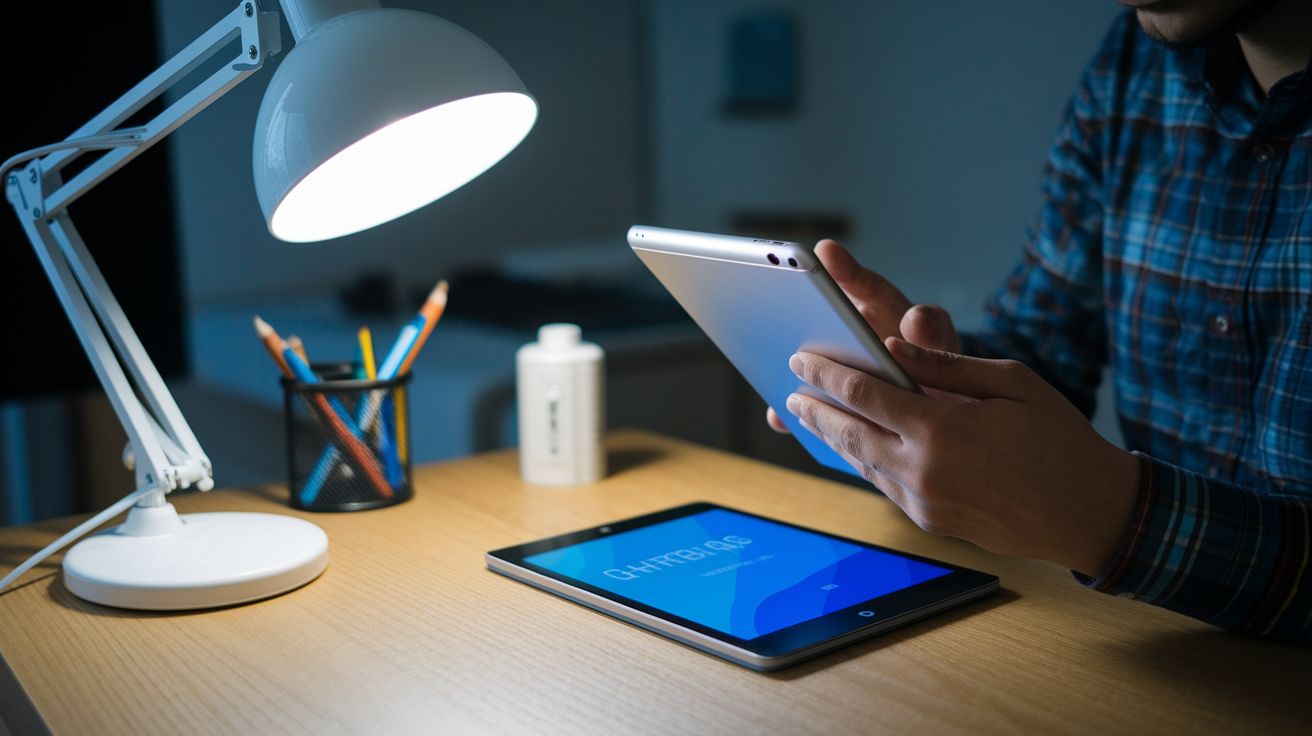

Think setting up a new tablet will eat your whole afternoon?
It doesn’t have to.
In this hands-on guide you’ll get clear steps—from unboxing and connecting to Wi‑Fi to signing in, locking the screen, installing updates, and restoring your apps and photos.
You’ll see what to look for on-screen, when to pause for backups, and simple safety checks like enabling Find My Device and a PIN.
Follow these easy steps and you’ll be online, secure, and comfortable with your tablet in about an hour.
First-Time Steps for Starting a New Tablet Setup

When you open the box, check that everything’s actually there before you power anything on. You should find the tablet, a USB charging cable, a power adapter (the wall plug part), and some kind of quick start guide. Some boxes include a SIM eject tool if the tablet can use cellular data. Put everything on a clean surface and peel off any plastic films stuck to the screen and back. If there are stickers that say “Remove before use,” take those off carefully.
To turn it on, press and hold the power button for about 2 to 5 seconds. Look for the button on the top or right side. You’ll see a logo pop up (the Android robot or Apple logo), then a loading animation. Takes around a minute for the tablet to finish starting up. Once the welcome screen shows up, you’ll tap your language and then pick your country or region. After that, tap “Next” or “Continue.”
The setup asks if you want to copy data from another device. Options like “Copy from Android phone,” “Import from iPhone or iPad,” or “Set up as new” will appear. Choose whichever fits, or go with “Set up as new” if this is your first tablet or you don’t want old stuff copied over. After making that choice, you’ll see a list of Wi‑Fi networks. You need Wi‑Fi to move forward, so you’re stuck here until you connect.
Here’s the exact sequence from box to Wi‑Fi screen:
- Unbox and verify the charger, cable, and guide are present.
- Remove protective films and stickers from the screen and back.
- Press and hold the power button for 2 to 5 seconds until the startup logo appears.
- Wait roughly a minute for boot and welcome screen.
- Tap your language and country or region.
- Choose whether to copy data or set up as new, then tap “Next” to reach Wi‑Fi.
Wi‑Fi, Network, and Account Steps for a New Tablet

On the Wi‑Fi screen, you’ll see network names listed. Find your home network. The name (called the SSID) is usually printed on your router or stuck on the back of the modem. Tap the network name, type the password when the box pops up, then tap “Connect.” Watch out for capital letters and symbols. If your network has both 2.4 GHz and 5 GHz options, you might see the same name twice. Either one works, but 5 GHz is faster when you’re close to the router. Once connected, you’ll see a checkmark or “Connected” message, and the tablet moves on automatically.
If your tablet supports cellular and you’ve got a SIM card, you can insert it now using the eject tool, or wait and add it later. Some newer tablets use eSIM instead, which you activate through a QR code or carrier app instead of a physical card.
After Wi‑Fi, you’ll sign in with an account. Android wants a Google account (a Gmail address or any email linked to Google). iPad wants an Apple ID. Already have one? Type the email and password. Don’t have one? Tap “Create account” and follow along. You’ll enter your name, pick a username, create a password, add a recovery phone number, and agree to terms. Creating a new account takes about 5 to 10 minutes. Skipping this means no app downloads or backups, so signing in now is strongly recommended.
Signing into your account connects these services automatically:
- Email: Gmail on Android or iCloud Mail on iPad. Your messages sync instantly.
- Photos: Google Photos or iCloud Photos. New pictures upload to the cloud.
- Cloud files: Google Drive or iCloud Drive. Documents and downloads sync across devices.
- Contacts and calendar: Your saved contacts and events appear on the tablet right away.
Security and Login Protection During Tablet Setup

Next screen asks if you want to set a screen lock. You’ll see options for a 4-digit PIN, a longer password, or a pattern (where you draw a shape by connecting dots). Pick something you’ll remember but others won’t guess. A 4-digit PIN is quick and works well for most people. A longer password with letters and numbers is more secure if you’re storing sensitive information. Skip this and anyone who grabs your tablet can open it, so it’s worth setting up even if you live alone. It protects your accounts if the tablet gets lost or stolen.
After choosing your lock method, the tablet may ask about location services. This lets apps like Maps, weather, and rideshare tools know where you are. Turn it on now or skip and enable it later in Settings. Some tablets also prompt you to turn on “Find My Device” (Android) or “Find My iPad,” which helps you locate your tablet on a map if you lose it. Tap “Turn on” or “Enable” if you want that. Optional but recommended for safety.
Setting Up Biometrics
If your tablet has a fingerprint reader or supports face recognition, setup will offer to enroll your fingerprint or face after you create a PIN or password. Fingerprint readers are usually built into the power button or a round sensor on the back or front. To enroll, place your finger on the sensor when prompted and lift it on and off several times. The tablet guides you through until it has enough scans. Face ID or face unlock uses the front camera. Follow the on-screen prompts to position your face in the circle and slowly turn your head. Biometrics make unlocking faster and they’re still secure, so if your tablet offers it, it’s a good idea to set up. You’ll still need the PIN or password as backup, so don’t forget it.
Updating Software and Restoring or Transferring Data

Once your account and security are set, the tablet checks for system updates. You’ll see a message like “Checking for updates…” and then either “Your system is up to date” or a prompt to download and install new software. Updates fix bugs, improve security, and sometimes add new features. Tap “Download and install” if an update’s available. The tablet needs to stay connected to Wi‑Fi and should have at least 50 percent battery, or be plugged in. Most updates finish in 5 to 15 minutes, but larger ones can take up to 30 minutes. The tablet restarts automatically when done, and you’ll be back at the setup screen or home screen.
If you chose to copy data from another device earlier, the restore process starts after updates. Here’s what happens:
- The tablet shows a screen asking how you want to transfer data. Options include restoring from a Google or iCloud backup, using a cable to connect your old device, or transferring wirelessly using a feature like Nearby Share or Quick Start.
- Select your preferred method and tap “Next.” If using a backup, sign in with the same account you used on your old device. The tablet will show a list of available backups with dates.
- Choose the most recent backup and tap “Restore.” The tablet starts downloading apps, photos, messages, and settings from the cloud.
- Wait for the progress bar to finish. Small backups (under 1 GB) take about 10 to 20 minutes. Larger backups (10 GB or more) can take 1 to 2 hours or longer depending on your Wi‑Fi speed.
- When the restore completes, you’ll see a “Done” or “Finish” button. Tap it to continue to the home screen.
Transfer times vary widely depending on how much data you’re moving. Only a few apps and no photos? Expect around 10 minutes. Copying 20 to 50 GB of photos, videos, and documents? Plan for 1 to 3 hours. Keep the tablet plugged in and connected to Wi‑Fi during the whole process. You can skip the restore entirely if you prefer to start fresh and download apps manually later.
Personalizing a Newly Set Up Tablet

After setup finishes, you land on the home screen. This is where all your app icons live, and it’s fully customizable. To change the wallpaper, long-press (press and hold) on an empty area of the home screen until a menu pops up, then tap “Wallpapers” or “Change wallpaper.” You can choose from pre-loaded images or pick a photo from your gallery. To move app icons around, long-press an icon until it lifts slightly, then drag it to a new spot. You can also create folders by dragging one app on top of another. Swipe down from the top of the screen to open quick settings, where you can adjust brightness, turn Wi‑Fi or Bluetooth on and off, and control sound volume without diving into full Settings.
Display and appearance settings are in Settings > Display. Here you can turn on dark mode, which switches backgrounds from white to black and is easier on your eyes in low light. You can also adjust text size and display size if everything looks too small or too large. Notification settings live under Settings > Notifications. Tap any app in the list to control whether it can show pop-ups, sounds, or badges. If you want quiet time, enable Do Not Disturb from quick settings or schedule it in Settings > Sound > Do Not Disturb. Power-saving mode is also in Settings > Battery and reduces background activity to extend battery life. Useful when you’re away from a charger all day.
Popular accessibility features to enable if you need them:
- Magnification: triple-tap the screen to zoom in, works system-wide
- TalkBack or VoiceOver: reads everything on screen aloud, helpful for low vision
- Live captions: shows real-time text for any audio or video playing on the tablet
- Large text and high contrast: makes words bigger and easier to read
- Switch access: lets you navigate using external switches instead of touch
Voice assistant setup appears in Settings > Google Assistant (Android) or by saying “Hey Siri” on iPad. You can train the assistant to recognize your voice, choose a wake word, and decide which apps it can control. If you don’t plan to use it, you can leave it off.
Installing Essential Apps and Managing App Settings

To download new apps, open the Google Play Store (the colorful triangle icon on Android) or the App Store (the blue “A” icon on iPad). Tap the search bar at the top, type the name of the app you want (like “WhatsApp” or “Netflix”), and tap the magnifying glass. When the app appears in the results, tap “Install” on Android or “Get” on iPad. The download starts immediately, and you’ll see a progress circle. Once it’s done, the button changes to “Open.” Tap “Open” to launch the app, or find it on your home screen later. You can install as many apps as your storage allows. Most tablets come with 32 GB to 128 GB of space, enough for dozens of apps plus photos and videos.
When you open a new app for the first time, it asks for permissions. Things like access to your camera, microphone, location, or files. Read each prompt carefully. If a calculator app asks for your camera, that’s unusual and you should tap “Deny.” If a video chat app asks for camera and microphone, tap “Allow” or “While using the app.” You can always change permissions later in Settings > Apps > [App name] > Permissions. On Android, Play Protect scans apps automatically to keep malware off your tablet. You’ll see a shield icon in the Play Store. On iPad, App Store apps are reviewed by Apple, so both platforms are generally safe as long as you stick to the official stores and avoid side-loading apps from unknown sources.
| App Type | Example App |
|---|---|
| Messaging | WhatsApp, Messenger, Telegram |
| Streaming | Netflix, YouTube, Prime Video |
| Productivity | Google Docs, Microsoft Word, Zoom |
Storage, Battery, and Performance Tips for a New Tablet

If your tablet feels slow or you get a “Storage full” warning, it’s time to clean up. Go to Settings > Storage to see what’s taking up space. Photos and videos are usually the biggest culprits. You can move them to Google Photos or iCloud, then delete the local copies, or insert a microSD card if your tablet has a card slot. Common microSD sizes are 32 GB, 64 GB, 128 GB, and 256 GB. Some tablets support cards up to 512 GB or even 1 TB. To use a microSD card, insert it into the small slot on the side of the tablet (you might need the SIM eject tool), then go to Settings > Storage and tap “Format as portable storage” or “Set up.” After that, you can move photos, music, and downloads to the card.
Battery care is simple on modern tablets. You don’t need to drain it all the way or charge it for 12 hours on the first use. If the battery is below 20 percent when you unbox it, plug it in for 30 minutes to an hour before doing heavy tasks like downloading large apps or restoring backups. A full charge typically takes 1 to 3 hours depending on the charger. The one included in the box is usually 5 watts to 15 watts. Faster chargers (18 watts to 30 watts) are available separately and cut charging time in half. You can use the tablet while it’s charging, but it charges faster if you leave it alone. To save battery, lower screen brightness, turn off Bluetooth and location when you’re not using them, and enable battery saver mode in Settings > Battery.
Quick tips to keep your tablet running smoothly:
- Clear app cache regularly by going to Settings > Apps, tapping an app, and selecting “Clear cache” (this doesn’t delete your data, just temporary files)
- Uninstall apps you haven’t used in months to free up storage and memory
- Restart your tablet once a week by holding the power button and tapping “Restart” to clear out background processes
- Keep automatic updates turned on so apps stay secure and bug-free (Settings > Google Play Store > Auto-update apps, or Settings > App Store > App Updates on iPad)
Troubleshooting and Common New Tablet Setup Fixes

If something goes wrong during setup or right after, most problems have a quick fix. Wi‑Fi issues are the most common. If the tablet won’t connect, double-check that you typed the password correctly (capital letters, numbers, and symbols all matter). If the password is right but it still won’t connect, try forgetting the network and rejoining. Go to Settings > Network & internet > Wi‑Fi, tap your network name, tap “Forget,” then reconnect and re-enter the password. If that doesn’t work, reboot your router by unplugging it for 10 seconds, then plug it back in and wait a minute for the lights to stabilize.
Here are the six most reliable fixes for early setup trouble:
- Restart the tablet. Hold the power button until you see “Power off” or “Restart,” tap it, and wait for the device to turn back on. This clears temporary glitches.
- Forget and rejoin Wi‑Fi. Go to Settings > Wi‑Fi, tap the network, tap “Forget,” then tap the network again and re-enter the password.
- Toggle airplane mode. Swipe down from the top, tap the airplane icon to turn it on, wait 5 seconds, then tap it again to turn it off. This resets all wireless connections at once.
- Clear app cache. If one app is freezing, go to Settings > Apps, find the app, tap “Storage,” then tap “Clear cache.”
- Reset network settings. Go to Settings > System > Advanced > Reset options > Reset Wi‑Fi, mobile & Bluetooth. You’ll need to reconnect to Wi‑Fi afterward but it fixes most connection bugs.
- Force reboot. If the screen is frozen and nothing responds, hold the power button for 10 to 20 seconds until the tablet shuts off and restarts on its own.
If none of those work and the tablet is still stuck, you can do a factory reset, which erases everything and returns the tablet to the state it was in when you first opened the box. Before you do this, make sure you’ve backed up anything you want to keep, because a factory reset is permanent. To factory reset, go to Settings > System > Advanced > Reset options > Erase all data (factory reset), then tap “Erase all data” and confirm. The tablet will restart and show the welcome screen again. You’ll go through the whole setup process from the beginning, but all the bugs should be gone. If the tablet won’t even turn on, try charging it for at least 30 minutes first. Sometimes a completely dead battery looks like a broken tablet.
Final Words
Unbox, power on, choose language, and get to the Wi‑Fi screen — those first moves get you moving fast. You checked the box contents, learned the power‑on steps, and saw how to pick language and region.
Next, you connected Wi‑Fi, signed into Google or Apple, set a PIN or biometrics, ran updates, and chose whether to restore data. You also learned to personalize, install essentials, and manage battery and storage.
This new tablet setup guide gives a clear path from box to ready. Follow the steps and you’ll be using your tablet confidently in no time.
FAQ
Q: How do I set up my tablet for the first time?
A: Setting up a tablet for the first time means unbox it, power it on, pick language/region, connect to Wi‑Fi (required), sign into your Google/Apple account, then choose to transfer data or start fresh.
Q: How do I transfer everything from my old tablet to my new tablet?
A: Transferring everything from an old tablet to a new tablet can use cloud backup, wireless device-to-device transfer, or a cable; follow on-screen restore prompts after signing into the same Google/Apple account.