
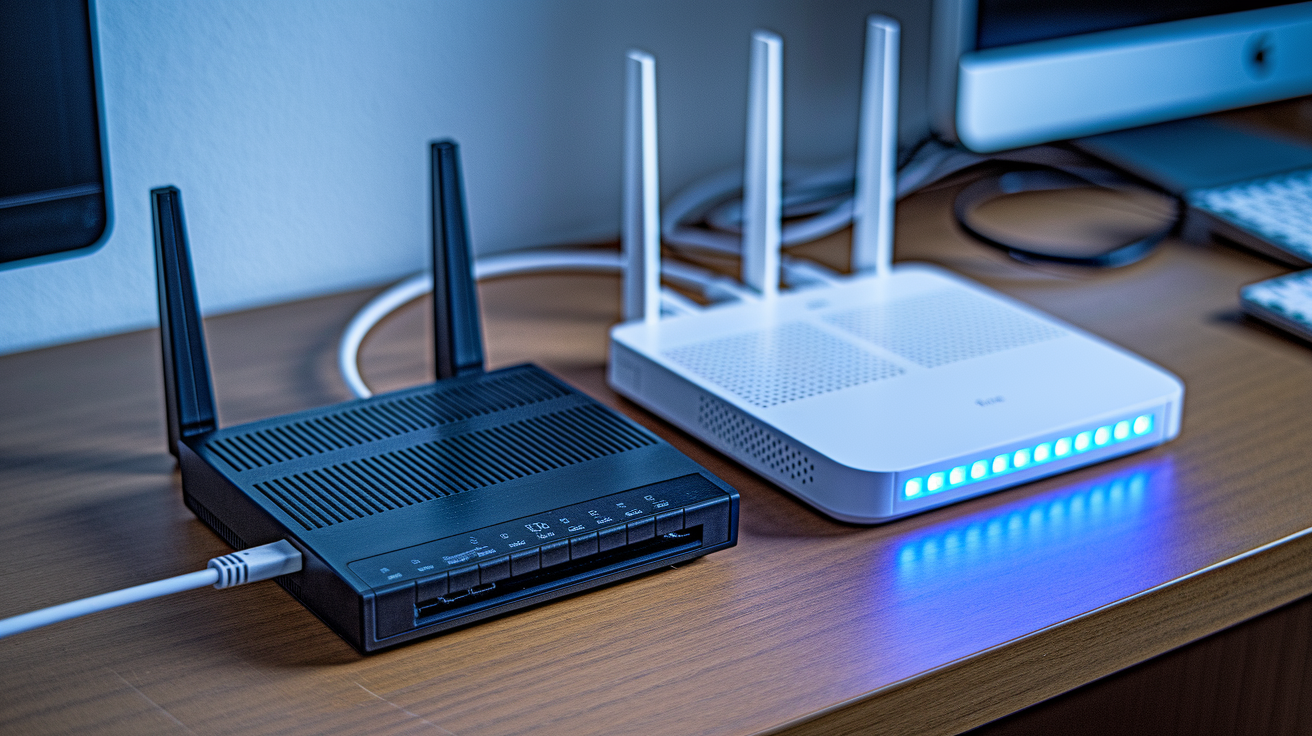

Most people think modems and routers are the same thing. They’re not. Your modem connects your home to the internet by translating signals from your ISP. Your router takes that connection and spreads it to all your devices through WiFi and ethernet ports. Without a modem, you have no internet. Without a router, only one device can go online and you get no WiFi. Understanding what each box actually does helps you troubleshoot connection problems, upgrade the right equipment, and stop paying rental fees for gear you don’t need.
What Modems and Routers Actually Do in Your Network
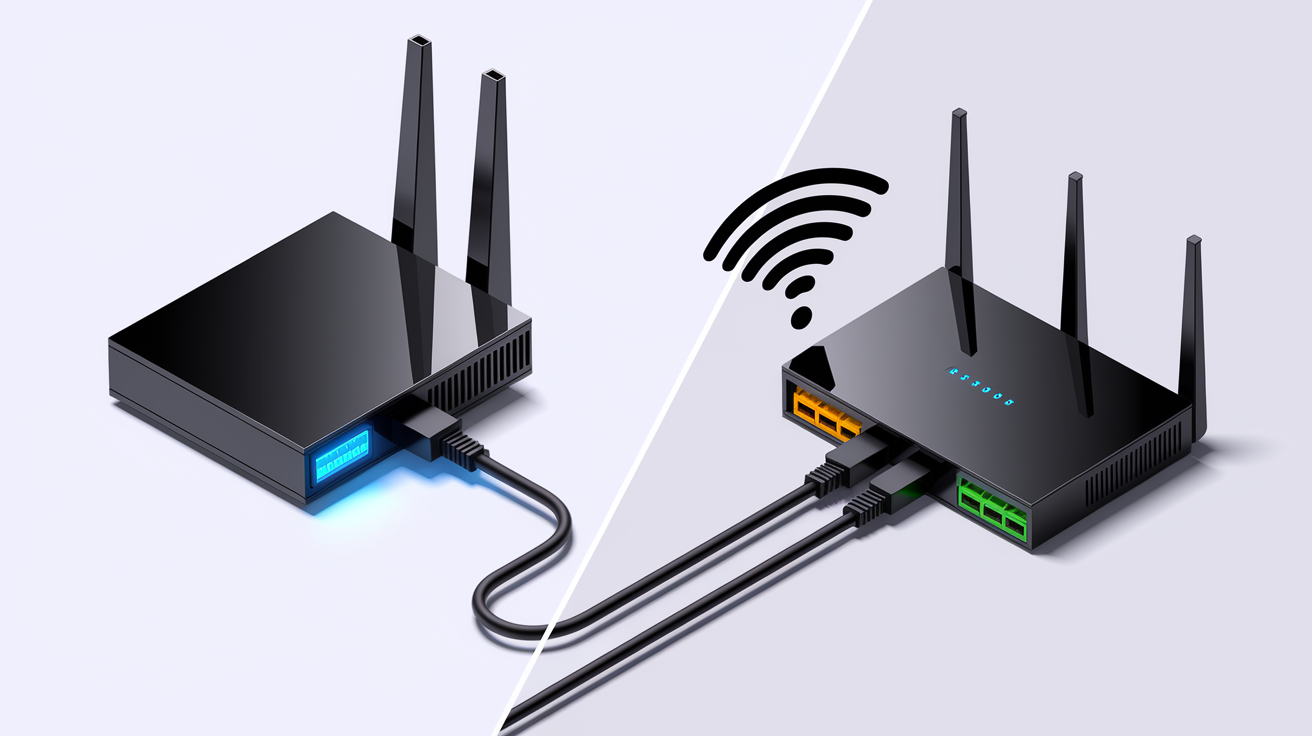
People mix these up all the time because they sit next to each other and work together. But they do completely different things. A modem connects you to the internet. A router shares that connection with everything in your house.
| Device | Primary Function | Connects To | Network Layer | IP Address Type | Typical Ports |
|---|---|---|---|---|---|
| Modem | Converts signals between ISP and home network | ISP infrastructure (cable/phone/fiber lines) | Data Link Layer | Public | 1-2 ethernet ports |
| Router | Distributes internet to multiple devices | Modem and home devices | Physical and Network Layers | Private | 4-8+ ethernet ports |
Your modem bridges the gap between your home and your ISP. It takes analog signals coming through telephone lines, cable, or fiber and turns them into digital data your devices understand. That’s modulation going out, demodulation coming back. The modem operates on the Data Link Layer of the OSI Model, managing the physical connection to your ISP. It gets a public IP address from your service provider and uses Wide Area Network tech to make it all work. Because it’s just translating signals, not managing devices, modems typically have one or two ethernet ports. Plug something in and the modem passes data back and forth. That’s it. No traffic management. No distribution.
Your router takes that internet connection and spreads it around. It directs data packets across your network, figuring out the best path to each device. When something arrives at the router, it checks headers and checksums, then sends it where it needs to go based on the routing table. Algorithms update that table constantly to calculate optimal paths. The router works on both Physical and Network Layers, broadcasting WiFi so your phone, laptop, tablet, and smart home stuff can connect without cables running everywhere. It manages traffic to prevent devices from interfering with each other’s data.
The setup on these devices shows what they’re built for. Modems have one input port where your ISP line connects (coaxial, DSL, or fiber) plus one or two ethernet outputs. They use public IP addresses and operate through WAN connections. Routers need way more ports because they handle everything at once. You’ll see one WAN input that connects to your modem, then four to eight LAN ethernet ports for wired devices. Routers assign private IP addresses to each device and run through Local Area Network tech. That’s why your router handles your entire household while your modem connects to one thing.
Wired connections beat wireless every time. When you plug into your router’s LAN ports with an ethernet cable, you skip the signal interference and slowdown that hits WiFi, especially as you move farther from the router. Modern equipment supports gigabit ethernet, pushing speeds up to 1,000 Mbps on wired setups. Your actual speed still depends on your plan and what your devices can handle.
Types of Modems for Different Internet Connections
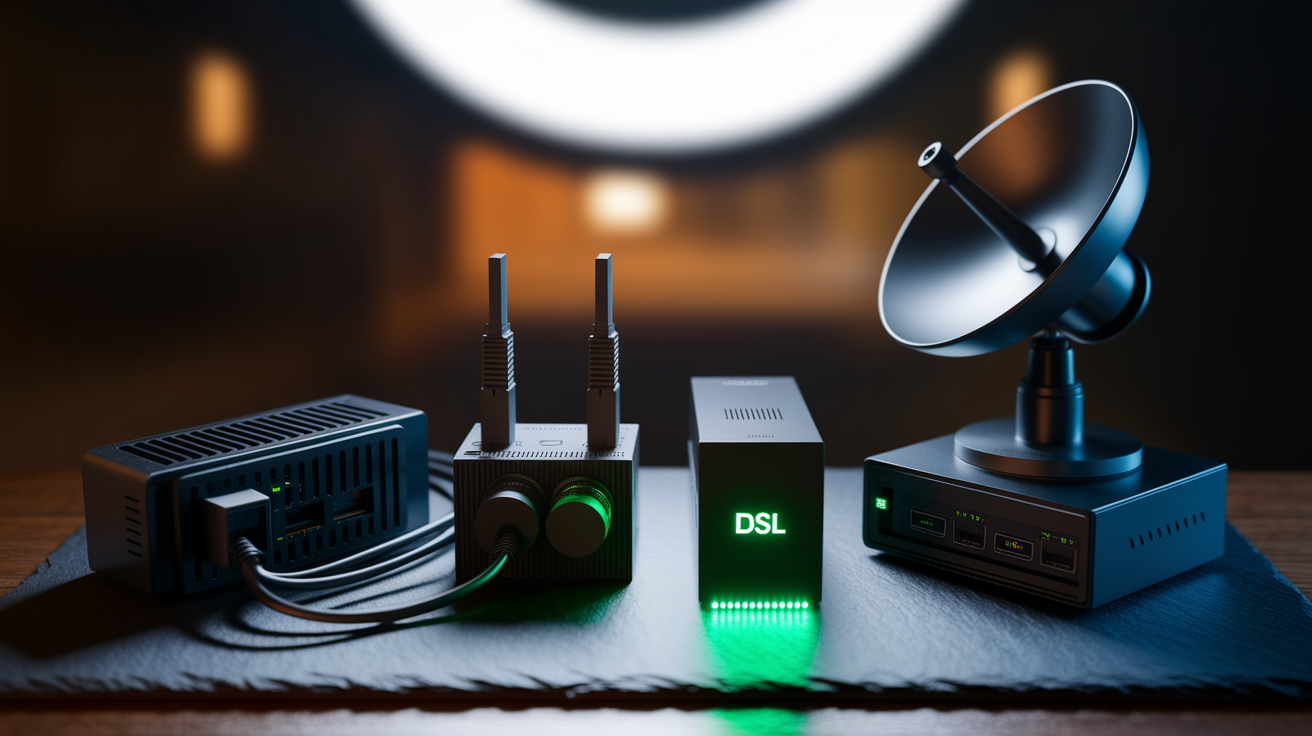
You need the right modem for whatever internet service your ISP delivers. Can’t use a cable modem with fiber or a DSL modem with cable. Different connection types use different signal methods.
Cable Modem connects through the same coaxial cable that brings you cable TV. Most common type in the US. Cable modems follow DOCSIS standards. DOCSIS 3.0 gets you around 1 Gbps, while DOCSIS 3.1 handles multi-gigabit speeds.
DSL Modem uses your phone lines but on different frequencies than voice calls, so you can talk and browse at the same time. DSL gives you moderate speeds, usually 25 to 100 Mbps depending on how far you are from the telephone company’s gear.
Fiber Optic Modem is technically called an Optical Network Terminal. Handles fiber connections that deliver the fastest speeds available. Supports anywhere from 250 Mbps to 10 Gbps. Common for enterprise setups that need serious throughput.
Satellite Modem works in remote areas where cable, DSL, and fiber don’t reach. Communicates with satellites overhead to get you online, though latency tends to run higher than ground connections.
Dial-Up Modem is legacy tech using phone lines for internet. Slowest option by far and rarely used now, but some rural spots with no other choices still depend on it.
Check your ISP’s compatibility list before buying anything. Some providers like AT&T don’t let you use your own equipment. They require their modem. Even ISPs that allow customer gear have approved models only. The connection type determines your max speed, so matching the right modem to your service matters if you want what you’re paying for.
Types of Routers and Wireless Network Options
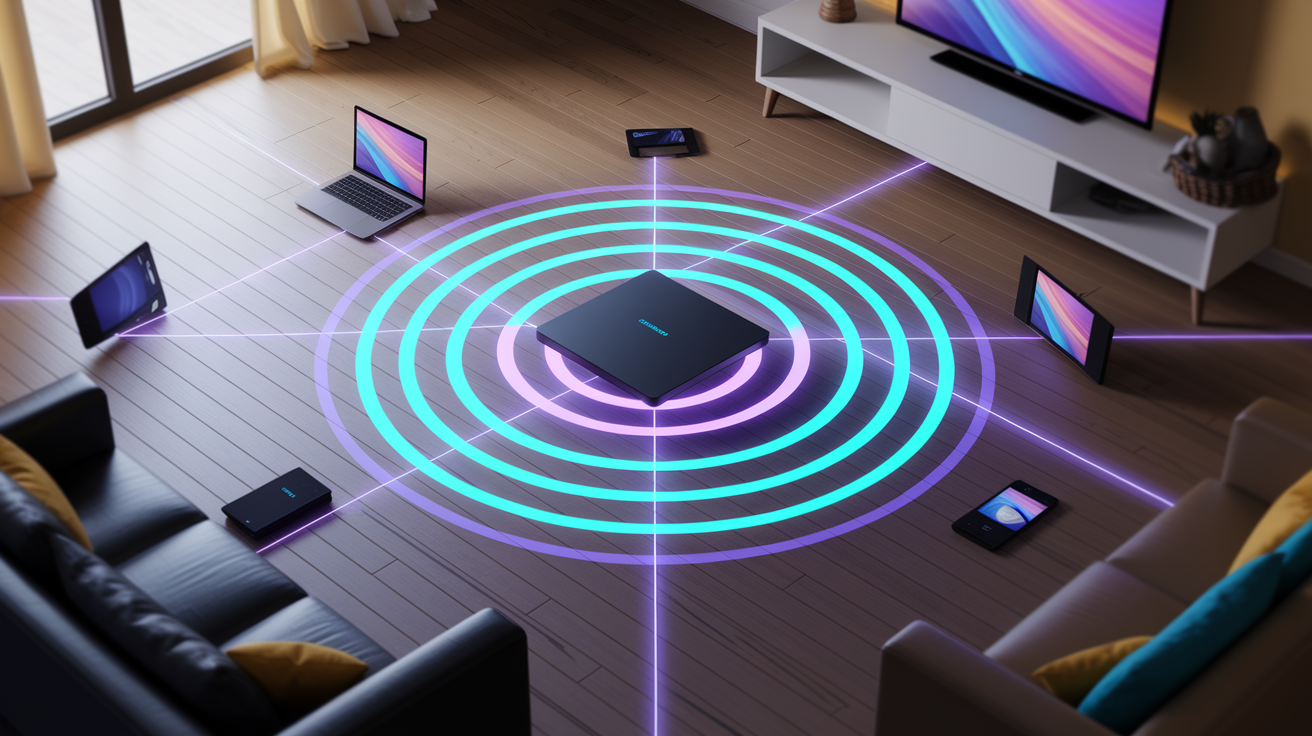
What works best depends on your home size, device count, and what you do online.
Wireless routers are standard for most homes. They broadcast WiFi that multiple devices join at once. You set a network name and password for secure access without running cables everywhere. Speed ratings look like AX1500 or AC1200. Letters show WiFi generation, numbers show combined speed across all bands. AX means WiFi 6. AC is WiFi 5. Most wireless routers are dual-band with 2.4GHz and 5GHz options. The 2.4GHz band reaches farther but runs slower. 5GHz delivers faster speeds over shorter distances. Tri-band routers add either a second 5GHz band or a 6GHz band (WiFi 6E) to cut congestion when tons of devices connect. WiFi 7 is the newest generation with better speeds and improved handling when networks get crowded.
Mesh routers solve coverage problems in bigger homes by using multiple units throughout your space. Each mesh unit relays the WiFi signal room to room, creating stronger coverage than one router in one spot. They work as one network, so devices automatically connect to whatever unit gives the strongest signal as you move around. Beamforming tech in advanced routers focuses WiFi directly at connected devices instead of broadcasting equally everywhere. Gaming routers include optimizations for server connections and low latency performance, which matters in competitive online gaming where delays affect gameplay.
Wired routers connect devices with ethernet cables only. No wireless at all. Schools and small offices use these when everything stays in fixed spots and stability beats mobility. Without wireless, every device needs a cable running to one of the LAN ports.
Gateway Devices: Combined Modem-Router Units
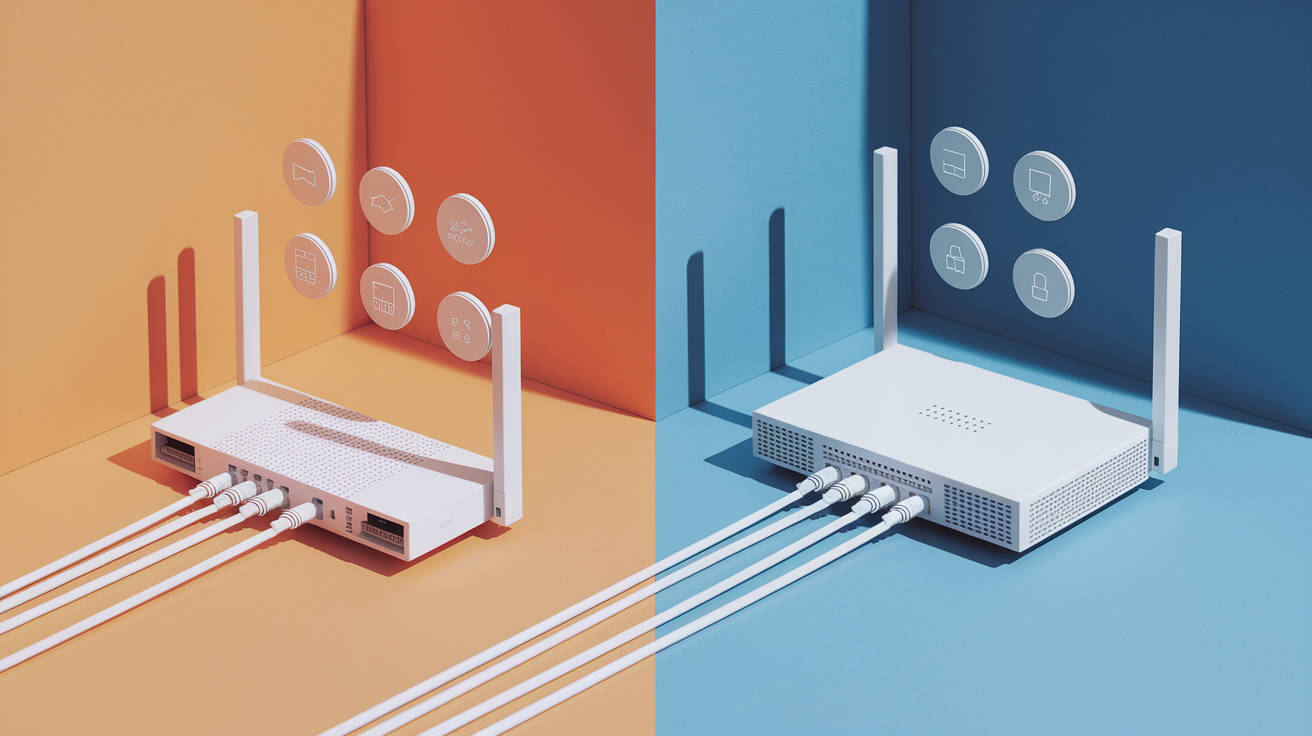
A gateway combines modem and router in one box. Most major ISPs including AT&T, Xfinity, Optimum, and T-Mobile 5G Home Internet provide gateways as standard equipment. If you’re renting from your provider, you’re almost definitely using a gateway instead of separate devices.
Gateways simplify installation because you only set up one thing. Fewer cables, less space, one power outlet. For basic internet use in smaller homes with light usage, a gateway handles everything you need. But there are tradeoffs. You can’t customize or upgrade one function without replacing the whole unit. If the modem part fails, you lose the router too. Gateway WiFi range typically runs weaker than standalone routers, and firmware updates arrive slower because they need testing for both components working together.
For simple setups with a few devices and basic needs, gateways work fine and cut complexity. Makes sense if you want the easiest install and don’t need advanced features. But for demanding situations like large homes, multiple heavy users, gaming, or streaming on several devices at once, separate units give better performance. Advanced users can disable the gateway’s wireless in settings and connect a separate router to the gateway’s ethernet port. Use the gateway as modem only while a better router handles WiFi and network management.
When Both Modem and Router Are Required
You can technically connect one device straight to a modem with an ethernet cable. That gives you internet on that device without a router. But this setup has no WiFi and limits you to whatever’s plugged into the modem’s port. For modern households with phones, tablets, laptops, smart TVs, and smart home devices, modem-only doesn’t work.
You need a router if you want WiFi or multiple devices online. The router creates your home network and distributes internet across everything wirelessly and through wired connections. Without it, you have no wireless network. Your phone and tablet can’t connect.
Both are required for full functionality unless you use a gateway. The modem brings internet into your network from your ISP. The router shares that connection with every device that needs it. This combo enables the connected home where your laptop, phone, streaming gear, gaming consoles, and smart products all access internet simultaneously through wireless and wired connections.
Bandwidth, Speed, and Performance Factors in Modems vs Routers
Network speeds get measured in megabits per second (Mbps) or gigabits per second (Gbps). 1 Gbps equals 1,000 Mbps. Advertised speeds on packaging show theoretical max under perfect conditions, which rarely matches real use. Download speed measures how fast data comes to you. Upload speed measures how fast you send out. Most home plans have faster downloads than uploads.
Your modem’s speed depends on your ISP plan and connection type. Fiber delivers fastest speeds, then cable, then DSL. For cable modems, DOCSIS version matters because 3.1 supports way higher speeds than older 3.0 hardware. Physical quality of lines running to your home affects things too. Since modems only handle wired connections and don’t broadcast WiFi, they don’t add wireless limitations. The modem either supports your plan speed or it doesn’t.
Router speed gets more complex because wireless adds variables that don’t affect modems. WiFi generation standard makes a big difference. WiFi 6 and WiFi 7 routers deliver faster speeds than older WiFi 5 models. The frequency band matters because 5GHz is faster than 2.4GHz, though 2.4GHz reaches farther. As more devices connect at once, each gets a smaller slice of available bandwidth, reducing individual speeds. Distance from the router impacts wireless performance, same as signal interference from walls, floors, and obstacles. Wired ethernet to your router’s LAN ports stays consistently faster and more stable than wireless because it avoids interference entirely.
Match your modem specs to your ISP plan speeds so equipment doesn’t bottleneck your connection. Pick a router that handles your device count without overwhelming its processor. Use wired connections for stationary stuff needing high bandwidth like gaming consoles, desktops, and streaming boxes. Gaming routers with low latency features help if online gaming matters. Some routers include Quality of Service settings that let you prioritize bandwidth for specific apps or devices, reducing congestion when multiple people use internet heavily at the same time. The Linksys Velop Pro 6E performed with lowest overall jitter scores in gaming router testing, showing how hardware quality affects consistency.
Security Features and Protection: Router vs Modem Capabilities
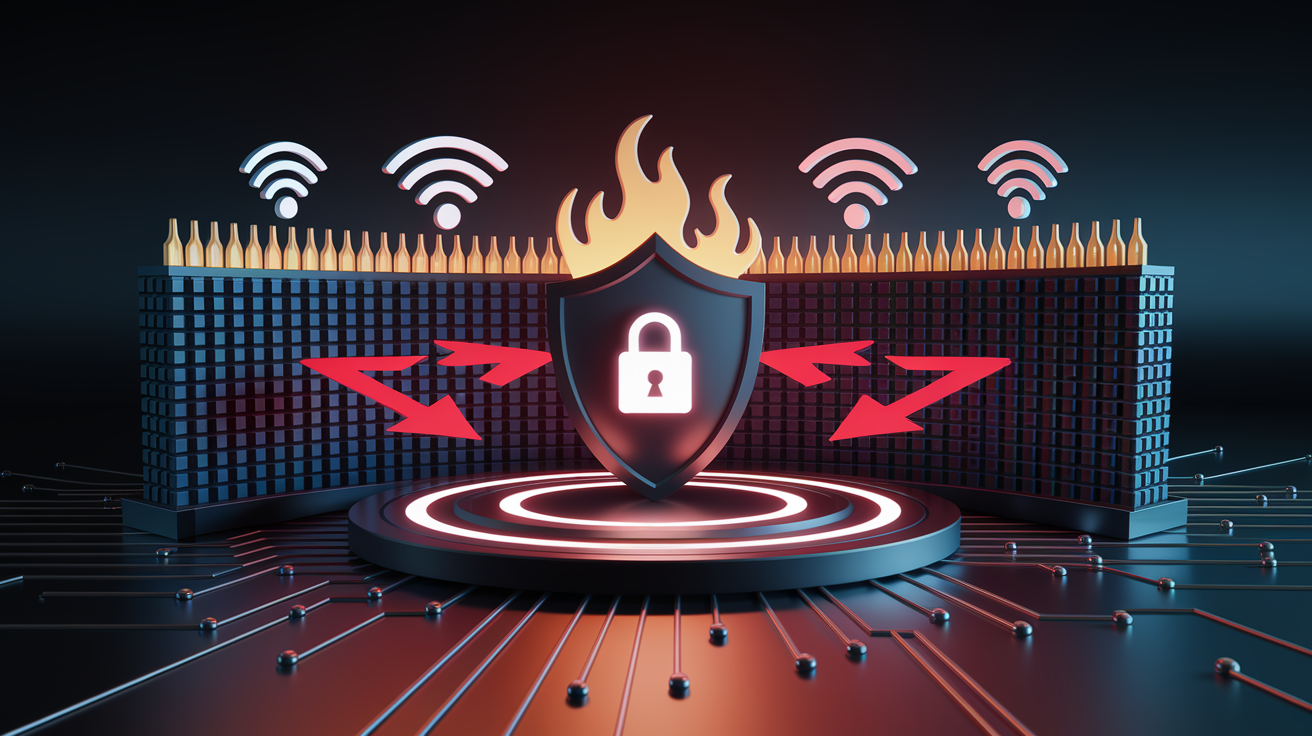
Modems provide almost no security because they’re connection devices, not security devices. No built-in firewall. They pass data straight between your ISP and network without filtering or examining it. The only security most modems have is admin password access to change settings, and tons of people never change from factory defaults. Modems don’t protect your home network. That’s not their job.
Routers handle nearly all network security. They include firewall protection that examines incoming traffic and blocks suspicious attempts. NAT tech hides your internal device IP addresses from the outside internet, making individual devices harder to target. WiFi encryption using WPA2 or newer WPA3 standard scrambles wireless data so others can’t intercept and read it. MAC address filtering lets you control which specific devices join your network. Guest network isolation creates separate WiFi for visitors that can’t access your main network or devices on it. Parental controls restrict content and set usage schedules. Advanced routers support VPN connections, network segmentation for separating device types, and detailed access policies controlling what different devices can do. Business-grade routers offer even more like intrusion prevention, but basic consumer routers still provide way more protection than modems.
Change default admin passwords on both your modem and router right after installation. Default passwords are public online and let anyone into your device settings. Use WPA3 encryption on WiFi if your router supports it, minimum WPA2. Create a strong, unique password for your WiFi network. At least 12 characters with letters, numbers, and symbols mixed. Enable guest network for visitors instead of giving out your main password. Update router firmware regularly because updates often fix security holes. Disable WPS (WiFi Protected Setup) if you don’t use it since it has known weaknesses. Check your router’s connected device list every few weeks to make sure only your stuff is on the network. Consider isolating smart home and IoT devices on a separate segment because they often have weaker security than computers and phones.
Purchasing vs Renting: Cost Comparison for Modems and Routers
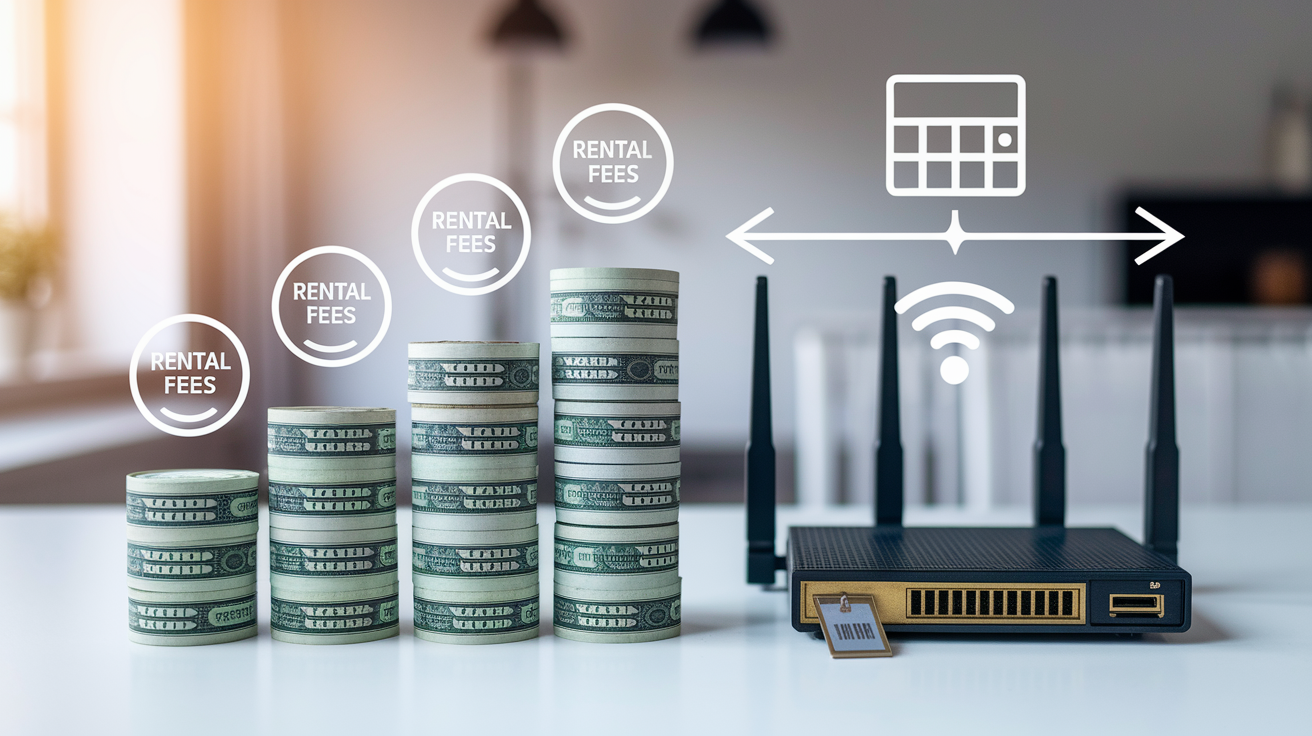
ISPs typically charge $10 to $15 monthly to rent a modem or router, or $15 to $20 for a combined gateway. That’s $120 to $240 per year in rental fees. A CNET survey found 63% of US adults saw internet bills increase by an average of $195 in the past year, with equipment rental fees often included. One CNET expert saved almost $1,000 by stopping his Xfinity rental and using his own router, showing how costs add up over time.
Buying your own requires upfront investment of $50 to $150 for a modem and $80 to $300 for a router, depending on features and performance you pick. Most people hit break-even where ownership becomes cheaper than renting within 6 to 12 months. Equipment typically lasts 3 to 5 years before needing replacement due to tech advances or failure. Owning gives you freedom to upgrade whenever you want better performance or new features. You can pick advanced capabilities rental equipment doesn’t offer, like stronger WiFi coverage, gaming optimizations, or better parental controls. After your purchase pays for itself, no more monthly charges for equipment.
Not all ISPs allow customer-owned equipment. AT&T requires customers to use their provided modem and doesn’t support alternatives. Before buying anything, check your ISP’s approved or compatible device list. Cable internet requires modems supporting the right DOCSIS version for your service. Confirm any modem you consider works with your specific connection type because cable modems won’t work with fiber or DSL. ISPs like Xfinity, Spectrum, Ziply Fiber, and Rise Broadband do support customer-owned equipment and maintain compatible model lists on their sites. Some ISPs bundle unlimited data with gateway rentals, so factor that into cost comparison if data caps affect usage.
Advanced Router Features Not Found in Modems
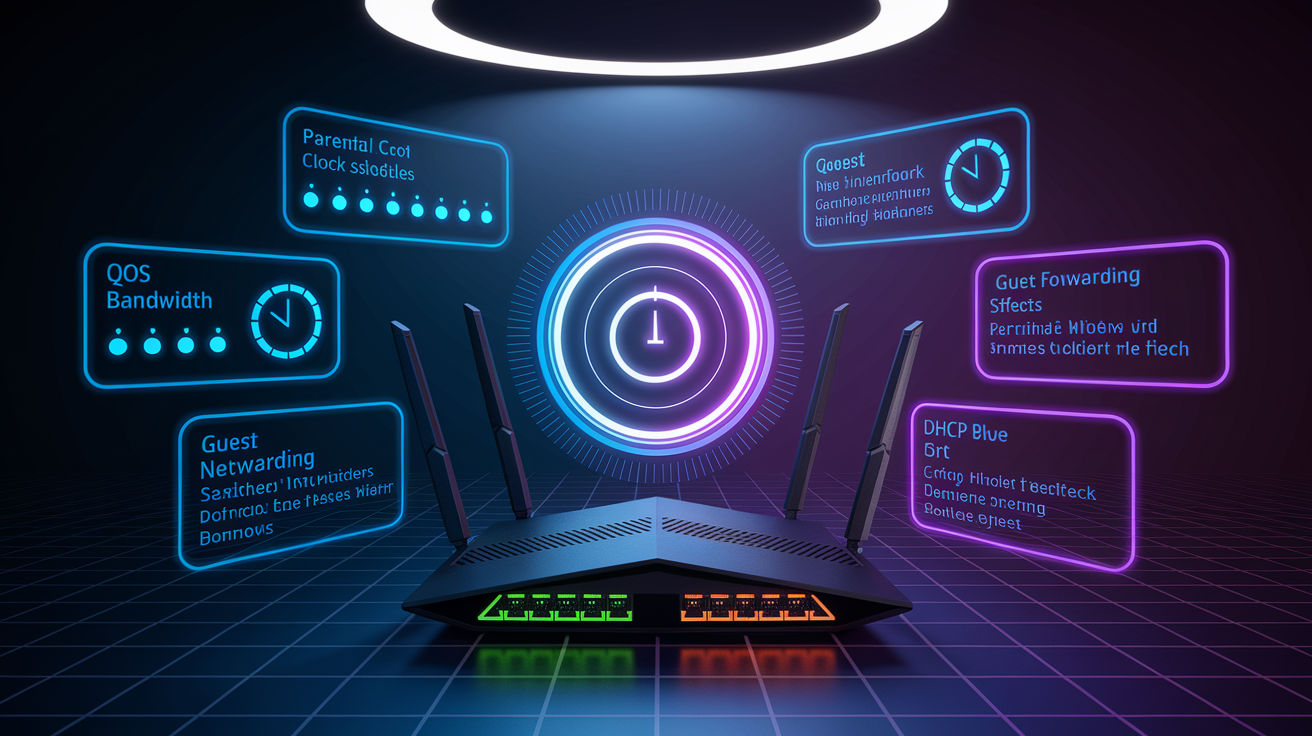
Routers manage network traffic in ways modems can’t. The DHCP server built into routers automatically assigns IP addresses to each device that connects, so you don’t manually configure network settings on every phone, laptop, and tablet. Quality of Service settings prioritize bandwidth for specific apps or devices, letting you make sure video calls or gaming get what they need even when other devices are also using internet. Routers apply collision reduction to manage congestion and prevent data from different devices interfering. Beamforming focuses WiFi signals directly at connected devices instead of broadcasting equally everywhere, improving signal strength and speed. With connected IoT devices projected to grow to 39 billion by 2030, these traffic management features get increasingly important as homes add more devices.
User control features let you manage and secure your network in ways modems don’t offer. Parental controls restrict content, set time limits, and manage what sites or services specific devices access. Guest networks create isolated WiFi for visitors that keeps them separated from your main network and devices on it. Port forwarding opens incoming connections for specific apps like gaming servers or remote access. You control whether your network name broadcasts visibly or stays hidden from WiFi lists on nearby devices. Device access controls let you block specific devices from joining. Router firmware updates add features, improve performance, and fix security holes over the device’s life. Advanced routers support centralized management interfaces, VPN server functionality for secure remote connections, and integration with smart home platforms managing connected devices throughout your house.
| Feature | Function | Typical Use Case |
|---|---|---|
| Quality of Service (QoS) | Prioritizes bandwidth for selected devices or applications | Ensuring video calls don’t lag when others stream or download |
| Parental Controls | Restricts content access and sets usage schedules | Managing children’s internet time and blocking inappropriate sites |
| Guest Network | Creates isolated WiFi for visitors | Giving guests internet without exposing your devices or files |
| Port Forwarding | Opens specific incoming connections through firewall | Running game servers or accessing security cameras remotely |
| DHCP Server | Automatically assigns IP addresses to connected devices | Eliminating manual network configuration on every device |
Common Troubleshooting Steps for Modem and Router Problems
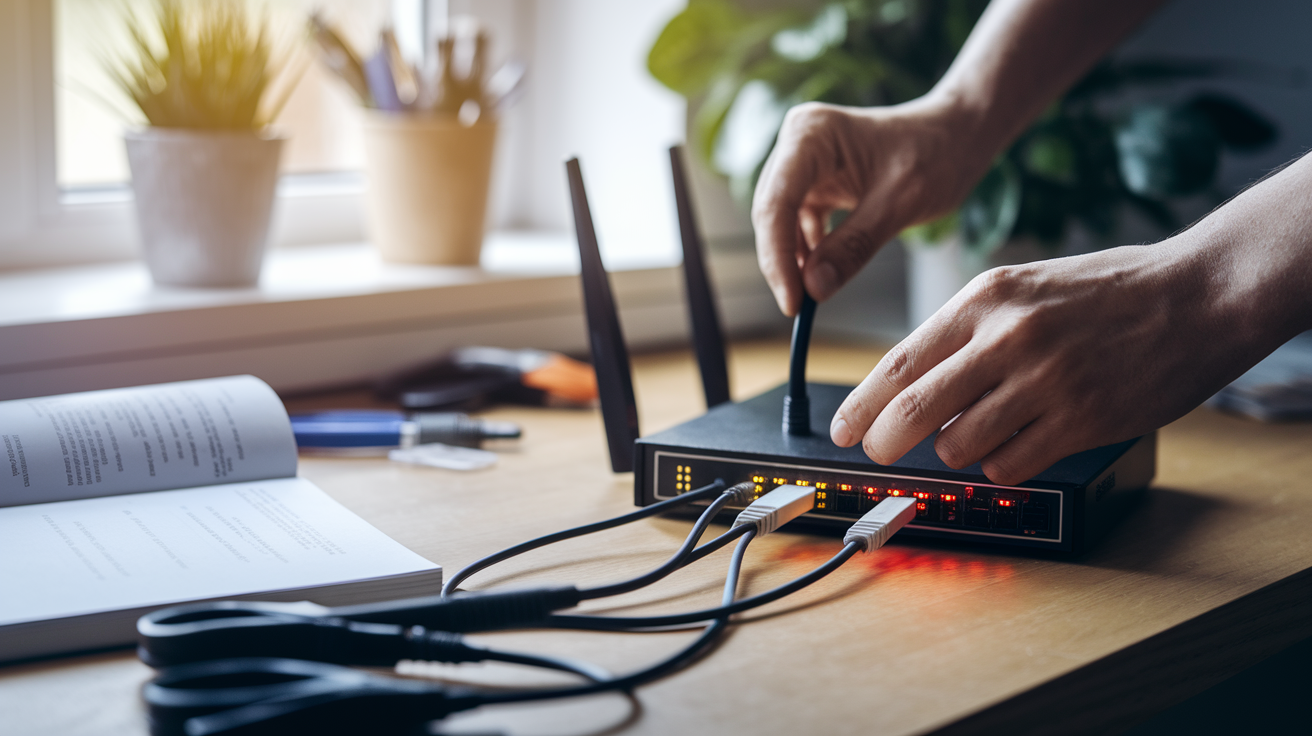
Most connectivity problems get resolved through systematic troubleshooting instead of immediately calling your ISP or buying new equipment.
Initial Setup and Installation Process
Proper installation from the start ensures good performance and security. Here’s how to set up correctly:
-
Connect the modem to your ISP line by plugging the coaxial, DSL, or fiber cable from the wall into the modem’s input port.
-
Power on the modem and wait for all lights to stabilize, usually 2 to 3 minutes.
-
Connect ethernet cable from the modem’s LAN port to the router’s WAN or internet port.
-
Power on the router and wait for initialization, typically 1 to 2 minutes.
-
Connect a device to the router’s default WiFi using network name and password printed on the router’s label.
-
Access router settings through a web browser to configure your network name, password, and security.
Router placement significantly affects WiFi performance. Position it centrally instead of at one edge of your house for even coverage. Place it elevated on a desk or shelf, not on the floor. Keep it away from walls and metal objects that block signals. Avoid placing near microwave ovens and cordless phones, which interfere with 2.4GHz. Change default admin passwords on both devices right after setup. Enable WPA3 encryption if your router supports it, minimum WPA2. Create a strong, unique WiFi password that’s hard to guess. These steps prevent unauthorized access and protect devices from threats.
-
Figure out which device is causing the problem. No internet at all? Likely the modem. WiFi down but modem lights look normal? Probably the router.
-
Check all physical connections. Make sure coaxial or fiber cable is secure to the modem. Verify ethernet between modem and router is plugged in firmly at both ends. Confirm power cables connect to both devices.
-
Check indicator lights on both. Your modem should show solid lights for power and ISP connection. Router should display solid lights for power and internet. Blinking or off lights indicate specific problems your manual can help diagnose.
-
Reboot both in the correct order. Power off modem and router completely. Wait 30 seconds. Power on modem first and wait 2 minutes for full reconnect to ISP. Then power on router. This often fixes temporary issues.
-
Test with wired connection. Connect a computer directly to the modem with ethernet, bypassing the router. This isolates whether the problem is internet connection or home network.
-
Check for firmware updates. Access your router’s admin interface through a browser and look for available updates. Installing updates improves performance and fixes security holes.
-
Reduce connected device count. Temporarily disconnect devices to test whether congestion is causing slowdowns. Speed decreases when many devices connect simultaneously.
Contact your ISP when you get persistent modem connection issues that rebooting doesn’t fix, signal quality problems shown by unstable modem lights, or internet speeds way below your plan. Call them for damaged cables or ports needing professional repair, and for account or service activation problems only they can resolve. Replace equipment when your router hasn’t received firmware updates for 12 months or more, when you’re using outdated WiFi standards like WiFi 4 or older, after repeated failures despite troubleshooting, if there’s physical damage to ports or antennas, or when current equipment can’t support your device count or coverage needs. The fact that 84% of businesses reported an increase in network outages over the past 2 years shows how important quality equipment is for reliable connectivity.
Final Words
Your modem connects you to your ISP and converts their signal into data your devices can use. Your router takes that connection and shares it across all your devices, wired or wireless.
Understanding the modem vs router difference helps you troubleshoot faster, choose the right equipment, and decide whether to rent or buy.
If you’re setting up a new network or upgrading, you now know what each device does and which features actually matter for your situation.
FAQ
Q: Do I need a router if I have a modem?
A: You need a router if you have a modem and want WiFi or multiple device connections. A modem alone only supports one device via ethernet cable, while a router broadcasts wireless networks and distributes internet to phones, tablets, laptops, and smart home devices throughout your home.
Q: Are WiFi modem and router the same?
A: A WiFi modem and router are not the same devices. A modem connects your home to your internet service provider and converts signals, while a router creates the WiFi network and distributes that internet connection wirelessly to your devices. Some gateway units combine both functions into one device.
Q: Do modems have routers built in?
A: Most modems do not have routers built in and serve only as ISP connection devices. However, gateway devices combine both modem and router functionality into a single unit, commonly provided by ISPs like AT&T, Xfinity, and T-Mobile as rental equipment for simplified setup.
Q: How do I know if I need a modem or just a router?
A: You need a modem if you’re connecting to cable, DSL, or fiber internet service from an ISP. You need just a router if you already have a modem or gateway providing internet access and want to add better WiFi coverage, advanced features, or replace outdated wireless capability.
Q: Can I use my own modem and router instead of renting from my ISP?
A: You can use your own modem and router with most ISPs like Xfinity, Spectrum, and Rise Broadband, saving $120 to $240 annually in rental fees. However, some providers like AT&T don’t allow customer-owned modems, so check your ISP’s approved equipment list before purchasing.
Q: What’s the difference between a modem and a router?
A: A modem connects your home network to your internet service provider and converts signals between analog and digital formats. A router distributes that internet connection to multiple devices, creates WiFi networks, manages traffic, and provides security features like firewalls and password protection.
Q: How often should I replace my modem and router?
A: You should replace your router if it hasn’t received firmware updates for over 12 months or uses outdated WiFi standards like WiFi 4. Modems and routers typically last three to five years, but upgrade sooner if you experience repeated connection failures or can’t support your device count.
Q: What is a gateway device?
A: A gateway device combines modem and router functionality into one unit, connecting to your ISP while also broadcasting WiFi and managing your home network. These all-in-one devices simplify installation but offer limited customization and require full replacement if either function fails.