


Think a password alone will keep your accounts safe? It won’t.
Two-factor authentication (2FA) adds a second proof: your phone, an app, or a security key, so a stolen password isn’t enough.
This guide walks you through the simple, step-by-step setup for SMS codes, authenticator apps, and hardware keys.
You’ll also learn where to save recovery codes and what to do if you lose your phone.
Follow the steps and you’ll have stronger, practical protection on your important accounts in minutes.
Step-by-Step Setup Process for Two-Factor Authentication

Before you start, grab what you need based on the method you’re using. For SMS verification, you need your phone and the number you want to register. For an authenticator app, download Google Authenticator, Microsoft Authenticator, 2FAS, or Aegis Authenticator before you do anything else. If you’re using a hardware security key, have the physical device within reach.
Here’s how enabling 2FA works on most accounts:
- Sign into the account you want to protect with your current username and password.
- Navigate to your account settings. Look for “Security,” “Security Settings,” “Multifactor Options,” or “Two-Step Verification.”
- Choose your preferred verification method. SMS text codes, an authenticator app, or a hardware security key.
- For SMS: enter your mobile phone number, then type in the verification code sent via text. For an authenticator app: scan the QR code displayed on-screen with your app. If scanning isn’t possible, manually enter the setup key. For a hardware key: plug in or tap your YubiKey or similar device when the prompt appears.
- Complete the verification step by entering the code from your app, SMS, or confirming your key tap.
- Save the backup or recovery codes that appear on-screen. Write them down or download the file.
- Store those recovery codes somewhere secure and offline. A locked drawer or password manager vault works well.
SMS verification sends a text message with a one-time code, usually four to six digits, every time you log in from a new device or browser. Authenticator apps generate time-based one-time passwords (TOTP) that rotate every 30 seconds and work offline. Most apps display a six-digit code you type during login. The app method is faster because you don’t wait for a text to arrive.
Write down your backup codes the moment they appear. If you lose access to your phone or security key, those codes are often the only way back into your account without contacting support and proving your identity through a longer recovery process.
Understanding Two-Factor Authentication Methods
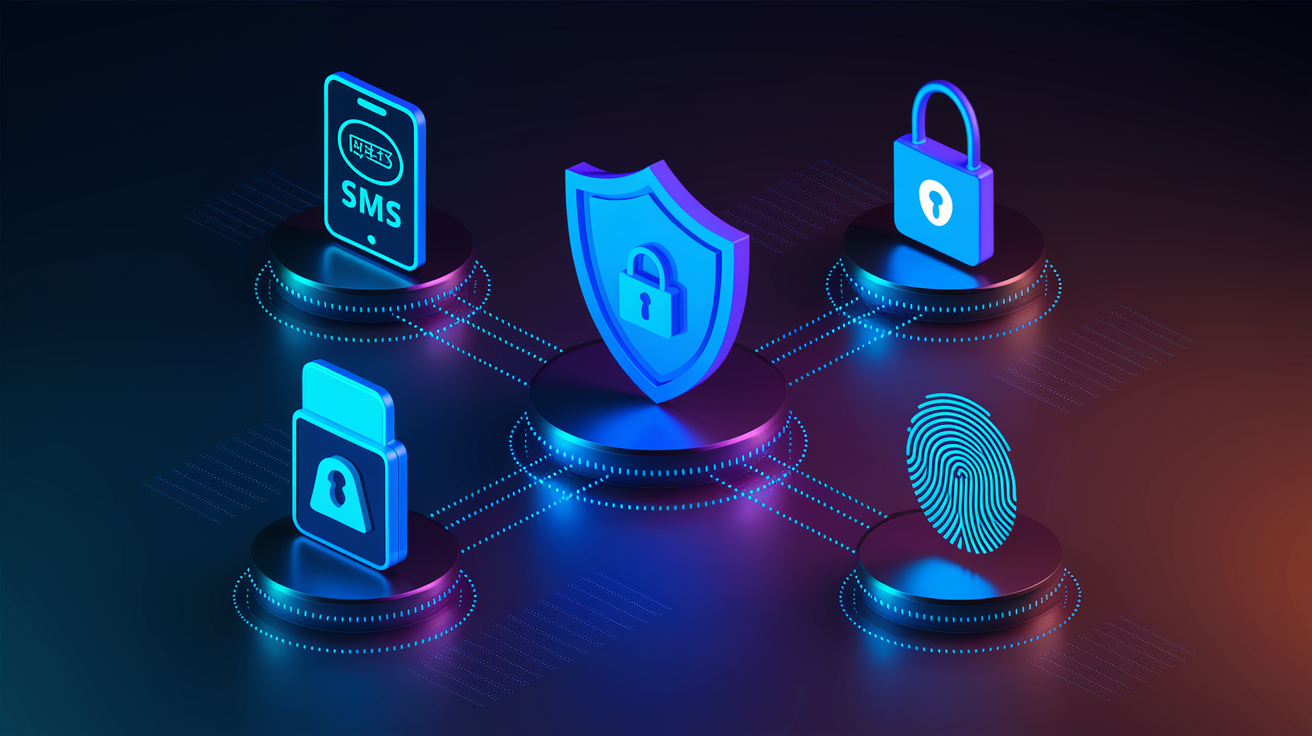
Two-factor authentication relies on at least two of three types of proof: something you know (like your password), something you have (your phone or a hardware token), and something you are (a fingerprint or face scan). Combining two factors makes it exponentially harder for someone to break into your account, even if they steal your password.
Here are the four most common verification methods:
SMS codes arrive as text messages on your mobile phone. You enter the code at login. This method is widely supported and simple to set up, but it depends on cellular reception and is vulnerable to SIM-swap attacks.
Authenticator apps generate rotating six-digit codes on your smartphone. Apps like Google Authenticator and Microsoft Authenticator work offline and update codes every 30 seconds. This method is more secure than SMS because the codes stay on your device.
Hardware security keys are physical USB, NFC, or Bluetooth devices such as YubiKey. You tap or insert the key when logging in. Keys are nearly impossible to phish and offer the strongest protection.
Biometric authentication uses your fingerprint, face, or iris to verify your identity. Touch ID on iPhone or Windows Hello on laptops can replace or supplement traditional codes. This method is fast but requires compatible hardware.
Authenticator apps and hardware keys are the strongest choices because they aren’t intercepted in transit and can’t be remotely stolen. SMS is easier to set up and works on any mobile phone, but it’s less secure. If your account holds sensitive data (banking, email, cloud storage), choose an app or hardware key.
Pick the method that matches your devices and comfort level. If you carry your phone everywhere, an authenticator app is a solid default. If you work on multiple shared computers, a hardware key keeps access locked to the physical token. SMS is fine as a backup or for accounts where convenience matters more than top-tier security.
How to Set Up 2FA Using Authenticator Apps
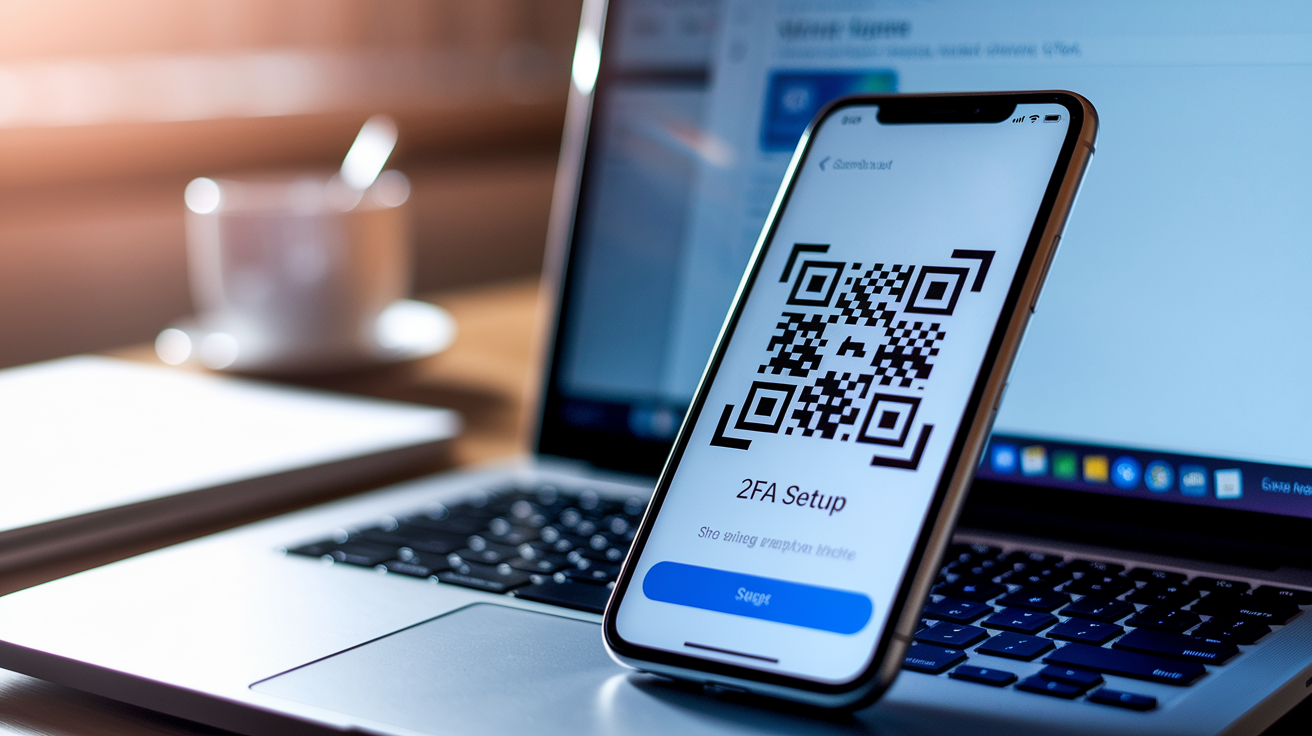
You’ll need a smartphone and an authenticator app installed before you begin. Google Authenticator, Microsoft Authenticator, 2FAS, and Aegis Authenticator are all free and work on both Android and iOS devices.
- Open the security or multifactor settings page of the account you’re securing.
- Select “Authenticator app” or “Use an app” as your verification method.
- The site will display a QR code on-screen. Open your authenticator app and tap the plus icon or “Add account.”
- Point your phone’s camera at the QR code to scan it. If scanning fails, tap “Enter a setup key” and type the alphanumeric string shown below the QR code.
- Your app will immediately start displaying a six-digit code that changes every 30 seconds. Type the current code into the verification field on the website to confirm the setup.
Authenticator apps use time-based one-time passwords (TOTP), which means the code you see is only valid for 30 seconds. It’s generated by a shared secret stored on your phone. The codes work even when your phone is offline or in airplane mode, so you don’t need cellular service or Wi-Fi at login time.
Set up a backup method in case you lose or wipe your phone. Most services let you add a secondary phone number for SMS fallback or generate a set of printable recovery codes. Keep those codes in a safe place separate from your phone.
How to Enable 2FA with SMS or Text Message Codes
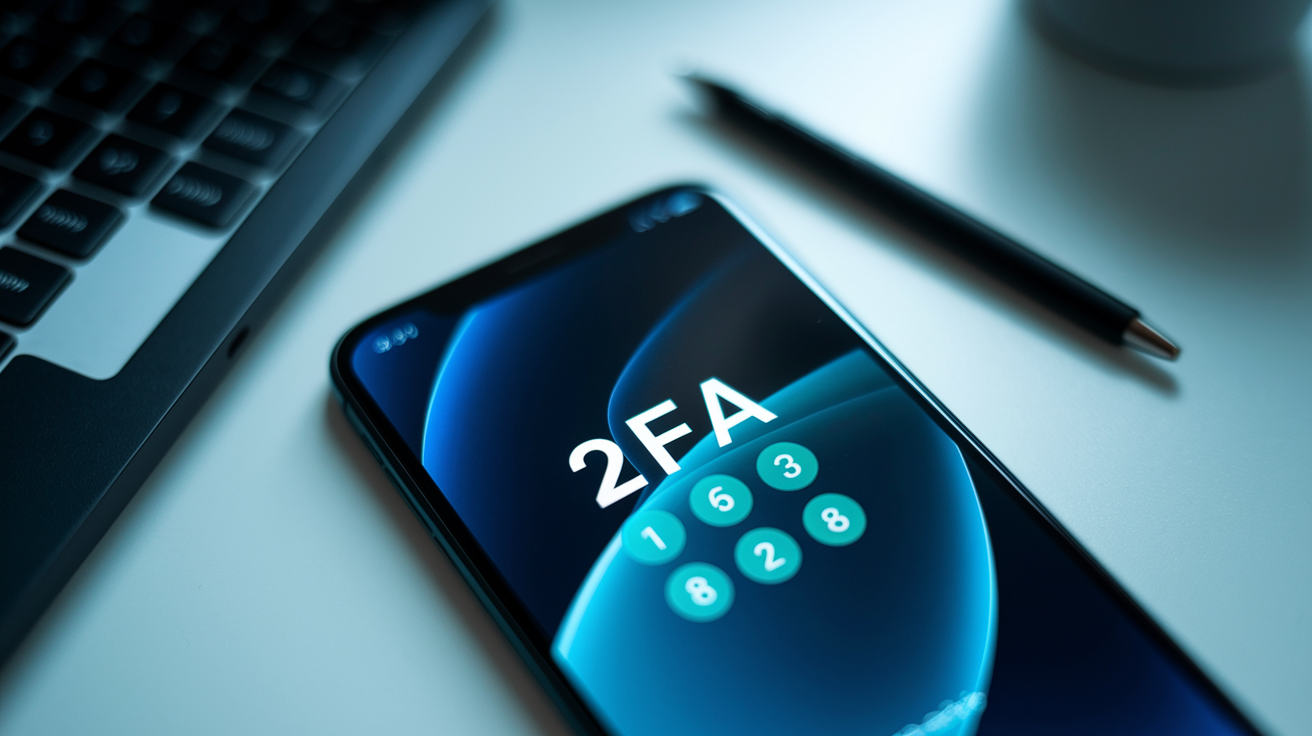
To set up SMS-based 2FA, navigate to your account’s security settings and choose “Text message” or “SMS” as your verification method. Enter your mobile phone number in the format requested. Some sites require the country code, others auto-detect it. The service will send a verification code via text, usually four to six digits, within a few seconds. Type that code into the confirmation box to complete registration.
Pros: SMS works on any mobile phone, including basic flip phones. Setup is fast and familiar to most users.
Cons: SMS codes can be intercepted through SIM-swap fraud or SS7 vulnerabilities. Text delivery can be delayed if you’re in a low-signal area or traveling internationally.
Code lengths: Twitter and Instagram send six-digit codes. Some older systems use four digits. The code usually expires after a few minutes.
Risks: An attacker who convinces your carrier to transfer your phone number to a new SIM can receive your codes. This is less common than password theft but still a known risk.
Use SMS when you don’t have a smartphone capable of running an authenticator app, or when a service doesn’t support stronger methods. SMS is also a reasonable fallback if your primary 2FA method is unavailable. Keep SMS enabled as a backup on critical accounts like email, but pair it with an authenticator app or hardware key for day-to-day logins.
Using Hardware Security Keys for Stronger 2FA
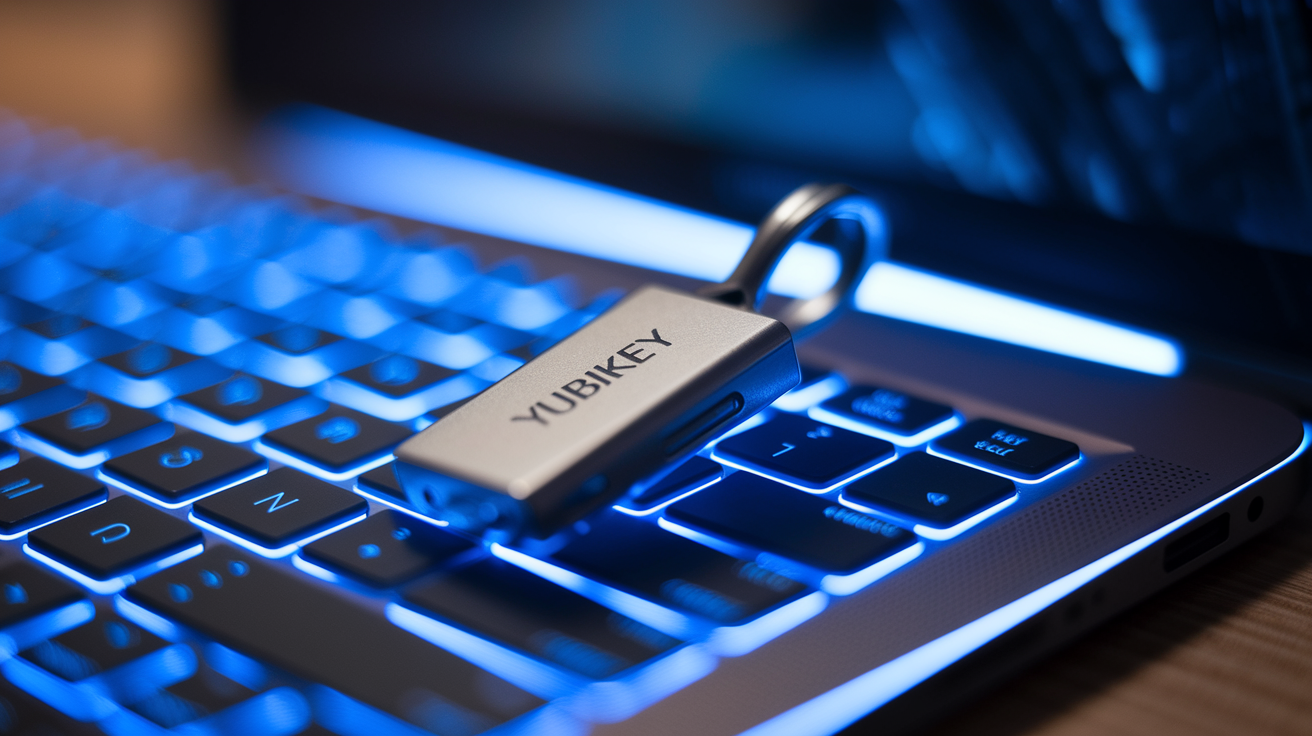
A hardware security key is a small physical device that plugs into a USB port or connects via NFC or Bluetooth. YubiKey is the most recognized brand, but other FIDO2-compatible keys work the same way. The key generates cryptographic proof of your identity when you tap or insert it. That proof can’t be phished or duplicated remotely.
During setup, the service will prompt you to insert or tap your key. For USB-A or USB-C keys, plug the device into your computer’s port. For NFC keys, hold the key against your phone or laptop’s NFC reader when the prompt appears. The key will blink or vibrate to confirm it’s communicating with the site. Follow the on-screen steps to name the key and complete registration. Most platforms let you register multiple keys so you have a backup.
Google Apps, AWS, Facebook, Microsoft, and many other major services support hardware keys. Keys are especially useful if you work on shared or public computers, because you can remove the key immediately after login and no code stays on the screen or in a clipboard. They’re also faster than typing codes. One tap and you’re in.
Managing Backup Codes and Recovery Options in 2FA

Backup codes are single-use passwords generated when you enable 2FA. They let you sign in if you lose access to your phone, authenticator app, or hardware key. Facebook provides 10 recovery codes. Microsoft issues one 25-digit recovery code. Download or write down these codes immediately and store them somewhere secure and offline. A locked drawer, safe, or password manager vault works well.
Common recovery methods include:
Printed backup codes stored in a physical location separate from your devices.
Secondary phone numbers registered for SMS fallback.
Recovery email addresses that can receive one-time access links.
Backup hardware keys registered alongside your primary key.
Trusted device approvals where you confirm login attempts on a device already logged in.
Check your backup options every few months, especially after changing phone numbers or devices. If you get a new phone, transfer your authenticator app by exporting accounts or re-scanning QR codes on each service. Update your registered phone number immediately when you switch carriers. If your backup codes are used or compromised, regenerate a fresh set and destroy the old ones.
Platform-Specific 2FA Setup Examples for Popular Services
Google: Sign into your Google Account, go to Security, then click “2-Step Verification.” Choose Google Prompt (push notification via the Google app), SMS, or an authenticator app. Register trusted computers to skip prompts on devices you use daily. Download backup codes from the same page.
Apple ID: On iPhone, open Settings, tap your name at the top, select “Sign-in & Security,” then “Two-Factor Authentication” and tap “Get Started.” On Mac, go to System Preferences, iCloud, Account Details, Security, Turn on Two-Factor Authentication. You’ll answer two security questions, reconfirm your credit card, and enter a phone number. Once enabled, Apple 2FA is nearly impossible to turn off after the first two weeks.
Microsoft: Visit account.microsoft.com/profile, click Security, then “Manage How I Sign In.” Add an email, SMS number, authenticator app, Windows Hello biometrics, or security key. Microsoft provides a 25-digit recovery code. Write it down. Older devices and some third-party apps may require app passwords after enabling 2FA.
Facebook / Meta: Click your avatar, go to Settings & privacy, Settings, Accounts Center, Password and Security, Two-factor authentication. Choose authenticator app, SMS, or a physical security key. Facebook generates 10 recovery codes under “Additional Methods.”
X (Twitter): Tap More, Settings And Support, Settings And Privacy, Security and account access, Security, Two-Factor Authentication. Pick SMS, an authenticator app, or a security key. Twitter generates backup codes automatically. Passkeys are supported on iOS and Android only.
Path names and menu labels vary slightly between desktop and mobile apps. If you don’t see an exact match, look for “Security,” “Privacy,” or “Account” in your settings menu. Some services hide 2FA options under “Advanced Settings” or “Login Security.”
Troubleshooting Common 2FA Problems

If your authenticator app codes aren’t working, check your phone’s date and time settings. TOTP codes are time-based, so if your phone clock is off by more than a minute, codes will fail. Go to Settings, Date & Time and enable “Set automatically.” Close and reopen the app, then try the new code.
SMS codes never arrive: Check your signal strength and verify the registered number is correct. Some carriers block short-code messages. Contact your carrier’s support. Add the service’s number to your contacts to prevent spam filtering.
“Invalid code” errors with authenticator apps: Confirm you’re entering the code from the correct account in your app and that the code hasn’t expired. Re-sync the app’s time settings if your platform supports it.
Hardware key not recognized: Try a different USB port or restart your browser. Some older browsers don’t support FIDO2. Use Chrome, Edge, Safari, or Firefox on the latest version. On mobile, ensure NFC is enabled in your phone settings.
App passwords required: Older email clients, calendar apps, and third-party tools don’t support 2FA prompts. Generate a unique app password from your account’s security settings and paste it in place of your regular password.
If you’ve exhausted backup codes and can’t access your authenticator app or registered phone, contact the service’s support team. Be ready to verify your identity with account details like your registered email, billing address, or recent activity. Recovery can take several days and may require uploading a photo ID.
Final Words
in the action, we covered what you need (phone, authenticator app, security key), the universal enable flow, the seven-step setup basics, the difference between SMS and app codes, and why backup codes matter.
Pick an authenticator app or a hardware key when you can; use SMS only as a fallback. If codes don’t work, check your device time and retry.
Now you know how to set up two factor authentication and cut the chance of being locked out. Store recovery codes offline and add a backup method. You’ve got this.
FAQ
Q: How to set up 2 factor authentication on iPhone?
A: To set up two-factor authentication on iPhone, open Settings, tap your name → Password & Security, choose Two-Factor Authentication and follow prompts to verify a phone number or trusted device. Keep recovery info handy.
Q: What authenticator does SoundCloud use?
A: The authenticator SoundCloud uses is a standard TOTP authenticator app (for example Google Authenticator, Authy, or Microsoft Authenticator); you scan the QR code or enter the setup key to get 6‑digit codes.
Q: Is 2 factor authentication free?
A: Two-factor authentication is free for most accounts: apps and SMS codes usually cost nothing. Hardware security keys or paid enterprise features may require purchase or a subscription.
Q: What happens when you turn on two-factor authentication?
A: When you turn on two-factor authentication, your account will ask for a second verification step at sign-in (code, prompt, or key); you’ll set methods and receive backup codes to avoid lockouts.