


You’ve been locked out of your password manager, and panic is setting in because your entire digital life is trapped behind that one forgotten password. Here’s the hard truth: whether you can recover access depends entirely on what you set up before you got locked out, and for many people, the answer is no recovery at all. Most password managers use zero-knowledge encryption by design, meaning even the company can’t see or reset your master password. This guide walks through what’s actually possible with each major password manager and what to do if recovery fails completely.
Master Password Recovery Reality: What’s Actually Possible

Whether you can recover your password manager master password depends entirely on which service you use and what recovery methods you set up during installation. Some password managers offer limited recovery options if you configured them beforehand. Others offer no recovery at all, by design.
Most password managers use zero-knowledge encryption, meaning the company never sees or stores your master password. This is a security feature, not a flaw. It prevents hackers from breaking into the company’s servers and stealing everyone’s passwords. It also stops social engineering attacks where someone pretends to be you and tricks support staff into resetting your account. The tradeoff is simple. If you forget your master password and didn’t set up recovery options, your data is gone forever. Password managers aren’t like Gmail or Facebook. You won’t receive a password reset link via email.
Here’s what determines whether recovery is possible:
Recovery key saved during setup. Most services generate a one-time recovery key or emergency kit PDF during installation that you’re supposed to save somewhere safe.
Emergency access configured. Some password managers let you designate trusted contacts who can access your vault after a waiting period.
Device still logged in. If you have a phone, tablet, or computer where the password manager is still unlocked, you can view your passwords there.
Local backup exists. For managers that store vaults locally, you might have backup copies from cloud storage or external drives that you can unlock with an old master password you remember.
Vendor-specific recovery features enabled. Services like LastPass offer limited one-time recovery on previously used computers if you still have access to your registered email.
If you’re reading this because you’re locked out right now, stop and check your specific password manager’s recovery options immediately. Once you close that last logged-in browser or restart that phone, your window for recovery might close permanently.
Recovery Methods By Password Manager: Vendor-Specific Solutions
Each password manager handles master password recovery differently. Some offer limited backdoors. Others offer none at all. What works for one service won’t work for another.
LastPass Recovery Options
LastPass offers a One Time Password (OTP) feature that works if you’re trying to log in from a computer you’ve used before and you still have access to your registered email account. Log into your email, find the OTP message from LastPass, and use that code to regain access to your account. This only works once on that specific computer.
LastPass also supports vault reversion if you remember an old master password. Go to your account settings and look for vault recovery or vault history. You can roll back your vault to a previous version and unlock it with the old password you used at that time. The major downside? Any passwords you added or changed after that backup date are permanently lost.
If you have local backup files stored on your computer or in cloud storage, those older vault files can be unlocked with whatever master password you were using when they were created. Check common backup locations like Documents, Downloads, or wherever your automatic backup system saves files.
1Password Emergency Kit and Alternative Access
Recovery is only possible with the Emergency Kit PDF that 1Password generates during account setup. This PDF contains your Secret Key and space to write your master password. If you saved this document to your computer, email, or printed it out, you can use the information on it to regain access.
Check every device you own to see if 1Password is still logged in somewhere. Open the app on your phone, tablet, or laptop. If biometric unlock (fingerprint or face recognition) is enabled on mobile devices, try unlocking it that way. The app doesn’t require your master password if you’re using biometric authentication and haven’t logged out.
1Password doesn’t offer emergency access contacts like some other services. It also doesn’t support two-factor authentication for accounts, so SMS or authenticator app codes won’t help you here. If you don’t have the Emergency Kit and no devices are logged in, your account is permanently locked.
Bitwarden Account Recovery Methods
Bitwarden requires the recovery key that you should’ve saved during account creation. Log into your email and search for messages from Bitwarden containing your recovery key. You can also check password-protected documents where you might’ve stored it.
If you’re part of a Bitwarden organization (business or family plan), organization administrators may be able to help with account recovery. Contact whoever manages your organization’s subscription.
Bitwarden supports emergency access. If you set up trusted contacts before losing your master password, those people can request access to your vault. There’s typically a waiting period (you choose the length during setup, anywhere from instant to 30+ days) before they receive access. If you designated emergency contacts, reach out to them immediately and ask them to initiate the emergency access request.
Check your browser extensions on every computer you use. Open Chrome, Firefox, Edge, or Safari and click the Bitwarden icon. If you’re still logged in, the extension will open without asking for your master password.
Dashlane Mobile Workaround and Emergency Contacts
Dashlane can’t grant access to lost accounts. Their zero-knowledge encryption means no one at the company can see inside your vault or reset your master password. However, there’s one temporary workaround that might work right now.
If you have the Dashlane mobile app installed on your phone and you enabled device PIN login with the setting “Only require master password when phone restarts,” you can unlock the app with your PIN without entering the master password. Open the app immediately and view your passwords while you still have access. Write down or screenshot your most critical passwords before the app locks you out. This only works if you haven’t restarted your phone or logged out of the app.
Dashlane offers emergency contacts. If you previously designated trusted people to access your vault during emergencies, contact them and ask them to submit an emergency access request through their Dashlane account. The waiting period you set during configuration (typically 1 to 30 days) must pass before they can view your passwords, but this feature can save you from permanent lockout if you configured it beforehand.
KeePass: No Recovery Available
KeePass stores password vaults locally on your computer as encrypted database files. There’s no company, no cloud service, and no backdoor. If you lose your master password or key file, your vault is permanently locked. KeePass includes strong protection against brute force cracking attempts, making password recovery tools impractical and not recommended.
Your only option is restoring an older vault backup if you remember the master password you were using when that backup was created. Check these common backup locations on your computer: Documents folder, Desktop, external hard drives, USB drives, cloud storage folders (Dropbox, Google Drive, OneDrive), and network attached storage if you use one.
If you use both a master password and a key file for vault access, you need both. Locate your key file (usually saved with a .key extension or sometimes as a random file you designated during setup) and try it with any master passwords you remember using in the past. If you can’t find the key file or don’t remember creating one, focus on searching for backup vault files with older dates that might’ve been created before you enabled key file authentication.
Check for your specific password manager’s official documentation on account recovery and emergency access options. Remember that emergency access features and backup recovery methods only work if you configured them before losing your master password. They can’t be set up after the fact.
Complete Account Reset: When Recovery Is Impossible

Sometimes there’s no way back in. Zero-knowledge encryption does its job too well, protecting your data from everyone, including you.
Brute force attacks and password cracking tools are impractical for modern password managers. Services like KeePass include built-in defenses that make cracking attempts take years or decades, even with powerful hardware. Don’t waste time with “password recovery software” that promises to unlock your vault.
When all recovery attempts fail, take these steps immediately:
Reset passwords manually for critical accounts first. Banking, email, healthcare portals, work systems, government accounts.
Contact customer support for guidance on account deletion and creating a fresh start. They can help with the reset process even though they can’t decrypt your vault.
Document which accounts need new passwords using a spreadsheet or notebook. This prevents missing important accounts during the reset process.
Consider breach implications if the locked device was compromised or stolen. Change passwords on a clean device first.
Uninstall the password manager from all devices without saving data. This prevents corrupted or locked vault files from syncing to your new installation.
Create a new account with the same email address to preserve your existing license if you paid for premium features.
Choose a new password manager with better recovery options if you’re switching services. Compare emergency access features before committing.
Set up recovery methods immediately on the new account before entering a single password. Save recovery keys, designate emergency contacts, and export your vault regularly from day one.
Treat this as an opportunity to build better security habits. You’re starting fresh with knowledge that most people don’t gain until it’s too late.
Uninstalling Without Saving Data
Platform-specific uninstallation procedures differ, and getting this step wrong can cause problems with your fresh installation.
On Windows, go to Settings, then Apps, then Apps & features. Find your password manager, click Uninstall, and when prompted “Do you want to save your data?”, click NO. Saving data copies the locked vault to your new installation, which defeats the purpose of starting over. For services like Sticky Password on Windows, the uninstaller specifically asks about data storage. Always choose not to save.
On Mac, some password managers like Sticky Password require you to reset the database before uninstalling. Open the application, find the status bar icon at the top of your screen, click it, then navigate to File, then Reset password database. This clears the vault before you drag the application to the Trash.
On Android and iOS, data is automatically removed when you uninstall the app. Press and hold the app icon, select Uninstall (Android) or Remove App (iOS), and confirm. The encrypted vault stored on your phone is deleted along with the app. If you use cloud sync, disable it in the app settings before uninstalling to prevent the empty vault from syncing to other devices.
Creating Fresh Account
Visit the password manager’s official website and create a new account using the same email address you used before. Services like Sticky Password and Roboform preserve your license terms when you reuse the same email (called StickyID in Sticky Password). You won’t lose your paid subscription just because you had to reset.
Choose a new master password. Make it strong but memorable this way: use a passphrase built from 4 to 6 random words with personal meaning (“blueumbrella grandma lighthouse thursday”), not a complex jumble of random characters you’ll forget. Passphrases are both stronger and easier to remember than “P@ssw0rd123!”.
The most critically important step happens right now. Save your recovery information immediately.
Download and print the emergency kit PDF or recovery key the service generates.
Save a digital copy to an encrypted USB drive you keep in a safe location.
Write the master password on paper stored in a fireproof safe or bank safety deposit box.
If the service offers backup codes for emergency access, save all codes in multiple secure locations.
Take a photo of recovery codes with your phone, then transfer that photo to a separate device or cloud storage account with strong security.
Don’t skip these steps. Don’t tell yourself you’ll “do it later.” Later is how you ended up locked out the first time.
Reinstalling Across Multiple Devices
Set up your primary device first by logging into the new account you just created. This is usually your main computer where you do most of your password management work. Install the desktop application and browser extensions. Log in with your new master password and verify everything works.
For additional devices (your phone, tablet, work laptop, or other computers), install the password manager app and connect to the existing account. Use the same email address (StickyID) and master password. The app syncs with your account through multi-device sync. You’re not creating a new account on each device. You’re logging into the same account from different places.
Browser extensions work the same way. Install the extension in Chrome, Firefox, Edge, or Safari. Click the icon, select “Log In” or “Connect to Existing Account,” enter your credentials, and the extension syncs with your vault. Repeat for every browser you use.
Start manually re-entering credentials for your most critical accounts first. Banking. Email. Healthcare. Work accounts. Social media. Streaming services. Document each one as you go. Maintain a checklist so you don’t miss anything important. Export your vault regularly to an encrypted backup file stored somewhere safe (more on this in the prevention section). You just learned the hard way why backups matter.
Contacting Support and Identity Verification Requirements

Password manager support teams can help with account deletion, reset procedures, and installation guidance. They can’t decrypt your vault or recover your master password. The encryption makes that technically impossible.
Contact support when you need help deleting a locked account and starting fresh, or when you want guidance on the specific reset process for your service. Support staff can verify your account ownership, send you the special links and security codes needed to reset everything, and walk you through reinstallation on all your devices. Typical response time is within 24 hours on business days, though some services respond faster during peak hours or for premium subscribers.
Here’s the process for contacting support:
Locate the official support channel on the password manager’s website. Never use support links from search engine ads, social media messages, or unsolicited emails. These are almost always phishing scams pretending to help you.
Prepare your account information before submitting a support ticket: registered email address, username if different from email, subscription or license details if you’re a paying customer, and approximate date when you created the account.
Explain your situation clearly with a timeline. “I forgot my master password, tried recovery options X and Y which didn’t work, I need to reset my account and start over.”
Complete identity verification as requested by the support team. This typically involves clicking a special link sent to your registered email address and entering a security code from that email message to prove account ownership.
Follow the provided reset or deletion instructions exactly as the support team guides you through the reinstallation process. They know the vendor-specific steps better than generic online advice.
Security Warnings: Phishing and Recovery Scams

Scammers target people in desperate situations. Someone locked out of their password manager is the perfect victim. Stressed, searching for solutions, willing to try anything that claims to help.
Legitimate password managers will never send unsolicited reset links or ask for your master password. They can’t. Their zero-knowledge architecture means they don’t have access to your account. They can’t decrypt your vault. They can’t reset your password. They can’t email you a “click here to recover” link like Facebook or Gmail would. Password managers work differently than standard web accounts precisely because they’re designed to protect against social engineering attacks.
Services claiming to crack password manager encryption or “recover” your master password for a fee are scams or malware. Modern password managers use encryption that would take years or decades to crack with supercomputers. A random website or software tool claiming they can break it in minutes is lying, and whatever they install on your computer is probably stealing your information or holding your files for ransom.
Watch for these red flags:
Unsolicited emails offering password recovery help shortly after you searched for recovery solutions online. Scammers monitor search terms and send targeted phishing emails.
Third-party recovery tools, services, or software claiming to unlock any password manager. Legitimate password managers can’t be “unlocked” by outside tools.
Requests for payment to “unlock” your account or “decrypt” your vault. Password manager companies don’t charge extra to reset accounts.
Social media messages claiming to help, especially from accounts impersonating official support. Password manager companies don’t provide support through Facebook, Instagram, or Twitter DMs.
Search ads for password recovery services at the top of Google results instead of the official company website. Scammers pay for ad placement to appear above legitimate results.
For help identifying fake recovery emails and phishing attempts, see phishing awareness.
Prevention Strategies and Master Password Management
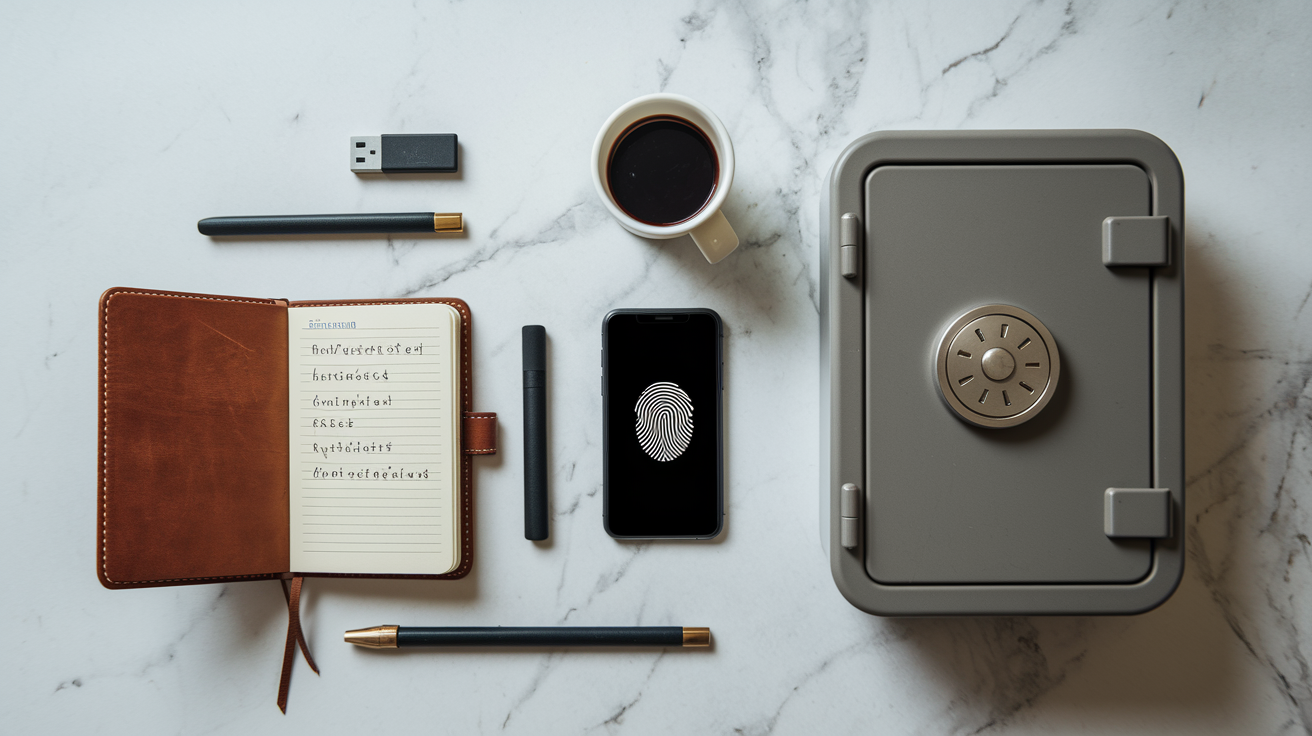
Prevention is far easier than recovery. Set up these safeguards now while you still have access to your account.
Save recovery key/emergency kit during initial setup. Most services show this information once during account creation and never again, so save it immediately to multiple secure locations.
Enable emergency access contacts with trusted individuals. Designate a family member or close friend who can request access to your vault after a waiting period you control.
Export vault regularly to encrypted backup storage. Download a copy of your passwords monthly and store the encrypted file on an external hard drive or secure cloud storage.
Create strong but memorable master password using passphrases and personal memory cues. “My daughter Emma was born in Seattle during a thunderstorm” becomes “mydaughteremmawasborninseattleduringathunderstorm” or “MyDaughter Emma Seattle Thunderstorm” depending on your memory style.
Write master password on paper stored in fireproof safe or bank safety deposit box. Yes, writing it down seems wrong, but physical paper stored securely is better than losing everything when you forget the password.
Keep one device always logged in at secure location. A tablet or old phone stored at home that stays logged into your password manager provides an emergency backup access point.
Configure biometric unlock on mobile devices. Fingerprint or face recognition lets you access passwords without typing the master password, reducing lockout risk.
Set up email verification and security questions where available. These recovery options work only if configured before you lose access.
Create regular encrypted vault backups to external storage. Weekly or monthly backup files you can restore if your current vault becomes corrupted or locked.
Be aware of case sensitivity and keyboard settings when entering master password. CapsLock and NumLock affect password entry, and some password managers show an eye icon to view what you’re typing and catch these mistakes before locking yourself out.
The balance between security and recoverability comes down to risk tolerance. Recovery options like emergency contacts, written passwords in fireproof safes, and backup codes reduce security slightly. They create potential access points an attacker could exploit if they gained physical access to your home or tricked your emergency contact. But these recovery methods prevent total data loss when you forget your master password, which is a much more common problem than sophisticated targeted attacks for most people. Strong but memorable master passwords bridge the gap. Length matters more than complexity. “correct horse battery staple” is stronger than “P@ssw0rd1!” and far easier to remember. Use passphrases built from personal memories, favorite songs, inside family jokes, or random words with mental images you can visualize. For more on creating strong passwords, see password hygiene.
| Storage Method | Security Level | Accessibility | Best For |
|---|---|---|---|
| Memorization only | Highest | Always available if you remember | People with excellent memory and simple life circumstances |
| Paper in fireproof safe | High | Requires physical access to safe | Most home users balancing security and recovery |
| Password-protected document on encrypted device | High | Accessible anywhere you have the device | People who travel frequently or need remote access |
| Trusted family member with emergency access | Medium | Requires contacting designated person | People with trusted family members who understand technology |
| Bank safety deposit box | Very High | Requires bank visit during business hours | High-value accounts where maximum security justifies inconvenience |
| Password manager for password manager | Medium | Accessible anywhere with internet | People managing multiple password managers who understand the circular dependency risk |
Test your recovery procedures annually to confirm they still work. Log out of your password manager and verify you can recover access using your saved recovery key or emergency kit. Check that your emergency contacts still have access to their accounts and remember they’re designated as your backup. Open your backup vault files to confirm they’re readable and not corrupted. These simple tests take 15 minutes once a year and prevent discovering your recovery methods don’t work at the worst possible moment.
Final Words
If you’re locked out, your options depend entirely on what you set up before losing access. Recovery keys, emergency contacts, and device sessions only work if they existed before the lockout.
Most password managers can’t reset your master password due to zero-knowledge encryption—that’s security, not a missing feature.
Start checking your specific recovery options right now. If you’re still logged in somewhere, save your recovery key, export your vault, and set up emergency access before it’s too late.
And if you do get back in? Write down that master password and lock it somewhere safe. Future you will be grateful.
FAQ
Q: What happens if you lose the master password of a password manager?
A: If you lose the master password of a password manager, you face permanent lockout in most cases because zero-knowledge encryption prevents companies from accessing or resetting your vault. Recovery depends entirely on whether you saved a recovery key, configured emergency access, or have a device still logged in during initial setup.
Q: How do I recover my NordPass master password?
A: To recover your NordPass master password, you need the recovery key saved during account setup or access to a device still logged in with biometric unlock enabled. Without these recovery methods configured beforehand, NordPass cannot reset your password due to zero-knowledge encryption, and you’ll lose access to your vault permanently.
Q: What if I forgot my Dashlane master password?
A: If you forgot your Dashlane master password, check if your mobile app has device PIN enabled, which provides temporary access to view passwords before lockout. You can also use emergency contact features if you designated trusted users during setup. Without these options, Dashlane cannot grant access due to zero-knowledge encryption.
Q: How do I recover my master password in Keeper?
A: To recover your master password in Keeper, you need the recovery key or backup codes saved during initial setup, or access to an authorized device still logged in. Contact Keeper support for account reset guidance, but understand they cannot decrypt your vault—account reset means permanent data loss and starting fresh.
Q: Can password manager companies reset my master password for me?
A: Password manager companies cannot reset your master password for you because zero-knowledge architecture means they never have access to your encryption keys or vault contents. This security feature prevents social engineering attacks but also means you’re solely responsible for password recovery through methods configured during setup.
Q: Will I receive a password reset email link like other online accounts?
A: You will not receive a password reset email link because password managers differ from standard online accounts—they cannot send reset links due to zero-knowledge encryption. The company literally cannot access your account to verify or reset your password, unlike typical web services.
Q: What determines if master password recovery is possible?
A: Whether master password recovery is possible depends on five factors: if you saved your recovery key during setup, configured emergency access contacts, have a device still logged in, possess local backup files, or enabled vendor-specific recovery features before losing access.
Q: Does LastPass have a master password recovery option?
A: LastPass has a One Time Password recovery option that works once on previously-used computers, requiring access to your registered email account. You can also revert your vault to a previous state using an old password, though any passwords added after that backup date will be permanently lost.
Q: Can I recover my 1Password account without the emergency kit?
A: You cannot recover your 1Password account without the emergency kit PDF saved during setup because 1Password has no access to user vaults or encryption keys. Your only alternative is checking for authorized devices still logged in where you can attempt biometric unlock on mobile apps.
Q: What recovery methods does Bitwarden offer?
A: Bitwarden offers recovery through your recovery key saved during setup, organizational admin options if you’re part of a team, or emergency access features with designated contacts who can access your vault after typical waiting periods. Browser extensions with active sessions may also provide temporary access.
Q: Does KeePass have any master password recovery features?
A: KeePass has no master password recovery features, backdoors, or reset mechanisms because it stores vaults locally on your computer with no company infrastructure. Your only option is restoring older vault versions from backups if you remember a previous master password used with those files.
Q: Should I try brute force or cracking tools to recover my password?
A: You should not try brute force or cracking tools to recover your password because password managers include built-in protection against these attacks, making recovery attempts impractical and extremely time-consuming. These methods are not recommended and rarely succeed with modern encryption.
Q: What happens to my data when I reset my password manager account?
A: When you reset your password manager account, all stored data is permanently deleted and cannot be recovered due to encryption design. You must manually reset passwords for all accounts, uninstall the password manager from all devices, and start fresh with a new account and vault.
Q: Can I keep my license if I have to reset my password manager account?
A: You can keep your license if you reset your password manager account by using the same email address when creating your new account. License terms carry over automatically, though all vault data from the previous account is permanently lost.
Q: How do I uninstall my password manager without saving corrupted data?
A: To uninstall your password manager without saving corrupted data, click NO when Windows prompts you to store data during uninstallation. On Mac, use File menu and select Reset password database, and on mobile devices, data automatically removes upon uninstall.
Q: What should I do first if all recovery attempts fail?
A: If all recovery attempts fail, reset passwords manually for critical accounts first, especially banking and email, before losing access to password hints stored in your locked vault. Document which accounts need new passwords and contact customer support for account deletion guidance.
Q: Can password manager support teams decrypt my vault?
A: Password manager support teams cannot decrypt your vault due to zero-knowledge architecture, but they can help with account deletion and reset procedures. They’ll guide you through identity verification using security codes sent via email and provide reinstallation instructions for starting fresh.
Q: How long does password manager customer support take to respond?
A: Password manager customer support typically responds within 24 hours on business days after you submit a support ticket. They’ll assist with account reset procedures and verification but cannot recover encrypted vault data or bypass master password protection.
Q: What information do I need when contacting password manager support?
A: When contacting password manager support, prepare your account email, username, subscription details, and a clear timeline of your situation. You’ll need to complete identity verification through security codes sent via email and confirm account ownership before receiving reset instructions.
Q: Are third-party password recovery services legitimate?
A: Third-party password recovery services are not legitimate—they’re scams or malware targeting desperate users. Legitimate password managers will never send unsolicited reset links, and “recovery services” claiming to crack encrypted vaults cannot bypass zero-knowledge encryption without your master password.
Q: What are signs of password recovery phishing scams?
A: Signs of password recovery phishing scams include unsolicited emails offering password recovery, third-party recovery tools requesting payment, social media messages claiming to help, search ads for recovery services instead of official sites, and requests for your master password or personal information.
Q: How do I prevent future master password lockouts?
A: To prevent future master password lockouts, save your recovery key during initial setup, enable emergency access contacts, export your vault regularly to encrypted backup storage, keep one device always logged in, and write your master password on paper stored in a fireproof safe.
Q: Should I write my master password on paper?
A: You should write your master password on paper as an extreme emergency backup, storing it in a fireproof safe or bank safety deposit box. This physical backup provides accessibility when digital recovery fails, balancing security with recoverability for critical password access.
Q: How often should I back up my password manager vault?
A: You should back up your password manager vault monthly or whenever you add important new credentials, exporting data to encrypted backup storage. Test these backup files annually to confirm they’re readable and not corrupted, ensuring your recovery plan actually works when needed.
Q: What makes a good master password I won’t forget?
A: A good master password you won’t forget uses a long passphrase based on personal memory cues rather than complex random characters. Focus on length over complexity, creating meaningful phrases with personal significance that you can remember without writing digital notes.
Q: Should I use emergency access contacts for my password manager?
A: You should use emergency access contacts for your password manager by designating trusted family members who can access your vault during emergencies or lockouts. This slightly reduces security but prevents total data loss if you forget your master password.
Q: Can I use a password manager to store my password manager’s master password?
A: You should not use a password manager to store your password manager’s master password because that creates a circular dependency—you need the master password to access the vault that contains the master password. Use physical storage methods like paper in a fireproof safe instead.
Q: How do I test my password manager recovery procedures?
A: To test your password manager recovery procedures, verify annually that recovery keys still work, emergency contacts can still access your account, backup files open correctly, and you can successfully log in using your documented master password from secure storage.