


Here’s your intro paragraph:
Most people throw passwords into their password manager like receipts in a junk drawer. It works until you need something fast. Then you’re scrolling through 200 logins trying to remember if you saved Netflix under “Netflix,” “Streaming,” or “Entertainment Account.” A simple organization system fixes this. Group accounts into a few clear categories, use consistent names, and mark your most-used logins as favorites. You’ll find what you need in seconds instead of digging through chaos every time you log in.
Step-by-Step Password Manager Setup Process

Most password managers work pretty much the same way, whether you’re using 1Password, Bitwarden, LastPass, or something else. Bitwarden’s a solid free option. 1Password and LastPass give you more features but cost money. The interface changes between tools, but the core setup steps stay consistent.
Your master password unlocks everything in your password manager, so it needs to be strong without being impossible to remember. Go for at least 16 characters mixing letters, numbers, and symbols. The passphrase method works well here. String together random words with numbers and symbols between them. “BlueDog-Runs-Fast2025” works. So does “Coffee$Tree#Mountain88.” They’re memorable to you but tough for attackers to guess. Skip personal info like birthdays, pet names, or addresses that someone could dig up on social media. Write this password down on paper and stick it somewhere secure at home while you’re memorizing it. Destroy the paper once it’s locked in your brain.
Install the browser extension and mobile app next. This is where your password manager actually becomes useful for daily tasks. Start with the browser extension for Chrome, Firefox, Safari, or Edge, whatever you use most. The extension adds a small icon next to your address bar and turns on autofill features. Then grab the mobile app so passwords sync between devices. Most password managers sync automatically through their cloud service once you log in with your master password on each device. You’ll need to grant the browser extension permission to read and modify data on websites you visit. Sounds invasive, but it’s necessary for autofill to work.
Add your first 5 to 10 critical accounts manually to test the system before importing hundreds of passwords. Start with your primary email, banking login, work accounts, and a few sites you hit frequently. For each entry, you’ll add the username or email, password, website URL, and optional notes. This manual process helps you learn the interface and verify that entries save correctly. Type the website URL exactly as it appears in your browser (https://www.example.com) so autofill recognizes the site later. The notes field works well for security questions, account numbers, or password reset instructions.
Importing existing passwords from your browser or old password manager saves massive time after you’ve tested the basics. Chrome, Firefox, Safari, and Edge all let you export saved passwords as CSV files through their settings menus. In Chrome, go to Settings, then Passwords, hit the three-dot menu, and choose Export passwords. Most password managers have an import function that takes CSV format. Look for it under Settings, Tools, or Import options. Upload the CSV file, map the columns if prompted (username, password, URL), and let the import run. Your password manager will add all imported credentials, though they’ll typically land in an unsorted section rather than organized folders. Delete the CSV file from your downloads folder right after importing since it contains unencrypted passwords.
Test autofill by visiting a few websites where you just saved credentials and check that the password manager recognizes the login page and offers to fill your username and password. You might need to adjust browser extension settings if autofill doesn’t trigger automatically. Most password managers let you set preferences for auto-submit (pressing login automatically after filling) or requiring you to click the extension icon first. Try both your browser and mobile app to confirm sync is working. Credentials added on desktop should appear on mobile within a few seconds.
Complete Organization Methods: Folders, Tags, Vaults, and Categories

Password managers offer three main organization methods: folders (or collections), tags (or labels), and vaults. Folders group credentials into categories like “Banking” or “Social Media.” Tags add flexible labels across multiple folders like “needs-update” or “shared-with-spouse.” Vaults create completely separate encrypted containers for work versus personal accounts. Folders provide the most intuitive starting point since they mirror how you organize files on your computer.
The category-based system works for most people with 100+ accounts because it matches how you think about your digital life. Seven core categories cover typical needs without creating overwhelming choices.
- Email and Communication – Gmail, Outlook, work email, Slack, Discord, Zoom accounts
- Banking and Finance – Bank logins, credit cards, investment accounts, PayPal, Venmo, tax software
- Work and Professional – Company systems, project management tools, client portals, professional associations
- Shopping and Subscriptions – Amazon, streaming services (Netflix, Spotify), recurring memberships, retail accounts
- Social Media and Personal – Facebook, Instagram, Twitter, LinkedIn, dating apps, personal blogs
- Health and Utilities – Healthcare portals, insurance, electric/gas/water accounts, ISP, phone carrier
- Miscellaneous – Everything else, temporary accounts, trial signups, one-off services
Adapt this framework to match your actual account distribution rather than forcing everything into rigid categories. If you run a business, split “Work and Professional” into multiple folders like “Client Access,” “Marketing Tools,” and “Business Operations.” If you rarely shop online but manage multiple properties, combine shopping with miscellaneous and create a dedicated “Real Estate” category. Start with 5 to 7 folders and add more only when a category holds 20+ items and becomes difficult to scan. The goal is quick retrieval, not perfect taxonomy.
Basic folders work well for personal use. But vaults provide stronger separation when you need complete isolation between account sets. Most password managers offer vault or collection features that create entirely separate encrypted containers within your account. Create a personal vault for streaming services and online shopping, and a business vault for work credentials that stays isolated from personal accounts. This separation matters for BYOD (bring your own device) policies where work requires you to maintain professional accounts on personal devices. It also simplifies offboarding when you change jobs. Delete the business vault without affecting personal accounts. Family plans let you share certain vaults with specific people while keeping others private.
Tag systems add a layer of cross-category labeling that complements folder organization. Tags work for concerns that span multiple folders. Mark accounts as “high-priority” across banking, email, and work categories so you can view all critical logins in one filtered list. Other useful tags include “needs-update” for weak passwords you haven’t changed yet, “shared” for credentials other people can access, “2FA-enabled” to track security status, and “legacy” for old accounts you’re keeping but rarely use. Tags excel at temporary labels (like “updating-passwords-march-2025”) that you remove once the project completes.
Nested folder structures help when simple folders become too crowded, but limit nesting to 2 or 3 levels maximum to maintain usability. Create a top-level “Finance” folder, then nest “Banking,” “Investments,” and “Credit Cards” underneath. Within “Banking,” you might create sub-folders for “Checking Accounts,” “Savings Accounts,” and “Business Accounts.” The structure looks like Finance, then Banking, then Checking Accounts. Go deeper than three levels and you’ll spend more time navigating folders than you save through organization. If you’re creating deeply nested structures, that signals you need more top-level categories instead.
Naming Conventions and Credential Labeling Best Practices

Inconsistent naming creates search frustration where you can’t remember if you saved your electric company as “Electric,” “Power Company,” “FirstEnergy,” or “Utilities.” A simple naming system prevents this entirely.
Use these six rules for every credential you save:
- Company name first – “Amazon Personal Account” not “Personal Amazon”
- Add account type in parentheses – “Bank of America (Checking)” or “Gmail (Work Email)”
- Avoid abbreviations unless universal – “American Express” not “AmEx” unless that’s how you think of it
- Include email/username if multiple accounts exist – “Facebook (john@email.com)” and “Facebook (john.smith@company.com)”
- Date format for time-sensitive items – “Rental Application March-2025” or “Trial Account Expires-Apr-15”
- Descriptive suffixes for similar accounts – “Amazon Personal,” “Amazon Business,” “Amazon Household” not “Amazon 1,” “Amazon 2,” “Amazon 3”
Custom fields extend your credential entries beyond basic username and password pairs. Most password managers let you add fields for security questions, account numbers, PINs, or any other sensitive information tied to that login. Store your bank account number in a custom field under your banking login, add the answer to “mother’s maiden name” security questions, or save your credit card CVV code. These fields encrypt the same way passwords do, keeping everything related to one account in one place.
The notes section holds contextual information that doesn’t fit structured fields. Add password reset instructions if the site has a weird process, note the associated phone number if two-factor authentication uses SMS, or document which recovery email the account uses. When you haven’t logged into an account for six months, notes remind you why you created it (“trial signup for project proposal 2024”) and whether you still need it.
Favorites, Quick Access, and Priority Credential Management

The favorites or starred feature in most password managers marks specific credentials for instant access without scrolling through hundreds of entries. Look for a star icon or favorite button when viewing a credential.
Mark these credential types as favorites: your primary email account (the one you use for password resets on other accounts), primary banking login, work single sign-on if you access it multiple times daily, frequently accessed shopping accounts like Amazon, and your top three most-used accounts that don’t fit other categories. Don’t mark everything as a favorite. The feature loses value when 50 items crowd your favorites list. Stick to 5 to 10 accounts you access at least weekly.
The “recently used” feature tracks your actual usage patterns automatically and surfaces those credentials first in search results or dropdown menus. This works perfectly for accounts you access frequently but irregularly. Think work project tools you use heavily for two weeks then ignore for a month. Browser extension quick-access menus typically show your 5 to 10 most recently used credentials when you click the password manager icon, eliminating the need to open the full application or search. Many extensions also offer keyboard shortcuts (like Ctrl+Shift+L in some managers) that autofill credentials on the current page with one keystroke. Mobile apps offer similar features through widgets that display recent credentials on your home screen or through iOS/Android autofill integration that suggests credentials as you switch between apps.
Secure Password Sharing and Collaboration Features

Sending passwords through email, text messages, or chat apps exposes them to interception and leaves permanent copies in multiple places you can’t control. SMS is particularly bad since text messages travel unencrypted and the SMS network has known security vulnerabilities that hackers actively exploit.
Password manager built-in sharing features encrypt credentials end-to-end before transmission and maintain central control so you can revoke access instantly. Look for sharing options within each credential entry. Most managers offer an icon or menu option to share with specific email addresses. The recipient gets a secure invitation to view the credential through their own password manager account. You’ll set permission levels when sharing. View-only access lets someone see and use the credential but not modify it. Edit access allows changes to the password or notes. Owner/admin status transfers full control. View-only works well for shared streaming accounts, edit access suits couples managing household accounts, and owner transfer happens when you’re permanently handing off responsibility.
Family sharing plans create dedicated shared vaults for household accounts where all family members can access Netflix, utilities, wifi passwords, and other communal logins. The primary account holder creates a shared vault, invites family members by email, and moves relevant credentials into that vault. Each person maintains their own private vault for individual accounts while accessing the family vault for shared services. This setup prevents needing to text your partner the wifi password every time they need it and ensures everyone has access to essential household services.
Emergency access features designate trusted contacts who can request access to your password vault if you become unavailable. You set a waiting period (typically 24 to 48 hours) so emergency access isn’t immediate. This prevents abuse while ensuring account recovery if you’re incapacitated or deceased. The trusted contact submits an access request. You receive notifications during the waiting period and can deny the request if it’s unauthorized. Access grants automatically if you don’t respond. Once granted, the emergency contact can view your credentials but usually cannot change your master password. You can also immediately revoke any shared credential or emergency access grant from your security settings, which instantly cuts off all access for that person.
Two-Factor Authentication Integration and Security Notes
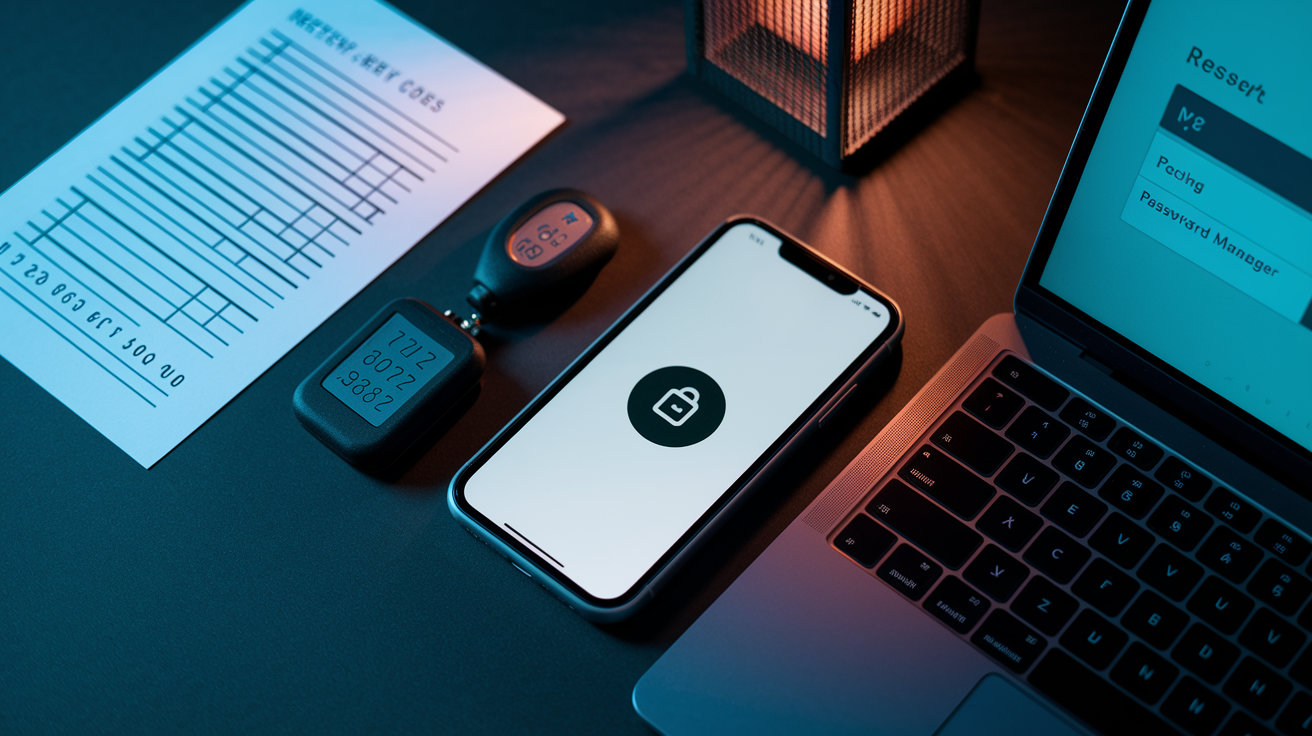
Two-factor authentication recovery codes belong in your password manager alongside the credentials they protect, stored as secure notes or attachments within the same entry. When you enable 2FA on any account, the service typically provides 8 to 10 backup codes for account recovery if you lose your phone. Copy these codes and paste them into the notes section of that credential entry immediately. Some password managers offer dedicated fields specifically for recovery codes and authenticator app seeds.
Many modern password managers include built-in authenticator features that generate time-based one-time passwords (TOTP codes) directly within the app. This integration means one tool handles both your password and the second factor, which simplifies access but concentrates risk. If someone compromises your password manager, they get both factors. The convenience usually outweighs the risk for most accounts, but consider using a separate authenticator app for your most critical accounts like primary email and banking.
Secure notes hold information that doesn’t fit the username/password structure but needs the same encryption protection. Create a secure note entry for each account’s security questions. Store both the questions and your answers since you might not remember “What was your first pet’s name?” five years later. Include backup email addresses associated with the account, phone numbers used for SMS verification, or alternate username formats the site accepts. These notes live in the same folder as the related credential, making all account information accessible from one location.
Custom fields accommodate biometric login information and device-specific authentication details that some services use. Add fields labeled “Touch ID Device,” “Registered Security Key,” or “Trusted Device Name” when an account ties authentication to specific hardware. Note which devices you’ve registered for passwordless login, store serial numbers for security keys, or document which phone number receives verification texts. Some password managers also allow file attachments where you can upload copies of identification documents or authentication certificates that sites require for account recovery.
Import, Export, and Migration Between Password Managers

Switching password managers or creating backups becomes necessary when you find a better tool, need redundancy, or replace a device. Most managers make this reasonably straightforward through standard file formats.
- Locate the export function in your current password manager’s settings or tools menu, usually labeled “Export,” “Backup,” or “Download Data”
- Choose CSV format when prompted since it’s the standard most password managers accept for import, though some also offer JSON or encrypted formats
- Save the file to a secure temporary location like an encrypted folder or password-protected USB drive. Never leave an unencrypted export in your downloads folder
- Import to the new manager through its import function under settings, selecting your previous manager’s name from a list or choosing “generic CSV” if it’s not listed
- Verify folder structure transferred by checking a few entries in different categories, then manually reorganize if folders didn’t map correctly
- Delete the unencrypted CSV file immediately after successful import, including emptying your computer’s trash or recycle bin
Some password managers offer direct import from competitors through built-in migration tools that handle the export-import process in one step. 1Password can import directly from LastPass or Bitwarden without creating an intermediary CSV file, and most managers support direct browser import from Chrome, Firefox, or Safari password storage.
Folder structure rarely transfers perfectly because different password managers use different organizational systems. Collections vs. folders, tags vs. categories, nested vs. flat structures. The credentials themselves (usernames, passwords, URLs) import reliably, but you’ll likely spend 20 to 30 minutes reorganizing entries into your preferred folder structure after migration. This is actually an opportunity to audit your organization system and improve it while moving everything.
Establish a quarterly backup routine where you export your password vault to an encrypted USB drive or secure cloud storage location that’s separate from your password manager’s own cloud sync. Export the file, encrypt it using 7-Zip, VeraCrypt, or your operating system’s built-in encryption, then store the encrypted file on a USB drive you keep in a safe location. Don’t store unencrypted password exports in regular cloud storage like Dropbox or Google Drive. After each backup, delete any temporary unencrypted export files from your computer. Most password managers auto-backup to their own cloud servers, but this redundant backup protects against the company going out of business, your account being deleted by mistake, or their service having an unrecoverable failure.
Maintenance Routine and Long-Term Organization Habits

Organization is ongoing work, not a one-time project. Maintaining your password manager includes both keeping the folder structure functional and systematically improving the security of stored credentials.
| Task | Frequency | Time Required |
|---|---|---|
| Add new accounts to proper folders | Immediate | 1 minute |
| Review security dashboard | Weekly | 5 minutes |
| Update flagged weak passwords | Weekly | 10 minutes |
| Archive unused accounts | Monthly | 10 minutes |
| Audit shared credentials | Quarterly | 15 minutes |
| Full password health review | Quarterly | 30 minutes |
| Check for compromised credentials | Quarterly | 10 minutes |
| Update critical financial passwords | Semi-annually | 20 minutes |
Most password managers include security dashboards that identify weak passwords (short, common, or simple), reused passwords (same password used across multiple accounts), old passwords (unchanged for 2+ years), and compromised credentials (passwords found in known data breaches). The dashboard typically shows a security score or percentage and highlights high-priority issues. Weak passwords appear when you’ve manually created something like “password123” or reused old credentials. Duplicate entries show up when you have multiple saved credentials for the same website. Security scoring features assign each credential a strength rating and flag accounts that need attention. Check Have I Been Pwned quarterly to see if your email addresses appear in known data breaches, then update passwords for any compromised accounts.
Quarterly audit routine takes 15 to 20 minutes and catches issues before they become security problems. Review all flagged credentials in your security dashboard and update at least your five weakest passwords to randomly generated alternatives. Check breach monitoring alerts to see if any of your credentials appeared in recent database leaks. Verify that your folder organization still matches how you actually use accounts. Move credentials that landed in the wrong category during imports or quick saves. Look for accounts you haven’t accessed in six months and either archive them to a separate folder or delete them if they’re no longer needed. Financial site passwords should change every six months. Other accounts can safely go a year between updates unless compromised.
Create maintenance triggers by linking password manager reviews to existing habits rather than relying on memory. Calendar reminders on the first Sunday of each month work, but tying maintenance to events you already track is more reliable. Check your password manager during monthly bill review, when you do quarterly financial account reconciliation, or on paycheck days if you’re paid biweekly. The compound benefit of immediate categorization outweighs any single organization session. Ten accounts filed correctly over ten days requires ten minutes total. A hundred accounts dumped into an unsorted section require an hour of reorganization later plus the cognitive load of remembering which accounts need filing.
The “capture immediately” principle prevents chaos from returning. Always file new credentials in the correct folder the moment you create them. When your password manager offers to save credentials during account creation, take the extra five seconds to assign a folder before clicking save. This habit prevents the unsorted section from accumulating hundreds of entries that require weekend reorganization projects. If you do end up with a backlog, sort it gradually. File ten credentials per day for a week rather than attempting everything in one session. Breaking the task into small chunks makes it feel manageable and builds the habit of immediate filing that prevents future backlogs.
Final Words
Pick your core folder structure, create that strong master password, and start filing your first batch of accounts right now.
Most people feel the difference within a week once their daily logins stop requiring guesswork or password resets.
And when you know how to organize passwords in password manager systems from day one, you skip the messy cleanup phase entirely.
Start with your email and banking accounts, then add the rest as you use them.
You’ve got this.
FAQ
What is the 8 4 rule for passwords?
The 8 4 rule for passwords refers to creating a password that’s at least 8 characters long and includes at least 4 different character types (uppercase letters, lowercase letters, numbers, and symbols). However, modern security experts now recommend passwords of at least 12-16 characters, as longer passwords provide better protection against current hacking methods than short complex ones.
Should you put all your passwords in a password manager?
You should put nearly all your passwords in a password manager, with one critical exception: never store your password manager’s master password inside the password manager itself. Store all other credentials including email, banking, shopping, work accounts, and social media logins in your password manager to ensure they’re protected with strong, unique passwords and accessible across your devices.
What is the downside of using a password manager?
The main downside of using a password manager is that if you forget your master password, you’ll lose access to all your stored credentials, since most password managers use zero-knowledge encryption that prevents password recovery. Other minor downsides include the initial time investment to set up and organize your vault (typically 30 minutes) and occasional autofill issues on poorly designed websites that may require manual copy-paste.
Why don’t older adults use password managers?
Older adults often don’t use password managers because the initial setup feels intimidating, they’re comfortable with existing password habits (like reusing familiar passwords or writing them down), and they worry about trusting all their credentials to one digital tool. The learning curve and concern about forgetting the master password also create hesitation, even though password managers ultimately simplify daily logins and improve security once the initial setup is complete.
How long does it take to set up a password manager?
Setting up a password manager takes approximately 30 minutes for the initial configuration, including creating your master password, installing browser extensions and mobile apps, and importing existing passwords from your browser. Adding your first batch of critical accounts manually and testing the autofill functionality adds another 15-20 minutes, though you can spread the full organization process over several days.
How should I organize passwords in a password manager?
You should organize passwords in a password manager using a simple folder or category structure based on account types, such as Email and Communication, Banking and Finance, Work and Professional, Shopping and Subscriptions, Social Media, Health and Utilities, and Miscellaneous. Limit yourself to 5-10 main categories to avoid confusion, and file new credentials into the correct folder immediately when creating them to prevent disorganization from building up.
Can I share passwords safely with family members?
You can share passwords safely with family members using your password manager’s built-in sharing features, which allow you to grant access to specific credentials or create shared folders without exposing the actual password text. Most password managers let you set permission levels like view-only or edit access and revoke sharing at any time, making this much safer than sharing passwords through email or text messages.
How often should I update my passwords?
You should update your passwords for financial accounts every 6 months and other accounts yearly, while immediately changing any password flagged as compromised in a data breach. Most password managers include security dashboards that identify weak, old, or reused passwords requiring updates, making it easy to prioritize which credentials need attention during your quarterly security audit.
Do password managers work on multiple devices?
Password managers work on multiple devices by syncing your encrypted password vault across all your phones, tablets, and computers automatically through secure cloud storage. After installing the browser extension on your computer and mobile app on your phone and logging in with your master password, your credentials become accessible everywhere with changes syncing in real-time across all devices.
Where should I store my password manager recovery codes?
You should store your password manager recovery codes in secure notes within the same password entry they protect, keeping backup codes together with the credentials they’re associated with. For 2FA recovery codes that protect your master password manager account itself, store those separately in a secure physical location like a fireproof safe or with a trusted family member who has emergency access.