

Your current router might be costing you money and slowing you down, even if it seems to work fine. Most people overpay for features they’ll never use or buy underpowered routers that can’t handle their actual household needs. The router that works for a couple streaming Netflix won’t cut it for a family of four gaming and video calling simultaneously. This guide walks you through the specific questions to ask before purchase and explains which technical features actually matter for your situation, so you spend money on what helps instead of what sounds impressive on the box.
Router Selection Based on Your Specific Needs

Router needs change dramatically depending on your household. A two person apartment with light browsing needs completely different hardware than a four bedroom house where everyone’s streaming 4K and gaming online. The checklist below gives you immediate guidance for matching router specs to your situation. The detailed sections that follow explain each factor if you want deeper understanding of how these technologies actually work and why they matter.
Router Buying Checklist: Questions to Ask Before Purchase
Use this checklist before you buy any router. Pull it up on your phone while you’re shopping online or wandering through stores. Going through these questions prevents impulse purchases driven by marketing speak and makes sure the router you buy actually matches what your household needs.
Before you purchase, verify:
- How many square feet does your home cover, including outdoor spaces where you want WiFi?
- How many devices connect to WiFi simultaneously right now, and how many do you expect in the next 2 to 3 years?
- What’s your current internet speed plan from your ISP? Check your bill or account page for download and upload speeds in Mbps.
- Does the router support at least WiFi 6 (802.11ax), or are you willing to invest more for WiFi 6E or WiFi 7?
- Is it dual band (2.4 GHz and 5 GHz) at minimum, or do you need tri band for homes with many simultaneous connections?
- Does it support WPA2 encryption at minimum, with WPA3 available for better security?
- How many Gigabit Ethernet ports does it have, and is that enough for your wired devices like desktop PCs, gaming consoles, or smart TVs?
- Does your budget range align with the features you actually need? $40 to $80 for basic, $80 to $150 for most households, $150+ for premium features.
- Have you confirmed this specific router model works with your ISP? Check the ISP’s compatibility list or router documentation.
- Does it offer mobile app management, or are you comfortable using a web interface?
- What’s the warranty period, and does the retailer offer a return window for testing?
- Have you checked what the manufacturer’s customer support reputation looks like?
User reviews reveal real world performance issues that technical specs never show. A router might claim 3,000 square feet of coverage, but reviews from people with similar home layouts will tell you if that’s realistic or marketing exaggeration.
Return policies give you a safety net for testing coverage and performance in your specific environment. Most retailers offer 14 to 30 day return windows. Buy the router, test it in the rooms where you need coverage most, and verify it handles your device count during peak usage times before the return period expires.
Understanding WiFi Technology: Standards, Bands, and Speeds

WiFi standards and frequency bands work together to determine a router’s maximum speed, efficiency, and ability to handle multiple devices without slowing down. Understanding these components helps you avoid paying for outdated tech or overspending on capabilities your household won’t use.
WiFi 5 (802.11ac) is still functional but aging. This standard debuted over a decade ago and lacks newer efficiency improvements. It’s acceptable only for very basic needs (light browsing, email, occasional standard definition streaming) or extremely tight budgets where you’re buying used equipment. If you’re purchasing new hardware, skip WiFi 5 unless it’s a temporary solution.
WiFi 6 (802.11ax) should be the minimum standard for new purchases in 2024 and beyond. This generation increases download speeds up to 40 percent when multiple devices are connected compared to WiFi 5. The efficiency improvements matter more than the raw speed increase for most households. WiFi 6 routers handle crowded networks better, reducing the lag you feel when everyone’s online simultaneously. If you’re replacing an older router or setting up a new home, WiFi 6 is the baseline.
WiFi 6E and WiFi 7 (802.11be) offer future proofing worth considering for long term investment. WiFi 6E adds access to the 6 GHz frequency band, providing extra channels that are currently uncrowded. WiFi 7 shows clear performance gains over WiFi 6 in real world testing, particularly for activities like cloud gaming and high resolution video conferencing. These standards cost more right now but will stay relevant longer as more devices adopt the technology.
Frequency bands function like highway lanes for your WiFi traffic. The 2.4 GHz band offers longer range and better wall penetration but suffers from crowding in apartment buildings because it only has 11 channels at 20 MHz each. Every microwave, baby monitor, and neighbor’s router competes for the same limited space.
The 5 GHz band provides faster speeds and greater bandwidth with 45 channels that can bond up to 160 MHz wide, but the signal doesn’t travel as far through walls and floors. The 6 GHz band (available only in WiFi 6E and WiFi 7 routers) supports 60 channels up to 320 MHz wide with the widest bandwidth available, though range is even more limited than 5 GHz.
When dual band is sufficient versus when to invest in tri band:
- Dual band (2.4 GHz + 5 GHz) works fine for homes with fewer than 15 connected devices or where not everyone uses the network simultaneously
- Tri band becomes worthwhile when you regularly have 20+ active connections competing for bandwidth
- Households where multiple people stream 4K video, game online, or video conference at the same time benefit from tri band’s traffic distribution
- Tri band routers typically broadcast two 5 GHz signals plus one 2.4 GHz, allowing the router to separate high demand devices across different 5 GHz bands
- Apartment buildings with dozens of nearby WiFi networks on 2.4 GHz and 5 GHz may see improved performance from tri band routers that include 6 GHz (less crowded)
The 6 GHz capabilities in newer WiFi 6E and WiFi 7 routers only help if your devices also support 6 GHz. Most phones, tablets, and laptops from 2022 onward include 6 GHz radios, but older devices can’t use this band. Check your device specs before paying extra for 6 GHz support.
Router Coverage and Range for Different Home Sizes
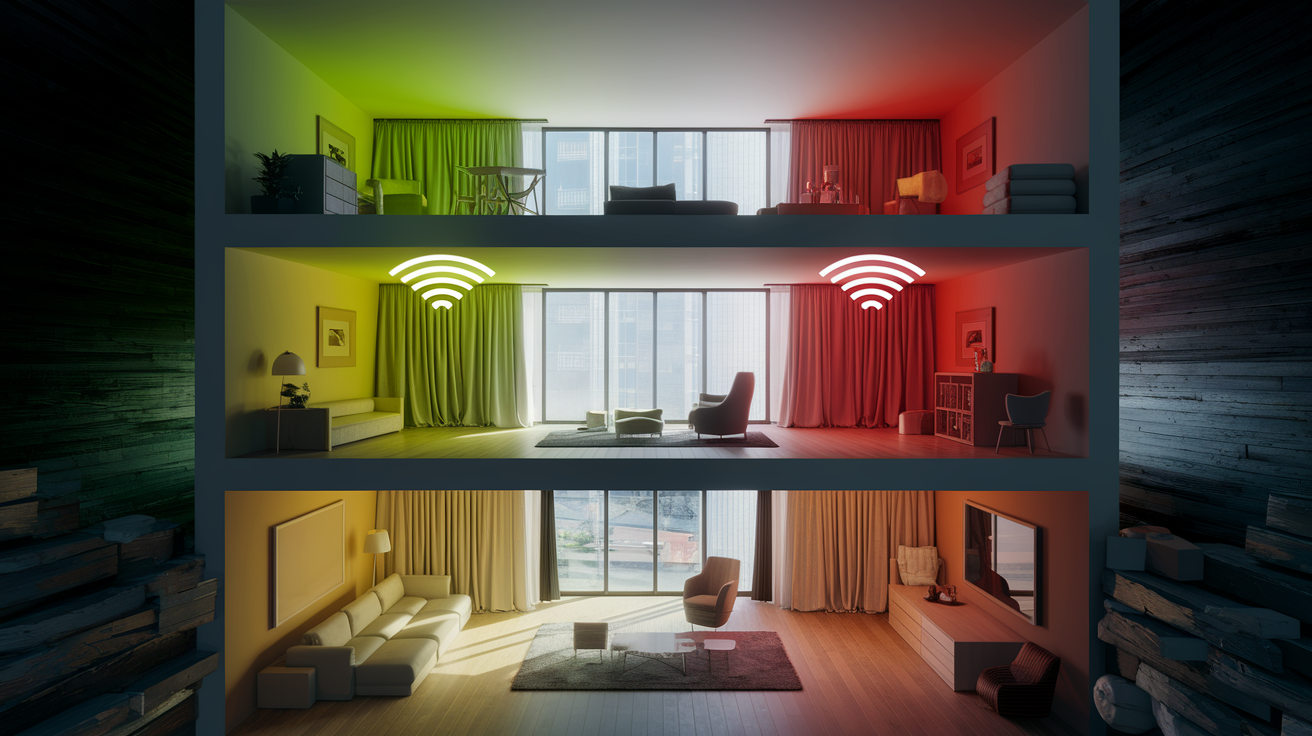
Single routers work for most homes under ideal conditions, but what counts as “ideal” rarely matches reality. Router manufacturers advertise coverage like 2,000 square feet, but physical obstructions reduce that significantly. Walls, floors, metal appliances, fish tanks, and mirrors all absorb or reflect WiFi signals. A router that covers 2,000 square feet of open warehouse space might struggle to reach 1,200 square feet in a home with interior brick walls.
Place your router centrally in open spaces for best signal distribution. For single story homes, the router should sit roughly in the middle of your floor plan, elevated on a shelf or mounted high. For two story homes, putting the router on the main floor usually works better than in the basement, since WiFi signals travel better horizontally than through floors. Keep it away from metal file cabinets, refrigerators, fish tanks, and microwave ovens.
Multiple antennas provide better coverage by distributing signals more effectively, but antenna count alone doesn’t guarantee better performance.
Homes over 2,500 square feet, thick construction materials (concrete, brick, plaster and lath), or complex multi level layouts benefit from mesh systems instead of single routers. Mesh systems consist of a central hub plus satellites or nodes placed throughout the house. Each node communicates with the others to create consistent coverage without dead zones. Two or three mesh nodes placed strategically often outperform one expensive high power router trying to cover the same space.
External antennas are adjustable but not necessarily stronger than well designed internal antenna arrays. External antennas let you angle and position each one individually, which helps in unusual layouts or when you need to direct signal toward specific areas. Internal antennas rely on the manufacturer’s engineering to optimize signal patterns. For most standard layouts, antenna type matters less than router placement and home construction.
Key Router Technologies: MU-MIMO, Beamforming, and QoS

MU-MIMO (Multi User, Multiple Input, Multiple Output) prevents devices from waiting in queue for bandwidth allocation. Older routers communicated with one device at a time, cycling through each connected device so quickly you usually didn’t notice. MU-MIMO splits bandwidth into equal chunks and serves multiple devices simultaneously.
WiFi 5 routers with MU-MIMO support 4 simultaneous users. WiFi 6 increases this to 8 simultaneous users, and the technology works better because WiFi 6 includes additional improvements that make the bandwidth splitting more efficient.
Beamforming and QoS benefits you’ll actually notice:
- Beamforming directs WiFi signals toward your specific devices rather than broadcasting in all directions, improving signal strength and reliability at range
- This matters most for devices in rooms far from the router, where concentrated signal direction helps maintain connection quality
- QoS (Quality of Service) lets you prioritize specific devices or applications for activities like work video calls over background device updates that can wait
- Gaming routers often include aggressive QoS presets that reduce latency for game traffic while letting other activities use whatever bandwidth remains
- Most users never adjust QoS settings because modern routers handle traffic reasonably well without intervention, but the option exists for households with specific priorities
OFDMA (Orthogonal Frequency Division Multiple Access) in WiFi 6 serves multiple users with different bandwidth requirements simultaneously. This improves on older tech that wasted bandwidth by treating every data transmission as if it needed maximum packet size. OFDMA allows the router to pack multiple small data transmissions into a single time slot, making much more efficient use of available bandwidth.
You won’t see OFDMA listed as a spec to shop for because it’s built into the WiFi 6 standard, but it’s one reason WiFi 6 routers handle crowded networks better than WiFi 5.
Multi Link Operation (MLO) in WiFi 7 allows devices to connect on multiple bands (2.4 GHz, 5 GHz, 6 GHz) simultaneously for increased speed and stability. Previous WiFi generations connected to one band at a time. MLO aggregates bandwidth across multiple bands, improving both peak speeds and reliability when interference affects one frequency.
Router Security Features You Should Not Ignore

WPA3 encryption is the current gold standard for wireless security, with WPA2 as an acceptable minimum. WPA2 (developed in 2004) has known vulnerabilities that security researchers have documented extensively, but it still provides adequate protection when combined with strong passwords.
WPA3 (introduced 2018) provides a separate decryption key for every connected device and prevents offline dictionary password attacks that exploit WPA2 weaknesses. WiFi 6 and WiFi 6E devices certified by the WiFi Alliance must support WPA3, making it increasingly standard on new hardware.
Built in firewalls create a barrier between your home network and the internet, blocking common attack patterns and unauthorized access attempts. Most router firewalls work automatically without requiring configuration, providing baseline protection.
Guest networks isolate visitor devices from your main network and connected smart home devices. When friends connect to your guest network, they can access the internet but can’t see your shared folders, printers, or smart home controllers. This prevents both accidental problems (like guests accidentally casting content to your TV) and intentional security issues.
Parental controls let you set access schedules, block categories of websites, and view usage reports. The sophistication varies dramatically between router brands, from basic time limits to detailed filtering systems.
Automatic firmware updates patch security holes without user intervention. Routers with automatic updates download and install security patches in the background, usually during low traffic hours. Budget routers often require manual firmware downloads from the manufacturer’s website, which most people never do.
Disable features like WPS (WiFi Protected Setup) and UPnP (Universal Plug and Play) because the security risks outweigh convenience for most users. WPS was designed to simplify device connection but has well documented vulnerabilities. UPnP allows devices to automatically open ports on your router, creating potential security holes. Remote access features also introduce risk unless you specifically need to manage your router from outside your home network.
Modem vs Router: Understanding the Difference and Compatibility
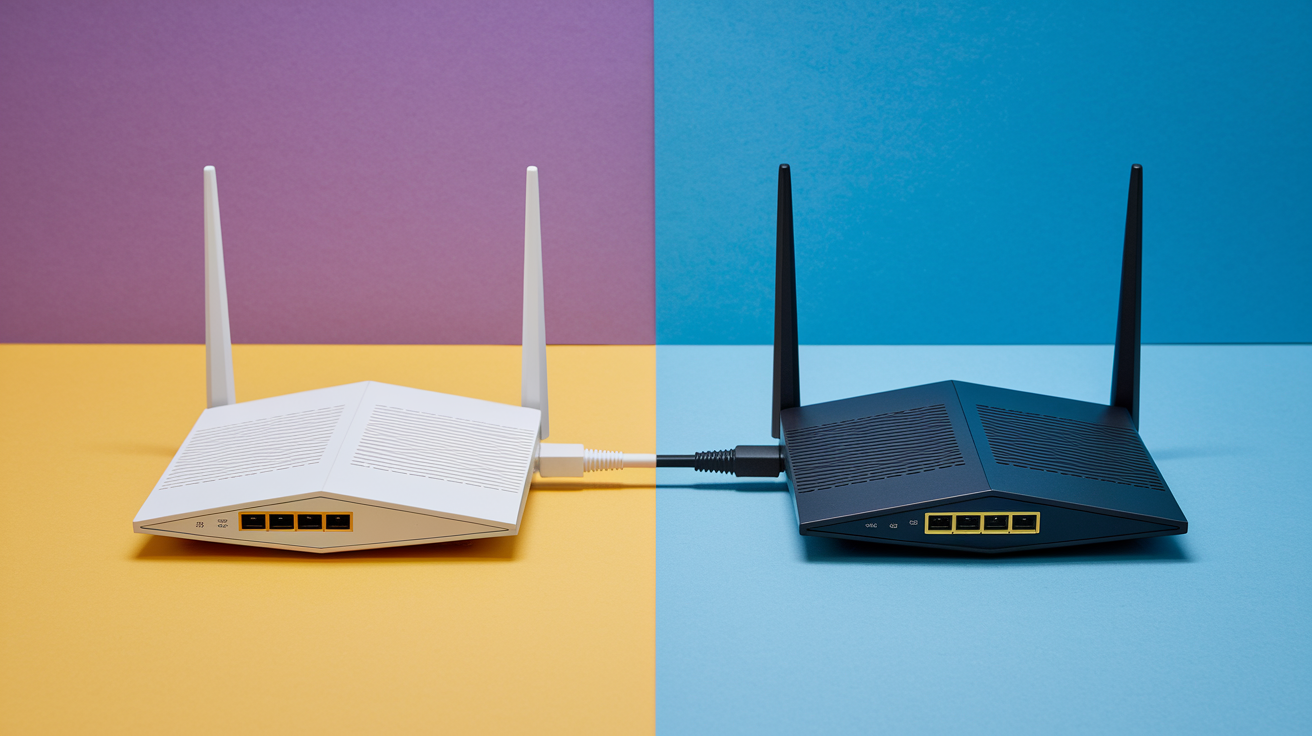
Modems connect to ISP infrastructure and translate the signals coming through your cable, fiber, or phone line into data your devices can use. Routers manage local network traffic, creating a private network in your home and directing data between the internet (through the modem) and your connected devices. You need both functions, but they don’t have to be separate boxes.
Equipment options with advantages and disadvantages:
- Standalone router (requires separate modem): Flexibility to upgrade router without replacing modem, typically better performance, easier troubleshooting, but requires two devices and two power outlets
- Modem router combo unit: Saves space and one power outlet, simpler setup, fewer cables, but locks you into upgrading both functions together even if only one becomes outdated, often sacrifices router features for compact design
- ISP provided equipment: No upfront cost, ISP handles technical support and replacements, but monthly rental fees ($10 to $15) add up to hundreds over time, limited feature set compared to retail options, privacy concerns about ISP network monitoring
- Your own purchased equipment: One time cost pays for itself within a year versus rental fees, choose features that match your needs, full control over network settings and security
- Mesh system (with separate modem): Best coverage for larger homes, effortless roaming between nodes, usually includes strong mobile apps, but higher upfront cost, uses more power outlets
ISP compatibility requirements vary significantly. US law prohibits ISPs from forcing equipment rentals or charging fees for using your own compatible hardware. However, ISPs maintain compatibility lists of approved modems and routers. Before purchasing, verify the specific model appears on your ISP’s compatibility list.
Cable internet requires DOCSIS 3.0 or 3.1 modems. Fiber internet often uses ONT (Optical Network Terminal) equipment that you can’t replace, but you can connect your own router to it.
Router speed ratings must match or exceed your internet plan to utilize the full bandwidth you’re paying for. If you have 500 Mbps internet service, look for routers rated for 600+ Mbps on the frequency band you’ll use most. Remember that advertised speeds combine all bands, but devices connect to one band at a time.
Router Physical Ports and Connectivity Options

Wired Ethernet connections eliminate interference and provide consistent speeds for bandwidth intensive activities. WiFi is convenient, but Ethernet cables provide faster speeds, lower latency, more stable connections, and better security than wireless alternatives.
Desktop PCs that don’t move, gaming consoles where every millisecond of lag matters, smart TVs streaming 4K content, and network attached storage devices all benefit from wired connections. Ethernet ports on routers are labeled LAN (Local Area Network) for devices in your home, and WAN (Wide Area Network) for connecting to your modem.
Most users are satisfied with standard Gigabit Ethernet ports (1 Gbps). These ports support speeds up to 1,000 Mbps, which exceeds the internet plans most households have and handles local network tasks like file transfers between devices easily.
Routers with 2.5 Gbps or 10 Gbps ports only provide benefits if you have internet service faster than 1 Gbps or if you frequently transfer large files between computers on your local network. The price premium for faster ports only makes sense in specific situations like home offices with server applications or media production environments.
USB 3.0 ports enable shared storage and printer access across network devices. Connect an external hard drive to your router’s USB port, and it becomes network attached storage accessible from any device on your network. USB 2.0 ports are too slow for practical use with modern file sizes.
If your router doesn’t have enough Ethernet ports, TP-Link and similar manufacturers sell network switches that add 4 to 8 additional ports for under $20 to $30.
Budget Considerations and Router Price Ranges
Router lifespan averages 4 to 5 years before replacement is typically needed. Spreading the cost over that timeframe makes premium features more affordable when genuinely needed. A $200 router costs about $40 per year over five years. A $60 budget router might need replacement sooner or provide frustrating performance that makes you upgrade earlier, ultimately costing more.
| Price Range | What You Get | Best For |
|---|---|---|
| $40 to $80 | WiFi 5 or basic WiFi 6, dual band, WPA2 security, 1,000 to 1,500 sq ft coverage, basic management interface, manual firmware updates often required | Small apartments, light usage (browsing and email), temporary solutions, single person or couple with few devices |
| $80 to $150 | WiFi 6, dual band or tri band, WPA2/WPA3 security, 1,500 to 2,500 sq ft coverage, mobile app management, automatic updates, MU-MIMO, better build quality | Most households, families with 10 to 20 devices, regular streaming and gaming, 2 to 3 bedroom homes |
| $150 to $300+ | WiFi 6E or WiFi 7, tri band, WPA3 security, 2,500+ sq ft coverage or mesh systems, advanced QoS, 2.5+ Gbps ports, sophisticated parental controls, gaming optimizations | Large homes, heavy device loads (20+ simultaneous connections), low latency gaming, 4K streaming on multiple TVs, smart home hubs, home offices requiring reliable video conferencing |
Expensive doesn’t always mean better when the features don’t match your actual needs. Budget routers are adequate for small apartments or light usage patterns. The mid range ($80 to $150) hits the sweet spot for most households, providing modern WiFi standards and useful features without paying for capabilities you won’t use. Premium routers above $150 are justified for large homes, heavy device loads, or specific requirements like ultra low latency gaming.
Warranty coverage typically runs 1 to 3 years depending on manufacturer and price point. Return policies matter more than warranties for testing because coverage and performance issues appear within the first few weeks.
Buying slightly above your current needs extends router lifespan, delaying replacement. A router that barely meets today’s requirements will feel inadequate in two years when you’ve added more smart home devices and upgraded to faster internet service.
Trusted Router Brands and What They Offer

Brand matters for firmware support, customer service responsiveness, and long term reliability. Established manufacturers with good reputations typically provide longer firmware support and faster security patch deployment when vulnerabilities are discovered.
TP-Link
TP-Link offers value focused options across budget to mid range prices ($30 to $150). They’re known for decent hardware at competitive prices with straightforward setup processes. The mobile app management works reliably, and their mesh systems (Deco line) provide good coverage for the price. Customer service is acceptable but not outstanding.
Netgear
Netgear positions itself in the mid to premium range ($80 to $400+) with features targeting families and small businesses. Their Nighthawk routers are popular for combining performance with relatively accessible interfaces. The Orbi mesh systems receive consistently positive reviews for coverage and speed. Netgear Armor powered by Bitdefender costs $100 per year for comprehensive security features.
ASUS
ASUS focuses on gaming focused and enthusiast options ($100 to $500+) with aggressive styling and advanced features. Their ROG (Republic of Gamers) line prioritizes low latency and traffic prioritization for competitive gaming. The web interfaces offer extensive customization options that appeal to technical users but may overwhelm beginners. Build quality is generally excellent in the mid to premium range.
Linksys
Linksys produces user friendly options ($60 to $300) with emphasis on simple setup and reliable operation. The Velop mesh systems get positive feedback for ease of use and consistent performance. They occupy the middle ground between budget and premium, offering solid hardware without the flashy features or extreme price tags of gaming focused brands.
Other Reliable Options
D-Link offers budget friendly alternatives similar to TP-Link’s value positioning. Synology focuses on advanced network management features for users who want router functionality integrated with NAS storage systems. Ubiquiti (UniFi line) serves the prosumer and small business market with professional grade features at consumer prices, but requires more technical knowledge for setup and configuration than mainstream brands.
Router Setup Process and Management Features
Modern routers often complete basic setup in 10 to 15 minutes via smartphone app. You scan a QR code on the router, download the manufacturer’s app, and follow prompts to name your network and set a password. Some routers still require web interface setup where you open a browser, navigate to a specific IP address (usually 192.168.1.1 or similar), and configure settings through webpage forms. The web interface approach takes slightly longer and feels more technical.
Quality mobile apps allow monitoring connected devices, setting access schedules, and running diagnostics without needing to remember router IP addresses or technical commands. You can see which devices are currently online, how much bandwidth each one is using, and temporarily pause internet access for specific devices.
Speed testing features let you check if you’re getting the internet speeds your ISP promised. Parental controls in better apps include content filtering, time limits, and usage reports. Remote access lets you check your network and adjust settings while away from home.
Automatic firmware updates are critical for security because routers face constant vulnerability discoveries. Manufacturers release patches to fix security holes that researchers or hackers discover. Routers with automatic updates download and install these patches in the background, usually scheduling installations during low traffic periods like 3 AM.
Some budget routers require manual firmware downloads from manufacturer websites, a process most people never complete, leaving their networks vulnerable to known exploits.
Complex interfaces frustrate non technical users when simple tasks like changing the WiFi password require navigating five nested menus. Prioritize intuitive controls if you’re not comfortable with networking concepts. User reviews typically mention if setup proved difficult or if the management app crashes frequently. Look for phrases like “setup was straightforward” or warnings like “the interface is confusing” before purchasing.
Final Words
How to choose a router comes down to matching specs to your real situation.
Start with your internet speed, count your devices, and measure your space. WiFi 6 is the smart baseline in 2025, dual-band covers most homes, and mesh only when your square footage demands it.
Security matters, so WPA2 minimum, WPA3 better.
Skip features you won’t use and invest in the ones that match how you actually stream, work, and connect. Use the checklist, test your choice during the return window, and you’ll end up with a router that just works.
FAQ
Is 2.4 GHz or 5 GHz faster?
The 5 GHz band is faster than 2.4 GHz, offering higher speeds and greater bandwidth, but it has shorter range. The 2.4 GHz band travels farther and penetrates walls better but suffers from more interference and slower maximum speeds.
What should I check before buying a router?
Before buying a router, you should check your home size and coverage needs, internet speed plan, number of devices connecting simultaneously, ISP compatibility, WiFi standard (WiFi 6 minimum recommended), and port requirements for wired devices.
What is the best router for home use?
The best router for home use depends on your specific situation: small apartments need basic dual-band WiFi 6 routers, average homes benefit from mid-range models with MU-MIMO, and large or multi-story homes require mesh systems or tri-band routers.
Do more expensive routers make a difference?
More expensive routers make a difference when you have specific needs like large coverage areas, many simultaneous devices, or bandwidth-intensive activities. Budget routers work fine for small spaces with light usage, making expensive models unnecessary for everyone.
What WiFi standard should I look for in a new router?
You should look for WiFi 6 (802.11ax) as the minimum standard in a new router, as it offers 40% speed improvement with multiple devices. WiFi 6E and WiFi 7 provide future-proofing but come at higher prices.
When do I need a mesh system instead of a single router?
You need a mesh system instead of a single router when your home exceeds 2,500 square feet, has thick walls or multiple stories, or experiences dead zones with traditional router placement. Mesh systems use multiple nodes for consistent coverage.
What is MU-MIMO and why does it matter?
MU-MIMO (Multi-User, Multiple-Input, Multiple-Output) allows routers to send bandwidth to multiple devices simultaneously instead of one at a time. This prevents devices from waiting in queue, improving performance when many devices connect at once.
What security features should my router have?
Your router should have WPA3 encryption (or WPA2 minimum), built-in firewall protection, guest network capability, and automatic firmware updates. Disable risky features like WPS and remote access unless you specifically need them for improved security.
Do I need a modem and a router?
You need a modem to connect to your ISP’s network and a router to distribute internet to multiple devices. You can buy these as separate units or as a combination modem-router unit, though separate devices offer better upgrade flexibility.
How many Ethernet ports do I need on a router?
You need enough Ethernet ports for devices that benefit from wired connections like desktop PCs, gaming consoles, and smart TVs. Most routers include four ports, and you can add more using an inexpensive network switch if needed.
How long does a router typically last?
A router typically lasts 4 to 5 years before replacement becomes necessary due to aging technology, declining performance, or lack of security updates. This timeframe helps justify spending slightly more for features that extend usefulness.
Can I use any router with my internet provider?
You can use any router with your internet provider in most cases, as US law prohibits ISPs from forcing equipment rentals. Always verify compatibility with your specific ISP before purchasing, especially regarding speed support and any technical requirements.