

You’re probably using the same password for more than one account right now. Maybe it’s your birthday plus an exclamation point, or your dog’s name with a few numbers. If one website gets hacked, that password unlocks everything else tied to it. Password managers fix this by remembering strong, unique passwords for every account so you don’t have to. You just remember one master password, and the software handles the rest. The best options for beginners make setup simple, work automatically once installed, and protect you without requiring you to become a security expert.
Top Password Manager Picks for New Users

The best password managers for beginners balance ease of use with strong security, offer clear setup guidance, and don’t overwhelm you with complicated features. We evaluated options based on intuitive interfaces, helpful onboarding tools, straightforward pricing, and the kind of security that runs automatically in the background. Here are the five password managers that make getting started simple:
-
RoboForm costs $29.88 annually with a 30 day free trial. Includes step by step tutorials and in app tips that walk you through every feature. Best overall for beginners who want guided learning while building good password habits.
-
Proton Pass is free for unlimited passwords across unlimited devices, plus email aliases with dedicated mailboxes. Best free option for anyone starting from scratch who needs full functionality without spending money.
-
Bitwarden runs $19.80 annually with unlimited password storage and device syncing for up to 2 people. Best budget choice for couples or roommates who want to share the cost while each maintaining separate secure vaults.
-
NordPass is $29.88 annually with breach scans, password health tools, and email masking included. Best for beginners who want premium security features without learning curves, plus automatic monitoring that checks your passwords against known breaches.
-
1Password costs $35.88 annually with Travel Mode that hides sensitive vaults when you cross borders. Best for frequent travelers or anyone concerned about device inspection at checkpoints, since you can restore hidden data with one click after clearing security.
All five options provide solid security, straightforward setup, and interfaces designed for people who aren’t tech experts. Whichever you choose, you’re making a smart move toward protecting your accounts.
Step-by-Step Setup Guide for Password Manager Beginners

Setting up your first password manager takes about 15 minutes and involves three main steps. You’ll create your account, install the tools that make everything work automatically, and bring in the passwords you’re already using. Here’s exactly what to do.
Creating Your Account and Master Password
Visit your chosen password manager’s website and tap “Sign Up” or “Get Started.” You’ll enter an email address and create your master password. This is the one password you’ll need to remember, so make it at least 12 characters with a mix of words, numbers, and symbols. Something like “BlueCoffee$Morning47!” works better than “password123.” Write this master password on paper and store it somewhere safe at home, like a locked drawer or fireproof safe.
If you forget it, most password managers can’t recover it for you. That’s actually a security feature, since it means nobody else can access your passwords either. But it does mean you need a backup plan. Once you confirm your email address through the verification link they send, your vault is ready.
Installing Browser Extensions and Mobile Apps
Open your main browser (Chrome, Firefox, Safari, or Edge) and search for your password manager’s extension in the browser’s add on store. Click “Add to Browser” and approve the permissions when prompted. You’ll see a small icon appear in your browser toolbar, usually in the top right corner. Click that icon and log in with your master password.
Now install the mobile app. On your phone, open the App Store (iOS) or Google Play Store (Android), search for your password manager by name, and tap “Install.” Open the app and log in with the same master password. Within a few seconds, your vault should sync between your computer and phone. You’ll know it worked when you see the same welcome screen or vault items on both devices.
Importing Your Existing Passwords
Most password managers can pull passwords directly from your browser. In the password manager’s browser extension, look for “Import” or “Settings” and select “Import from Browser.” Choose your browser from the list and approve the import. The password manager will grab all saved login credentials and add them to your vault automatically.
If you’re switching from another password manager, export your passwords as a CSV file from the old service (usually under Settings or Export), then import that file into your new vault. For your most important accounts like email, banking, and work logins, you can also add them manually by clicking “Add Login” and typing in the website, username, and password. This gives you immediate protection for critical accounts while you gradually migrate everything else.
Core Features Every Beginner Needs to Know
Password managers combine simple, everyday convenience with powerful security features that work automatically once you set them up. You don’t need to understand encryption algorithms or security protocols to stay protected. These tools handle the technical work in the background while you just log in normally.
Intuitive interface design and guided setup
RoboForm includes step by step tutorials and helpful tooltips that explain what each button does. LastPass offers smooth password capture that suggests saving new passwords without interrupting your workflow. Proton Pass keeps everything minimalist so you only see what matters. NordPass maintains the same layout whether you’re on your phone, laptop, or tablet, so you won’t feel lost switching between devices.
Master password and AES 256 encryption basics
Your master password unlocks a vault protected by military grade AES 256 encryption. Password managers use zero knowledge architecture, which means your passwords are encrypted on your device before syncing to the cloud. The company running the service can’t read your passwords, even if they wanted to. If you forget your master password, there’s no reset option. That’s not a flaw. It’s proof that only you control access to your data.
Auto fill functionality and anti phishing protection
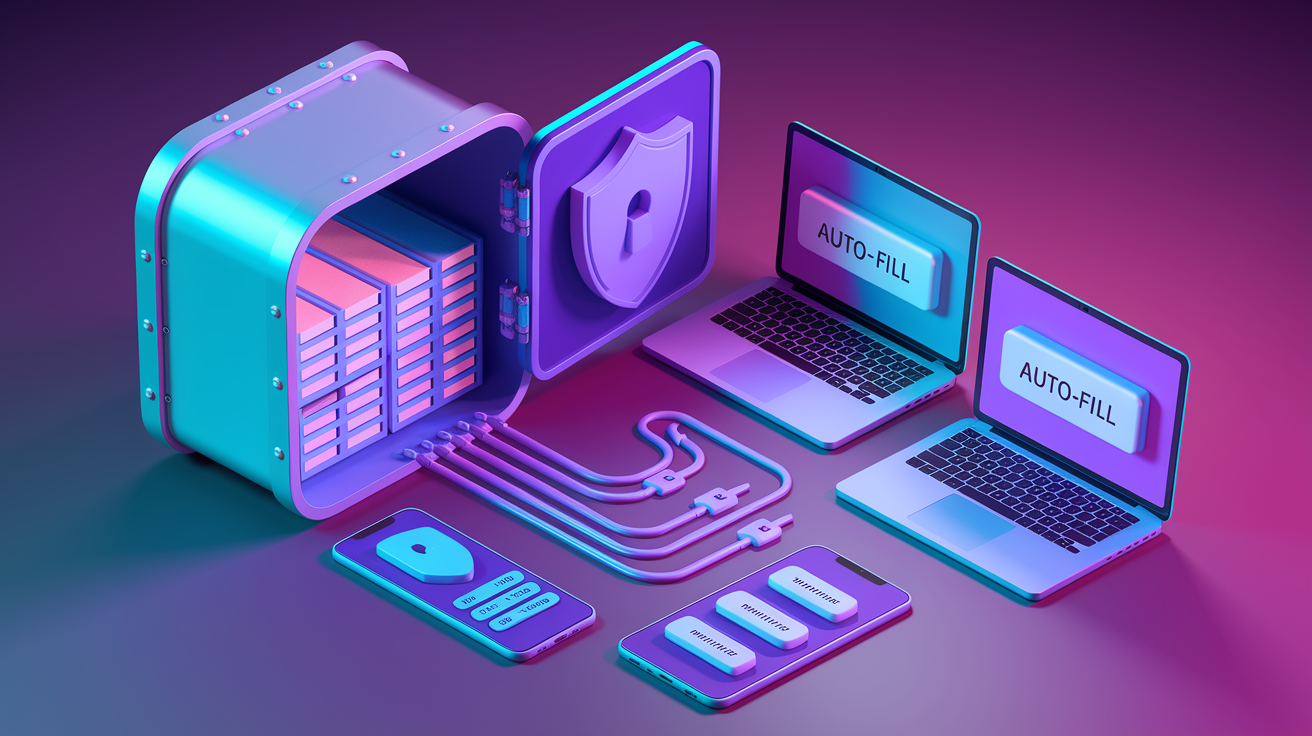
When you visit a login page, your password manager recognizes the website address and offers to fill your credentials automatically. This protects you from phishing sites that look identical to real ones, because the password manager checks the actual web address, not just what you see on screen. If you’re on “amaz0n.com” instead of “amazon.com,” the password manager won’t offer to fill anything. It only works on the real site it memorized.
Password generator tools
Every password manager includes a generator that creates random passwords like “kT9#mP2$vL4&qR8.” You can usually adjust length (12 to 30+ characters) and choose whether to include symbols, numbers, uppercase, and lowercase letters. Random generation beats any password you create yourself, since humans follow predictable patterns that hackers exploit. Let the tool do this work, since you won’t need to remember these passwords anyway.
Password health monitoring
1Password regularly scans your vault for duplicate passwords, weak passwords (under 12 characters), and compromised passwords found in known data breaches. You’ll see a security dashboard showing how many passwords need attention. If you used the same password for Netflix and your email, the password manager flags it. If your password appears in a leaked database from an old company breach, you get an alert to change it.
Dark web monitoring and breach notifications
RoboForm monitors up to 5 email addresses on the free tier, checking if your credentials show up for sale on underground forums. LastPass checks 10 email addresses for free users and 200 for paid accounts. NordPass scans both credit cards and passwords. When a website you use gets hacked, these services notify you immediately so you can change your password before someone breaks into your account.
Two factor authentication options
Beyond your master password, you can add a second security layer. Most password managers support biometric login like Face ID, Touch ID, or fingerprint readers built into your devices. You can also use authenticator apps that generate temporary 6 digit codes, or hardware keys like YubiKey that plug into your computer. Dashlane’s premium tier supports YubiKey, which has never been successfully breached. Setting up 2FA takes about two minutes and makes your vault significantly harder to crack.
Vault organization features
You can create multiple vaults (like “Personal” and “Work”), organize passwords into folders or categories, store secure notes for things like Wi Fi passwords or software license keys, and save credit card details for faster online checkout. 1Password supports custom groups and digital wallet storage. Bitwarden’s free tier includes two collections for organizing shared items. You can also share individual passwords with family members or colleagues without revealing the actual password. They just get access to use it.
These features work together automatically once you finish setup. The password manager captures new passwords as you create accounts, suggests strong replacements for weak ones, fills login forms with one click, and runs security checks in the background. You’ll see alerts only when something needs your attention, like a compromised password or a duplicate that should be changed.
Biometric login makes daily use feel effortless. Unlock your phone with your face or fingerprint, and your password manager opens immediately. No typing required for the master password on devices you use regularly.
For international travelers, 1Password’s Travel Mode lets you hide sensitive vaults before crossing borders. Enable it from any device, and those vaults disappear completely from your phone and laptop. After you clear customs or security checkpoints, disable Travel Mode and everything reappears instantly. Your data was never deleted, just temporarily hidden.
Understanding Free vs Premium Password Manager Options

Deciding between free and paid tiers depends on how many devices you use, whether you need to share passwords with others, and which security extras matter to you.
| Provider | Free Plan Limits | Premium Cost (Annual) | Key Premium Features |
|---|---|---|---|
| Proton Pass | Unlimited passwords, unlimited devices, email aliases included | $29.88 (Plus tier) | Additional email aliases, integrated VPN with Proton Unlimited, priority support |
| Bitwarden | Unlimited passwords and devices for up to 2 people | $19.80 | Encrypted file storage (1GB), password health reports, advanced 2FA options |
| NordPass | Limited to 1 account, no cross device syncing | $29.88 | Cross device sync, breach scans, password health tools, email masking, emergency access |
| RoboForm | One device only | $29.88 | Unlimited devices, cloud sync, 1GB encrypted storage, priority support, bookmark backup |
| LastPass | One account on either computer OR mobile (not both) | $36 | Unlimited devices, dark web monitoring (200 emails), 1GB encrypted storage, priority support |
Free plans work well if you primarily use one device and don’t need to share passwords. Proton Pass is the exception, offering unlimited device syncing for free, which makes it the strongest no cost option for beginners. Bitwarden’s free tier suits couples or roommates since it covers two people with full device syncing. If you’re testing password managers for the first time and want zero commitment, start with Proton Pass or Bitwarden’s free tier to learn the basics without spending anything.
Premium plans become necessary when you use multiple devices regularly (phone, laptop, tablet) and need passwords to sync instantly across all of them. NordPass free limits you to one account with no syncing, so you’d need to manually copy passwords between devices. RoboForm free restricts you to one device, which doesn’t help if you switch between your work computer and personal phone throughout the day.
Family plans range from $47.76 (RoboForm for 5 accounts) to $89.88 annually (Dashlane for 10 people), which splits the cost significantly when shared among household members. Premium tiers also unlock emergency access features, where you designate trusted contacts who can request vault access if you’re incapacitated or locked out. Security extras like dark web monitoring, breach alerts for hundreds of email addresses, encrypted file storage, and advanced two factor authentication options justify the annual cost for users managing sensitive work credentials or financial accounts.
Cross Platform Compatibility and Device Support for Beginners

All major password managers support Windows, macOS, Android, iOS, Chrome, Edge, Firefox, and Safari. This means whether you’re on an iPhone and Windows laptop, or Android phone and MacBook, third party password managers sync your passwords across both systems without issues. Linux support is less common but available in NordPass, Proton Pass, Keeper, Enpass, and Bitwarden.
Browser extensions are the primary way you interact with password managers on computers. Once installed, the extension adds a small icon to your browser toolbar. Click it to search your vault, and it automatically offers to fill passwords on login pages. The extension works across all websites you visit, capturing new passwords as you create accounts and suggesting updates when you change existing ones.
Mobile apps function similarly, integrating with your phone’s autofill system. On iOS, you enable the password manager in Settings under Passwords & AutoFill. On Android, you select it as your autofill service in Settings under System. After that, login forms in mobile apps and mobile browsers offer to fill passwords automatically, just like on your computer.
Built in platform options like iCloud Keychain and Google Password Manager offer convenience if you stay within one ecosystem. iCloud Keychain works smoothly across iPhone, iPad, and Mac, with end to end encryption protecting your passwords. Google Password Manager syncs across Android devices and Chrome browsers on any operating system. But iCloud Keychain doesn’t support Chrome or Android, so you can’t access passwords if you switch to a non Apple device later or use Chrome as your primary browser.
Google Password Manager doesn’t enable end to end encryption by default unless you manually turn on on device encryption in settings, which most users never do. Firefox and Microsoft also provide built in password managers for free, but both lock you into their specific browser. Third party password managers eliminate these restrictions, syncing across any combination of devices, operating systems, and browsers. If you use an iPhone for personal life and a Windows computer for work, or share passwords with a spouse who uses Android, a third party password manager is your best option.
Common Beginner Questions About Password Manager Usage

What happens if I forget my master password?
It’s unrecoverable, by design. Password managers use zero knowledge encryption, meaning the company can’t reset or retrieve your master password because they don’t have access to it. Write your master password on paper and store it in a safe place at home, or use a secure offline backup method. This limitation is actually proof of strong security, since it guarantees nobody else can access your vault either.
Can I recover deleted passwords?
Depends on your provider. 1Password keeps a 365 day item history, so you can restore any password you deleted within the past year. Most password managers include a “Recently Deleted” folder similar to your email trash, holding items for 30 days before permanent deletion. Check this folder first if you accidentally remove a password you still need.
What is emergency access?
Emergency access lets you designate trusted contacts (family members or close friends) who can request access to your vault if you become incapacitated or locked out. NordPass, RoboForm, 1Password, Keeper, LastPass, LogMeOnce, and Bitwarden all offer this feature. You set a waiting period (24 hours to 30 days), and your designated contact requests access. If you don’t reject the request within that timeframe, they receive access. This prevents your passwords from becoming permanently lost if something happens to you.
How do I get help if something breaks?
Support quality varies by provider and subscription tier. RoboForm offers live chat, email, and phone support for paid accounts. Keeper provides priority support for business users. Most free tiers rely on chatbots, help articles, and community forums. Check the support options before committing if fast help matters to you. Paid tiers typically include email support with 24 hour response times.
Are password managers hackable?
LastPass experienced a data breach in 2022 where hackers accessed encrypted customer vaults. However, the encryption held, meaning the attackers needed each user’s master password to actually read the stolen data. Strong, unique master passwords kept most users safe even after the breach. Password managers remain significantly safer than reusing the same password across multiple sites, since one company’s breach won’t compromise all your accounts when each uses a unique password.
Can I use a password manager offline?
Most password managers require an Internet connection for full functionality. Bitwarden specifically needs active Internet to work, which is a notable limitation if you frequently work offline. Others like 1Password and Keeper cache your vault locally, so you can view and copy passwords without Internet, but changes won’t sync until you reconnect. KeePass stores everything locally by default and works completely offline, but requires manual file syncing between devices.
How do I switch to a different password manager later?
Every password manager includes an export function (usually under Settings) that saves your vault as a CSV file. Import that file into your new password manager, and all your passwords transfer over. The process takes about five minutes for most users. This portability means you’re never locked into one provider permanently if you later decide to switch.
Starting Your Password Manager Journey Today

Choosing any reputable password manager is better than continuing to reuse the same password across multiple accounts. The average person manages 23 accounts requiring unique passwords, and reusing passwords means one company’s data breach compromises everything. Password managers are the single best defense against phishing and data breaches because they generate unique passwords for every site and only fill them on the correct websites. Using unique passwords prevents one site’s breach from compromising multiple accounts simultaneously.
Here are three immediate steps to get started. First, select a provider from the recommendations above and take advantage of free trials where available. RoboForm and 1Password both offer 30 day trials, giving you time to test features before committing. Proton Pass and Bitwarden offer generous free tiers you can use indefinitely.
Second, create a strong master password (at least 12 characters mixing words, numbers, and symbols) and write it on paper stored somewhere secure at home. This is your only password that isn’t stored in the vault, so backup matters.
Third, start by importing or manually adding 5 to 10 of your most critical accounts: email, banking, work login, and frequently used services. Get comfortable with how auto fill works on these essential accounts before expanding further.
You don’t need to migrate everything on day one. Add accounts gradually as you naturally log into them over the next few weeks. Each time you visit a login page and type your password manually, let the password manager suggest saving it. This gradual approach builds confidence without overwhelming you with a massive migration project. Within a month, you’ll have most accounts secured without forcing it.
Final Words
Pick a password manager from the list above and start with a free trial or free version. You don’t have to migrate everything at once.
Add your most important accounts first—banking, email, work logins—then add more as you go.
The best password manager for beginners is the one you’ll actually use. Even a basic setup with strong, unique passwords beats reusing the same password everywhere.
Your accounts get safer with every password you save.
FAQ
What is the best and easiest password manager?
RoboForm is the best and easiest password manager for beginners, priced at $29.88 annually with a 30-day free trial. It includes helpful tutorials and in-app tips that guide you through setup and daily use without feeling overwhelming.
What is the 3 word password rule?
The 3 word password rule suggests creating a master password by combining three random words together, making it both memorable and strong. This approach helps you build a password that’s easy for you to remember but hard for others to guess.
What password managers have never been hacked?
1Password, Bitwarden, NordPass, and Proton Pass have never experienced data breaches that exposed user vault contents due to their zero-knowledge encryption architecture. Even when providers are targeted, your actual passwords remain encrypted and inaccessible without your master password.
What is the best free password manager?
Proton Pass is the best free password manager, offering unlimited passwords across unlimited devices with no restrictions. It includes email alias generation and works seamlessly across all your phones, tablets, and computers without requiring a paid upgrade.
Can I switch password managers later if I change my mind?
You can switch password managers later by using the export and import features that most providers include. The process typically involves downloading your passwords as a CSV file from your current manager and uploading it to your new one.
What happens if I forget my master password?
Your master password is unrecoverable if you forget it, so you’ll lose access to your password vault permanently. That’s why writing it down and storing it securely in a physical location (like a safe or locked drawer) is recommended when you’re just starting out.
How many devices can I use with a free password manager?
Proton Pass and Bitwarden free plans work across unlimited devices with full syncing. However, NordPass Free, RoboForm Free, and LastPass Free restrict you to either one device or prevent cross-device syncing between computers and mobile phones.
Do password managers work on all my devices?
Most password managers work across Windows, Mac, Android, iOS, and all major browsers including Chrome, Edge, Firefox, and Safari. Third-party password managers offer better cross-platform compatibility than built-in options like iCloud Keychain (Apple only) or Google Password Manager (Google ecosystem only).
What can I store besides passwords in a password manager?
Password managers store secure notes, credit card information, bank account details, and other sensitive digital wallet information beyond just login credentials. You can organize everything into folders or categories and share selected items with trusted family members when needed.
How do password managers protect against phishing scams?
Password managers protect against phishing by memorizing the exact website address where you created each password and only auto-filling on that correct site. If you land on a fake lookalike website, your password manager won’t fill your credentials, alerting you to the danger.
What is emergency access in a password manager?
Emergency access lets you designate trusted contacts who can request access to your password vault after a waiting period you control. This feature ensures family members can access critical accounts if something happens to you, available in NordPass, RoboForm, 1Password, Keeper, LastPass, and Bitwarden.
Should I start with a free or paid password manager?
Start with a free password manager if you’re a single user with basic needs across multiple devices (Proton Pass or Bitwarden work well). Upgrade to premium if you need family sharing, advanced breach monitoring, priority customer support, or features like 1Password’s Travel Mode.