

Your router’s probably working fine right now. But “working” and “working well” aren’t the same thing, and waiting until total failure means days without reliable internet while you scramble for a replacement. Most routers need replacement every three to five years, but your specific timeline depends on what you’re asking it to do, whether it’s still getting security updates, and if performance has quietly degraded to the point where you’ve just gotten used to problems that shouldn’t exist.
Should You Replace Your Router Now? A Quick Decision Framework

Router replacement isn’t about hitting a specific age milestone. The decision depends on current performance, security status, and whether your hardware can handle what you’re asking it to do.
Answer these six questions to determine your replacement timeline:
-
Is your router 5 or more years old? Check the label on the bottom or look up your model’s release date.
-
Are your actual speeds consistently below 22 Mbps download and 10 Mbps upload? Run a speed test at fast.com or speedtest.net during normal usage times.
-
Has the manufacturer stopped releasing firmware updates for your model? Check the support page for your specific router model and look at the date of the most recent update.
-
Do you experience frequent disconnections or devices dropping off the network? Count how many times per week you need to restart your router or reconnect devices.
-
Does your router lack WiFi 6 support while you own devices that could use it? Most phones from 2020 onward and laptops from 2019 onward support WiFi 6.
-
Are you unable to connect all your devices reliably at the same time? Add up phones, laptops, tablets, smart home devices, TVs, and gaming systems.
If you answered “yes” to two or more questions, replacement should happen now. Your router’s actively limiting your network’s performance or creating security risks. One “yes” answer means you should start researching replacements and plan to upgrade within six months. The issue will get worse, not better.
The standard three to five year replacement guideline gives you a general timeline, but these specific factors determine your actual need. A well maintained four year old router in a small apartment with few devices can outperform a neglected two year old router struggling with a house full of smart home equipment.
Comprehensive Router Diagnostic: Performance and Hardware Assessment

Figuring out whether your router needs replacement starts with establishing what “normal” performance looks like for your specific setup, then measuring whether you’re getting it.
Performance Testing and Measurement
Run a speed test during a quiet moment when only one device is connected. This gives you your baseline maximum performance. Then test again during typical evening usage when everyone’s home and multiple devices are active. The difference between these two tests tells you how well your router handles real world load.
Check signal strength in different rooms using your phone’s WiFi analyzer app or by watching the WiFi bars as you move around. Write down which rooms have weak signals or dead zones. If rooms that used to have solid coverage now struggle, that’s hardware degradation, not your imagination.
Test connection stability by streaming video on two devices simultaneously while someone else video calls on a third. A healthy router maintains all three connections without buffering, freezing, or dropped calls. If this basic scenario causes problems, your router can’t handle your household’s needs.
Separate router problems from internet service provider issues by connecting a device directly to your modem with an ethernet cable. If speeds improve dramatically, your router’s the bottleneck. If they stay low, contact your ISP.
Track performance monthly by running the same speed test from the same location at the same time of day. Save the results. Gradual decline over several months indicates aging hardware that’ll continue deteriorating.
Physical Hardware Evaluation
Touch the router’s case during active use. Warm is normal. Too hot to comfortably rest your hand on for more than a few seconds means overheating, which shortens component life and degrades performance. Check whether vents are blocked or whether the router’s enclosed in a cabinet or sitting on carpet.
Look for visible damage. Cracks in the case, broken antenna connections, discolored plastic from heat exposure, or bent antenna elements. These physical problems usually mean internal damage too.
Open up the vents and look for dust accumulation. Heavy buildup insulates heat and forces components to run hotter than designed. If you can see dust packed into cooling vents or coating the circuit board, that’s affecting performance.
Check the manufacturing date on the label. If you can’t find a date, search your email for the purchase confirmation. Routers older than five years are operating on borrowed time regardless of how they currently perform.
Correlate physical condition with performance issues. A router that’s both overheating and experiencing frequent disconnections is failing. A physically pristine router with performance problems might just need different placement or channel settings.
| Symptom Category | Specific Indicators | Severity Level | Action Needed |
|---|---|---|---|
| Connection Stability | Drops 3+ times per week, devices randomly disconnect, need to restart router weekly or more often | High | Replace immediately if accompanied by other symptoms |
| Speed Degradation | Consistent speeds below 22 Mbps download/10 Mbps upload, speeds decline 40%+ from baseline over 3 months | Medium-High | Replace within 1-3 months |
| Coverage Issues | Dead zones in previously covered areas, weak signal in rooms within 30 feet of router, can’t reach second floor | Medium | Try repositioning first, then replace if no improvement |
| Physical Wear | Case too hot to touch, visible damage, excessive dust despite cleaning, frequent overheating shutdowns | High | Replace immediately – fire risk |
| Device Capacity | Can’t connect all devices simultaneously, performance tanks when multiple devices active, smart home devices won’t stay connected | Medium | Replace within 3-6 months or reduce connected device count |
Conduct speed tests monthly and save screenshots or write down the numbers. You need historical data to recognize gradual decline. A single bad result might be temporary. Three months of declining performance is a pattern. When your speeds consistently fall below that 22 Mbps download and 10 Mbps upload household average, and you’ve ruled out ISP issues, the router’s failing. If you use game consoles or do video calls regularly, those minimum speeds don’t cut it. You need faster baseline performance, which means the replacement threshold is higher.
Router Security and Firmware Support Lifecycle

Manufacturers support routers with firmware updates for roughly three to five years after release. Once they stop, security vulnerabilities accumulate with no fixes coming. Every month without updates increases your exposure to known exploits that attackers actively target. Check your router manufacturer’s support page and find the last firmware update date for your specific model. If it’s been more than 12 months, support has likely ended.
Modern encryption uses WPA3, which closes security holes present in WPA2 and older protocols. Routers manufactured before 2018 generally can’t support WPA3 because the hardware lacks the processing capability. Even if firmware updates continue, older hardware can’t implement current security features. WPA2 remains functional but vulnerable to specific attacks that WPA3 prevents. Older routers stuck on WPA or the original WPA don’t provide meaningful security at all.
Firmware updates deliver security patches that fix discovered vulnerabilities, bug fixes that improve stability, and occasionally minor performance improvements. They work within your existing hardware’s limitations. Updates can’t add support for newer WiFi standards, increase the number of simultaneous connections your processor can handle, or upgrade your antennas’ range. Software can only optimize what the hardware can physically do. When security patches stop coming or when the fixes you need require hardware changes, updates have reached their limit.
Routers lacking current firmware support face these specific security risks:
- Unpatched vulnerabilities that allow unauthorized network access through known exploits
- DNS hijacking attacks that redirect your traffic through malicious servers
- Default password databases that let attackers access routers using factory credentials you never changed
- Botnet recruitment where compromised routers become part of attack networks
- Lack of WPA3 support leaving networks vulnerable to brute force attacks
- No protection against newer malware specifically targeting router firmware
- Missing security features like automatic guest network isolation or VPN support
If someone’s accessed your network without permission, if you’ve found your router acting as part of a botnet, or if the manufacturer has publicly discontinued security support, replace the router immediately. Every day of continued use expands your exposure. Change your WiFi password on the new router, set up WPA3 encryption if all your devices support it, and enable any security features the router offers. A compromised old router can’t be trusted even after a factory reset.
Outdated WiFi Standards and Technology Gaps

WiFi 5 (802.11ac) launched in 2014 and tops out around 3.5 Gbps under perfect conditions with expensive hardware. WiFi 6 (802.11ax), released in 2019, reaches 9.6 Gbps theoretical maximum and, more importantly, handles multiple devices simultaneously without the performance collapse WiFi 5 experiences under load. WiFi 6E, introduced in 2021, adds a less congested 6 GHz band while maintaining WiFi 6’s speed and efficiency improvements. Real world performance matters more than theoretical maximums. A WiFi 6 router maintains better speeds when ten devices are connected compared to a WiFi 5 router struggling with the same load.
Modern routers include MU-MIMO (Multi-User, Multiple Input, Multiple Output), which sends data to multiple devices simultaneously instead of rapidly switching between them. This matters when several people stream video or join calls at the same time. Quality of Service (QoS) features prioritize traffic types, ensuring video calls don’t stutter because someone started a large download. Beamforming aims WiFi signals toward connected devices rather than broadcasting equally in all directions, improving both range and connection stability. Routers from before 2017 generally lack these features.
| WiFi Standard | Maximum Speed | Key Features | Typical Device Era |
|---|---|---|---|
| WiFi 5 (802.11ac) | 3.5 Gbps theoretical | Dual-band, basic beamforming, works well with 5-10 devices | Routers from 2014-2019 |
| WiFi 6 (802.11ax) | 9.6 Gbps theoretical | MU-MIMO, OFDMA for efficiency, better performance under load, handles 20-30+ devices | Routers from 2019-2021 |
| WiFi 6E (802.11ax extended) | 9.6 Gbps theoretical | All WiFi 6 features plus 6 GHz band, reduced interference, lower latency | Routers from 2021-present |
Your router needs to match your internet service plan’s speed capability. If you pay for 500 Mbps download speeds but your router maxes out at 300 Mbps due to outdated hardware, you’re wasting money every month. Check your router’s specifications against your current internet plan. If the router can’t deliver what you’re paying for, upgrade now. The performance gap will only widen as you eventually upgrade your internet service.
Device Capacity and Smart Home Demands

The average household connected 25 devices to their home network as of 2023, up from 10 devices in 2019. Phones, tablets, laptops, and computers make up the baseline. Add streaming devices, smart TVs, game consoles, security cameras, doorbell cameras, and smart speakers, and you’re already past a dozen. Older routers designed for the “10 devices per household” era can’t handle this load. Their processors max out managing the connections, causing slowdowns and disconnections even when total bandwidth usage stays moderate.
Smart home devices create persistent connections that older routers struggle to maintain. Automated lighting systems check in constantly for schedule updates and manual control commands. Smart thermostats monitor temperature and adjust settings multiple times per hour. Smart TVs maintain always on connections for quick launches and software updates. Whole house audio systems stream to multiple rooms simultaneously. Smart shading systems, robot vacuums, smart appliances, and smart locks all add to the simultaneous connection count. A household with basic smart home features might have 15 to 20 devices connected all the time, before anyone picks up a phone or opens a laptop.
To assess your current capacity situation, count every device that connects to your WiFi. Check your router’s admin interface for a connected devices list if you’re not sure of the total. Then check your router’s specifications for maximum supported devices. Many older routers list “supports up to 15 devices” or similar limits. If you’re at or above that number, you’re overloading the hardware. Performance degradation under these conditions is expected, not a defect.
Common smart home devices and their bandwidth impact include:
- Smart lighting systems: low bandwidth but constant connection, 10 to 20 bulbs create noticeable load on older routers
- Video doorbells and security cameras: high bandwidth, especially during motion events or live viewing
- Smart thermostats: low bandwidth but require reliable always on connection for remote access
- Streaming devices and smart TVs: high bandwidth during use, persistent connection when idle
- Smart speakers and displays: moderate bandwidth for music streaming, must maintain constant connection for voice commands
- Smart home hubs: low bandwidth but manage multiple other devices, require stable connection
Router Upgrade Benefits and Modern Features

Router technology advanced significantly between 2017 and 2023, adding features that directly solve common home networking problems.
Performance and Coverage Enhancements
Mesh WiFi systems replace the single router approach with multiple nodes placed throughout your home. Each node communicates with the others, creating overlapping coverage that eliminates dead zones. Walk from your basement to your upstairs bedroom and your devices hand off between nodes without disconnecting. Traditional single routers struggle to cover homes over 1,500 square feet effectively, especially through multiple floors and walls.
Extended range comes from better antenna design and higher transmit power in newer models. Routers from 2020 onward typically reach 30 to 50% further than models from five years earlier in real world conditions. Beamforming technology focuses the WiFi signal toward your devices rather than broadcasting equally in all directions, improving both range and connection stability in challenging locations.
Dual band routers provide both 2.4 GHz (better range, slower speeds) and 5 GHz (shorter range, faster speeds) networks, letting you put devices on whichever band serves them best. Tri band routers add a second 5 GHz network, reducing congestion when many devices connect simultaneously. This matters most in households where multiple people stream video, game online, and video call at the same time.
Connectivity and Management Features
MU-MIMO lets the router send data to four or more devices simultaneously instead of rapidly switching between them. Without MU-MIMO, adding more active devices means each gets a smaller time slice, creating lag and reduced speeds. With MU-MIMO, performance stays consistent even under heavy load.
Advanced Quality of Service features let you prioritize specific devices or traffic types. Set your work laptop and video call traffic as high priority, and they won’t suffer when someone else starts streaming 4K video or downloading a large file. You can also set bandwidth limits on specific devices to prevent any single device from monopolizing your connection.
Simultaneous connection improvements in WiFi 6 routers come from OFDMA (Orthogonal Frequency Division Multiple Access), which divides each channel into smaller sub-channels. This lets the router communicate with multiple devices in each transmission rather than queuing them up. The result is lower latency and better performance when 15 to 20+ devices are active.
App based management eliminates the need to access cryptic web interfaces at IP addresses. Install your router manufacturer’s app, and you can see connected devices, run speed tests, set up guest networks, create parental controls, and troubleshoot issues from your phone. Some apps let you manage your network remotely when you’re away from home.
Guest network capabilities create a separate WiFi network for visitors that can’t access your main network or connected devices. This prevents guests’ potentially compromised devices from affecting your network security.
| Feature Category | Budget Routers ($50-$100) | Mid-Range Routers ($100-$200) | Premium Routers ($200-$400+) |
|---|---|---|---|
| WiFi Standard | WiFi 5 or basic WiFi 6 | WiFi 6 | WiFi 6E |
| Coverage | 1,500 sq ft, single-level homes, 2-3 bedrooms | 2,500 sq ft, two-story homes, 3-4 bedrooms, or starter mesh systems | 3,000+ sq ft, advanced mesh systems, multiple floors and challenging layouts |
| Device Capacity | 10-15 devices | 20-40 devices | 40-75+ devices |
| Advanced Features | Basic guest network, simple parental controls | MU-MIMO, QoS, app control, VPN support, USB ports | Advanced QoS, multi-gig ports, comprehensive security features, network segmentation, professional-grade management |
Match features to what you actually need. A single person in a small apartment doesn’t benefit from premium mesh systems and advanced device management. A family of four in a 2,500 square foot home with 30 connected devices needs mid range or better hardware to maintain reliable performance.
Router Buying Guide: Specifications and Price Ranges

Determine your specification requirements by counting household members, listing all devices that connect to WiFi, measuring your home’s square footage, and checking your current internet service plan speed. A household with two people, 15 devices, 1,200 square feet, and 200 Mbps internet needs different hardware than a household with five people, 40 devices, 2,800 square feet, and gigabit internet.
Budget routers ($50 to $100) work for apartments, small homes under 1,500 square feet, households with under 15 devices, and internet plans under 300 Mbps. They provide basic functionality without advanced features. Mid range routers ($100 to $200) suit most households: typical suburban homes under 2,500 square feet, 15 to 30 devices, internet plans up to 500 Mbps, and users who want app management and quality of life features. Premium routers ($200 to $400+) address large homes over 2,500 square feet, heavy device loads over 30 connections, gigabit or multi-gigabit internet plans, mesh network needs, and advanced features like network segmentation or VPN servers. The higher price brings better processors, more memory, superior antennas, and features that meaningfully improve performance under demanding conditions.
Essential router specifications to evaluate before purchase:
- WiFi standard: WiFi 6 minimum for purchases in 2024, WiFi 6E if budget allows and you have compatible devices
- Processor speed: 1.5 GHz dual core or better for mid range, 1.8 GHz quad core for premium
- RAM: 512 MB minimum, 1 GB preferred for handling many simultaneous devices
- Maximum coverage area: match to your home’s square footage with 20% extra for coverage margin
- Ethernet ports: at least 4 gigabit ports for wired devices like gaming consoles and desktop computers
- USB ports: useful for network storage or printer sharing if you need those features
- Security features: WPA3 support mandatory, guest network capability, automatic firmware updates
Brand reliability matters for long term satisfaction. Established networking companies like ASUS, TP-Link, Netgear, and Linksys maintain longer support cycles and more responsive customer service compared to generic brands. Check whether the manufacturer commits to minimum support periods and how long they’ve provided updates for previous models. Warranty periods of two to three years indicate manufacturer confidence in hardware longevity.
Future proofing means buying for your needs two years from now, not just today. If you currently have 20 devices, get a router rated for 30 to 40. If your internet plan is 300 Mbps but you might upgrade to 500 Mbps in the next two years, choose a router that handles 500 Mbps comfortably. The goal is to reach the typical three to five year replacement cycle without the router becoming a bottleneck halfway through. Spending an extra $50 for capabilities you’ll grow into beats replacing an inadequate router after 18 months.
Internet Service Provider Compatibility and Modem Considerations
Modems translate the signal from your internet service provider (cable, fiber, DSL) into ethernet that routers understand. Routers create the WiFi network and manage connections between all your devices. You need both. Some devices combine both functions into one box. When your internet connection fails, you need to determine whether the modem, the router, or the ISP is causing the problem. Connect a device directly to the modem with an ethernet cable and test. If you get full speeds, the modem works and the router’s the problem. If speeds stay slow, the issue’s the modem or the ISP.
Internet service providers maintain approved device lists showing which modems and routers work with their service. Check this list before buying anything. Some ISPs require specific modems or modem router combos, especially for fiber service. Cable internet offers more flexibility but still has compatibility requirements based on the DOCSIS standard version your plan uses. DOCSIS 3.0 modems max out around 300 to 400 Mbps. DOCSIS 3.1 modems handle gigabit speeds. Match the modem’s capability to your internet plan to avoid bottlenecks.
Your router must support the maximum speeds in your internet service plan. If you pay for 500 Mbps download, your router needs gigabit WAN port and sufficient processing power to maintain those speeds under load. Check the router specifications for “WAN to LAN throughput” or “internet speed support” rather than the theoretical maximum WiFi speed. Marketing materials often show the combined maximum speed of all bands, which no single device ever achieves.
Combination modem router units cost less and take up less space but limit your upgrade flexibility. When either component becomes outdated, you replace both. Separate modem and router devices let you upgrade whichever component needs it without touching the other. If your modem works fine but your router struggles with device capacity, replace just the router. If you upgrade to faster internet that requires DOCSIS 3.1 but your router remains adequate, replace just the modem. This flexibility saves money over the device lifetime.
Placement optimization affects modem and router performance. Position the router centrally in your home, elevated on a shelf or mounted on a wall, away from metal objects and concrete walls that block signals. Keep it out of cabinets and closets where walls block signals and ventilation. The modem needs to be wherever the ISP’s service line enters your home, but you can run an ethernet cable from the modem to a more optimal router location if needed. This simple positioning change can improve coverage significantly without buying new hardware.
Migration and Setup: Transitioning to Your New Router

Before disconnecting your old router, document your current network name (SSID) and password so you can replicate them on the new router. This lets all your devices reconnect automatically without reconfiguring each one. Take photos of any custom settings in your old router’s admin interface if you configured port forwarding, static IP addresses, or specific device settings you want to maintain.
Complete router replacement process:
-
Unbox the new router and read the quick start guide for manufacturer specific setup steps.
-
Place the router in your intended permanent location before powering it on.
-
Connect the router’s WAN/Internet port to your modem using the included ethernet cable.
-
Power on the modem first, wait two minutes for it to fully boot, then power on the new router.
-
Connect a computer or phone to the new router using the default network name and password printed on the router’s label.
-
Open a web browser and follow the setup wizard, or install the manufacturer’s mobile app and complete setup there.
-
Change the network name and password to match your old router’s settings, or choose new credentials (if changing credentials, write them down).
-
Test the connection on one device before disconnecting the old router completely.
Initial security configuration matters more than any other setup step. Change the router’s admin username and password from the factory defaults. Manufacturers publish default credentials, so leaving them unchanged lets anyone access your router’s settings. Enable WPA3 encryption if all your devices support it. If you have older devices that need WPA2, set up WPA2/WPA3 mixed mode. Create a separate guest network for visitors with a different password and client isolation enabled so guest devices can’t see your main network. Disable WPS (WiFi Protected Setup) if the option exists because it creates security vulnerabilities. Enable automatic firmware updates so security patches install without manual intervention.
Test the new setup by connecting devices in different rooms and running speed tests from multiple locations. Verify that previously problematic areas now have adequate coverage. Test high bandwidth activities like video streaming and video calls to confirm the router handles your typical load. If certain areas still have weak signals, note them for possible mesh node placement or router repositioning.
Dispose of the old router responsibly by checking for electronics recycling programs in your area. Many retailers accept old routers for recycling. Before disposing, factory reset the old router to clear your network settings and any stored information. Remove any personal labels or notes with network credentials. Don’t put old routers in regular trash because they contain materials that shouldn’t reach landfills.
When to Wait: Situations Where Replacement Can Be Delayed
Your current router remains adequate if you have fewer than 15 connected devices, your internet plan provides under 200 Mbps, you don’t experience coverage issues in any room, the manufacturer still releases firmware updates, and you’re not experiencing frequent performance problems. Basic internet usage like web browsing, email, occasional streaming, and light smart home adoption don’t stress modern routers the way heavy simultaneous usage does.
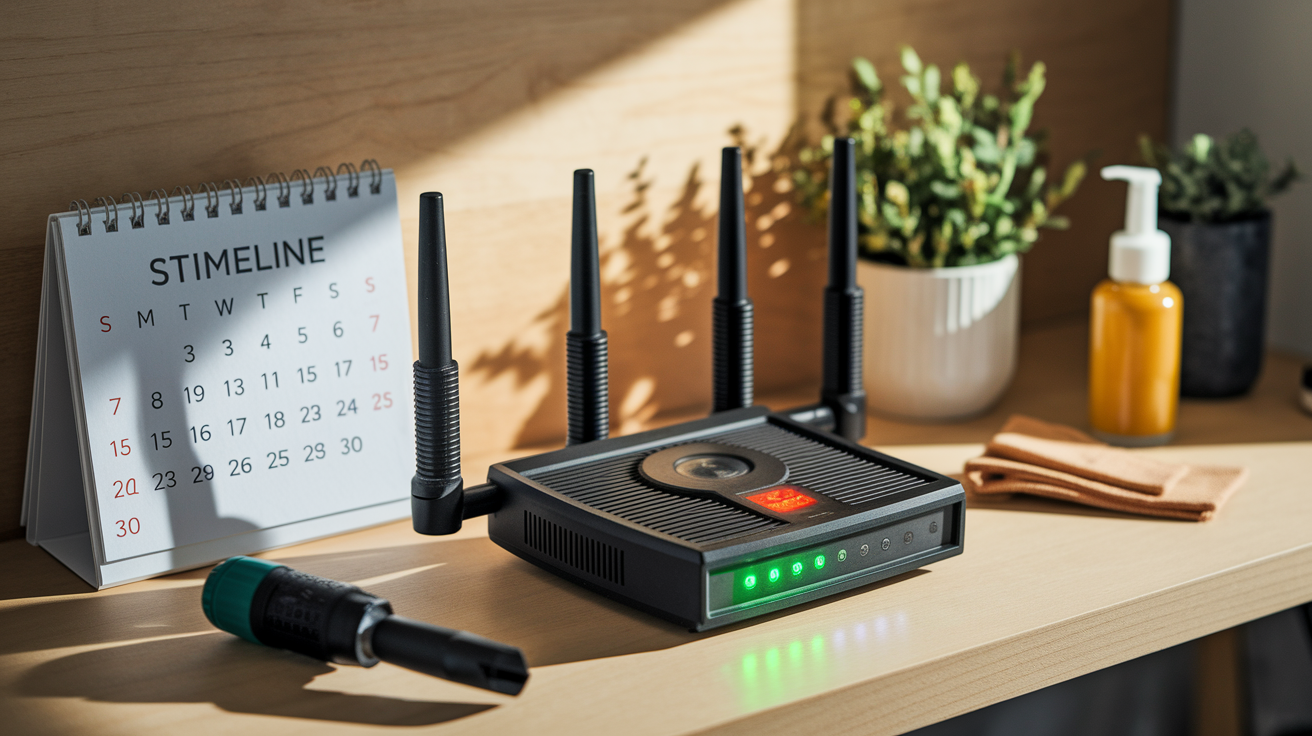
Maintenance and optimization can extend functional life when the hardware isn’t failing. Improve ventilation by removing the router from enclosed spaces and ensuring vents aren’t blocked by papers, books, or other objects. Clean dust from vents every three months using compressed air, keeping the can upright to avoid spraying propellant into the electronics. Power cycle the router monthly by unplugging it for 30 seconds, which clears temporary memory issues and can improve performance. These basic steps cost nothing and sometimes resolve problems that might seem like replacement indicators.
Troubleshooting steps to attempt before purchasing a replacement router:
- Change the WiFi channel to avoid interference from neighboring networks (use WiFi analyzer apps to identify congested channels)
- Reposition the router to a more central location, higher elevation, or away from obstacles
- Update firmware manually if automatic updates aren’t enabled (check manufacturer website for your model)
- Factory reset the router and reconfigure it to clear accumulated software issues
- Disconnect unused devices that might be maintaining connections and consuming capacity
Balance short term fixes against long term replacement benefits by considering the time and effort involved. Spending two hours troubleshooting and optimizing makes sense if it buys you six months of adequate performance. If the same problems reappear within weeks, or if optimizations produce minimal improvement, the hardware’s reached its limit. At that point, continued troubleshooting wastes time you could spend setting up a replacement that actually solves the problems. When multiple symptoms appear together, replacement addresses all of them simultaneously while troubleshooting only tackles one issue at a time.
Final Words
Your router won’t announce when it’s time to retire, but the signs show up in your daily internet use.
Check how often you restart it, how many devices struggle to connect, and whether your speeds match what you’re paying for. If your router is pushing five years old and you answered “yes” to two or more of those diagnostic questions, replacement makes sense now.
Most routers hit their limit around the three to five year mark, but your actual timeline depends on what you’re asking it to do.
A well-maintained router with light use can stretch toward that upper range. One handling a dozen smart home devices and constant video calls might need replacing sooner.
Knowing how often to replace wifi router comes down to watching performance, security support, and whether it still handles your household’s demands without daily frustration.
FAQ
How do I know if my Wi-Fi router needs to be replaced?
You know your Wi-Fi router needs to be replaced if you experience frequent connection drops, speeds below 22 Mbps download or 10 Mbps upload, the manufacturer has stopped firmware updates, or your router is 5+ years old. Answering yes to two or more of these indicators means you should replace your router now.
How long does a Wi-Fi router last?
A Wi-Fi router lasts three to five years under normal conditions with proper maintenance. Well-maintained routers can reach the upper end of this range, but actual lifespan depends on performance degradation, security support continuation, and whether the router still meets your household’s device and speed requirements.
Is a 5 year old router outdated?
A 5 year old router is likely outdated because it typically lacks support for Wi-Fi 6, may no longer receive firmware updates, and cannot handle modern smart home device loads. At this age, the router usually falls short of current security standards and struggles with simultaneous connections that households now require.
How to check if your router is outdated?
You can check if your router is outdated by running monthly speed tests to compare against your internet plan speeds, verifying whether the manufacturer still provides firmware updates, and confirming the router supports Wi-Fi 6 and WPA3 encryption. Check the model number against manufacturer support documentation to determine the device’s age and current support status.
What are signs my router is failing?
Signs your router is failing include frequent disconnections, speeds falling below household averages, overheating issues, dead zones in previously covered rooms, and inability to connect all your devices reliably. Physical wear like excessive dust accumulation or damaged components also indicates replacement need, especially when combined with performance problems.
Can firmware updates replace the need for a new router?
Firmware updates cannot replace the need for a new router if your hardware lacks support for modern WiFi standards like Wi-Fi 6 or current security protocols like WPA3. Updates can improve security and fix bugs on supported routers, but they cannot upgrade hardware capabilities or add features the physical components don’t support.
When should I replace my router immediately?
You should replace your router immediately if your WiFi password has been compromised, the manufacturer has discontinued security support, you experience constant connection failures, or your speeds fall significantly below your internet service plan. Multiple simultaneous problems indicate hardware failure rather than issues you can troubleshoot and fix.
What WiFi standard should my new router support?
Your new router should support Wi-Fi 6 at minimum, or Wi-Fi 6E for future-proofing and to handle multiple simultaneous connections with reduced latency. These newer standards provide better speeds and support more devices than Wi-Fi 5, which older routers use and cannot upgrade to through software updates alone.
How many devices can an old router handle?
An old router can typically handle 10 to 15 devices before performance degrades noticeably, though this varies by model and age. Modern households often exceed this with smart home devices like automated lighting, thermostats, smart TVs, and audio systems, which require routers designed to manage 20 to 30 or more simultaneous connections.
Do I need to replace my modem when replacing my router?
You need to replace your modem when replacing your router only if the modem cannot support your current internet plan speeds or uses outdated technology that creates bottlenecks. The modem connects to your ISP while the router manages your home network, so each serves different functions and ages independently based on capability requirements.
What router features matter most for smart homes?
Router features that matter most for smart homes include MU-MIMO technology for handling multiple devices simultaneously, advanced QoS for prioritizing critical connections, dual-band or tri-band support, mesh system compatibility for whole-home coverage, and sufficient processor speed and memory to manage 20 to 30 connected devices without performance degradation.
How much should I spend on a replacement router?
You should spend $80 to $150 for a mid-range router that handles typical household needs, $150 to $300 for advanced features like tri-band and extensive smart home support, or under $80 for basic needs with fewer devices. Match your investment to your internet plan speeds, device count, and home size for best value over the router’s 3 to 5 year lifespan.