


You plug in the T-Mobile mesh access point, follow the app prompts, and nothing happens. Or pairing works but your phone keeps dropping connections as you walk between rooms. T-Mobile’s new Wi-Fi 6 mesh system should expand your coverage without creating headaches, but the official quick start guide skips important placement rules and troubleshooting steps that determine whether you get seamless whole-home coverage or frustrating dead zones. This walkthrough shows you exactly how to set up, position, and maintain your mesh access point so devices actually stay connected as you move through your house, with clear fixes when things don’t work right the first time.
Step-by-Step Installation and Compatibility Requirements

The T-Mobile mesh Wi-Fi 6 access point only works with the G4AR 5G Gateway. It won’t pair with older models like the Arcadyan KVD21 or Nokia gateways. You need an active Home Internet Plus plan (rolling out starting April 26th) to use this device. Before you start, grab your mesh unit, power adapter, a phone with the T-Life app installed, and optionally an ethernet cable 3 feet or longer if you want wired backhaul. The mesh access point probably isn’t sold separately outside the Home Internet Plus bundle.
- Unbox the mesh access point and make sure everything’s there (unit, power adapter, quick start guide).
- Open the T-Life app on your phone and find the device pairing or “Add Device” section.
- Plug in the mesh access point within 10 feet of your G4AR gateway for setup.
- Follow what the app tells you. The system automatically finds the new access point and starts pairing.
- Watch the LED on the mesh unit. It should go from flashing to solid when pairing finishes.
- Test wireless signal at where you actually want to put it using the T-Life app’s signal meter.
- Move the access point somewhere the gateway signal’s still decent but coverage starts dropping off.
- Check in the T-Life app that pairing shows complete and the unit’s online.
- Different approach: Connect the mesh access point to the G4AR gateway with an ethernet cable for manual pairing, then unplug and place it wirelessly.
- Walk through rooms that had weak coverage before and check that your devices connect with better signal now.
Most people finish setup in 10 to 15 minutes from opening the box to having everything running. Once it’s going, the mesh access point supports up to 2 wired connections through its ethernet ports. You can plug in gaming consoles or streaming devices directly. The unit automatically rebroadcasts your gateway’s signal without you needing to configure networks manually. Devices switch between the gateway and access point as you move around your home.
Network Configuration and Interference Management
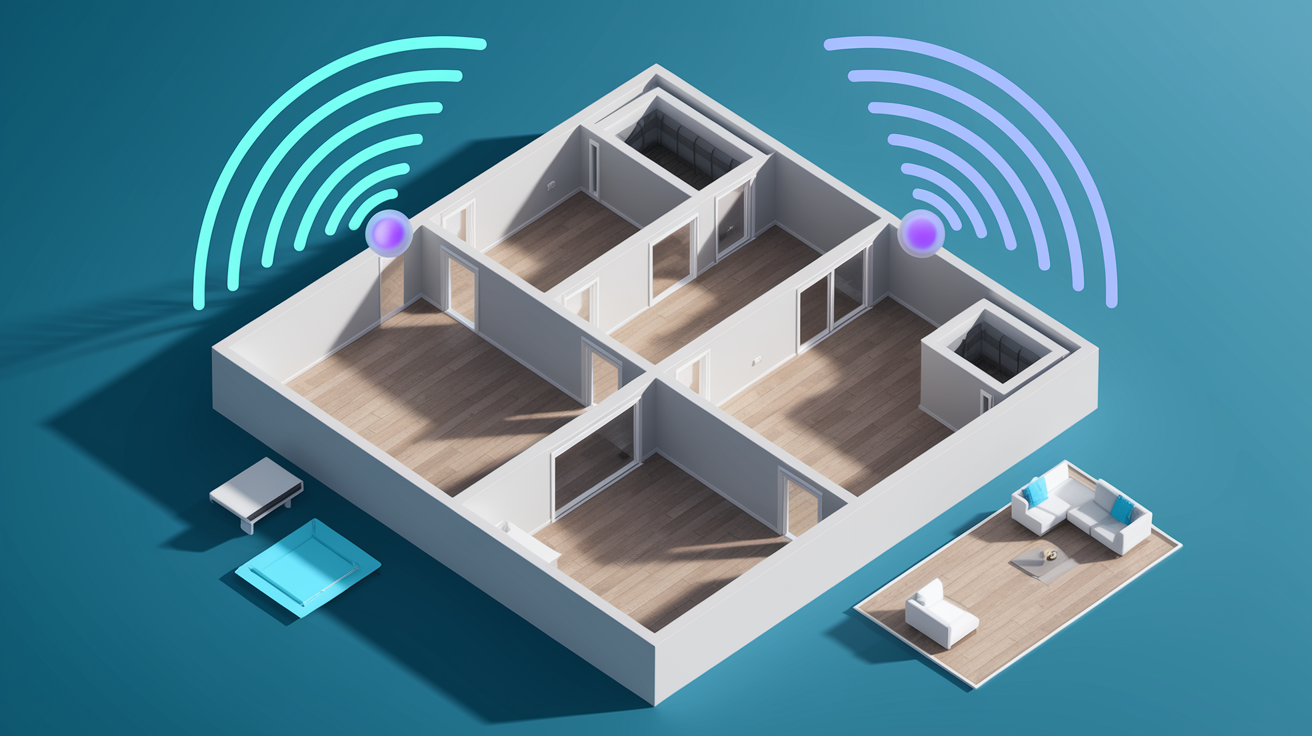
How you name your network and where you put the hardware determines whether your mesh system delivers solid coverage or creates annoying connection drops.
SSID Configuration Strategies
The T-Mobile mesh access point usually creates a unified network that shares the same SSID (network name) with your G4AR gateway. This lets devices roam seamlessly as you move between coverage zones. Your phone or laptop automatically connects to whichever radio has the stronger signal without you switching networks manually. But in smaller homes where gateway and mesh coverage overlap heavily, some devices might “hop” between radios unnecessarily. This causes brief disconnections during video calls or streaming.
For homes under 1,500 square feet with lots of overlap between gateway and mesh coverage, think about using different SSIDs for each device, like “HomeNetworkGateway” and “HomeNetworkMesh.” This stops devices from switching networks when both signals are strong. Larger homes work better with the unified SSID approach since devices move between distinct coverage zones instead of sitting in overlap areas. Either way, use the same password across both networks to keep guest access simple.
Placement tips that actually matter:
Position the G4AR gateway near windows facing your local cell tower to get the best cellular signal. Keep 3 to 6+ feet of physical space between the gateway and mesh access point to cut down overlapping signal zones. Put the mesh access point in rooms or hallways where the gateway’s signal starts getting weaker but hasn’t disappeared completely. Skip enclosed cabinets, metal shelving, or entertainment centers that block wireless signals. Keep the access point elevated on shelves or mounted at wall outlet height rather than on the floor. In multi-story homes, put one unit per floor with vertical alignment to improve stairwell coverage.
Managing Physical Separation and Radio Interference
At least 3 feet between your gateway and mesh access point prevents their wireless signals from messing with each other, which confuses devices trying to figure out which network’s better. You really want 6+ feet of distance, like putting the gateway in a front room and the mesh unit in a back hallway. This spacing creates distinct coverage zones where devices clearly “hand off” between radios instead of constantly re-evaluating which signal to use.
If you’re using a third-party mesh system (Eero, Google Nest, TP-Link) instead of T-Mobile’s official access point, you’ll deal with interference from the gateway’s built-in Wi-Fi radios. You can’t disable them through the official T-Mobile Internet app. The HINT Control app (available for iOS, Android, Windows, Mac, and Linux on GitHub) gives you direct access to disable the gateway’s 2.4GHz and 5GHz bands entirely. But this unofficial tool has limitations. You lose app access to gateway settings, and you need to do a factory reset or use a wired PC connection to turn the radios back on later. HINT Control works on the Arcadyan KVD21 gateway and should work on the newer G4AR gateway. Just hiding your gateway’s SSIDs through the T-Mobile app doesn’t actually disable the wireless radios. The interference stays active even when network names are hidden.
Use the signal strength indicators in the T-Life app to verify you’ve got good positioning after initial placement. T-Mobile’s official mesh access point handles interference automatically through coordinated band steering, which pushes devices to the clearest frequency without you doing anything.
Firmware Updates and System Maintenance

Firmware updates for both the G4AR gateway and mesh access point happen automatically through the T-Life app, usually overnight when network usage drops. The system checks for updates daily and installs them without needing manual approval or device restarts most of the time. You’ll see a quick notification in the app when updates finish. Both devices keep internet connectivity throughout the process using staged update sequences. One device updates while the other keeps serving connected devices.
To check your current firmware version, open the T-Life app and go to Settings > Device Information. You’ll see separate firmware numbers for the gateway and each mesh access point. If you think an update didn’t deploy right, use the “Check for Updates” button to manually trigger an immediate search. The system compares your installed versions against T-Mobile’s update servers and downloads available updates within a few minutes.
Expect firmware updates every 4 to 8 weeks as T-Mobile releases security patches, performance improvements, and new features. Gateway and mesh access point firmware updates often deploy independently on different schedules. Don’t worry if one device updates while the other stays on its current version. The update process focuses on security fixes and stability improvements over feature additions. Critical security updates might deploy outside the typical overnight window if T-Mobile finds urgent vulnerabilities.
Ethernet Backhaul Connection Options

Ethernet backhaul creates a wired connection between your G4AR gateway and mesh access point instead of relying on wireless for their communication. This setup dedicates the mesh unit’s wireless radios entirely to serving your devices rather than using half their capacity to talk back to the gateway. You get lower latency (really noticeable during gaming or video calls), higher overall speeds across your network, and more reliable connectivity during peak usage times when wireless channels get congested.
Setting up ethernet backhaul means running an ethernet cable between your gateway’s location and wherever you put the mesh access point. In single-story homes, this might mean routing a cable along baseboards or through an attic. Multi-story homes often work better routing cables through walls or using existing cable TV conduits. The performance gains justify the installation effort if you have devices needing consistent low-latency connections like gaming consoles, VR systems, or home offices running frequent video conferences.
Ethernet backhaul setup:
Run an ethernet cable from either port on the back of your G4AR gateway to the mesh access point’s ethernet input. The access point automatically detects the wired connection and switches from wireless to ethernet backhaul within 30 seconds. Both wireless bands (2.4GHz and 5GHz) become fully available for client device connections instead of splitting capacity for backhaul communication. Use Cat5e or Cat6 ethernet cables for runs under 100 feet. Choose Cat6a for longer distances to keep full gigabit speeds. Test speeds before and after implementing ethernet backhaul using the T-Life app to measure the improvement.
Once you’ve got it configured, the mesh access point’s two ethernet ports stay available for connecting wired devices like gaming consoles, smart TVs, or desktop computers directly to the network.
Troubleshooting Common Mesh Access Point Issues
Most mesh access point problems get fixed through basic power cycling and placement adjustments before you need to contact technical support.
Access Point Won’t Pair with Gateway
- Check your gateway is the G4AR model by looking at the label on the device’s bottom. Older Arcadyan KVD21 or Nokia gateways won’t work with T-Mobile’s mesh access point.
- Confirm your Home Internet Plus plan is active by opening the T-Mobile account app and checking your current service tier under Plan Details.
- Power cycle both devices by unplugging them for 30 seconds, then plug in the gateway first and wait 2 minutes before powering on the access point.
- Make sure both devices sit within 10 feet of each other during initial pairing, with no walls or large metal objects between them.
- Update the T-Life app to its latest version through your phone’s app store, force close the app completely, then reopen it and retry the pairing process.
Intermittent Connection Drops
If your mesh access point pairs successfully but devices keep disconnecting, the access point might be too far from the gateway, causing weak backhaul signal. Check the T-Life app’s signal strength indicator for the access point itself. Aim for “Good” or “Excellent” readings rather than “Fair.” Move the unit closer to the gateway in 5-foot increments until the backhaul signal improves.
Watch the LED indicator on the mesh access point, which communicates status through color patterns. A solid LED means normal operation, while flashing patterns signal connectivity issues or firmware updates in progress. If drops continue despite good signal strength, consider switching to ethernet backhaul to eliminate wireless interference as a variable. Some devices have specific compatibility issues with dynamic IP addressing. Sonos speakers, for example, might disconnect every 30 minutes because of how T-Mobile gateways handle band switching between 2.4GHz and 5GHz. The Sonos workaround involves either forcing the gateway to 2.4GHz-only mode or connecting one Sonos speaker via ethernet to establish a Sonosnet private network.
| LED Color/Pattern | Status Meaning | Action Required |
|---|---|---|
| Solid White | Normal operation, connected to gateway | None |
| Flashing White | Pairing mode or firmware update in progress | Wait 5 minutes, then check app status |
| Solid Red | No connection to gateway | Move closer to gateway or power cycle both devices |
| Flashing Red | Setup error or hardware failure | Factory reset access point and retry pairing |
Security Settings and Network Protection

The T-Mobile mesh network uses WPA3 encryption by default, protecting your wireless traffic with the strongest available consumer security standard. When setting up your network through the T-Life app, create a password at least 12 characters long using a mix of uppercase letters, lowercase letters, numbers, and symbols. Think “BlueSky42!Ranch” rather than simple dictionary words. The app requires minimum 8-character passwords but longer passphrases give better protection against brute-force cracking attempts. Both your gateway and mesh access points share the same password, so devices roam seamlessly without needing re-authentication.
Guest network functionality lets visitors access your internet connection without sharing your main network password. Enable this through Settings > Guest Network in the T-Life app, where you’ll create a separate SSID and password for temporary use. Guest devices can’t access shared folders, printers, or other devices on your main network. They get internet-only access.
Parental controls work through the T-Life app’s Family Settings section. You can filter content categories (adult content, gambling, violence), set daily internet access schedules per device, and pause internet access instantly for specific devices during homework or bedtime. Assign each family member’s devices to their profile, then apply age-appropriate restrictions and time limits. The system works at the network level, filtering traffic before it reaches devices rather than relying on device-specific software that kids might disable.
VPN connections, Tor browser usage, and SSL secure website access all work normally through the T-Mobile mesh network. Testing with ProtonVPN confirmed no connectivity issues or performance problems. But the T-Mobile gateway doesn’t support port forwarding functionality or bridge mode configuration, which might affect users running game servers or complex smart home systems requiring specific port access.
Network Performance Testing and Optimization

Start performance testing by running speed tests directly next to your G4AR gateway using the T-Life app’s built-in speed test tool or a third-party service like Fast.com. Record your baseline speeds, then move to locations served by your mesh access point and run tests again. Compare the results to identify whether the access point keeps similar speeds or shows big drops, which would mean weak backhaul signal or poor placement.
T-Mobile 5G Home Internet typically delivers 40 to 120 Mbps download speeds and 2 to 9 Mbps upload speeds depending on your distance from the local cell tower and current tower congestion. Your actual speeds vary throughout the day as more users connect to the tower during evening peak hours (typically 6 PM to 11 PM). Test at multiple times—early morning (6 AM), midday (1 PM), and evening (8 PM)—to figure out congestion patterns affecting your service. Performance fluctuations are normal for cellular-based internet. Occasional complete drops might happen depending on your specific tower’s capacity and user load.
Speed optimization tips:
Test speeds at the gateway location versus through the mesh access point to isolate whether slowdowns come from cellular connection or mesh backhaul. Run tests at different times of day across a full week to establish your location’s typical congestion pattern. Check the T-Life app’s connected device count. More than 25 simultaneously connected devices will reduce per-device bandwidth noticeably. Use the app’s signal strength indicator to verify mesh access point placement, aiming for “Good” or “Excellent” backhaul readings. Restart both gateway and access point monthly by unplugging for 30 seconds to clear temporary connection issues and refresh DHCP leases. Switch to ethernet backhaul if wireless speeds consistently underperform by more than 30% compared to gateway-direct speeds.
Wi-Fi 6 technology in the T-Mobile mesh access point gives better battery life for connected phones, tablets, and laptops compared to older Wi-Fi 5 systems. It improves performance in homes with many connected devices. These benefits matter more than raw speed numbers since T-Mobile’s cellular connection typically caps speeds well below Wi-Fi 6’s theoretical maximum throughput anyway.
Connected Device Management Through T-Life App
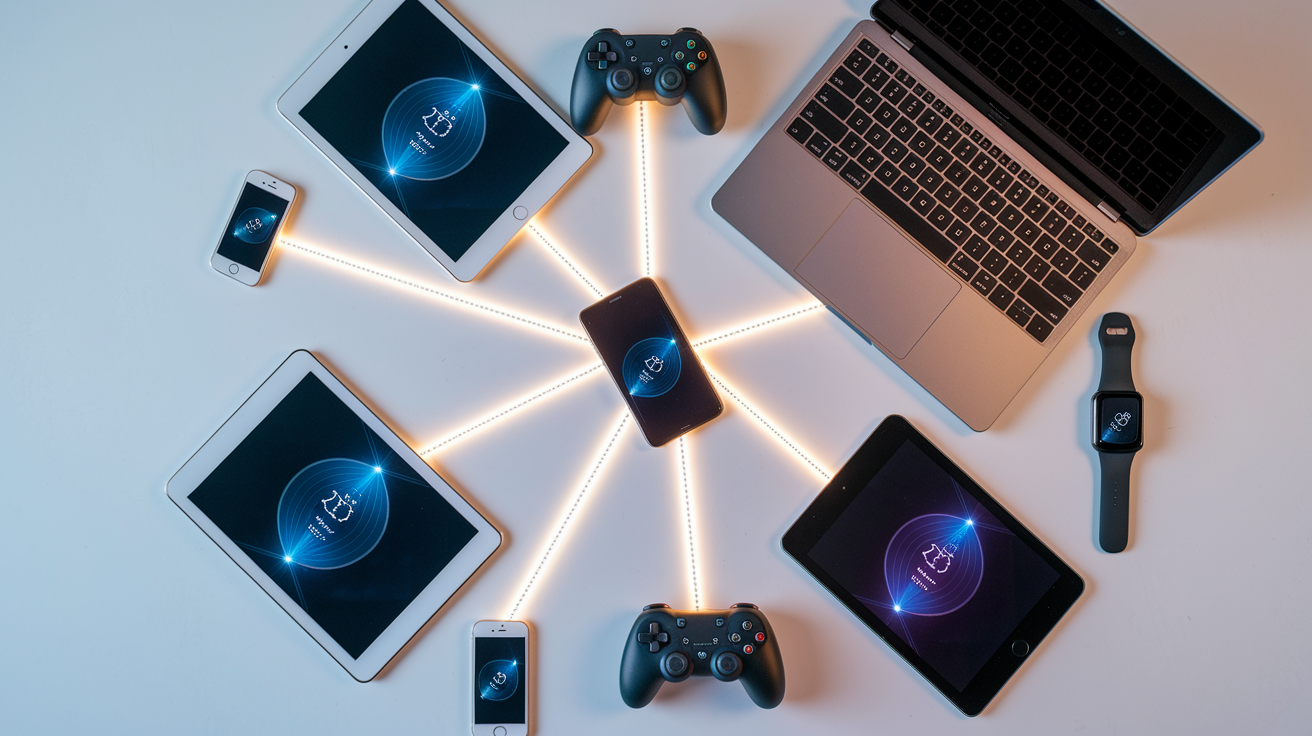
The T-Life app serves as your central control hub for monitoring and managing all devices connected across your gateway and mesh access points.
Open the app and tap “Devices” to see a real-time list showing every connected device—phones, laptops, smart TVs, thermostats, security cameras, and more. Each entry displays the device’s current connection status (active or idle), which network radio it’s using (2.4GHz or 5GHz), and its assigned IP address. Tap any device to assign a friendly name like “Sarah’s iPhone” or “Living Room TV” instead of cryptic manufacturer model numbers. Choose an icon to make the list more visual.
The bandwidth monitoring feature tracks how much data each device consumes. Useful for identifying which devices cause network slowdowns. If your teenager’s laptop constantly maxes out your bandwidth with 4K streaming while you’re trying to work, tap that device and select “Pause Internet” to temporarily block its connection. Resume access when you’re done with your video call. Device prioritization lets you flag critical devices like work laptops or streaming boxes for preferential bandwidth treatment. The system automatically allocates more speed to prioritized devices when network capacity gets squeezed during peak usage.
Guest network management, password changes, and firmware status checks all happen within the same T-Life interface rather than making you log into a separate web portal. Tap Settings > Network to modify your main network password, then Settings > Guest Network to enable visitor access with a different password. The Dashboard shows firmware versions for your gateway and each mesh access point, with update status notifications appearing as banners when new firmware becomes available.
Expanding Coverage with Additional Mesh Units

Think about adding more mesh access points when your home exceeds 3,000 square feet, spans multiple stories with weak stairwell coverage, or includes complex floor plans with many interior walls limiting wireless signal penetration. Single-story homes with open floor plans typically work fine with one gateway and one access point. Multi-story homes benefit from at least one access point per floor.
Adding additional units follows the same T-Life app pairing process you used for the first access point. Power on the new unit, open the app, tap “Add Device,” and follow the prompts. Each new access point automatically integrates into your existing mesh topology, communicating with nearby units to figure out optimal routing paths for client devices. Place additional units roughly equidistant between existing units to create triangular coverage patterns where coverage zones overlap by about 20%. This overlap makes sure devices maintain connectivity while roaming between rooms without hitting dead spots where no unit provides adequate signal.
The mesh network’s self-healing capability means that if one access point loses power or experiences hardware failure, surrounding units automatically reroute traffic through alternate paths to keep internet connectivity for your devices. You’ll notice reduced speeds in the affected coverage area until the failed unit comes back online, but devices won’t lose connectivity entirely like they would with traditional single-router setups.
Comparing Wireless Mesh to Third-Party Mesh Systems

You’ve got two options for extending T-Mobile 5G Home Internet coverage: T-Mobile’s official mesh access point or third-party systems from manufacturers like Eero, Google Nest, or TP-Link.
| Feature | T-Mobile Mesh | Third-Party Mesh |
|---|---|---|
| Integration Simplicity | Automatic pairing through T-Life app | Manual setup through separate manufacturer app |
| Cost Structure | Included with Home Internet Plus plan | $100-$500+ separate purchase plus optional subscriptions |
| Advanced Features | Basic coverage extension and device management | Advanced security, ad blocking, VPN, detailed analytics |
| Bridge Mode Support | Not applicable (designed for T-Mobile gateway) | Available but disables advanced features |
| Firmware Control | T-Mobile manages automatic updates | User controls update timing and frequency |
| Setup Complexity | 5-10 minutes with guided app process | 15-30 minutes with gateway configuration required |
Third-party mesh systems create a double NAT (Network Address Translation) configuration when connected to the T-Mobile gateway. The gateway assigns an IP address to the mesh router, which then assigns separate IPs to your connected devices. Testing over six months with an Eero Pro 6e system confirmed this setup creates minimal real-world performance impact for typical home use like streaming, video calls, and web browsing. VPN connections, Tor browser access, and secure websites all worked normally without needing special configuration.
Third-party systems offer more advanced capabilities than T-Mobile’s basic mesh access point. This includes subscription-based enhanced security monitoring, ad blocking at the network level, detailed per-device usage analytics, and more granular parental controls. But these systems require management through separate manufacturer apps rather than T-Mobile’s unified T-Life interface. They often include ongoing subscription costs ($3-10 monthly) to access premium features. The T-Mobile official mesh provides simpler setup and management through a single app with no additional monthly fees beyond your Home Internet Plus plan cost.
Final Words
Your t-mobile wifi mesh access point setup comes down to confirming the G4AR gateway, pairing through the T-Life app, and placing the unit where your signal starts to fade.
Most setups finish in 10-15 minutes.
If you need more coverage, you can add units using the same pairing process. For persistent wireless drops, try ethernet backhaul between the gateway and access point.
The system handles firmware updates automatically, so you’re covered on security and performance without manual steps.
FAQ
How do you set up a WiFi mesh access point for T-Mobile?
To set up a T-Mobile WiFi mesh access point, open the T-Life app, power on the mesh unit near your G4AR gateway, and follow the app prompts to pair the devices. After pairing completes, move the access point to your desired coverage area while maintaining a decent gateway signal.
Does T-Mobile internet work with a mesh system?
T-Mobile internet works with mesh systems in two ways: the official T-Mobile mesh access point pairs directly with the G4AR gateway, or you can connect third-party mesh systems like Eero, Google Nest, or TP-Link to any T-Mobile gateway. Both options extend wireless coverage throughout your home.
Why is my T-Mobile mesh access point not connecting?
Your T-Mobile mesh access point may not connect because you don’t have the required G4AR gateway model or Home Internet Plus plan. Power cycle both devices by unplugging for 30 seconds, keep them within 10 feet during pairing, and verify your T-Life app is updated to the latest version.
Does T-Mobile have WiFi extenders?
T-Mobile has a WiFi 6 mesh access point that works specifically with the G4AR gateway as part of the Home Internet Plus plan. This mesh unit rebroadcasts your gateway’s signal to extend coverage rather than functioning as a traditional WiFi extender.