


Think setting up your Verizon FiOS router will take hours and headaches?
It doesn’t have to.
This guide walks you through a quick, hands-on Verizon FiOS router setup that gets you online, secures your network, and boosts Wi-Fi speed in 15 to 30 minutes.
You’ll learn where to place the router, how to hook it to the ONT, change the admin and Wi-Fi passwords, update firmware, and fix common problems.
No jargon, just step-by-step checks and simple fixes so you finish confident and connected.
Initial Verizon FiOS Router Installation Steps for a Complete Setup

Start by opening the box. You should see three things: the FiOS router, a power adapter, and an Ethernet cable. If anything’s missing, stop here and call Verizon.
Now figure out where this thing’s going to live. Pick somewhere central. Not behind your TV. Not in a closet. Not next to a fish tank or stacked under metal shelves. WiFi hates thick walls, microwaves, and anything that blocks line of sight to the rooms you actually use.
Find your ONT. That’s the Optical Network Terminal, a small white or silver box Verizon installed when they ran the fiber line. Could be in your garage, basement, or stuck to the outside wall near your electric meter. Look for one Ethernet port (sometimes hidden under a snap panel) and a row of tiny green LEDs.
- Set the router on your chosen spot.
- Plug the power adapter into the router, then into the wall.
- Hit the power button if there is one.
- Wait for the power LED to turn solid white. Usually takes a minute or so.
- Grab the Ethernet cable. One end goes into the router’s WAN port (look for “Internet” or a different color).
- Other end plugs into the Ethernet port on the ONT.
- Connect a device to the router using WiFi or Ethernet. Default network name and password are printed on the router label.
- Open a browser and load any website. If it works, you’re done. If you get “No Internet,” check that the Ethernet cable’s seated properly on both ends, then unplug the router for ten seconds and try again.
Most people finish in 15 to 30 minutes. If your ONT only has coax and no Ethernet port, call Verizon at 800-837-4966. They’ll activate Ethernet before your router can grab an IP address.
Accessing the Router Admin Panel for FiOS Configuration

Open a browser on anything connected to the router. Type 192.168.1.1 in the address bar and hit Enter. You’ll see a login screen.
Flip the router over. The default username and password are printed there, usually “admin” plus some random string. Type them exactly as shown. Once you’re in, change that admin password immediately. Look under “Advanced,” “Administration,” or “Security.”
- Connect to the router via WiFi or Ethernet.
- Open a browser and enter 192.168.1.1.
- Find the default credentials on the router label (bottom or back).
- Log in.
- Go to the password menu (Advanced > Administration or Security), create a new strong password (letters, numbers, symbols), save it, and write it down somewhere safe.
If 192.168.1.1 won’t load, make sure you’re actually connected to this router and not some old network. Some FiOS models use a different IP. Check your manual if the standard address doesn’t work.
WiFi Network Configuration for Verizon FiOS Routers
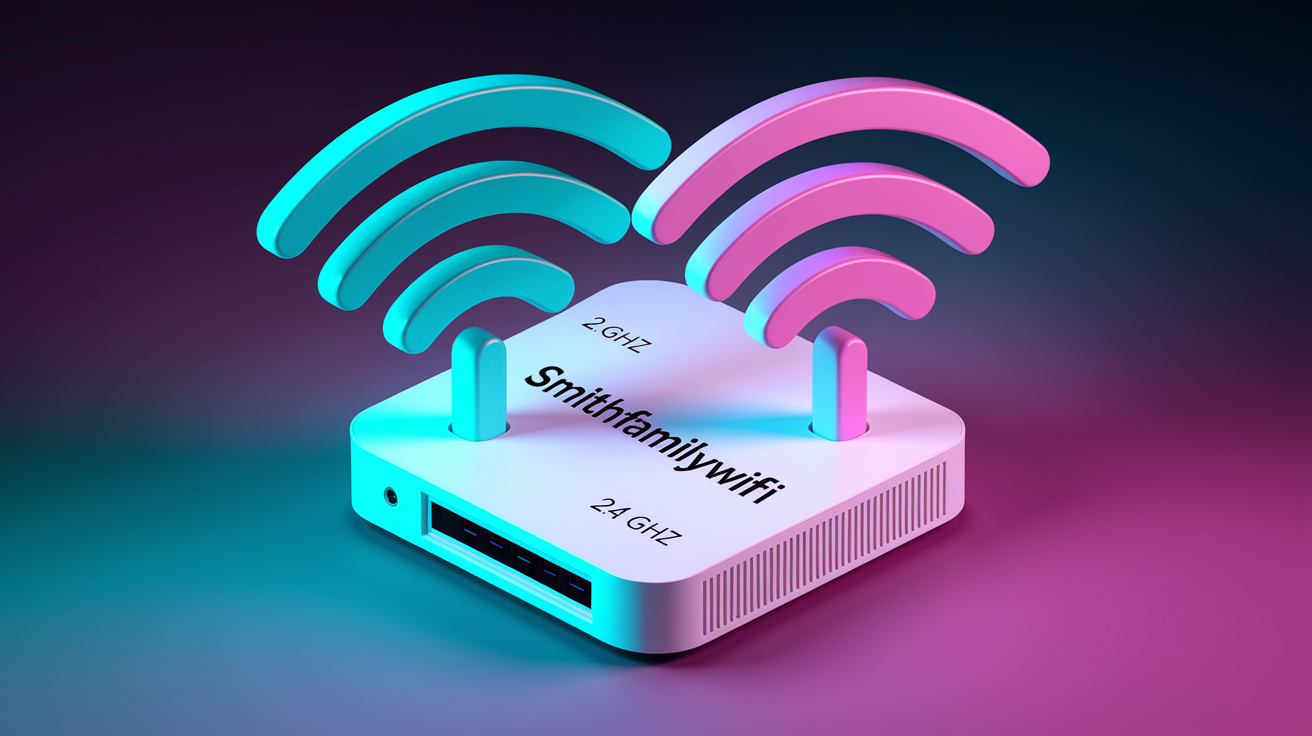
Get into the admin panel and head to wireless settings. The default network name probably looks like “Verizon-XXX-2.4G” or “Verizon-XXX-5G.” Change it. A custom name makes your network easier to spot in crowded buildings and keeps neighbors from knowing your exact router model.
Your router broadcasts two bands. The 2.4 GHz signal goes farther and punches through walls better, but it’s slower and more crowded because microwaves, baby monitors, and Bluetooth all share that space. The 5 GHz band is faster and cleaner but doesn’t reach as far. You can name them the same (router handles band switching) or give them different names so you pick manually.
- Change the SSID to something you’ll remember but that doesn’t scream personal info. “Smith Family WiFi” works. “John Smith 123 Main St” doesn’t.
- Set a strong WiFi password. At least 12 characters. Mix upper and lowercase, numbers, symbols. Skip dictionary words and “Password123!”
- Turn on WPA3 security if your router supports it (check the encryption dropdown). If not, use WPA2.
- Set up both 2.4 GHz and 5 GHz networks. Same password for both bands simplifies logins.
- Enable band steering if you see the option. Router nudges dual-band devices onto 5 GHz when signal’s strong enough, leaving 2.4 GHz for older gear and devices farther away.
- Save and apply. WiFi radios will reboot, takes about 30 seconds. Devices will drop briefly, then reconnect with the new SSID and password.
After applying WiFi changes, reconnect every device using the new credentials. Phones, tablets, laptops, smart TVs, printers. Everything needs updating.
Optimizing WiFi Performance During FiOS Router Setup

Router placement matters more than most people think. Floor in a corner bedroom? Signal’s fighting through walls, furniture, appliances just to reach the living room. Put it on a shelf at least three feet up, somewhere central. Keep it away from cordless phones, baby monitors, treadmills, refrigerators.
WiFi channels are like highway lanes. In dense areas, everyone’s router might be yelling on the same 2.4 GHz channel, slowing everybody down. Log into your admin panel, find wireless settings for 2.4 GHz, and switch from “Auto” to a specific channel. Channels 1, 6, and 11 don’t overlap. Pick whichever has the fewest neighbors. Most routers show a channel graph. For 5 GHz, Auto usually works since there’s more room and less traffic.
Quality of Service (QoS) tells the router what matters most. Streaming 4K or gaming online? Turn on QoS and flag those devices or apps as high priority. Router allocates more bandwidth during peak times, cutting buffering and lag. Look for QoS under Advanced or Traffic Management.
| Optimization Area | Recommendation |
|---|---|
| Router placement | Central location, elevated 3+ feet, away from walls and metal objects |
| 2.4 GHz channel selection | Manually set to channel 1, 6, or 11 based on neighborhood congestion |
| QoS (Quality of Service) | Enable and prioritize streaming, video calls, or gaming devices/apps |
Updating Firmware on Verizon FiOS Routers

Firmware updates patch security holes, fix bugs, sometimes add features. Verizon pushes updates automatically to some models, but you should check manually every few months to stay current.
Log into the admin panel at 192.168.1.1, then find a section labeled “Firmware,” “Software Update,” “System,” or “Advanced.” Exact menu name varies. You’ll see your current firmware version as a number with dots or dashes. Click “Check for Updates” or “Update Now.” If there’s a newer version, the router downloads and installs it. Takes three to five minutes, router reboots when finished. Don’t unplug anything or close the browser during the update.
- Open a browser and go to 192.168.1.1.
- Log in.
- Find the firmware or software update section (often under Advanced or System).
- Click “Check for Updates.” If one’s available, click “Install” or “Update Now” and wait for the reboot. Confirm the new version number shows up afterward.
Some FiOS routers have an auto-update toggle. If you see it, turn it on so you don’t have to remember.
Extra Verizon FiOS Router Features Worth Setting Up
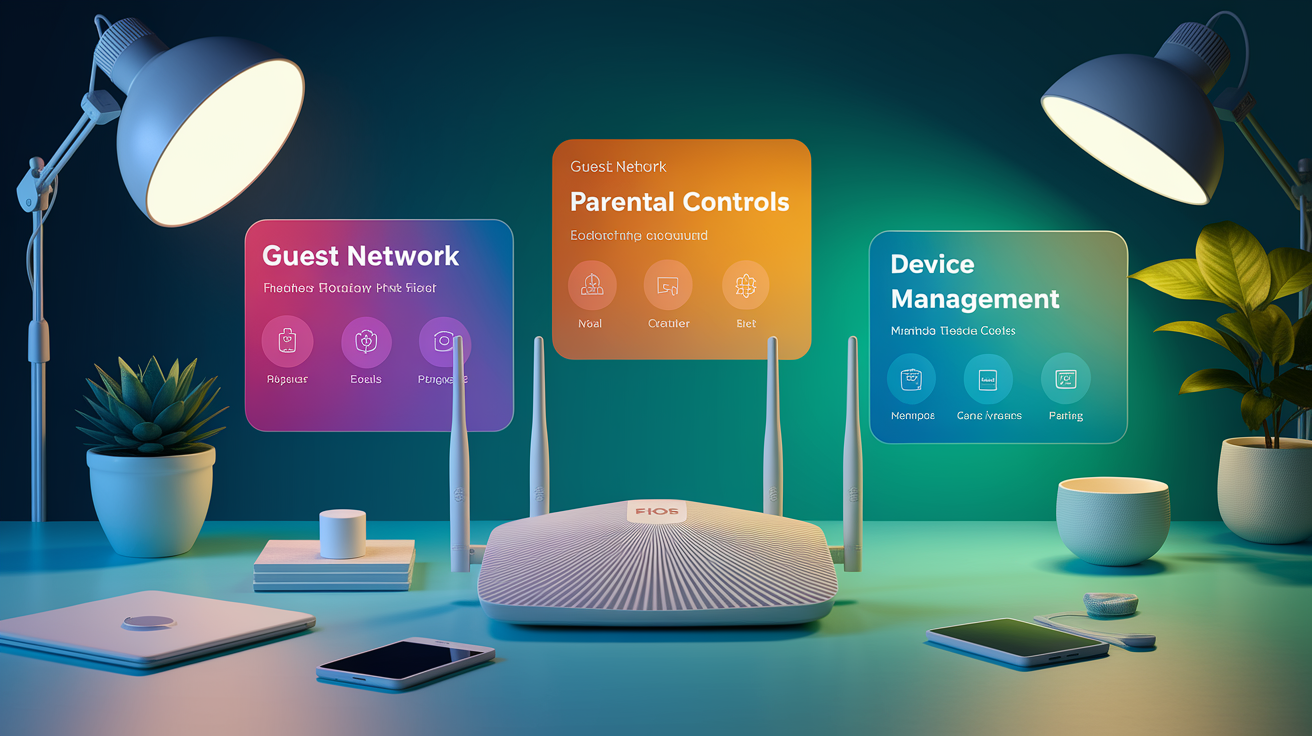
Your FiOS router includes tools that don’t get attention during setup but solve real problems. Guest networks, parental controls, device management. All sitting inside the admin interface, each takes a minute or two.
A guest network gives visitors WiFi without handing over your main password. Keeps their devices away from your printers, smart TVs, file shares. Parental controls let you block website categories, set internet curfews, pause specific devices. Device management shows everything connected to your network and lets you kick off unknowns or reserve IP addresses for gear needing consistent connectivity, like a home server or network printer.
Guest Network Setup
Find “Guest Network” or “Guest Access” in the wireless section. Enable it, give it a simple name like “Smith Guest,” and set a different password from your main network. Most routers offer client isolation, which stops guest devices from seeing each other or accessing your local files. Turn that on. Guests get internet, you keep your network secure.
Parental Controls
Navigate to “Parental Controls,” “Access Control,” or “Content Filtering” (label varies). Create profiles for individual devices (your kid’s tablet), set allowed hours (internet shuts off at bedtime), block categories like gambling, adult content, social media. Some routers let you pause a device instantly with one button. Handy at homework or dinner time.
Device Management
The device list (sometimes “Connected Devices” or “Client List”) shows every phone, laptop, smart bulb, doorbell on your network. Each entry displays the device name (if it broadcasts one), MAC address, IP address. You can rename devices to keep track, block specific MAC addresses to permanently kick someone off, or reserve an IP so a printer or NAS always gets the same one (DHCP reservation).
Troubleshooting Common Verizon FiOS Setup Problems
Start with basics. Internet not working after setup? Check that every cable’s fully seated. Ethernet from the ONT should click into the router’s WAN port, power adapter snug in both wall and router. Look at the router’s LED lights. Solid white power LED means it’s on. Blinking or amber internet LED usually means the router isn’t getting signal from the ONT.
Cables fine and LEDs normal but still no internet? Power cycle everything. Unplug the router, wait ten seconds, plug back in, wait two minutes for full boot. Doesn’t work? Unplug the ONT (the box the fiber connects to) for ten seconds, plug back in. ONT takes about 90 seconds to come back online. Once its green LEDs are solid, restart the router again.
Some installs hit DHCP lease problems. If you swapped out an old Verizon router, the ONT might still be handing the IP address to the previous device. Log into the old router if you’ve got it (or the new one if it has DHCP release tools), go to WAN or Internet settings, click “Release” under DHCP Lease. Unplug the old router right after clicking Release. Wait 30 seconds, then plug in the new router. Can’t access the old router? Unplug it and wait 24 hours for the lease to expire naturally, or call Verizon to clear it.
- Verify Ethernet cable’s fully plugged into both ONT and router WAN port.
- Check that power adapter’s connected and router power LED is solid white.
- Power cycle the router. Unplug ten seconds, replug.
- If internet LED stays amber or blinks, power cycle the ONT too (unplug ten seconds, replug, wait 90 seconds).
- If you replaced an older Verizon router, release the DHCP lease on the old router or wait 24 hours for expiry.
- Check router firmware version and update if available.
- If none of this works, call Verizon support at 800-837-4966. They can check ONT activation status and confirm the line’s active.
Double NAT happens when both your router and the ONT are acting as routers, confusing port forwarding and breaking gaming or VPN connections. If you see “Double NAT Detected” in console or router logs, put the ONT or Verizon router into bridge mode, or configure the third-party router to use a specific IP range that doesn’t overlap.
Connecting Third‑Party Routers to FiOS After Initial Setup
Verizon doesn’t force you to use their rental router. Any router with an Ethernet WAN port works once the ONT’s set to hand off via Ethernet instead of coax. If your ONT currently uses coax to connect to the Verizon router, call Verizon at 800-837-4966 and ask them to activate the Ethernet port. This switch is free, takes a few minutes over the phone. Once activated, coax port stops working and Ethernet becomes live.
Before disconnecting the Verizon router, log into its admin panel and release the DHCP lease. Open a browser, go to 192.168.1.1, log in, navigate to My Network > Network Connections > Broadband Connection > Settings, find the DHCP Lease section, click “Release,” then click “Apply.” Soon as you click Apply, unplug the Verizon router. This tells the ONT to stop reserving the IP for the old device. Skip this step and the ONT might refuse to assign an IP to your new router for up to 24 hours.
- Find the ONT and confirm whether it uses Ethernet or coax to connect to your current router. If coax, call Verizon at 800-837-4966 to activate the Ethernet port.
- Log into the Verizon router admin panel at 192.168.1.1 and release the DHCP lease under My Network > Network Connections > Broadband Connection > Settings > DHCP Lease > Release > Apply.
- Immediately unplug the Verizon router after clicking Apply.
- Plug the Ethernet cable from the ONT into the WAN or Internet port on your new third-party router.
- Power on the new router and wait two to three minutes for it to pull a FiOS IP address. Open a browser on a connected device and confirm internet access.
- If you’ve got FiOS TV service, connect a MoCA adapter. Plug the coax cable from the ONT into the MoCA adapter’s coax port, then run Ethernet from the MoCA adapter to an open LAN port on your new router. Power cycle your set-top box by unplugging ten seconds. Box should reconnect and restore guide data, On Demand, DVR features.
If you use FiOS phone service, it runs through the ONT and doesn’t depend on the router, so swapping routers won’t affect your landline. Some advanced TV features like remote DVR scheduling may stop working with a third-party router because they rely on Verizon’s router firmware. Basic live TV, guide, and On Demand will work fine as long as the MoCA adapter’s wired correctly.
Final Words
Unbox the router, connect the WAN cable to the ONT, power it up, and wait for the solid white LED. You’ll verify equipment, pick a good central spot, and spend 15 to 30 minutes on the initial verizon fios router setup.
Next, log into the admin page, change the admin password, and rename your Wi‑Fi with a strong WPA2 or WPA3 passphrase. Tweak placement, pick a less crowded channel, enable QoS or guest/parental features, and apply firmware updates.
You’ll be online and safer—and ready if you need to troubleshoot or swap in a third‑party router.
FAQ
Q: How do I connect to my Verizon router?
A: Connecting to your Verizon router involves plugging in power, connecting the WAN cable to the ONT, then joining the router’s SSID using the password on the label or plugging an Ethernet cable to your device.
Q: How do I reset my Verizon FiOS router?
A: Resetting your Verizon FiOS router restores factory settings: press and hold the small Reset button for about 10–15 seconds until LEDs blink. This erases custom settings—save Wi‑Fi details and backups first.
Q: What is the lifespan of a router?
A: The lifespan of a router is usually 3–5 years, depending on use, firmware updates, and tech advances. Replace it if you get frequent disconnects, much slower speeds, or no security updates.
Q: How do I manually configure my router?
A: Manually configuring your router means connecting by Ethernet or Wi‑Fi, opening 192.168.1.1 in a browser, logging with the label credentials, changing SSID and security (WPA2/WPA3), then saving and rebooting.