
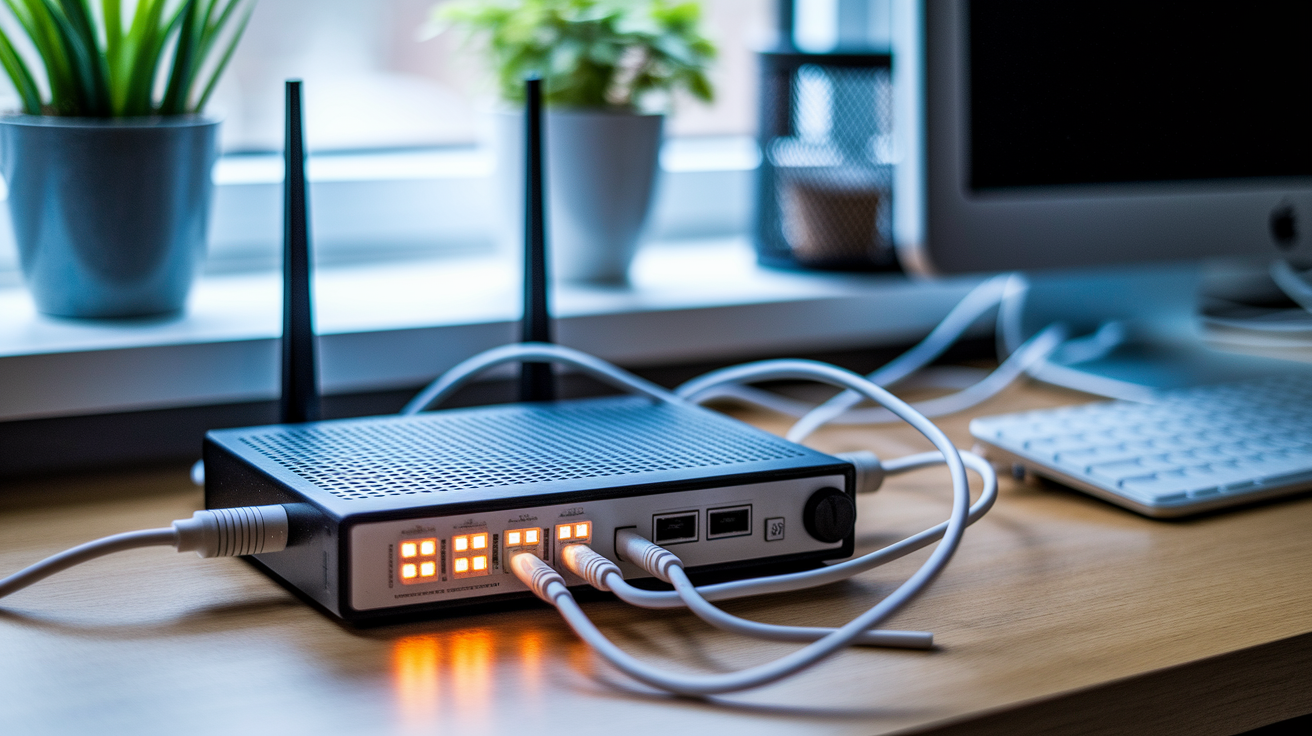

Think plugging in your Spectrum box is all you need?
Not quite.
This quick, hands-on guide gives the exact steps to get your Spectrum router online fast, including attaching the coax and wiring Ethernet, reading the LED lights, logging into the admin page, renaming your Wi‑Fi, and locking it down.
Follow these steps and you’ll be streaming, working, and connecting smart devices in minutes.
You’ll also learn the one or two checks that stop common setup headaches so you don’t call support.
Quick Start Steps for Spectrum Router Setup
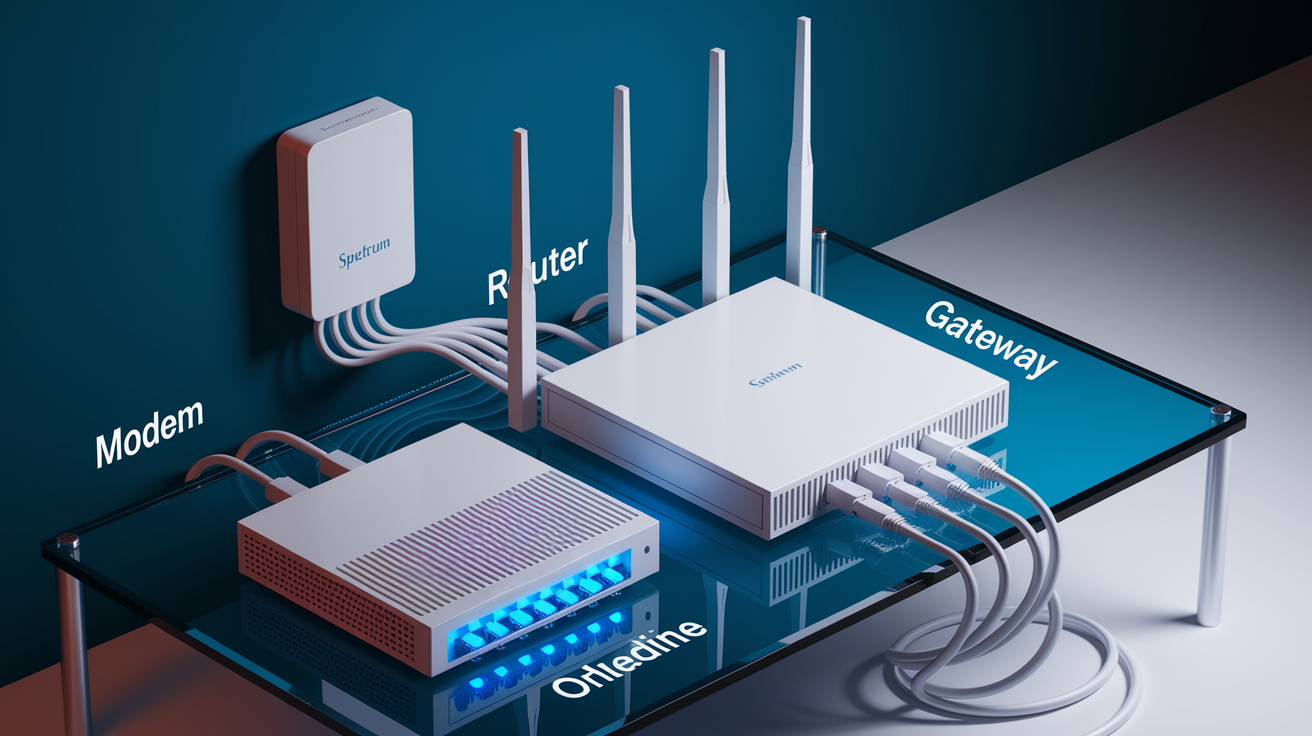
Most Spectrum installations give you one of three boxes: a standalone modem (one Ethernet jack, no antennas, just a coax input), a standalone router (multiple Ethernet jacks with antennas, no coax), or a gateway that rolls both into one unit with coax input, Ethernet jacks, and usually antennas. Your kit will have coaxial cables, an Ethernet cable, and power adapters. Here’s the flow. Coax connects your wall outlet to the modem. The modem pulls internet into your home. Ethernet links modem to router. Router broadcasts Wi‑Fi.
Keep an eye on three LED indicators. The modem’s Online LED will blink for a minute or two after you plug in power, then turn solid blue when it locks onto the network. On the router, the Power LED should go solid right away. The Internet LED will turn solid blue once the router confirms it’s talking to the modem upstream. Both devices might run automatic firmware updates that can stretch wait times to 20 minutes. If any light’s still blinking past that point, you’ll need to power‑cycle or call support.
- Thread the coax cable onto the modem’s F‑connector (the round, threaded metal port on the back).
- Plug the modem power adapter into an outlet and wait for the Online LED to turn solid blue.
- Connect an Ethernet cable from any modem LAN port to the router’s WAN or Internet port (usually labeled or a different color).
- Plug in the router power adapter and wait for the router’s Power and Internet LEDs to go steady blue.
- Locate the default Wi‑Fi name and password printed on a label on the bottom or back of the router.
- Join the Wi‑Fi network from your phone or laptop using that printed SSID and passphrase.
That’s it. You’ve got full connectivity. Browse, stream, use devices. Nothing else required.
Understanding Spectrum Modems, Routers, Gateways, and Ports

A modem translates the cable signal into internet data your devices can understand. It sits between the coax wall outlet and your local network, with one Ethernet jack and no antennas. A router distributes that internet to multiple devices, broadcasts Wi‑Fi, and includes several Ethernet jacks plus antennas. A gateway combines both jobs in one box. It’s got a coax input for the cable signal, multiple Ethernet jacks for wired devices, and Wi‑Fi antennas. You can tell it’s a gateway if it has both a coax port and Ethernet jacks on the same unit. Using a gateway simplifies things because you skip the modem‑to‑router Ethernet step.
Routers label ports WAN (sometimes called Internet) and LAN. WAN port connects upstream to your modem. LAN ports connect downstream to devices like computers, printers, or smart TVs. Power ports accept the included adapter. A small reset button lives near the power jack for factory‑reset purposes. When you power on either device, firmware updates can run automatically and add 10 to 20 minutes to the startup sequence. If LEDs blink longer than expected, the device is probably updating itself. Don’t unplug equipment during blinking phases unless you’ve waited a full 20 minutes with no change.
WAN or Internet port: Always connects to the modem (usually blue or labeled).
LAN ports: Connect wired devices like desktop computers or game consoles.
Power jack: Use only the included adapter to avoid voltage mismatches.
Reset button: Recessed pinhole. Hold 10 seconds to erase all settings and return to factory defaults.
Accessing Spectrum Router Login and Admin Settings

Connect to the router’s Wi‑Fi, open any web browser, and type the router’s IP address into the address bar. Common Spectrum router IPs are 192.168.0.1 or 192.168.1.1. Press Enter. You should see a login page with fields for username and password. If the page doesn’t load, verify your device is on the router’s network and not using cellular data or a VPN. Some routers also respond to http://myrouter.local or similar URLs, but the numeric IP is more reliable.
Default login credentials appear on a sticker on the bottom or back panel of the router. Typical combinations are admin / admin or admin / password. After your first login, go to Administration or System settings and change both the admin username and the admin password. Use a strong, unique password you don’t share with your Wi‑Fi passphrase. Saving the new admin credentials won’t disconnect devices, but you’ll need the new login next time you access the settings page.
| Purpose | Default Value | Where to Find It |
|---|---|---|
| IP Address | 192.168.0.1 or 192.168.1.1 | Router label or user manual |
| Username | admin | Sticker on bottom or back panel |
| Password | admin or password | Sticker on bottom or back panel |
Wi‑Fi Network Configuration for Spectrum Routers
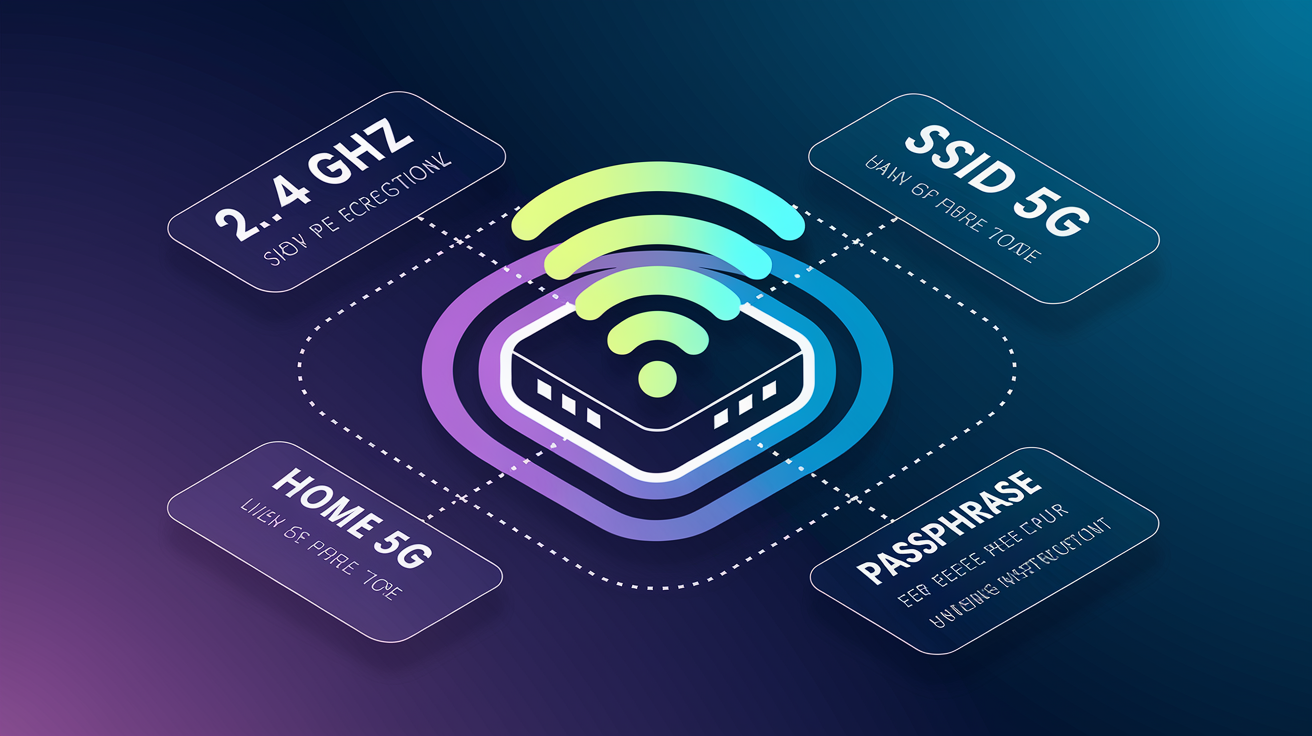
Once you’re logged into the admin panel, you can rename your network, set a strong password, and configure band settings. These changes make your network easier to recognize and harder for neighbors to access.
Changing SSID and Password
Go to Wireless Settings, then Basic or SSID. You’ll see fields for the 2.4 GHz network name and the 5 GHz network name. Replace the default string (often a long alphanumeric code) with a short, memorable name that doesn’t include personal information like your street address or last name. Below the SSID fields, find Wireless Security or Passphrase. Enter a new password that’s at least 12 characters long. Mix uppercase, lowercase, numbers, and symbols. When you click Save or Apply, the router will broadcast the new SSID and disconnect all devices. You’ll need to reconnect using the new password you just created.
Use at least 12 characters for the passphrase.
Include uppercase letters, lowercase letters, numbers, and symbols.
Avoid dictionary words, birth dates, or sequences like 123456.
Don’t reuse passwords from other accounts.
Write the new password down and store it somewhere secure until all devices are reconnected.
2.4G vs 5G Band Selection
Routers print two SSIDs on the label: one ending in 2G (2.4 GHz) and one ending in 5G (5 GHz). The 2.4 GHz band travels farther and penetrates walls better. Good for smart home devices, tablets in back bedrooms, or outdoor cameras. The 5 GHz band delivers faster speeds but has shorter range, so it works best for laptops, phones, and streaming boxes in the same room as the router. You can connect some devices to 2.4 GHz and others to 5 GHz, or set both bands to the same SSID so the router picks the best band automatically. Most Spectrum routers support both modes.
Securing and Hardening Your Spectrum Router Setup
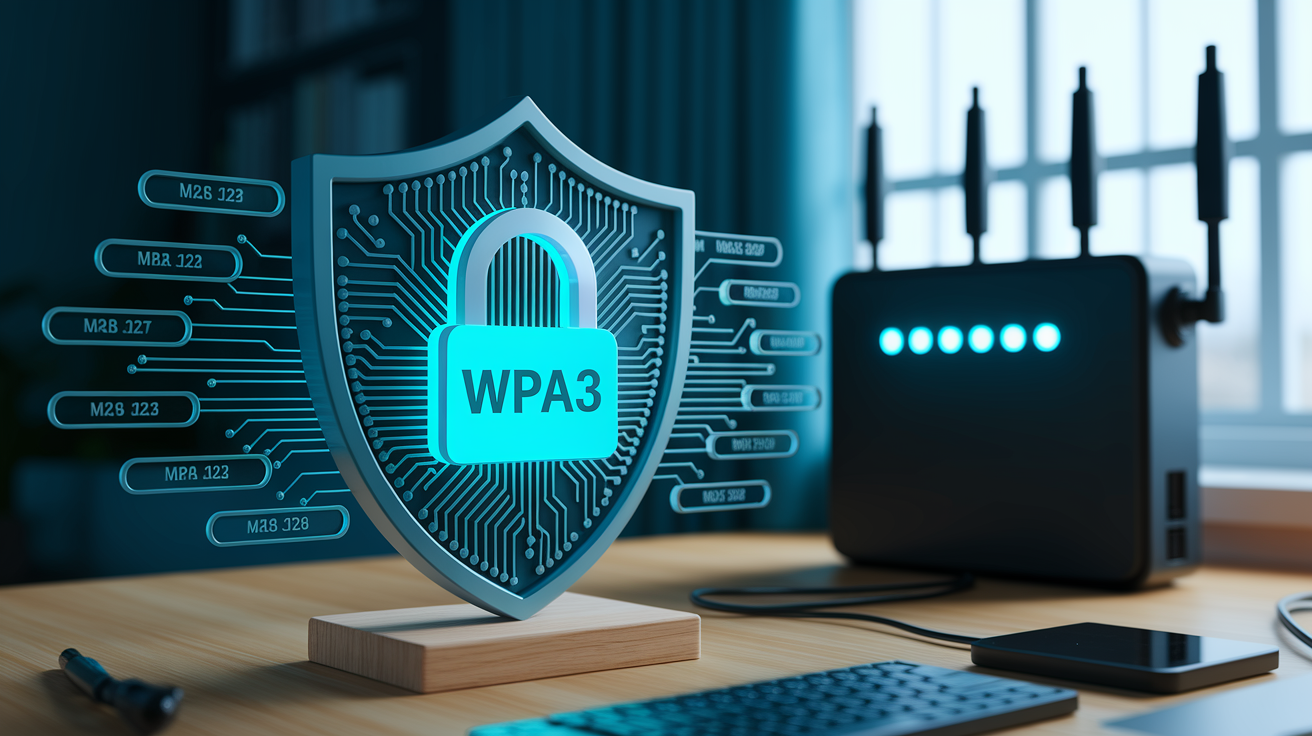
Default passwords and outdated security protocols let strangers piggyback on your connection or intercept traffic. After changing your SSID and passphrase, check the Wireless Security setting and confirm it’s set to WPA2 or WPA3. WPA3 is the newest standard and blocks several older attack methods, but only devices from the past few years support it. If you have older laptops or smart plugs that won’t connect, switch back to WPA2. Avoid WEP or Open modes. They provide no real protection.
WPS (Wi‑Fi Protected Setup) lets devices join by pressing a physical button on the router, but security researchers consider it a weak point. If your router offers a WPS toggle under Wireless Settings, turn it off unless you specifically need it for a device that has no screen. MAC address filtering lets you create a list of allowed device hardware addresses, adding a small extra layer by blocking any unlisted device even if someone knows your password. Remote administration allows you to access the router settings from outside your home network. Leave it disabled unless you have a specific reason to manage the router while traveling, and if you enable it use a non‑standard port and a very strong admin password.
Set Wireless Security to WPA3 (or WPA2 if older devices won’t connect).
Disable WPS in the admin panel to close a known vulnerability.
Enable MAC address filtering if you want to restrict access to a known device list.
Leave remote administration disabled unless you need external access, then use a strong password and change the default management port.
Spectrum Router Placement and Wi‑Fi Performance Optimization

Place the router or gateway near the center of the space you want to cover, raised on a shelf or mounted high on a wall. Signals radiate outward and downward, so a router on the floor wastes half its range into the ground. Open areas work better than closets or cabinets. Keeping the router away from thick exterior walls prevents signal loss through brick or concrete. Test a few spots by moving the router and checking speed on your phone before you commit to permanent Ethernet runs or cable management.
Metal shelving, large appliances, and microwaves all interfere with Wi‑Fi. Fish tanks and mirrors can reflect or absorb signals. If the router must sit near a TV or game console, leave a few inches of space so heat doesn’t build up and cause the router to throttle performance. You can check signal strength on most phones under Wi‑Fi settings. Tap the network name and look for signal level or RSSI. Switching the router to a less crowded channel (1, 6, or 11 on 2.4 GHz, or any non‑overlapping channel on 5 GHz) can improve speed if neighbors’ routers are on the same channel. Some routers pick the best channel automatically, but you can override the choice in Wireless Settings if you see congestion.
| Problem | Cause | Fix |
|---|---|---|
| Weak signal in far rooms | Router too low or blocked by walls | Move router to a central, elevated spot or add a mesh node |
| Slow speeds near router | Interference or channel congestion | Change Wi‑Fi channel or switch to 5 GHz band |
| Dead zones in certain areas | Thick walls or metal obstructions | Reposition router or install a Wi‑Fi extender |
| Intermittent connection drops | Overheating or firmware issue | Ensure ventilation, check for firmware updates |
| Devices won’t connect | Incorrect password or MAC filtering enabled | Double‑check passphrase and verify device is allowed in MAC list |
Troubleshooting Spectrum Router Setup Issues
Power‑cycling the modem and router solves about 80 percent of installation problems. Unplug both devices, wait 10 seconds, plug in the modem first, and wait for the Online LED to turn solid. Then plug in the router and wait for its LEDs to stabilize. This clears temporary glitches and forces both devices to renegotiate the connection. If lights still blink after 20 minutes, check that the coax cable is finger‑tight on the modem and that the Ethernet cable clicks into both the modem LAN port and the router WAN port.
Service outages happen. Open the provider’s mobile app or visit the service status page to confirm your area isn’t affected. If the outage map shows a problem, wait for the provider to resolve it before troubleshooting further. If no outage appears and LEDs remain blinking, call support at (855) 707‑7328 for a line test. The agent can see signal levels from the provider’s side and dispatch a technician if the cable wiring is damaged. You can also check that you’re using the correct default login by looking at the sticker again. Entering the wrong credentials too many times may lock you out temporarily.
- Unplug modem and router, wait 10 seconds, plug in modem first, then router.
- Verify coax cable is tight on the wall outlet and modem F‑connector.
- Verify Ethernet cable clicks into both modem LAN and router WAN ports.
- Check LED status. Modem Online LED and router Internet LED must both be solid blue.
- Confirm no service outage via the provider app or status page.
- Factory reset the router by holding the recessed reset button for 10 seconds if settings are corrupted. This erases all custom SSIDs, passwords, and configurations and returns the device to the label defaults.
Advanced Configuration for Spectrum Router Users

After basic setup and security, you may want to configure port forwarding for game servers, set static IP reservations for printers, or enable parental controls to limit kids’ screen time. These settings live under Advanced or Administration menus and are optional unless you run specific applications or need tighter device management.
Port Forwarding and DHCP Reservations
Port forwarding tells the router to send traffic on a specific port (for example, port 25565 for a Minecraft server) directly to one device on your local network. Go to Advanced Settings, find Port Forwarding or Virtual Servers, and create a rule with the device’s local IP, the external port, and the internal port. If the device IP changes every time it reboots, the rule breaks. Fix this by reserving a static IP in the DHCP Reservation table. Enter the device’s MAC address and assign it a permanent local IP like 192.168.0.100. The router will always give that device the same address, and your port‑forwarding rule stays valid.
Parental Controls and Device Restrictions
Many Spectrum routers include scheduling and website‑blocking features. Under Parental Controls, you can select a device by name or MAC address, set allowed hours (for example, 3 PM to 8 PM on weekdays), and block categories like social media or streaming. Some models let you pause internet access instantly for specific devices, useful when you need kids to focus on homework. These controls work at the router level, so they apply even if a child switches from Wi‑Fi to a wired connection on the same device. Limits don’t apply to cellular data, so phones with their own data plans can bypass router restrictions.
Spectrum Router Activation, Warranty, and Support Essentials

Once the router is powered on and showing solid LEDs, open a browser and go to https://activate.spectrum.net/. Sign in with your account credentials and follow the on‑screen prompts to register the modem MAC address and activate your service. Activation usually completes in less than five minutes, though some channel line‑ups or firmware downloads can stretch the process to 20 minutes. If the activation page doesn’t load, confirm your device is connected to the new network and not to a neighbor’s Wi‑Fi.
Orders that include a router or gateway come with a 90‑day warranty covering defects and hardware failures. Free shipping applies to orders over 49 dollars. If you lease equipment, you must return it when you cancel service to avoid non‑return fees. Check the provider’s website for drop‑off locations or prepaid return labels. Technical support is available at (855) 707‑7328 during installation if you need a line test, can’t reach the activation page, or see error messages you can’t resolve with power‑cycling and cable checks.
Complete activation at https://activate.spectrum.net/ after LEDs are solid.
New equipment carries a 90‑day warranty. Register within 30 days to activate coverage.
Return leased routers and modems to avoid equipment fees when you disconnect service.
Final Words
in the action, we walked through the quick-start steps: coax to modem, power on, wait for the Online LED, connect the router, and join the Wi‑Fi using the printed details.
You also learned how to tell modem vs router, reach the admin page, rename your SSID, set a 12+ character password, and harden settings like WPA3 and disabling WPS.
If something goes wrong, power-cycle, check cables and LEDs, or use the activation and support info.
This spectrum router setup guide gets you online and keeps things secure.
FAQ
Q: How do I set up my Spectrum modem and router?
A: Setting up your Spectrum modem and router starts by connecting coax to the modem, powering it on, waiting for the Online LED, connecting modem LAN to router WAN, powering router, then joining printed Wi‑Fi.
Q: What LEDs should I expect on the modem and router?
A: The LEDs you should expect: modem Online becomes solid after 1–2 minutes; some modems take up to 20 minutes for updates. Router Power and Internet LEDs should be steady when ready.
Q: How can I tell a modem, router, or gateway apart and identify WAN/LAN ports?
A: You can tell devices apart by look: modems have one Ethernet jack and no antennas; routers have multiple jacks and antennas; gateways combine both. WAN is the router’s internet port; LAN are local device ports.
Q: How do I access the Spectrum router login page?
A: To access the Spectrum router login page, enter 192.168.0.1 or 192.168.1.1 in your browser’s address bar, then sign in when the router login screen appears.
Q: What are the default admin username and password and how do I change them?
A: Default admin usernames/passwords are often admin/admin or admin/password and may be on the router label; change them in Admin or System settings, and expect brief disconnects when saving.
Q: How do I change my Wi‑Fi name (SSID) and password?
A: To change Wi‑Fi name and password, open Wireless Settings → Basic/SSID, edit SSID, set a 12+ character password, save, then reconnect devices using the new credentials.
Q: Should I use 2.4 GHz or 5 GHz for my Wi‑Fi?
A: You should use 2.4 GHz for longer range and going through walls, and 5 GHz when you want faster speeds nearby; pick based on device location and needs.
Q: How do I secure my Spectrum router beyond a password?
A: To secure your Spectrum router beyond a password, enable WPA3 if available, disable WPS, consider MAC filtering, and turn off remote admin unless you need it.
Q: Where should I place my router for the best Wi‑Fi performance?
A: You should place your router centrally and elevated, avoid metal objects and microwaves, keep it in open space, and test with a phone’s Wi‑Fi meter for signal strength.
Q: What should I try if my internet won’t come online after setup?
A: If your internet won’t come online, power‑cycle modem and router, check coax and Ethernet cables, verify activation and account, try a factory reset only if needed, then contact support.
Q: When should I reboot versus factory reset my modem or router?
A: You should reboot (power‑cycle) first for routine issues; factory reset only when persistent problems or forgotten passwords occur, but back up settings—reset erases custom configurations.
Q: How do I set up port forwarding or DHCP reservations on a Spectrum router?
A: To set up port forwarding or DHCP reservations, open Advanced Settings, use Port Forwarding for apps that accept incoming connections, and reserve IPs to keep devices’ addresses consistent.
Q: How do parental controls work on Spectrum routers?
A: Parental controls on Spectrum routers let you schedule offline times, block websites or categories, and pause internet for devices using device lists and time rules in the dashboard.
Q: How do I activate my Spectrum router and what warranty or return rules apply?
A: To activate your Spectrum router, visit activate.spectrum.net and follow prompts; equipment usually has a 90‑day warranty and return instructions on your order or support page.