

Think setting up Outlook is a headache? It doesn’t have to be.
In minutes you can add your email, let Outlook auto-configure most providers, or type a few server details if needed.
This walkthrough shows the five quick actions to finish setup, how to handle Gmail, Yahoo, iCloud, and business accounts, and what to do when automatic setup fails.
Follow these clear, step-by-step instructions and you’ll be sending a test message before you know it.
Complete Steps to Configure Your Outlook Email Account (Beginner-Friendly Walkthrough)

Setting up Outlook takes five main actions: open the account menu, enter your email, let Outlook try to connect automatically, provide server details if requested, and finish. Most people wrap this up in under ten minutes because Outlook recognizes common providers like Gmail, Yahoo, and Outlook.com and fills in the technical details for you.
If automatic setup doesn’t work, you’ll be asked to choose your account type and type in server names and port numbers. Your email provider supplies those details, so have them ready before you start. Once Outlook accepts your credentials, it downloads your messages and you can send a test email to confirm everything works.
Here’s the basic flow:
-
Click File then Add Account. In Classic Outlook, go to the File menu at the top left and click “Add Account.” In New Outlook, click the View tab, choose “View settings,” go to Accounts, select “Email accounts,” then click “Add Account.”
-
Type your email address and click Connect. Outlook will attempt to detect your provider’s settings automatically. You’ll see a progress message while it checks.
-
Enter your password when prompted. If Outlook recognizes your provider, you’ll be asked to sign in. Follow the on-screen login flow, which might open a browser window for providers like Gmail or Microsoft 365.
-
Provide server information if automatic setup fails. If Outlook can’t auto-detect, it will show an “Advanced setup” or “Select your email provider” screen. Choose IMAP, POP3, or Exchange, then type the incoming and outgoing server addresses and port numbers your provider gave you.
-
Click Next, then Done. Outlook will test the connection, download your mail folders, and display your inbox. Send a quick test message to confirm everything syncs correctly.
Outlook Setup Differences on Windows, Mac, and Mobile Devices
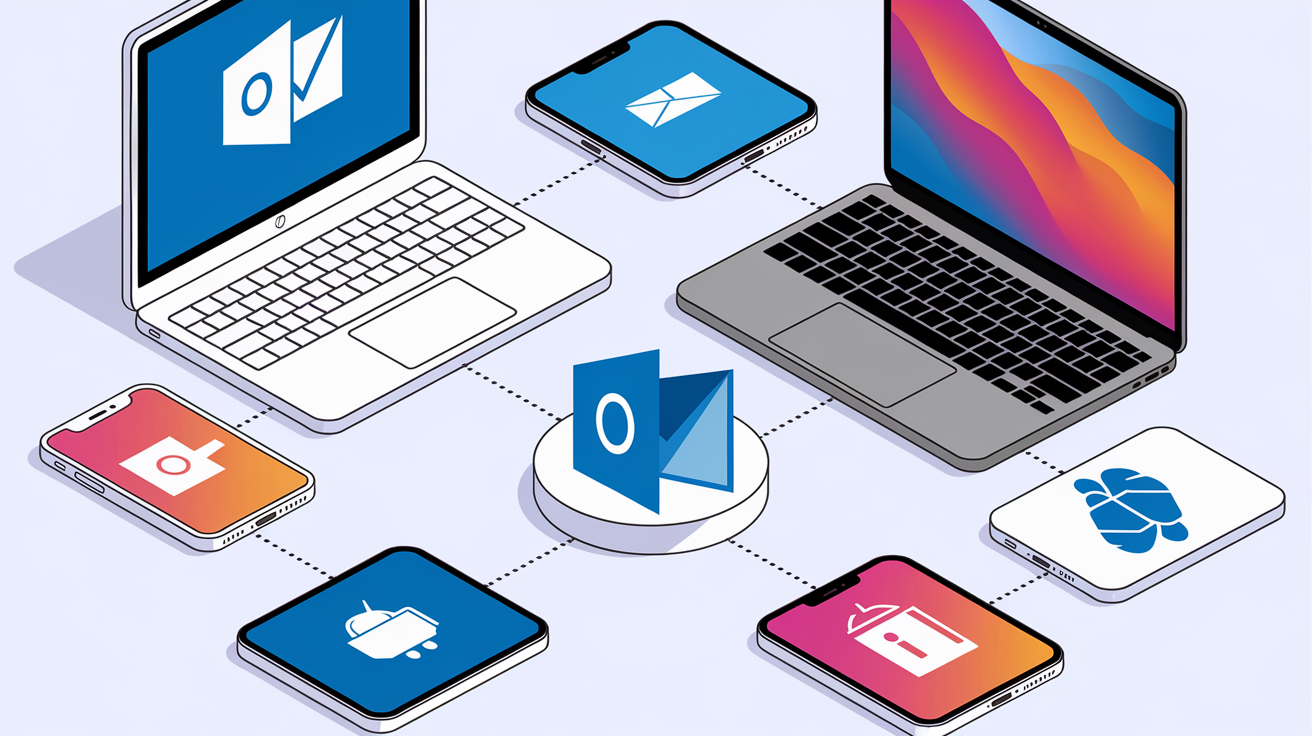
The setup process follows the same pattern on every device, but the menu names and entry points change depending on whether you’re using Windows, Mac, iOS, or Android. Knowing where to find the “Add Account” button on your platform saves time and avoids confusion when the screen doesn’t match a generic tutorial.
On Windows you have two paths: the desktop Outlook app (Classic or New) and the Windows system Settings app, which links your email to the built-in Mail and Calendar apps. On Mac, you go through Outlook Preferences. On mobile, the Outlook app prompts you to add an account the first time you open it, or you can tap the profile icon and choose “Add Account” later.
Windows Classic Outlook: File menu, Add Account, enter email and click Connect.
Windows New Outlook: Toggle “Try the new Outlook” in the upper-right if you haven’t already, then View, View settings, Accounts, Email accounts, Add Account.
Windows system Settings: Start, Settings, Accounts, Email & accounts, Add account, choose your provider (Office 365, Google, Yahoo, iCloud, or Other account) and sign in.
Mac Outlook Preferences: Outlook menu, Preferences, Accounts, click the + button (New Account), enter email, Next, enter password, Add Account, Done.
iOS Outlook app: Open the app, tap your profile picture or the menu icon, tap “Add Account,” enter your email, and follow the prompts to sign in or choose manual setup.
Android Outlook app: Open the app, tap the menu (three lines), tap the settings gear, tap “Add Account,” enter your email, and complete the on-screen steps to connect.
Manual Outlook Email Setup With IMAP, POP3, and SMTP Settings

When Outlook can’t automatically configure your account, you’ll need to enter server details manually. This happens with custom domains, smaller email providers, or when security settings block automatic detection. You’ll choose between IMAP, POP3, or Exchange, then type the server hostnames, port numbers, and encryption type your provider requires.
IMAP is the best choice for most people because it syncs your mail, folders, and read/unread status across all your devices. POP3 downloads messages to one device and removes them from the server, so only use POP3 if you access email from a single computer and want to keep mail offline. Exchange and ActiveSync are for business accounts that need calendars, contacts, and push notifications.
Manual setup fields and what to enter:
Account type. Choose IMAP if you check mail on multiple devices, POP3 if you only use one computer, or Exchange if your company runs Microsoft Exchange Server or Microsoft 365.
Incoming mail server. The hostname where Outlook retrieves your messages. Examples: imap.gmail.com, imap.mail.yahoo.com, outlook.office365.com, or mail.yourdomain.com for custom domains.
Incoming port and encryption. IMAP typically uses port 993 with SSL/TLS. POP3 uses port 995 with SSL. Exchange uses HTTPS port 443.
Outgoing mail server (SMTP). The hostname Outlook uses to send messages. Examples: smtp.gmail.com, smtp.mail.yahoo.com, smtp.office365.com, or mail.yourdomain.com.
Outgoing port and encryption. Port 587 with STARTTLS is the modern standard. Port 465 with SSL also works. Many ISPs block port 25, so avoid it.
Username. Always enter your full email address, not just the part before the @. Some servers accept a short username, but using the full address prevents errors.
Authentication. Most providers require the same password for incoming and outgoing servers. If your account uses two-factor authentication (2FA), you’ll need an app-specific password instead of your normal login password.
| Provider | IMAP Server | IMAP Port | SMTP Server | SMTP Port |
|---|---|---|---|---|
| Gmail | imap.gmail.com | 993 (SSL) | smtp.gmail.com | 587 (TLS) or 465 (SSL) |
| Yahoo Mail | imap.mail.yahoo.com | 993 (SSL) | smtp.mail.yahoo.com | 587 (TLS) or 465 (SSL) |
| Microsoft 365 / Office 365 | outlook.office365.com | 993 (SSL) | smtp.office365.com | 587 (TLS) |
| Custom domain (typical) | mail.yourdomain.com | 993 (SSL) or 143 (STARTTLS) | mail.yourdomain.com | 587 (TLS) or 465 (SSL) |
Setting Up Outlook Email for Gmail, Yahoo, iCloud, and Business Accounts
Each major email provider has specific settings and security requirements. Gmail and Google Workspace accounts need IMAP or POP enabled in your Gmail settings before Outlook can connect. iCloud accounts often require an app-specific password because Apple’s two-factor authentication blocks regular passwords in third-party apps. Business accounts using Microsoft 365 or Exchange Server usually connect automatically through a process called Autodiscover, but you might need your IT department’s server address if that fails.
For Gmail, open Gmail in a web browser, click the gear icon, choose “See all settings,” go to the “Forwarding and POP/IMAP” tab, and enable IMAP (or POP if you prefer). If you use Google’s two-step verification, go to your Google Account security settings, find “App passwords,” and generate a 16-character password for Outlook. Use that password instead of your regular Google password when Outlook asks you to sign in.
Yahoo Mail setup works the same way. Sign in to Yahoo Mail on the web, go to Account Security, and generate an app password if you use two-step verification. Type that app password into Outlook when prompted. For business accounts running on Google Workspace, Outlook will show a “Select your email provider” screen during setup. Choose “Google Workspace” from the list so Outlook can use the correct authentication method for company or school accounts.
Gmail and Google Workspace. Enable IMAP in Gmail settings, choose Google Workspace from the provider list if your email is company/school managed, and use an app password if two-step verification is turned on. Server names: imap.gmail.com (port 993) and smtp.gmail.com (port 587 or 465).
Yahoo Mail. Generate an app password in Yahoo Account Security if you use two-step verification. Server names: imap.mail.yahoo.com (port 993) and smtp.mail.yahoo.com (port 587 or 465).
iCloud. Sign in to your Apple ID account page, go to Sign-In & Security, select “App-Specific Passwords,” click “Generate an app-specific password,” name it “Outlook,” click “Create,” then copy the password and paste it into Outlook when adding your iCloud account. Server names: imap.mail.me.com (port 993) and smtp.mail.me.com (port 587).
Microsoft 365 and Exchange Online. Outlook usually detects these automatically. If manual setup is required, use outlook.office365.com for IMAP (port 993) and smtp.office365.com for SMTP (port 587). Exchange accounts use Autodiscover with HTTPS (port 443).
Custom domains (cPanel, web hosting). Your hosting provider will give you the exact server names, which are often mail.yourdomain.com for both incoming and outgoing. Use port 993 for IMAP, 995 for POP3, and 587 or 465 for SMTP. Check your hosting control panel or contact support if you’re unsure.
How to Add Accounts and Manage Outlook Settings (Windows, Mac)
Once your first account is running, you can add more email addresses to Outlook and switch between them in the same inbox view. Outlook shows all accounts in a folder pane on the left, and you can send from any address by choosing it in the “From” dropdown when composing a message. Managing multiple accounts is useful when you have personal and work email, or when you run a side business with its own domain.
To add another account in Classic Outlook, go to File, Account Settings, Account Settings, click “Add Account,” and follow the same setup steps. In New Outlook, go to View, View settings, Accounts, Email accounts, then click “Add Account.” On Mac, open Outlook, Preferences, Accounts and click the + button. To edit an existing account’s server settings or password, open the same Account Settings menu, select the account, and click “Change” or “Server Settings.”
Add a second account. Use the same File, Add Account or View settings, Accounts path you used for the first account. Outlook will add the new inbox to your folder list.
Change server settings. In Classic Outlook, go to File, Account Settings, Server Settings to update IMAP/POP/SMTP details. In New Outlook, go to View settings, Accounts, Email accounts, click “Manage” next to the account, then update the fields.
Set a default sending account. If you want all new messages to default to a specific “From” address, go to File, Account Settings, Account Settings, click the Email tab, select the account, and click “Set as Default.”
Remove an account. Open Account Settings, select the account, and click “Remove” (Windows) or the “–” button (Mac). Confirm by clicking “Sign Out” or “Yes” in the warning dialog. Removing an account deletes its cached mail from your computer but doesn’t delete the messages on the server.
Troubleshooting Outlook Email Setup Problems and Error Codes
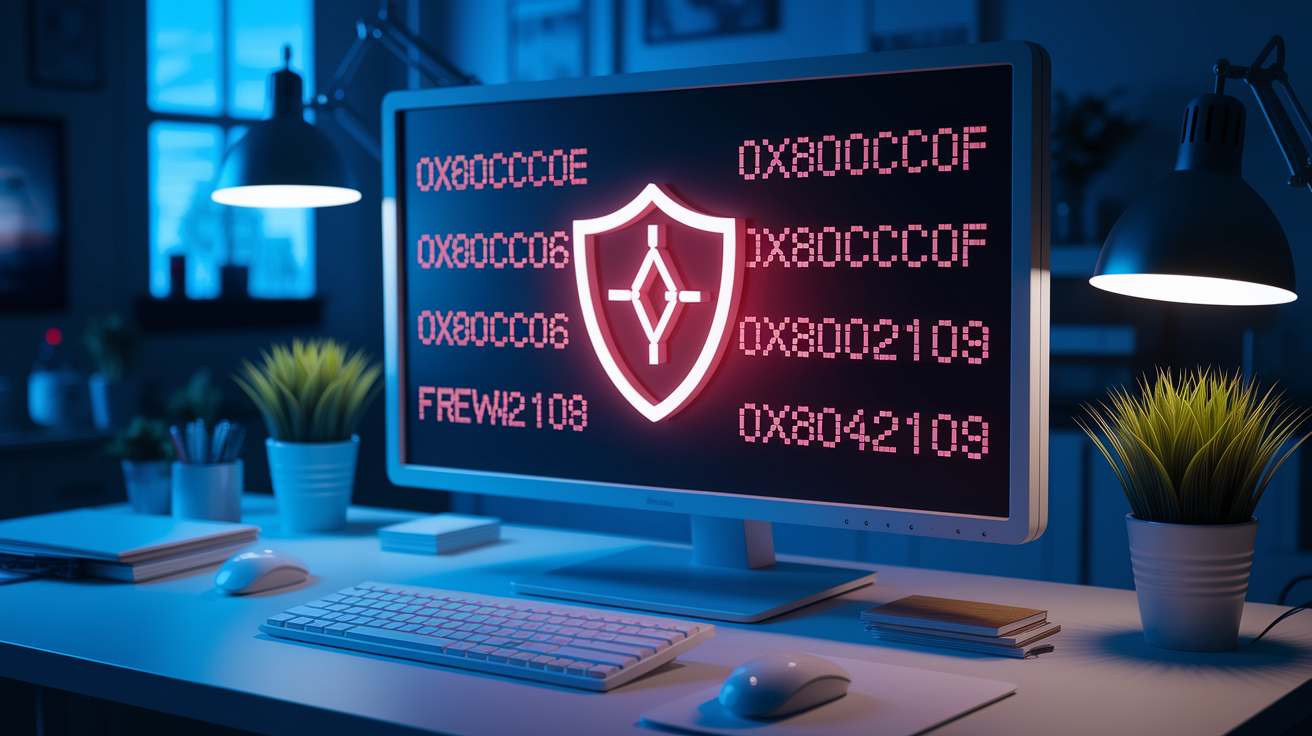
Most setup problems come from entering the wrong password, using an outdated port number, or forgetting to enable IMAP in your email provider’s settings. Outlook will show an error code or a generic “Cannot connect to the server” message when something goes wrong. The fastest fix is to double-check your email address, password, server names, and port numbers against the list your provider gave you.
If you’re sure your credentials are correct but Outlook still won’t connect, the issue is usually encryption or firewall settings. Some antivirus programs block Outlook’s connection attempts, and some internet service providers block port 25 and occasionally port 587. Temporarily disable your firewall and antivirus to see if that fixes the problem. If it does, add Outlook to your security software’s allowed programs list and re-enable protection.
When Outlook accepts your settings but doesn’t download mail, the server name or port might be wrong. Outlook won’t always tell you which field is incorrect, so go back and confirm every detail. If your provider recently updated their server addresses, your old settings won’t work. Check your provider’s support site for current server names, or log in to webmail to confirm your account is active and not locked.
Common error codes and what they mean:
0x800CCC0E. Outlook cannot reach the mail server. Check that the server name is spelled correctly, the port number matches your provider’s requirements, and your firewall isn’t blocking the connection.
0x800CCC0F. The connection was interrupted. This usually means network instability or a timeout. Restart your router, try again, or contact your internet provider if the problem continues.
0x80042109. Cannot connect to the outgoing SMTP server. Confirm the SMTP server name and port, and make sure your ISP doesn’t block port 25. Use port 587 or 465 instead.
0x8004010F. Outlook can’t find the data file or account settings are missing. Reconfigure the account or create a new Outlook profile if the existing profile is corrupted.
SSL or TLS handshake error. The encryption settings don’t match the server’s certificate. Switch between SSL and STARTTLS, or change the port (try 993 SSL for IMAP, 587 TLS for SMTP).
“Incorrect password” when you know it’s right. If you have two-factor authentication enabled, your normal password won’t work. Generate an app-specific password from your email provider’s security settings and use that instead.
Advanced Outlook Email Configuration Tips and Best Practices

Once your account is running, a few small adjustments can improve performance and security. Outlook stores a local copy of your mail in a data file called an OST file (for IMAP and Exchange) or a PST file (for POP3 and archived mail). These files live in a hidden folder on your computer, usually at %localappdata%\Microsoft\Outlook. If Outlook slows down, the file might be too large. You can archive old mail to a separate PST or delete messages you don’t need.
For troubleshooting connection issues, Outlook includes a diagnostic tool called Test Email AutoConfiguration. Hold Ctrl, right-click the Outlook icon in your system tray (Windows), and choose “Test Email AutoConfiguration.” Enter your email and password, check the boxes for “Use Autodiscover” and “Test Email,” then click “Test.” The results show whether Outlook can reach your mail server and what settings it found. If the test fails, the log will tell you which server or port caused the problem.
| Setting | Recommendation | Why it matters |
|---|---|---|
| Encryption | Always use SSL/TLS | Unencrypted connections send your password and mail in plain text, visible to anyone on your network. |
| App passwords | Use them when 2FA is enabled | Providers block normal passwords in third-party apps when two-factor authentication is turned on. |
| Cached Exchange Mode | Leave it on for Exchange/Microsoft 365 | Stores a local copy of your mailbox so Outlook works offline and responds faster. |
| Data file size | Keep PST/OST under 10 GB | Large files slow down Outlook and increase the risk of corruption. Archive old mail regularly. |
| Remove old accounts | Delete unused accounts from Outlook | Old credentials are a security risk if the account password is compromised or the account is closed. |
Final Words
Open Outlook and pick File > Add Account (or View settings > Accounts in the New Outlook). Enter your email and follow the prompts, or choose manual setup to add IMAP/POP3/SMTP details.
Use the Windows, Mac, or mobile paths we covered, follow provider notes for Gmail, iCloud, or business accounts, and manage profiles or data files as needed. If setup fails, check ports, server names, and passwords, then try the troubleshooting fixes.
You have a clear map for how to set up outlook email—from quick auto-config to manual server tweaks. Try the steps; you’ll have your inbox running smoothly.
FAQ
Q: How do I set up a new Outlook email account?
A: Setting up a new Outlook email account or first-time Outlook setup involves opening Outlook, choosing File > Add Account (or View settings > Accounts > Add in New Outlook), entering your email, following prompts, and entering server info if requested.
Q: Is Outlook a free email address?
A: Outlook is available as a free email service: you can create an @outlook.com account at no cost. The desktop Outlook app and Microsoft 365 subscription add paid features like advanced security and Office apps.
Q: Why can’t I setup my email in Outlook?
A: You can’t set up your email in Outlook because of wrong password, missing IMAP/POP/SMTP details, 2FA requiring an app password, outdated app, or firewall/VPN blocking. Try re-entering credentials, enable IMAP, or use manual server settings.