

Think your home Wi‑Fi is private? Think again.
Most routers ship with factory defaults that attackers scan and exploit within minutes.
This checklist pulls together 10 quick, high-impact steps you can do now, starting with changing the admin login, updating firmware, enabling WPA3, and disabling WPS and remote admin.
You can knock out the easy, high-priority items in under 15 minutes and stop the majority of automated attacks.
Follow this list in order and you’ll close the most common holes fast.
Core Router Protections Checklist for Immediate Security
Most routers ship with default settings built for quick setup, not protection. Attackers scan for unchanged admin passwords, weak wireless encryption, and open management ports every single day. Within minutes of connecting a router with factory defaults, automated scripts can discover, probe, and compromise your network, exposing every device that connects to your Wi‑Fi.
These 10 actions target the highest impact vulnerabilities first. Changing admin credentials and enabling modern encryption block the most common intrusion paths. Disabling WPS and remote management eliminates attack shortcuts, while firmware updates patch known exploits before bad actors find them. Together, these steps form a perimeter defense that stops the majority of automated and opportunistic attacks.
Each item below includes the action, brief steps to complete it, difficulty level, and security priority. You can knock out the high priority, easy tasks in under 15 minutes and handle the moderate difficulty items in another 15. Start at the top and work down.
-
Change default admin username and password – Log into your router’s admin panel (usually at 192.168.1.1 or 192.168.0.1), navigate to Administration or Account Settings, and replace both the username and password with unique values at least 12 characters long. Mix uppercase, lowercase, numbers, and symbols. Difficulty: Easy. Priority: High.
-
Update router firmware – In the admin interface, find Firmware Update, Software Update, or System Update, then check for the latest version and install it. Firmware patches close known security holes. Difficulty: Easy to Moderate. Priority: High.
-
Enable WPA3 (or WPA2 if WPA3 isn’t available) – Go to Wireless Security settings and select WPA3 or WPA3/WPA2 mixed mode if you have older devices. Avoid WEP entirely. Difficulty: Easy. Priority: High.
-
Set a strong Wi‑Fi passphrase – Under Wireless settings, create a unique network password of at least 12 characters using letters, numbers, and symbols. Don’t reuse the admin password or include personal information. Difficulty: Easy. Priority: High.
-
Disable WPS (Wi‑Fi Protected Setup) – Locate WPS in the Wireless or Advanced Wireless menu and turn it off. WPS is vulnerable to brute force PIN attacks. Difficulty: Easy. Priority: High.
-
Disable remote management – In Administration or Security settings, turn off Remote Management or Remote Access so the admin panel is only reachable from inside your network. If you need remote access, use a VPN. Difficulty: Easy. Priority: High.
-
Limit DHCP lease range or assign static IPs – Under LAN Setup or DHCP Settings, restrict the IP pool to the number of devices you actually use (for example, 10 addresses if you have 8 devices). Alternatively, assign static IPs to critical devices for easier tracking. Difficulty: Moderate. Priority: Medium to High.
-
Change or hide your SSID – Replace the default network name with something neutral that doesn’t reveal your identity, like “HomeNetwork” instead of “SmithFamily5G.” You can optionally hide SSID broadcast, though that provides minimal security. Difficulty: Easy. Priority: Medium.
-
Enable the firewall and disable UPnP – Turn on the router’s built in firewall (often labeled SPI Firewall or Firewall Enable), then disable UPnP (Universal Plug and Play) to prevent automatic port forwarding that attackers can exploit. Difficulty: Moderate. Priority: High.
-
Create a guest network – Enable Guest Network in the Wireless settings, assign it a separate password, and ensure it’s isolated from your main LAN so visitors can’t reach your file shares, printers, or smart home devices. Difficulty: Easy. Priority: Medium.
Router Login and Access Steps for Security Configuration
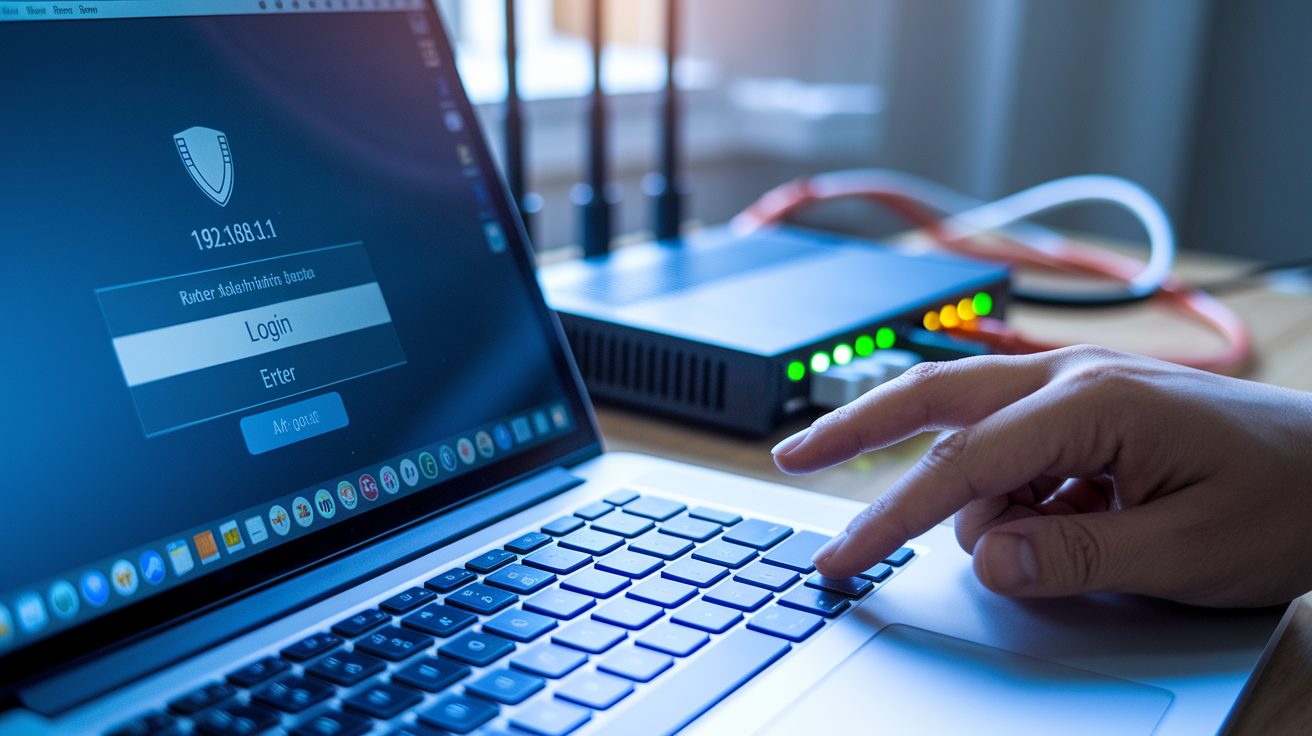
Before you can apply any security change, you need to reach your router’s admin interface. That interface is where all wireless settings, firewall toggles, and password controls live. Without access, you’re locked out of every hardening step in the checklist.
Once logged in, you’ll find tabs or menu sections for Wireless, Security, Administration, and Advanced settings. The exact layout varies by brand, but the security options are always there. You just need to know where to look and how to get in.
-
Find the router IP address – Check the label on the bottom or back of your router. Most devices print the default IP (usually 192.168.1.1 or 192.168.0.1) along with the factory admin username and password.
-
Open your browser and enter the IP – Type the router IP into the address bar (not the search bar) and press Enter. You’ll see a login page.
-
Log in with admin credentials – Use the printed username and password to sign in. If you changed them before and forgot, you may need to factory reset the router (usually a recessed button held for 10 seconds).
-
Navigate to the Security or Wireless menu – Look for tabs labeled Wireless, Security, Advanced, or Administration. These sections hold encryption settings, password fields, and firewall toggles.
-
Document every change you make – Write down the old setting and the new one in a notebook or password manager before you save. If something breaks, you’ll know exactly what to revert.
Wireless Encryption and Wi‑Fi Password Security Essentials

WPA3 and WPA2 encrypt every packet of data flying between your devices and the router, turning readable information into scrambled ciphertext that eavesdroppers can’t decode. When a laptop requests a web page or a phone uploads a photo, that traffic crosses the airwaves as encrypted radio signals. Without the correct passphrase, an attacker sitting outside your house sees only noise. Modern encryption also includes per session keys, so even if someone records your traffic today, they can’t decrypt it later.
WEP and the original WPA are obsolete and broken. Security researchers cracked WEP within minutes using freely available tools as far back as 2001, yet some older routers still offer it for “compatibility.” An attacker with a laptop can capture WEP traffic, run a script, and extract your password in under five minutes. Sometimes faster if the network is busy. Legacy WPA fell to similar attacks a few years later. If your router only supports WEP, replace the hardware. If you see “WPA (TKIP)” as the only option beyond WEP, that’s the old version. Update firmware or buy new gear.
Password length matters more than complexity when it comes to brute force resistance. A 12 character passphrase built from random words and numbers takes exponentially longer to crack than an 8 character string, even if the shorter one includes symbols. Attackers run dictionaries and rule based mutations against captured handshakes, so avoid common phrases, keyboard patterns, and personal information. A passphrase like “tornado$Lunch#92bridge” is stronger than “P@ssw0rd” because length expands the search space faster than symbol substitution does.
| Encryption Type | Security Level | Recommended Use |
|---|---|---|
| WPA3 | Highest (resistant to offline dictionary attacks) | Use on all new routers and devices that support it |
| WPA2‑AES | High (strong encryption, industry standard since 2004) | Fallback for devices that don’t support WPA3 |
| WPA2/WPA3 mixed mode | High (allows both protocols on one network) | Households with a mix of new and older devices |
| WEP | Broken (crackable in minutes) | Never use; replace hardware if this is your only option |
Firewall, UPnP, and Advanced Router Security Settings
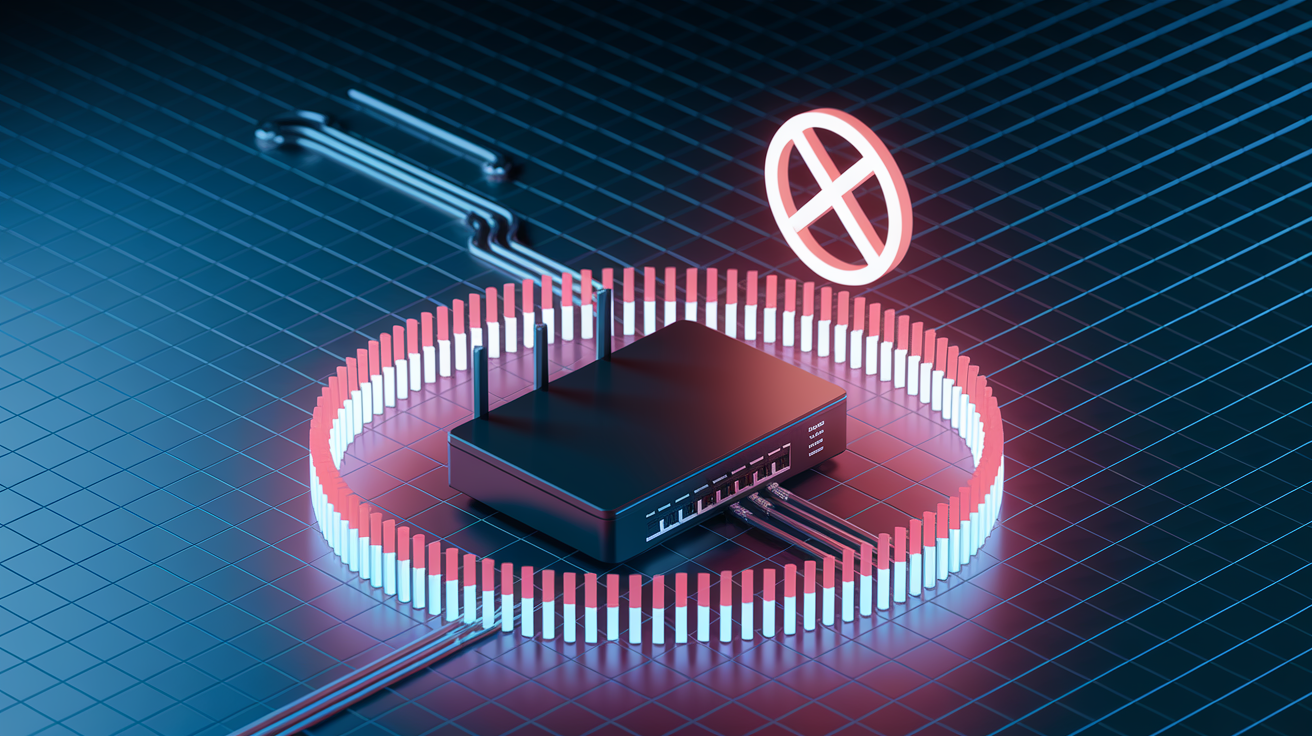
A router firewall acts as a gatekeeper between the internet and your internal network, inspecting incoming packets and dropping anything that doesn’t match an established connection or an explicit rule. Most consumer routers use stateful packet inspection (SPI) combined with Network Address Translation (NAT), which hides your internal IP addresses behind a single public IP. When your laptop requests a website, the router remembers that outbound connection and allows the reply back in, but unsolicited scans from the internet hit the firewall and stop. This perimeter defense blocks port scans, prevents direct access to devices, and reduces exposure to malware that spreads by probing random IP ranges for open services.
Universal Plug and Play was designed to let devices auto configure port forwarding for gaming consoles and media servers without manual setup. In practice, UPnP creates a risk pathway. Malware running on an infected PC or IoT device can silently open inbound ports on your router, bypassing the firewall and exposing internal services to the internet. Security researchers have documented cases where worms spread by exploiting UPnP to forward SMB or RDP ports, then using those open doors to attack other networks. Disabling UPnP forces you to configure port forwarding manually when you need it, but that friction is a feature, not a bug.
Key Advanced Hardening Tips
Check your router’s system log once a month for repeated failed login attempts, unexpected outbound connections from devices you don’t recognize, or spikes in blocked packets. If you see hundreds of DROP entries from the same external IP, your firewall is doing its job, but persistent probing might indicate a targeted scan. When port forwarding is unavoidable (like hosting a game server or accessing a home camera remotely), restrict the rule to a specific internal IP and disable it when not in use. Some routers let you schedule port forwarding windows, so the door only opens during planned sessions. Finally, review device level permissions on your router’s connected client list. If a smart plug or security camera appears under “Allowed Services” with unusual protocol access, audit its firmware and isolate it to a dedicated IoT network.
SSID Naming, Network Segmentation, and Guest Network Setup
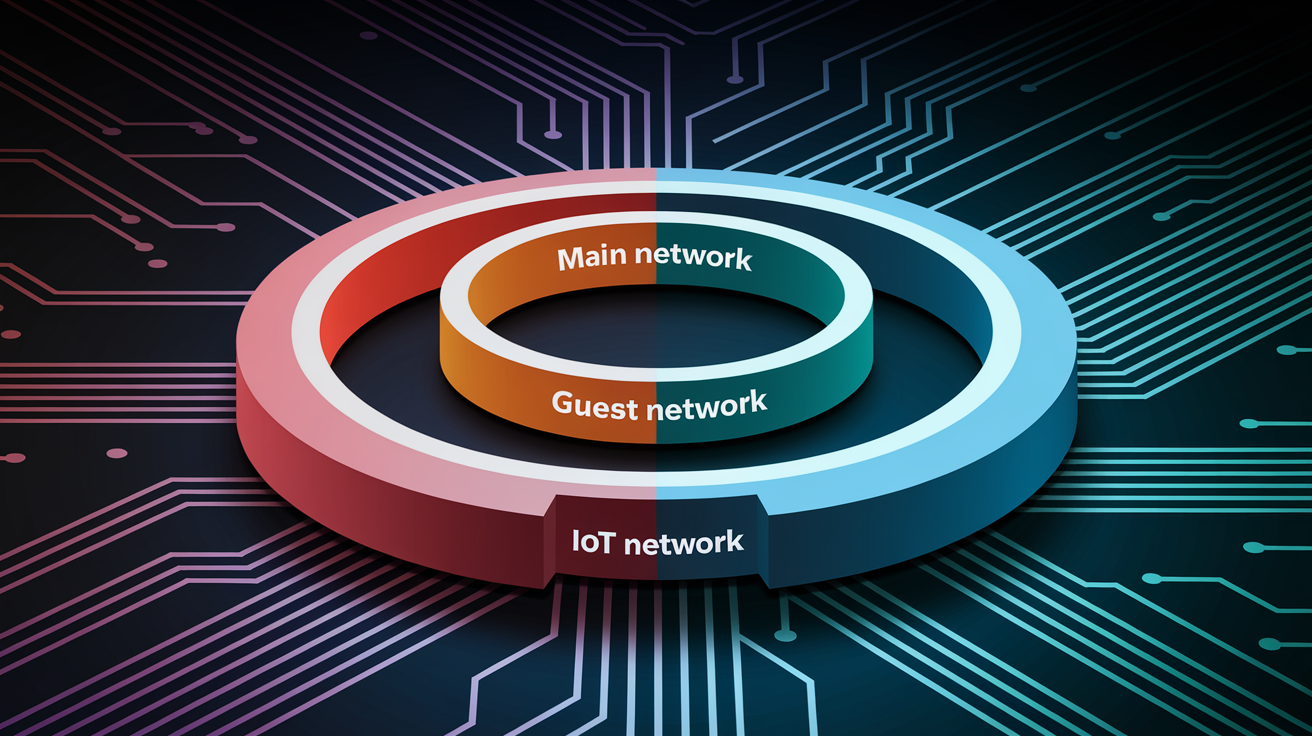
An SSID is just a label, but the name you choose sends signals. Broadcasting “SmithFamilyApartment3B” tells anyone within range who you are and where you live, making social engineering attacks easier and giving burglars a data point. A neutral name like “HomeNetwork” or “Linksys03945” reveals nothing personal. Hidden SSIDs (where the router doesn’t broadcast the network name) add a thin layer of obscurity, but anyone with a Wi‑Fi scanner will still see the network exists and can capture the SSID from a device as it connects. Hiding the SSID slows casual snoops but won’t stop a determined attacker, and it can frustrate your own devices when they roam or reconnect.
-
Neutral SSID selection – Pick a name that doesn’t include your surname, address, apartment number, or any identifiable pattern like a birthday or nickname.
-
Optional hidden SSID and its limited security benefit – You can disable SSID broadcast in your router’s wireless settings, but understand that the network is still visible to scanning tools and adds setup friction for guests and new devices.
-
Guest network creation purpose – A separate guest network gives visitors internet access without exposing your file shares, printers, network storage, or smart home gadgets to their devices.
-
Isolation rules and threat reduction – Most routers automatically block guest clients from communicating with main network devices (called client isolation), reducing the risk that a compromised guest phone spreads malware to your PCs.
-
IoT network segmentation value – Smart bulbs, cameras, thermostats, and voice assistants often run outdated firmware and lack strong security. Placing them on a dedicated IoT SSID keeps them isolated from your banking laptop and backup drives.
-
Password separation for segmented networks – Use a different passphrase for your main network, guest network, and IoT network so a breach on one SSID doesn’t hand over access to the others.
Firmware Updates, Hardware Lifecycle, and Router Replacement Timing
Firmware patches fix vulnerabilities that researchers or attackers have already discovered. When a manufacturer publishes an update, they’re closing doors that were previously open. Sometimes doors that led to remote code execution, credential theft, or denial of service attacks. Attackers monitor firmware release notes to reverse engineer the patch and build exploits for routers still running the old version. If you wait months to update, you’re handing them a roadmap to your network.
Automatic updates are the simplest defense. Enable them in your router’s Administration or Firmware section if the option exists. The router will download and install patches overnight without interrupting your work. If auto update isn’t available, set a calendar reminder to log in and check for updates every two to three months. The process usually involves clicking “Check for Update” and confirming the installation. Some routers reboot during the update, so schedule it when you’re not on a video call or streaming.
Routers reach end of life when the manufacturer stops releasing security patches, typically three to five years after the model’s launch. Once support ends, newly discovered vulnerabilities never get fixed, and your hardware becomes a static target. Check your router’s support page or contact the manufacturer to confirm whether your model still receives updates. If it doesn’t, budget for a replacement. Wi‑Fi 6 or Wi‑Fi 7 hardware will support WPA3, faster speeds, and several more years of patches. Continuing to run unsupported firmware is like leaving a window unlocked because you know where it is. Sooner or later, someone will notice and climb through.
Monitoring Tools and Ongoing Router Security Maintenance

Security isn’t a one time checklist. It’s a practice. Routers generate logs that record connection attempts, blocked packets, and failed logins. Reviewing those logs once a month helps you spot anomalies, like repeated brute force attempts on your admin panel or unexpected traffic spikes from an IoT device. Most admin interfaces display a syslog or security log under Administration or Status. Look for patterns, not individual entries.
Your router’s connected device list shows every phone, laptop, tablet, smart plug, and camera currently online. If you see an unknown MAC address or a device name you don’t recognize, someone might be using your network without permission. Cross check the list against your own hardware, then change your Wi‑Fi password immediately and audit your security settings to ensure WPA3 or WPA2 is active and WPS is off.
-
How often to check logs – Once a month is usually enough for home networks. If you notice suspicious behavior (slow speeds, unfamiliar devices, strange router behavior), check immediately.
-
How to review connected devices – Log into the admin panel, navigate to Device List, Connected Clients, or DHCP Client Table, then compare MAC addresses and hostnames to your known devices.
-
What to do when suspicious devices appear – Disconnect the unknown device from the router’s interface if possible, change your Wi‑Fi password, verify encryption is WPA2 or WPA3, and re check that WPS and remote management are disabled.
-
When to re audit security settings – Run through the full checklist whenever you update firmware, add new devices, or suspect a breach. Also audit once every six months as a preventive measure.
Final Words
Harden your router now: you followed a clear checklist—change admin credentials (login at 192.168.1.1 or 192.168.0.1), set strong ≥12‑character passwords, update firmware, enable WPA3 or WPA2, and turn off WPS, UPnP, and remote management.
You also walked through reaching the admin panel, why encryption matters, firewall and NAT reasoning, SSID and guest network planning, and when to replace aging hardware.
Keep this router security settings checklist handy, tackle the high‑priority items first, and check back regularly. You’ve got this.
FAQ
Q: How do I log into my router to change settings?
A: To log into your router, open a browser and enter 192.168.1.1 or 192.168.0.1 (the IP is often printed on the device). Use the admin login to reach security settings.
Q: What admin password should I set for my router?
A: An admin password should be at least 12 characters long, unique, and stored securely. Replace default credentials immediately and use a password manager if convenient.
Q: Should I enable WPA3 or WPA2 for Wi‑Fi encryption?
A: You should enable WPA3 when supported; use WPA2‑AES as a fallback and avoid WEP. Use WPA2/WPA3 mixed mode only for older devices that need compatibility.
Q: How strong should my Wi‑Fi password be?
A: A Wi‑Fi password should be at least 12 characters with letters, numbers, and symbols to resist brute‑force attacks. Avoid simple, repeating, or common phrases.
Q: Why should I disable WPS on my router?
A: You should disable WPS because its PIN method can be brute‑forced, letting attackers join your network. Rely on strong WPA2/WPA3 passphrases instead.
Q: Should I disable Remote Management on my router?
A: You should disable Remote Management to stop outside access to your admin panel; enable it only temporarily with strict controls and logging if absolutely necessary.
Q: Do I need to enable the firewall and disable UPnP?
A: You should enable the router firewall and disable UPnP: the firewall blocks unsolicited incoming connections while UPnP can auto‑open ports malware might exploit.
Q: How often and where should I update router firmware?
A: You should check the “Firmware Update” or “Software Update” section every few months and enable automatic updates if available to apply security patches promptly.
Q: How do I set up a safe guest network?
A: You should create a separate guest network and restrict its LAN access so visitors and IoT devices can’t reach your main devices; use a different password for guests.
Q: Should I change or hide my Wi‑Fi SSID?
A: You should change your SSID to a neutral, non‑identifying name and avoid personal info; hiding the SSID is optional and provides minimal extra security.
Q: Why limit the DHCP address range on my router?
A: You should limit the DHCP range to reduce exposed IPs and simplify spotting unknown devices; reserve static IPs for trusted devices like printers or servers.
Q: What do I do if I see unknown devices connected?
A: If unknown devices appear, change admin and Wi‑Fi passwords, remove or block the devices, and audit settings and logs to confirm no further access exists.
Q: When should I replace my router for security reasons?
A: You should replace your router when the manufacturer stops issuing updates, automatic patches aren’t available, or it shows persistent security or performance problems.