
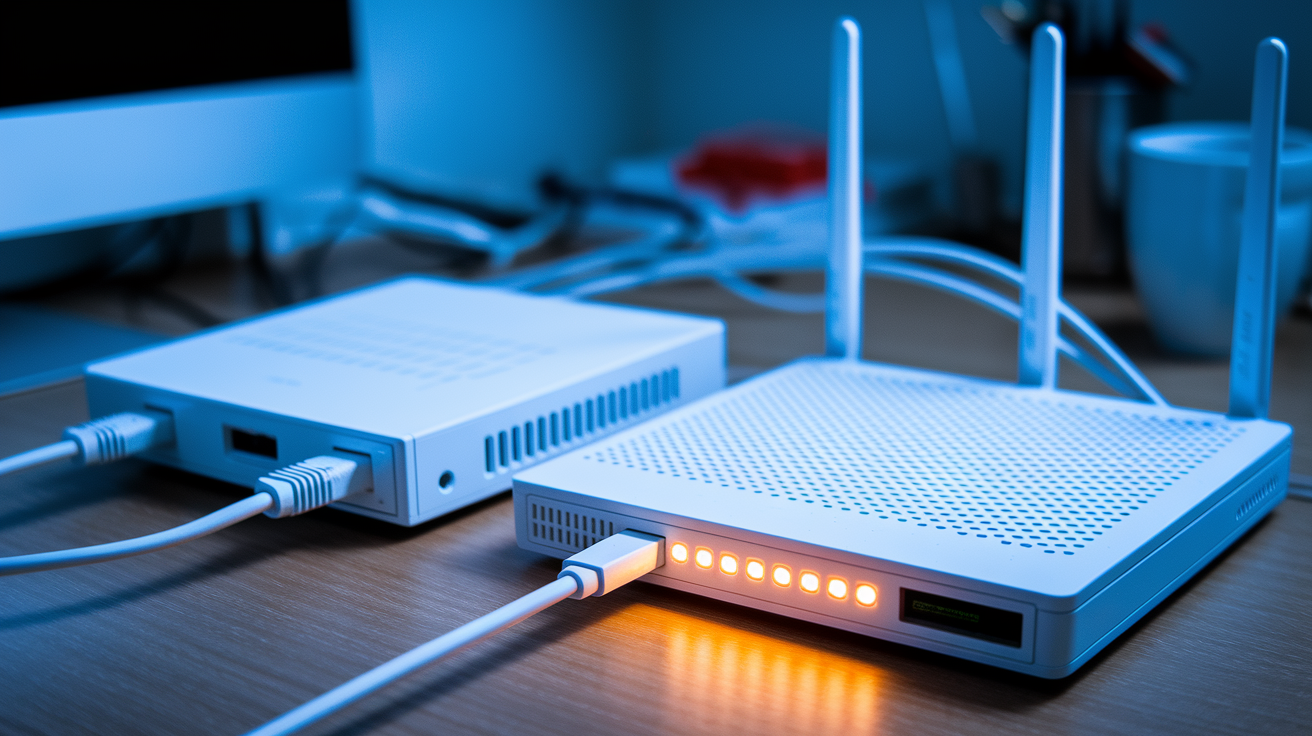

Most people assume a combo unit’s simpler to secure since it’s one device. But here’s the catch: combo units often get firmware updates slower, and some ISP-provided gateways force you to use their update schedule. That leaves known security holes open longer. Separate devices let you pick a router brand known for fast security patches and gives you control over when and how updates happen.
Key Advantages and Disadvantages Overview
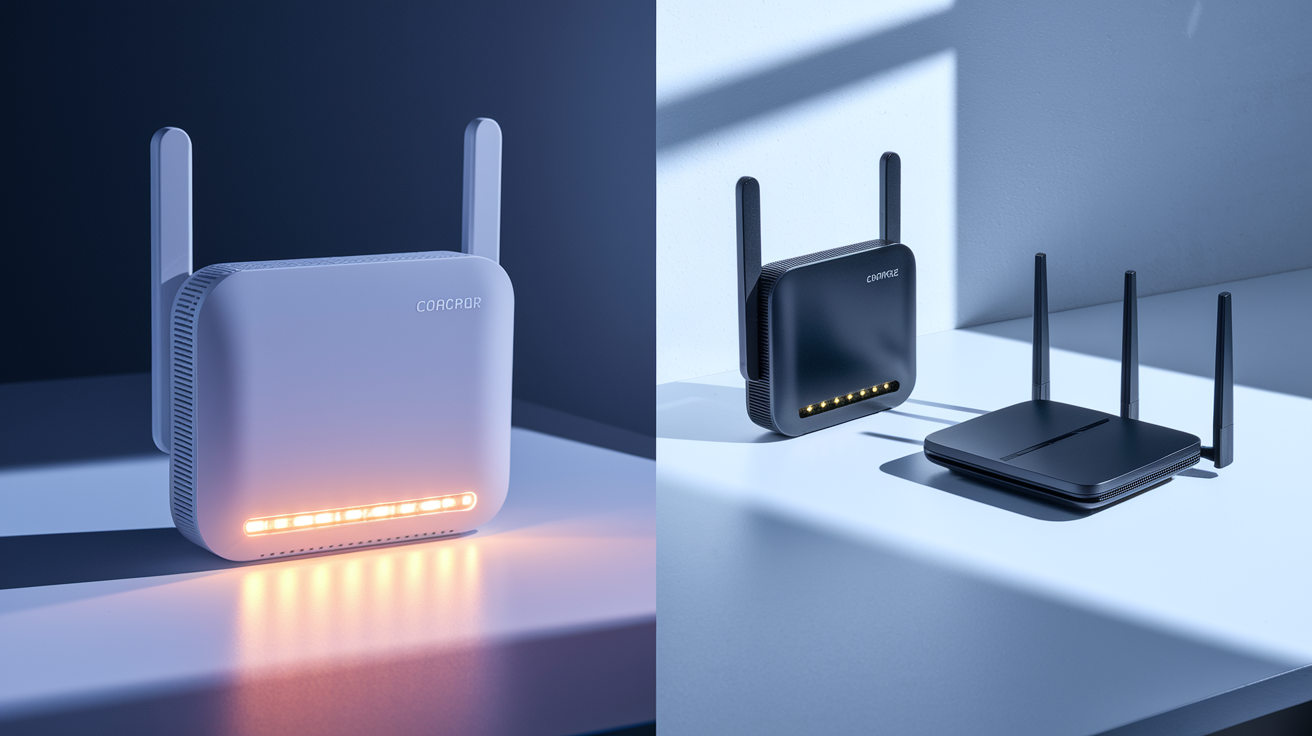
A modem router combo packs both modem and router functions into one device. Separate setups use a standalone modem to connect to your ISP and a standalone router to spread that connection around your home. Both get you online, just through different routes.
| Factor | Combo Unit | Separate Devices |
|---|---|---|
| Initial cost | $100-$250 single purchase | $150-$400+ combined |
| Performance | Good for basic use, shared processing | Better speed, dedicated components |
| Upgrade flexibility | Replace entire unit for improvements | Upgrade router or modem separately |
| Setup complexity | Single device, plug-and-play | Two devices, more configuration |
| Failure impact | Complete internet loss until replaced | Only failed component needs fixing |
| Advanced features | Basic settings, simplified interface | Full control, extensive options |
The core trade-off is simple. Gateway devices (that’s another name for combo units) lean into convenience. You get easy setup, one power outlet, less mess with cables, and a smaller upfront price. Separate devices go for performance and flexibility. Better speeds, dedicated processing for each job, and the ability to swap one piece without touching the other.
Your best pick depends on your internet plan speed (especially if you’re running gigabit or faster), how many devices you’ve got connecting at once, whether you actually use advanced network controls like QoS or VPN servers, and how comfortable you are setting this stuff up. Budget counts too, but look at the long game, not just what you’re paying today.
Performance Comparison: Combo Unit vs Separate Devices

Separate modems and routers usually deliver better overall performance because each device has dedicated processing power. Your standalone router focuses entirely on managing WiFi, routing traffic, and juggling connected devices. Your standalone modem only maintains the connection to your ISP and converts the signal. Neither one splits resources.
Combo units run both jobs through shared internal components. The same processor handles DOCSIS signal conversion (for cable internet), manages WiFi connections, routes traffic between devices, and runs security features. When you’re streaming on three devices, gaming on another, and running a video call at the same time, that shared processing gets stretched thin. Especially during peak hours or on higher speed plans.
Modern connectivity standards show a bigger gap. Standalone routers more often support WiFi 6 or WiFi 6E, tri-band operation (three separate frequency bands), MU-MIMO (multiple devices transmitting at once without waiting in line), and OFDMA (efficient data packing that cuts lag). Combo units often lag a generation behind, sticking with WiFi 5 or basic WiFi 6 and dual-band operation.
WiFi coverage and signal strength differ because of where you can put things. A standalone router can sit in the center of your home, even if your modem has to stay near the ISP entry point in a corner or closet. With a combo unit, your WiFi broadcasts from wherever the ISP line enters your house. That’s rarely the best spot for coverage.
When you’re managing 15 or 20 connected devices (phones, laptops, smart TVs, security cameras, smart home stuff), separate devices handle simultaneous traffic more smoothly. Combo units start showing network congestion faster, especially on gigabit plans where the connection speed exceeds what the combo’s processor can efficiently distribute.
Performance factors where separate devices excel:
- Dedicated processing power for modem and routing functions without resource sharing
- Better heat management with two separate enclosures instead of one dense unit
- Optimized WiFi placement independent of modem location for stronger coverage
- Advanced antenna configurations and higher gain antennas on standalone routers
- Superior chipset quality with more recent WiFi standards and faster processors
Cost Analysis: Initial Investment and Long-Term Value

Combo units usually cost between $100 and $250 for a single purchase. Separate devices run higher upfront, typically $150 to $400 combined, depending on which modem and router you pick. The modem itself costs $80 to $150, and routers range from $70 for basic models to $600 for high-end options with WiFi 6E and tri-band support.
If you’re renting equipment from your ISP, you’re probably paying $10 to $15 per month. That’s $120 to $180 per year. Buying your own equipment, combo or separate, eliminates that recurring fee. Over three years, you save $360 to $540, which more than covers the purchase cost.
The long-term cost difference shows up when something breaks or needs upgrading. If your combo unit fails or becomes outdated, you replace the whole thing. If your router fails in a separate setup, you replace just the router (typically $70 to $200), and your modem stays put. Same if your modem fails but your router still works fine. You’re not paying twice for components that don’t need replacing.
| Cost Factor | Combo Unit | Separate Devices |
|---|---|---|
| Initial purchase | $100-$250 | $150-$400 |
| ISP rental savings (per year) | $120-$180 saved | $120-$180 saved |
| Upgrade cost | $100-$250 (full replacement) | $70-$200 (single component) |
| Replacement cost (failure) | $100-$250 (full unit) | $70-$150 (only failed part) |
| 5-year total (including one upgrade) | $200-$500 | $220-$600 |
Upgrade Flexibility and Future-Proofing Separate Equipment
WiFi standards evolve faster than modem standards. WiFi’s moved from WiFi 5 to WiFi 6, then WiFi 6E, and WiFi 7’s arriving in 2025-2026. Meanwhile, DOCSIS 3.1 modems (the cable standard) have been stable since 2016 and work fine for most residential gigabit plans. Fiber modems (ONUs or ONTs) also stay relevant for years because the standard doesn’t change as quickly.
With a separate setup, you can upgrade just your router when new WiFi tech comes out. If you’re on a 300 Mbps plan and upgrade to gigabit fiber, you might only need to replace your router to handle the increased speed distribution. Your modem often doesn’t need touching. With a combo unit, you replace everything even if only the WiFi portion is outdated.
Scalability’s another thing to think about. Say you want to add mesh nodes to extend coverage into a basement or backyard office. Most standalone routers work with mesh systems, either from the same manufacturer or using standards like OneMesh or WiFi EasyMesh. You can also swap to a completely different router type if your needs change. A combo unit locks you into whatever features it shipped with.
Combo units typically don’t support customization options like VLAN tagging (useful if you want to separate IoT devices onto their own network segment), static routing (for advanced network setups), or third-party firmware like DD-WRT or OpenWRT (which adds features the manufacturer didn’t include). If those options matter to you now or might matter later, separate devices keep your options open.
Installation and Setup Complexity for Gateway vs Split Systems
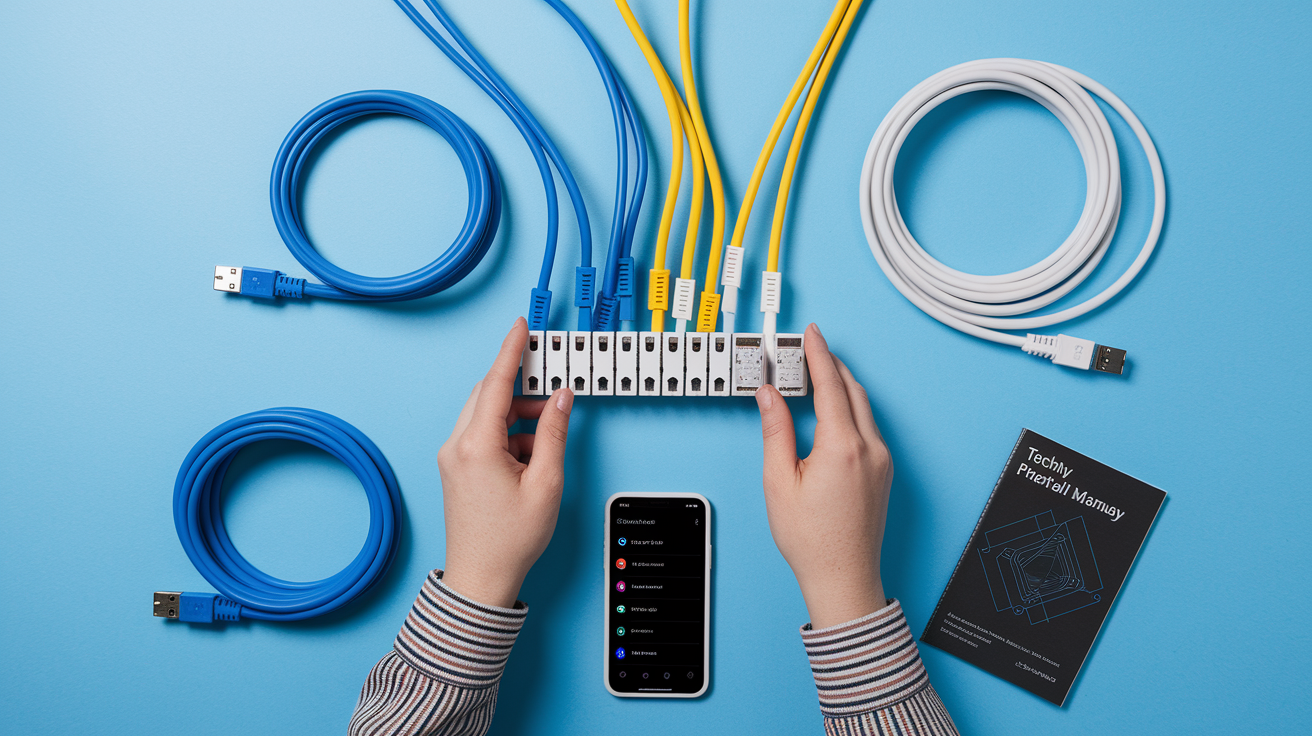
Combo units lean heavily into plug-and-play simplicity. You connect the coax cable or fiber line from your ISP, plug in power, and wait for the lights to show an active connection. Then you connect a device to the WiFi network (the network name and password are usually printed on a label on the unit), and you’re online. Some combo units have a quick setup app that walks you through naming your network and setting a password, but even without it, most work right out of the box with default settings.
Separate device setup needs you to configure the modem first. You connect it to the ISP line and power it on. Then you usually need to call your ISP or use their online activation portal to register the modem’s MAC address with your account. Once the modem shows an active connection, you connect your router to the modem using an Ethernet cable, power on the router, and configure the router settings. WiFi network name, password, security type, and any other preferences. It’s two devices, two power outlets, and two configuration steps instead of one.
ISP compatibility adds another layer. If you’re on cable internet, your ISP keeps an approved modems list. You’ll need to check your modem model is on that list before buying and then confirm it during activation. Fiber and DSL modems may need specific models from your ISP or certified compatible units. With an ISP-provided combo, compatibility’s handled for you. With separate devices, you’re responsible for checking compatibility before buying.
Typical separate device setup process:
- Connect modem to ISP line (coax for cable, fiber line for fiber) and plug in power, wait for steady connection lights
- Activate modem with ISP by calling support or using online activation portal with modem MAC address
- Connect router to modem using Ethernet cable from modem’s Ethernet port to router’s WAN port, power on router
- Configure router WiFi settings and security using web browser or mobile app, typically at 192.168.1.1 or similar
Network Security and Firmware Updates for Both Configurations

Both combo units and separate devices offer baseline security. WPA2 or WPA3 encryption for WiFi and a basic firewall that blocks unsolicited incoming connections. That’s usually enough for general home use. The difference shows up when you look at advanced security layers. Standalone routers more often include intrusion detection systems (which alert you to unusual traffic patterns), VPN servers (so you can securely access your home network remotely), custom DNS settings (to block ads or malicious sites at the network level), and more detailed parental controls with scheduling and content filtering.
Firmware updates matter for security. Manufacturers release patches when vulnerabilities are discovered. Separate router manufacturers, especially brands focused on networking like Asus, Netgear, or TP-Link, tend to release firmware updates more frequently. Combo units, especially budget models or ISP-provided units, often receive fewer updates and sometimes stop getting updates entirely after a couple of years. That leaves known vulnerabilities unpatched.
Advanced features like creating a guest network (so visitors can’t access your main network or connected devices), setting up VPN client connections (routing all your traffic through a VPN service), or configuring custom firewall rules to block specific traffic are more accessible on standalone routers. Combo units either don’t offer these features or bury them in simplified interfaces that limit what you can actually configure.
ISP-provided combo units sometimes have locked firmware that stops you from changing certain settings or switching to another ISP without returning the device. You might not be able to change DNS servers, disable certain logging features, or even access advanced settings at all. When you own your equipment, you have full admin access and control over every security setting.
Reliability and Troubleshooting for Networking Equipment

When a combo unit fails, your entire internet connection goes down. You can’t get online until you get a replacement. If it’s an ISP-provided unit, you may need to schedule a technician visit or wait for a replacement to ship. If you bought your own, you’re ordering a new one and waiting for delivery. Either way, you’re offline for hours or days.
With separate devices, failure in one component doesn’t kill your entire connection. If your router fails but your modem still works, you can connect a device directly to the modem with an Ethernet cable while you wait for a replacement router. You lose WiFi, but wired devices stay online. If your modem fails, you replace just the modem (usually $80 to $150) and keep your existing router.
Troubleshooting’s simpler when you can isolate the problem. If your internet connection drops but WiFi still shows connected, the issue’s likely with the modem. If the modem shows a solid connection but devices can’t reach the internet, it’s probably the router. With a combo unit, you’re guessing which internal component is causing the problem, and your only fix is to reset the entire device or replace it.
Warranty coverage and replacement logistics also differ. A standalone router or modem typically has a one to three year warranty. If it fails, you replace that device. Combo units have the same warranty period, but you’re replacing a more expensive unit. Some manufacturers offer faster replacement or advance exchange for separate devices because they know users depend on connectivity for work and daily life.
ISP Compatibility and Device Approval for Modems

ISPs, especially cable providers, keep approved modem lists. Before you buy a standalone modem, you need to check your ISP’s website to verify the model is certified to work on their network. The modem also needs to support the DOCSIS standard and speed tier for your plan. If you have gigabit cable internet, you need at least a DOCSIS 3.1 modem. For slower plans, DOCSIS 3.0 works fine.
ISP-provided combo units don’t need compatibility verification because the ISP controls the hardware. That’s convenient, but it comes with trade-offs. Some ISPs lock firmware on their devices, restricting access to advanced settings. Others use custom firmware that limits functionality or logs usage data. You’re also stuck with that unit if you switch to a different ISP in the same category (cable to cable), unless you buy your own equipment.
Third-party devices offer more flexibility. If you buy your own modem and router, you own them outright. No rental fees, no firmware restrictions, no ISP control. If you switch ISPs, you take your equipment with you (assuming it’s compatible with the new ISP’s network type—cable modems don’t work on fiber networks, and vice versa). That portability alone can save you money if you move or change providers.
Fiber internet sometimes needs ISP-provided equipment because the ONT (optical network terminal, which works as the fiber modem) connects directly to the fiber line and may include ISP-specific authentication. Some fiber ISPs let you use your own ONT, but others require theirs. Even when required, you can often connect your own router to the ISP’s ONT, giving you control over the routing and WiFi portion.
Steps to verify modem compatibility:
- Check your ISP’s website for approved modem list, usually under “compatible equipment” or “bring your own device”
- Verify the DOCSIS standard or fiber standard matches your plan type (DOCSIS 3.1 for cable gigabit, XPON for fiber)
- Confirm the model supports your speed tier—some modems max out at 600 Mbps or 1 Gbps
- Contact ISP support to pre-approve the model if it’s not clearly listed or you’re uncertain about activation
WiFi Coverage and Strategic Router Placement Options
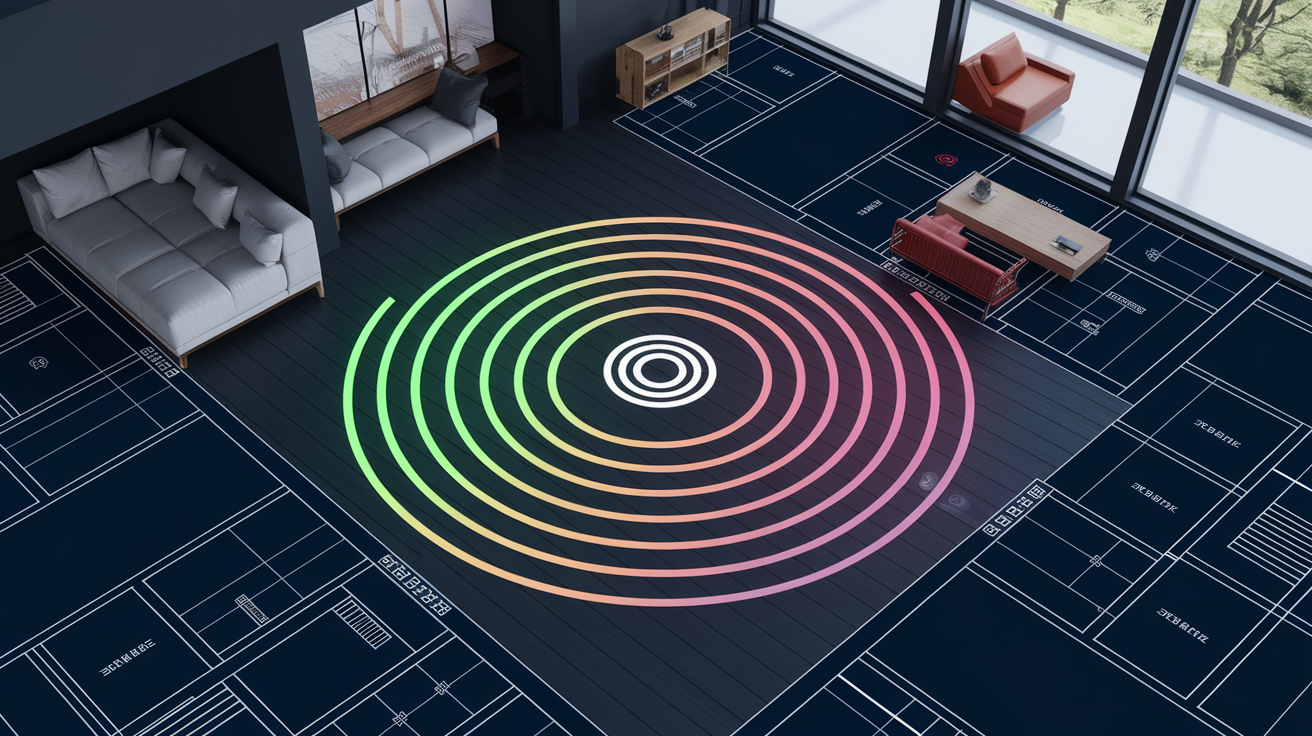
Combo units must stay wherever your ISP line enters the house. That’s often a corner room, basement utility area, or garage. Rarely the center of your home. If the combo sits in a back corner, your WiFi signal has to travel through multiple walls to reach the opposite side of the house, leading to weak coverage or dead zones in bedrooms or home offices.
Separate routers give you placement flexibility. Your modem stays at the ISP entry point, but you can run an Ethernet cable (even a long one, up to 300 feet for Cat5e or Cat6) to place the router in a central location. Centralized placement cuts the distance WiFi signals travel to reach every room, improving coverage and reducing interference from walls, appliances, and other obstacles.
Mesh network compatibility’s easier with separate routers. You can use the standalone router as the base station and add mesh satellite nodes in other areas of your home for coverage everywhere. Many combo units don’t support mesh expansion or need proprietary mesh nodes that cost more and offer fewer features. Some newer combo models advertise mesh compatibility, but the selection’s limited compared to standalone routers.
Space and looks matter if you’re working with limited room or want a clean setup. Combo units consolidate everything into one box, one power outlet, and fewer cables. Separate devices take up more space. Two devices, two power outlets, and Ethernet cables between them. If you’re in a small apartment or want minimal visible tech gear, the combo’s compact footprint is easier to manage.
Gaming Performance and Streaming Quality Considerations

Quality of Service (QoS) is critical for gaming because it tells your router to prioritize gaming traffic over other activity. When someone else in your house starts streaming 4K video while you’re in a ranked match, QoS ensures your gaming packets get through first, reducing lag spikes. Separate routers, especially gaming-focused models, offer detailed QoS settings where you can assign priority by device, application, or traffic type. Most combo units either lack QoS entirely or offer a simplified version that doesn’t give you meaningful control.
Bandwidth management for multiple simultaneous streamers follows the same idea. If three people are streaming 4K content at once, your router needs to allocate bandwidth efficiently without buffering. Advanced standalone routers handle this traffic distribution more effectively because they have more processing power and better algorithms for managing high-throughput connections. Combo units can handle casual streaming fine, but they struggle when you’re pushing the limits of your internet speed with multiple high-demand streams.
Wired connections matter for gaming and work-from-home setups. Ethernet eliminates WiFi interference and latency. Separate routers typically include four or more gigabit Ethernet ports, and higher-end models include multi-gig ports (2.5 Gbps or faster) for connecting devices that can handle those speeds. Combo units usually have two to four Ethernet ports and rarely include multi-gig options, limiting your wired connection choices.
Combo units work for casual gaming and streaming. If you’re watching Netflix occasionally or playing non-competitive games, you won’t notice performance issues. But for competitive online gaming where every millisecond of latency matters, or for households where multiple people stream, game, and video call at the same time, the limitations become obvious. Separate devices give you the overhead and control to avoid slowdowns during peak usage.
Advanced Features and Network Control Comparison
User interfaces tell you a lot about the intended audience. Combo units typically offer simplified web interfaces or mobile apps designed for people who want basic setup without diving into settings. You can change your WiFi name and password, maybe set up a guest network, and see which devices are connected. That’s about it. Separate routers, especially enthusiast models, offer detailed control over almost every aspect of your network, including band steering, transmit power, channel width, and beamforming settings.
Advanced features like VLAN support (creating virtual networks to separate devices for security or traffic management), custom DNS configuration (to use DNS services that block ads or improve privacy), and advanced QoS (with detailed rules for specific applications or devices) are rarely available on combo units. These features matter if you’re running a home office, managing smart home devices, or want tight control over network security and performance. Separate routers include these options by default or make them accessible through firmware updates.
Guest networks are common on both device types, but how they work differs. Combo units let you create a guest network, but you usually can’t control bandwidth limits, access schedules, or isolate guest devices from each other. Standalone routers let you create multiple guest networks (one per frequency band), set time limits, restrict bandwidth, and prevent guests from seeing each other on the network. That extra control matters if you’re running an Airbnb or frequently have visitors connecting devices.
Port forwarding and VPN servers are needed for remote access. If you want to access a home security camera or media server from outside your home, you need port forwarding. If you want encrypted access to your entire home network remotely, you need a VPN server. Separate routers include these features and make them relatively easy to configure. Combo units often lack VPN server functionality entirely or bury port forwarding in menus with poor documentation.
| Feature | Combo Unit | Separate Router |
|---|---|---|
| Guest network | Basic, single network | Multiple networks, full controls |
| VPN server | Rarely available | Common on mid-range and up |
| Custom firmware | Not supported | Supported on many models |
| Advanced QoS | Simplified or absent | Detailed per-device/app control |
| VLAN support | Not available | Available on most routers |
| Mesh expansion | Limited compatibility | Broad compatibility, many options |
Selecting the Right Configuration for Your Situation
The decision comes down to three primary factors. Your internet speed tier, how many devices and users share the connection, and how comfortable you are with tech setup. These factors interact. A gigabit plan doesn’t matter as much if you only have five devices and light usage, and advanced features don’t help if you’re not willing to learn how to use them.
Budget matters, but think in terms of total cost over time, not just the purchase price. Spending $250 on separate devices now and upgrading just the router for $120 in three years costs less than replacing a $180 combo unit twice over the same period.
| Consideration | Choose Combo If… | Choose Separate If… |
|---|---|---|
| Internet speed | Below 500 Mbps | 500 Mbps or higher, especially gigabit |
| Number of devices | Fewer than 10 connected devices | 15+ devices or heavy simultaneous use |
| Technical skill | Prefer plug-and-play simplicity | Comfortable with router configuration |
| Budget | Under $200 initial spend | Can invest $250-$400 for better long-term value |
| Home size | Small apartment or condo under 1,200 sq ft | Home over 1,500 sq ft or multi-story layout |
| Future plans | No plans to upgrade internet or expand network | May upgrade speed, add mesh, or need advanced features |
Combo units work well for internet plans under 500 Mbps, small living spaces like apartments or condos, users who want minimal tech interaction, tight budgets under $200, and households with fewer than 10 connected devices. If you’re a renter who moves frequently, a combo unit is one less thing to set up at each new place, and the simplified setup means you’re online faster.
Separate devices make more sense for gigabit plans (500 Mbps and above), homes larger than 1,500 square feet where WiFi coverage becomes challenging, more than 15 connected devices or multiple simultaneous users (especially gaming, streaming, or video calling), households with tech-savvy members who want control over network settings, plans to expand with mesh networks or upgrade components over time, and situations where advanced security features like VPN servers or detailed parental controls matter.
Bridge mode offers a middle path if you already have an ISP-provided combo or want to start simple and add capability later. Many combo units include a bridge mode setting that disables the router function, turning the combo into just a modem. You can then connect your own standalone router for better WiFi performance and advanced features while keeping the modem portion of the combo active. This works well if your ISP requires their modem for authentication but you want the flexibility of your own router.
Decision process:
- Check your current and planned internet speed tier. Look at your ISP bill or account page for your plan speed, and think about if you’re likely to upgrade in the next two years
- Count connected devices and simultaneous users. Include phones, laptops, tablets, smart TVs, streaming devices, smart home stuff, security cameras, and gaming consoles
- Figure out your technical comfort with configuration. If you’ve set up a WiFi router before or you’re willing to follow step-by-step guides, separate devices are manageable
- Calculate three year total cost for both options. Include purchase price, potential upgrades, and replacement costs if a component fails
- Determine if you need advanced features like VPN, detailed QoS, guest network controls, or mesh expansion. If any of these matter now or might matter soon, separate devices provide those options
Final Words
Choosing between a modem router combo vs separate devices comes down to what you actually need from your network.
Combos work well if you want simple setup, have internet under 500 Mbps, and don’t need advanced features.
Separate devices make more sense when you want better performance, plan to upgrade over time, or need control over security and network management.
Both options can handle everyday internet use. The right choice depends on your speed tier, how many devices connect at once, and whether you’re willing to spend a bit more now for flexibility later.
Start with your internet plan speed and device count, then pick the setup that fits.
FAQ
Is it better to have a modem-router combo or separate?
It is better to have separate modem and router devices if you have internet speeds above 500 Mbps, more than 15 connected devices, or need advanced features. Combos work well for basic setups under 500 Mbps with fewer devices and simpler needs.
Are modem-router combos slower?
Modem-router combos are slower than separate devices because a single processor handles both modem and routing tasks simultaneously. Separate devices use dedicated processors for each function, delivering better performance, especially on gigabit plans.
What is the purpose of a modem-router combo?
The purpose of a modem-router combo is to simplify your home network by combining two functions into one device. It connects to your ISP and distributes WiFi in a single unit with lower upfront cost and easier setup.
Do I need both a modem and router for WiFi?
You need both a modem and router for WiFi, either as separate devices or combined in a combo unit. The modem connects to your ISP, and the router creates the WiFi network that your devices connect to.
What happens if a combo unit fails?
If a combo unit fails, your entire internet connection goes down until you replace the whole device. With separate devices, only the broken component needs replacing, and you might keep partial connectivity during troubleshooting.
Can you upgrade just part of a combo unit?
You cannot upgrade just part of a combo unit because modem and router functions are integrated. With separate devices, you can upgrade only the router when new WiFi standards emerge, keeping your existing modem.
Do combo units support mesh WiFi systems?
Most combo units do not support mesh WiFi systems or offer limited compatibility. Separate routers typically work better as base stations for mesh networks, giving you more options to expand coverage in larger homes.
Which is better for gaming: combo or separate?
Separate devices are better for gaming because they offer advanced Quality of Service settings, dedicated processors for lower latency, and better traffic prioritization. Combo units work for casual gaming but lack competitive-level performance features.
Do ISPs charge rental fees for combo units?
ISPs charge rental fees for combo units, typically $10 to $15 per month. Buying your own equipment eliminates this recurring cost, and separate devices give you full control without firmware restrictions some ISP combos impose.
Can you use a combo unit in bridge mode?
You can use a combo unit in bridge mode by disabling its router function and connecting your own standalone router. This compromise keeps the modem working while giving you better router features and performance.